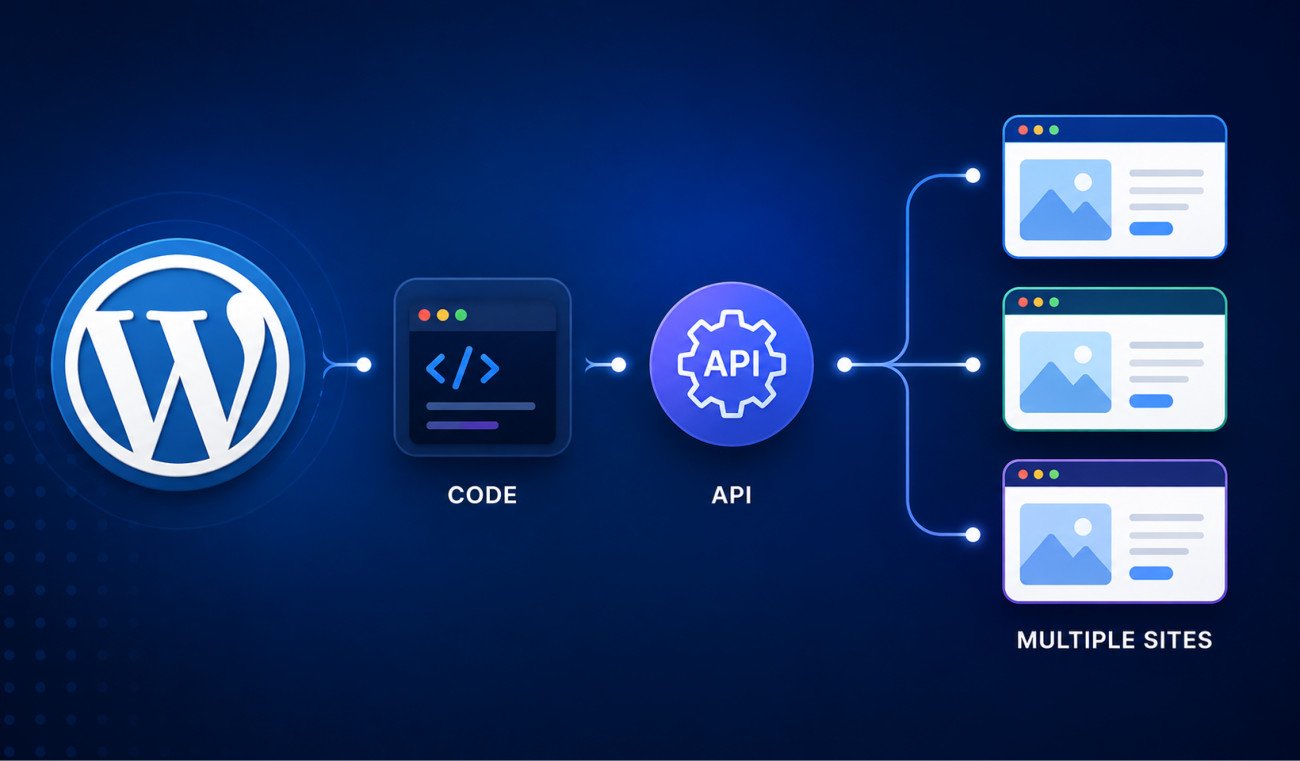
The Ultimate Beginner’s Guide to WordPress (2026): Build Your First Website Without Coding


Yes. WordPress is a free, beginner-friendly content management system (CMS) that lets you build blogs, business websites, portfolios, and online stores without coding. With a domain name, web hosting, and the right theme, you can launch your first website in just a few hours.
Starting your first website can feel overwhelming, especially if you’ve never used WordPress before. This guide explains every step in simple language so you can build your first website with confidence—even if you’ve never written a line of code.
Quick Decision Framework
Choose this guide if…
- You’re building your very first website.
- You want to learn WordPress without coding.
- You want complete ownership of your website.
- You plan to start a blog, portfolio, business website, or online store.
- You prefer beginner-friendly explanations instead of technical documentation.
This guide may not be for you if…
- You’re already an experienced WordPress developer.
- You’re looking for advanced coding tutorials.
- You only need a simple one-page website builder.
What You’ll Learn
By the end of this guide, you’ll understand how to:
- Understand what WordPress is and why millions of websites use it.
- Choose between WordPress.org and WordPress.com.
- Register the right domain name.
- Select reliable WordPress hosting.
- Install WordPress in just a few minutes.
- Navigate the WordPress Dashboard with confidence.
- Understand themes and plugins.
- Avoid the most common beginner mistakes.
- Create a strong foundation for SEO, website speed, and security.
- Know exactly what to do after launching your website.
Why Trust WebGomu?
At WebGomu, my mission is simple: make WordPress easier for beginners.
I’ve been building WordPress websites for over 10 years for businesses, freelancers, and personal projects. During that time, I’ve learned that beginners don’t struggle because WordPress is difficult—they struggle because most tutorials assume you already understand technical terms.
That’s why every guide on WebGomu is written using practical experience, real-world workflows, and beginner-friendly language.
Instead of simply telling you what to click, I’ll explain why each step matters so you can build your website with confidence instead of following instructions blindly.
💡 WebGomu Tip: Don’t worry about building the perfect website on your first day. Every successful WordPress website started as a simple website that improved over time.
What is WordPress?
WordPress is a free, open-source Content Management System (CMS) that allows you to create and manage websites without writing code.
Instead of building every webpage using HTML, CSS, JavaScript, and PHP, WordPress provides an easy-to-use dashboard where you can publish blog posts, create pages, upload images, install themes, and add new features with just a few clicks.
Today, WordPress powers more than 40% of all websites on the internet, making it the world’s most popular website platform. From personal blogs and small business websites to major news publications and online stores, millions of people choose WordPress because it’s flexible, beginner-friendly, and supported by one of the largest web development communities in the world.
Why Do So Many People Choose WordPress?
There are many website builders available today, including Wix, Squarespace, Shopify, and Webflow. While each platform has its strengths, WordPress continues to be the most popular choice because it grows with you.
You can start with a simple personal blog today and later expand it into an online store, membership website, business website, portfolio, or even a learning platform without switching to a completely different system.
Benefits of WordPress
- Beginner Friendly – You don’t need programming experience to build your first website.
- Free & Open Source – Anyone can download and use WordPress for free.
- Thousands of Themes – Customize your website’s appearance without hiring a designer.
- Over 60,000 Plugins – Add contact forms, SEO tools, backups, security, online stores, and much more.
- SEO Friendly – WordPress works well with search engines and plugins like Rank Math to help improve your visibility.
- Large Community – Millions of users and developers provide tutorials, forums, and support.
- Complete Ownership – With WordPress.org, you control your website, content, and data.
💡 WebGomu Tip: If you’re serious about blogging, freelancing, growing a business, or learning WordPress professionally, choose WordPress.org. It gives you complete ownership and flexibility, making it a much better long-term investment than most website builders.
What Can You Build With WordPress?
One of the biggest reasons WordPress is so popular is its flexibility. You’re not limited to creating just one type of website.
With the right theme and plugins, you can build almost any kind of website, including:
- Personal blogs
- Business websites
- Online portfolios
- eCommerce stores
- Restaurant websites
- Booking websites
- Membership websites
- Online courses (LMS)
- News and magazine websites
- Photography websites
- Non-profit organization websites
- Freelance portfolios
The best part is that you don’t need to decide everything on day one. You can start with a simple website and expand it as your goals grow.
WordPress.org vs WordPress.com — Which Should You Choose?
One of the first decisions every beginner needs to make is whether to use WordPress.org or WordPress.com. Although they share the same name, they’re actually two different platforms designed for different types of users.
The short answer is simple:
If you want complete control over your website and plan to grow it in the future, choose WordPress.org.
WordPress.com is easier to start with because hosting is included, but it comes with limitations on lower-tier plans. WordPress.org requires you to purchase hosting separately, but in return you get complete ownership, unlimited customization, and the freedom to install any theme or plugin you want.
| Feature | WordPress.org | WordPress.com |
|---|---|---|
| Hosting Included | ❌ No | ✅ Yes |
| Own Your Website | ✅ Yes | Limited on some plans |
| Install Any Plugin | ✅ Yes | Higher plans only |
| Install Any Theme | ✅ Yes | Limited on lower plans |
| Full Customization | ✅ Complete Control | Limited |
| Best For | Long-Term Growth | Quick Personal Websites |
For most beginners, freelancers, bloggers, and small business owners, WordPress.org is the better long-term investment. It gives you the flexibility to grow your website without needing to migrate to another platform later.
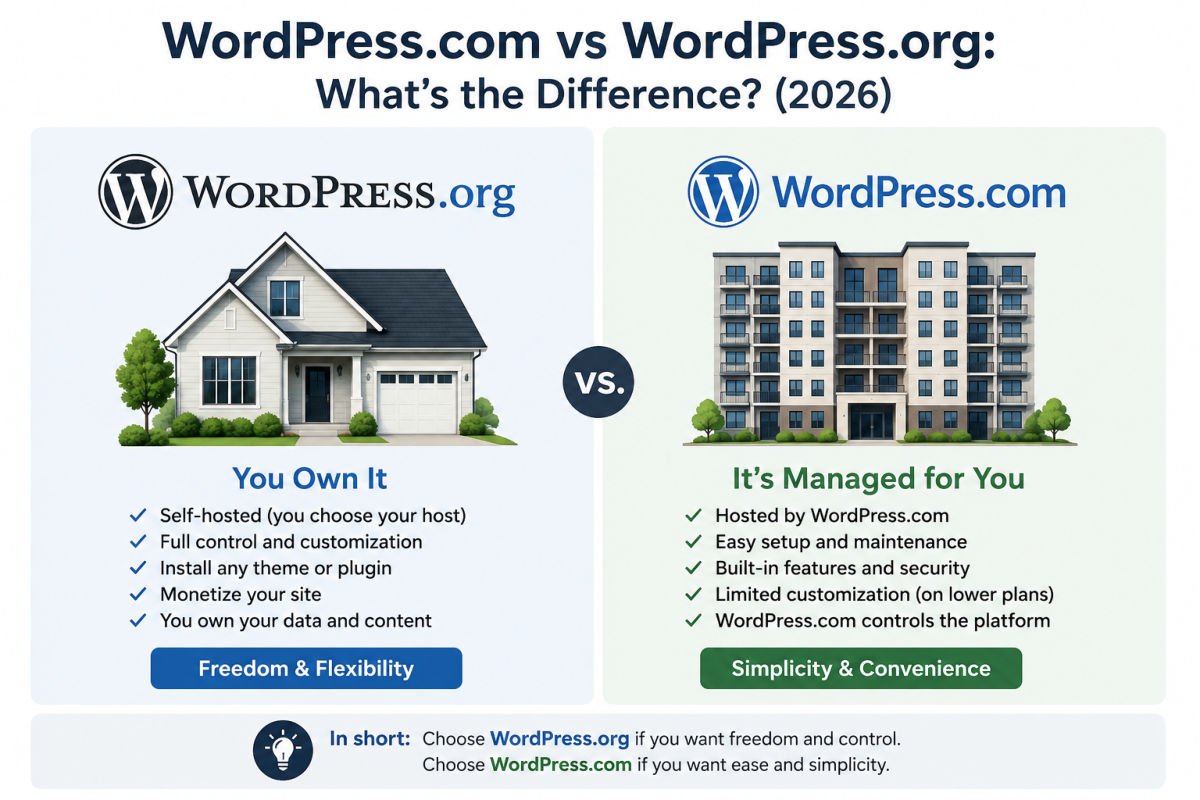
👉 Want a detailed comparison including pricing, customization, and real-world examples? Read the complete WordPress.com vs WordPress.org guide.
How Does WordPress Actually Work?
Many beginners think WordPress is the same as web hosting, but they’re completely different.
Here’s an easy way to understand how everything works together:
- Domain Name → Your website’s address (example: webgomu.com)
- Web Hosting → The computer that stores your website files.
- WordPress → The software used to manage your website.
- Theme → Controls your website’s design and layout.
- Plugins → Add extra features like contact forms, SEO, backups, or online stores.
Think of it like building a house:
- The domain name is your street address.
- The hosting is the land your house sits on.
- WordPress is the house itself.
- The theme is the paint, flooring, and furniture.
- Plugins are the appliances and additional features you install.
Understanding these five pieces makes learning WordPress much easier because you’ll know what each part is responsible for.
What Do You Need Before Building a WordPress Website?
Before installing WordPress, you’ll need three things:
- A domain name
- Web hosting
- A simple plan for your website
Let’s look at each one.
1. Choose a Domain Name
Your domain name is your website’s address on the internet.
example.comA good domain name should be:
- Short and memorable
- Easy to spell
- Easy to pronounce
- Relevant to your brand or business
- Avoid numbers and hyphens whenever possible
If you’re creating a personal brand, using your own name can be a great choice. If you’re building a business, choose something that clearly represents your products or services.
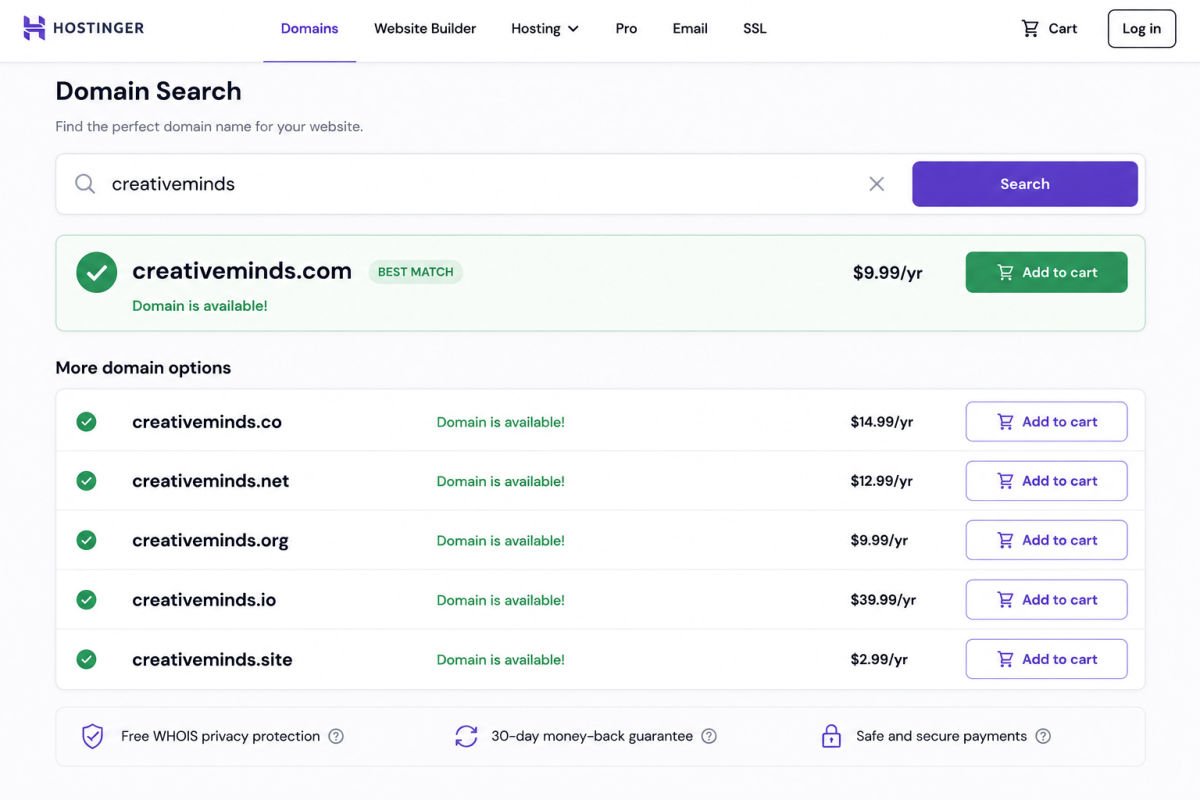
👉 Read the complete guide: How to Choose a Domain Name for Your Website.
💡 WebGomu Tip
Don’t spend weeks searching for the “perfect” domain name. A good name with great content will almost always outperform a perfect name with poor content.
2. Choose Reliable WordPress Hosting
Your hosting provider stores all of your website files and makes them available whenever someone visits your site.
Choosing quality hosting is one of the most important decisions you’ll make because it directly affects your website’s speed, security, and reliability.
When comparing hosting providers, look for these essential features:
- SSD or NVMe storage
- Free SSL certificate
- Automatic backups
- One-click WordPress installation
- 24/7 customer support
- Good performance and uptime
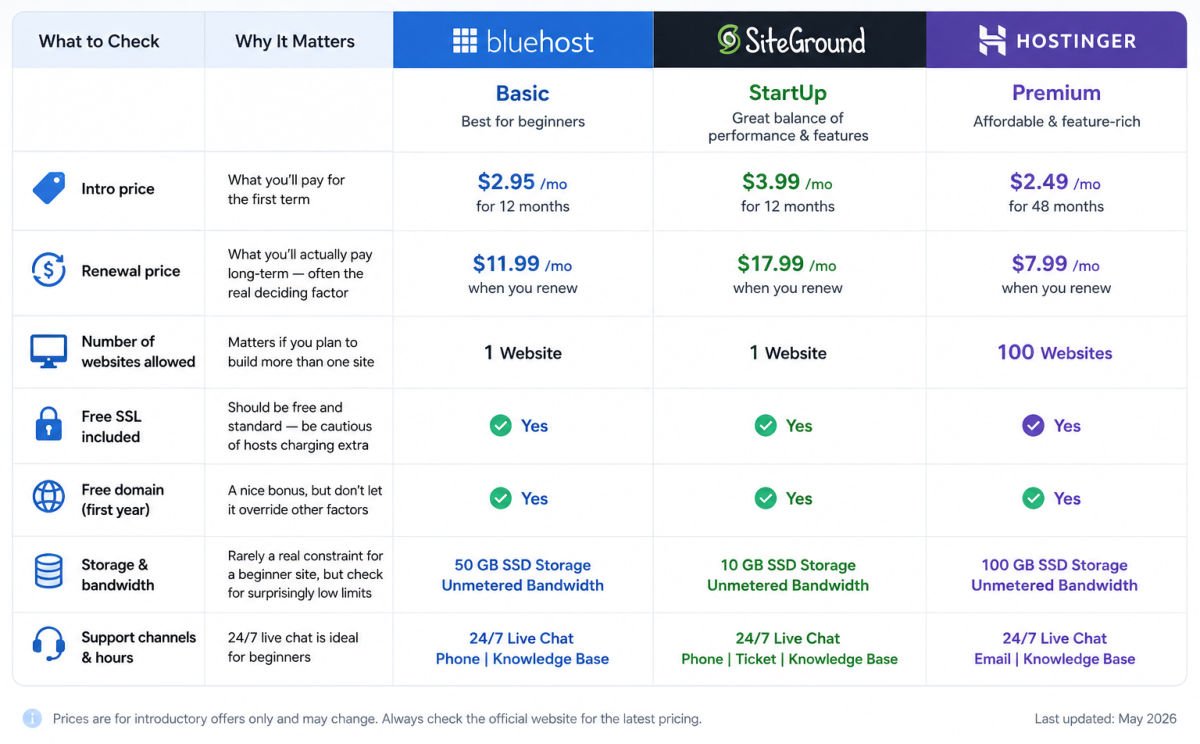
👉 Need help choosing? Read the Beginner’s Guide to WordPress Hosting.
💡 WebGomu Tip
One of the biggest mistakes beginners make is choosing hosting based only on the cheapest introductory price. Always compare the renewal price, included features, performance, and support—not just the first-year discount.
How Much Does a WordPress Website Cost?
One of the biggest misconceptions is that building a website costs thousands of dollars.
For most beginners, it doesn’t.
| Item | Typical Cost |
|---|---|
| WordPress Software | Free |
| Domain Name | $10–20/year |
| Hosting | $2–10/month (introductory pricing varies) |
| Premium Theme (Optional) | $0–60 |
| Premium Plugins (Optional) | $0–100+ |
You can build an excellent beginner website using free themes and plugins, then upgrade later as your website grows.
👉 Want the full cost breakdown, including ongoing and hidden costs? Read the complete guide to WordPress website costs.
3. Install WordPress
Once you’ve purchased hosting, installing WordPress usually takes less than five minutes.
Most hosting providers include a one-click WordPress installer that automatically configures everything for you.
After installation, you’ll log in using:
https://yourdomain.com/wp-adminThis is where you’ll manage your entire website, publish content, customize your design, install plugins, and configure settings.
👉 Want the full step-by-step walkthrough, including manual and local installation methods? Read the complete WordPress installation guide.
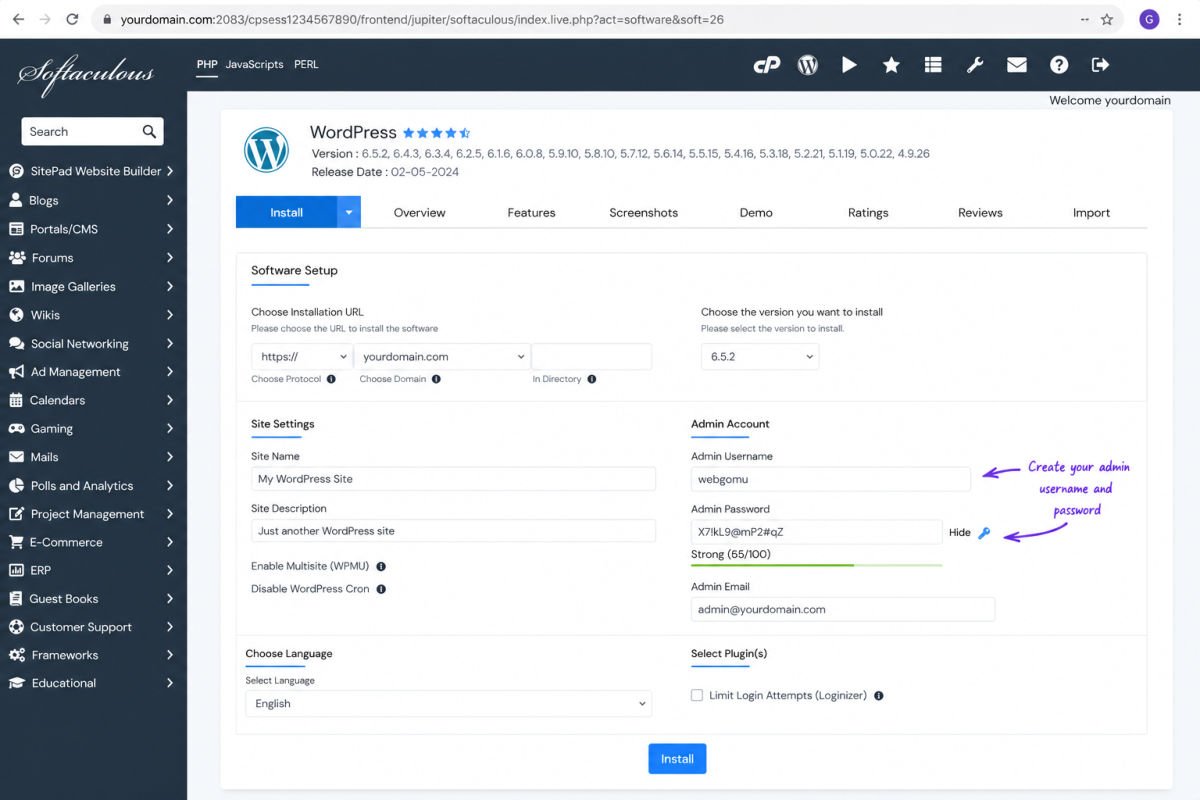
💡 WebGomu Tip: When creating your administrator account, avoid using “admin” as your username. Choose a unique username and a strong password to improve your website’s security from the start.
How Long Does It Take to Build a WordPress Website?
Many beginners are surprised by how quickly they can get a website online.
| Task | Estimated Time |
|---|---|
| Purchase Hosting & Domain | 10–20 minutes |
| Install WordPress | 5 minutes |
| Choose a Theme | 15–30 minutes |
| Install Essential Plugins | 15 minutes |
| Create Core Pages | 30–60 minutes |
| Publish Your First Website | 2–4 hours |
Remember, launching your website is only the beginning. The best websites are improved gradually over time by adding helpful content, learning basic SEO, and continuously refining the user experience.
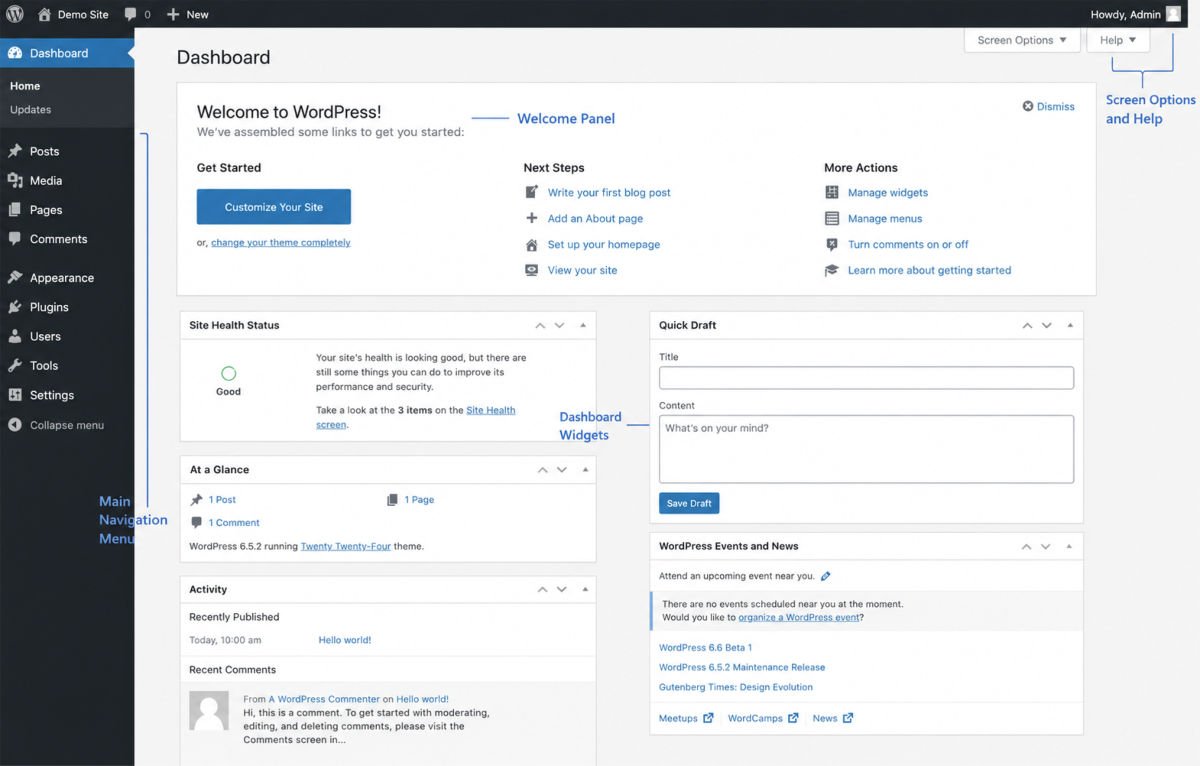
WordPress Dashboard — A Beginner’s Tour
Congratulations! You’ve installed WordPress and logged in for the first time.
The WordPress Dashboard is the control center of your entire website. This is where you’ll create content, customize your design, install plugins, manage users, and configure your website’s settings.
At first glance, the dashboard may seem overwhelming because there are many menu items. Don’t worry—you won’t use all of them every day. Let’s look at the most important sections every beginner should know.
Posts
Posts are used for publishing blog articles.
If you plan to write tutorials, news, updates, or any content that will be published regularly, you’ll create Posts.
Examples include:
- How-to guides
- News articles
- Reviews
- SEO tutorials
- Announcements
Pages
Pages are for content that rarely changes.
Most websites have pages such as:
- Home
- About
- Contact
- Privacy Policy
- Services
Unlike blog posts, pages aren’t organized by categories or displayed chronologically.
Media
The Media Library stores all the images, PDFs, videos, and other files you upload to your website.
Keeping your images organized makes creating future content much easier.
Comments
If your website allows comments, this section lets you approve, reply to, or remove comments from visitors.
Checking comments regularly also helps reduce spam.
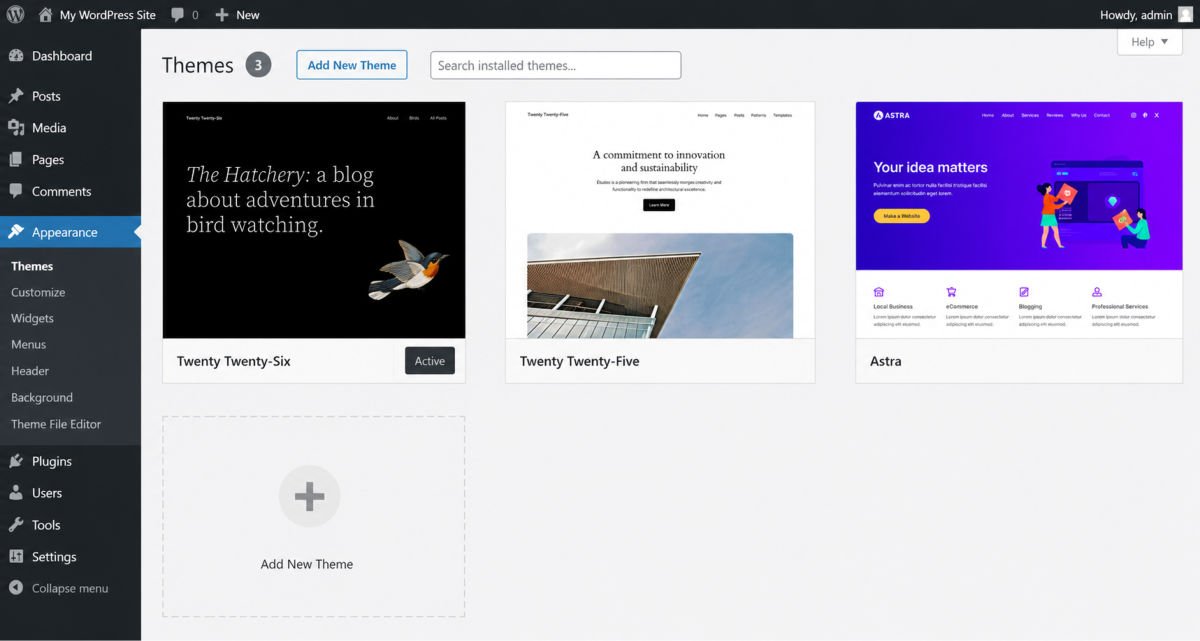
Appearance
This is where you’ll customize your website’s design.
Depending on your theme, you’ll find options for:
- Themes
- Site Editor
- Menus
- Widgets
- Customize (Classic Themes)
Most beginners spend a lot of time here while building their website.
Plugins
Plugins add new features to WordPress without requiring code.
For example, plugins can help you:
- Improve SEO
- Create contact forms
- Speed up your website
- Protect against hackers
- Create online stores
- Automatically back up your website
Users
If multiple people manage your website, this section lets you create accounts with different permissions.
For example:
- Administrator
- Editor
- Author
- Contributor
Tools
The Tools section includes import and export options along with other maintenance features. Most beginners won’t need this often, but it’s useful if you’re migrating a website.
Settings
This is one of the most important sections.
Here you’ll configure:
- Website title
- Tagline
- Timezone
- Permalinks
- Reading settings
- Discussion settings
One of the first things you should do after installing WordPress is change your permalink structure to Post Name, which creates cleaner, more SEO-friendly URLs.
👉 Want a complete walkthrough? Read the WordPress Dashboard Tour for Beginners.
💡 WebGomu Tip: You don’t need to master every dashboard menu on your first day. Focus on learning Posts, Pages, Appearance, Plugins, and Settings first. The rest will become familiar as your website grows.
Themes vs Plugins — What’s the Difference?
One of the biggest points of confusion for beginners is understanding the difference between themes and plugins.
Here’s an easy way to remember it:
- Themes control how your website looks.
- Plugins control what your website can do.
| Theme | Plugin |
|---|---|
| Controls design | Adds new features |
| Layout | SEO |
| Typography | Contact Forms |
| Colors | Backups |
| Headers & Footers | Security |
| Templates | Performance |
A good theme gives your website a professional appearance, while carefully chosen plugins help improve its functionality.
Recommended Beginner Themes
- Astra
- Kadence
- GeneratePress
Recommended Beginner Plugins
- Rank Math (SEO)
- LiteSpeed Cache (Performance)
- WPForms (Contact Forms)
- UpdraftPlus (Backups)
- Wordfence (Security)
💡 WebGomu Tip
After building WordPress websites for many years, I’ve found that beginners often install 20–30 plugins because they think “more features are better.” In reality, using fewer, high-quality plugins usually results in a faster, more reliable, and easier-to-maintain website.
What Should You Do Immediately After Installing WordPress?
Installing WordPress is only the first step. Before you start designing your website, take a few minutes to complete these essential setup tasks.
Launch Checklist
- ✅ Change your website title and tagline.
- ✅ Configure your timezone.
- ✅ Change your permalink structure to “Post Name.”
- ✅ Delete the default “Hello World” post.
- ✅ Delete the sample page.
- ✅ Remove unused themes.
- ✅ Install your preferred lightweight theme.
- ✅ Install essential plugins.
- ✅ Enable SSL (HTTPS).
- ✅ Upload your website logo.
- ✅ Create your homepage.
- ✅ Create your Contact page.
- ✅ Create your Privacy Policy page.
- ✅ Create your navigation menu.
- ✅ Upload a favicon.
Completing these tasks gives you a solid foundation before you begin creating content.
Common Mistakes Beginners Make
Everyone makes mistakes when learning WordPress—including me. The good news is that most of them are easy to avoid once you know what to watch for.
1. Choosing Hosting Based Only on Price
Cheap hosting often leads to slow loading times, poor support, and unexpected renewal costs. Choose a hosting provider based on reliability and value—not just the lowest introductory price. See the Bluehost vs SiteGround comparison for a real example of how renewal pricing can catch beginners off guard.
2. Installing Too Many Plugins
Only install plugins that solve a real problem. Too many plugins can increase maintenance and create compatibility issues.
3. Ignoring Website Backups
Backups protect your website from accidental mistakes, malware, or server issues. Always keep recent backups before making major changes. See the complete backup guide to get started.
4. Skipping Basic SEO
Publishing great content is important, but learning basic SEO helps people actually find your website through search engines. The complete WordPress SEO checklist covers everything you need.
5. Constantly Changing Themes
Many beginners spend weeks switching themes instead of creating content. Pick a lightweight theme you like, customize it gradually, and focus on publishing helpful content.
💡 From My Experience: The most successful websites I’ve built weren’t the ones with the fanciest designs—they were the ones that consistently published useful content. Your first visitors care much more about helpful information than perfect animations or flashy layouts.
Recommended Beginner Tools
| Tool | Purpose | Why It’s Useful |
|---|---|---|
| Rank Math | SEO | Optimize your pages for Google. |
| LiteSpeed Cache | Performance | Improve loading speed. |
| WPForms | Forms | Create contact forms easily. |
| UpdraftPlus | Backups | Automatically back up your website. |
| Wordfence | Security | Protect your website against threats. |
Key Takeaways
If you only remember a few things from this guide, let them be these:
- ✅ WordPress is beginner-friendly and doesn’t require coding skills.
- ✅ WordPress.org gives you complete ownership and flexibility.
- ✅ A reliable hosting provider is more important than choosing dozens of plugins.
- ✅ Lightweight themes and quality plugins create a faster, more secure website.
- ✅ Focus on publishing helpful content instead of chasing a perfect design.
- ✅ Your website will improve over time—the important part is getting started.
💡 Final WebGomu Tip: Don’t compare your first website to someone else’s tenth. Every experienced WordPress user started exactly where you are today. Learn one step at a time, publish consistently, and your skills will naturally improve with every website you build.
What’s Next? Continue Your WordPress Journey
Congratulations! You now understand the fundamentals of WordPress.
The next step is to build on that foundation. Here’s the learning path I recommend for every beginner:
Choose the Right Domain Name
Learn how to choose a memorable domain that fits your brand.
👉 How to Choose a Domain Name
Choose Reliable WordPress Hosting
Compare hosting providers and avoid expensive renewal surprises.
👉 Best WordPress Hosting for Beginners
Understand the WordPress Dashboard
Take a complete tour of every important dashboard menu.
👉 WordPress Dashboard Tour
Choose the Right Theme
Learn how to pick a lightweight, beginner-friendly WordPress theme.
👉 How to Choose the Right WordPress Theme
Learn the Difference Between WordPress.org and WordPress.com
Understand which platform is right for your goals.
👉 WordPress.org vs WordPress.com
Build Your SEO Foundation
Get your new site found on Google with a complete, beginner-friendly checklist.
👉 The Complete WordPress SEO Checklist
Secure Your Website From Day One
Protect your site before it ever needs protecting.
👉 WordPress Security Basics
Explore AI Tools for WordPress
See how AI can help you write, optimize, and manage your site faster.
👉 How to Use AI with WordPress
Following this roadmap will give you a strong foundation before moving on to more advanced topics like SEO, website performance, security, and creating online stores.
Frequently Asked Questions
Is WordPress really free?
Yes. WordPress itself is free and open-source software. However, if you’re using WordPress.org, you’ll still need a domain name and web hosting to make your website available online.
Do I need coding skills to use WordPress?
No. Most WordPress users build websites without writing a single line of code. Modern themes, plugins, and the Block Editor make website creation much easier than it was years ago.
How long does it take to learn WordPress?
Most beginners become comfortable with the basics within a few days. Learning advanced customization and website optimization may take longer, but you can build your first website in just a few hours.
Can I change my WordPress theme later?
Yes. You can switch themes whenever you want. However, changing themes frequently can require redesigning parts of your website, so it’s best to choose a lightweight theme you’re happy with from the beginning.
Can I make money with WordPress?
Absolutely. Many people use WordPress to create blogs, affiliate websites, online stores, membership websites, online courses, and freelance businesses.
How many plugins should I install?
There isn’t a perfect number. Instead of installing dozens of plugins, only install high-quality plugins that solve a specific problem. A smaller collection of trusted plugins is usually better for performance and maintenance.
Is WordPress good for SEO?
Yes. WordPress is one of the most SEO-friendly website platforms available. Combined with an SEO plugin like Rank Math and high-quality content, it provides an excellent foundation for improving your visibility in search engines.
What’s the difference between Posts and Pages?
Posts are used for regularly published content like blog articles, while Pages are used for permanent content such as your About, Contact, Services, or Privacy Policy pages.
How often should I update WordPress?
You should install WordPress core, theme, and plugin updates regularly. Updates often include important security patches, bug fixes, and performance improvements.
Can I build an online store with WordPress?
Yes. By installing WooCommerce, you can transform your WordPress website into a fully featured online store capable of selling physical or digital products.
Should I choose a free or premium theme?
Many free themes like Astra, Kadence, and GeneratePress are excellent starting points. As your website grows, you can decide whether premium features are worth upgrading for.
What is the biggest mistake beginners make?
From my experience, the biggest mistake isn’t choosing the wrong theme—it’s delaying the launch while trying to make everything perfect. Publishing your website and improving it over time is almost always the better approach.
Final Thoughts
Building your first website may seem intimidating, but every successful website started with someone taking that first step.
You don’t need to know everything about WordPress before you begin. Learn the basics, build your website, make mistakes, and improve as you gain experience. That’s exactly how most WordPress professionals—including me—learned.
Over the past decade of building WordPress websites, I’ve found that consistent learning beats perfection every time. The websites that succeed aren’t always the most beautiful—they’re the ones that continue publishing valuable content and improving over time.
Whether your goal is to start a personal blog, launch a business website, build an online portfolio, or create an eCommerce store, WordPress gives you the flexibility to grow without starting over.
At WebGomu, my mission is to simplify WordPress for beginners through practical, easy-to-follow tutorials based on real-world experience. I hope this guide gives you the confidence to take the next step and build something you’re proud of.
Welcome to WebGomu—let’s build something amazing together. 🚀
Author:

Christoper Enolpe
Founder of WebGomu • WordPress Freelancer with 10+ Years of Experience
Christoper is the founder of WebGomu and a WordPress freelancer with over 10 years of hands-on experience building, optimizing, and maintaining WordPress websites. He writes practical, beginner-friendly guides based on real-world experience, covering WordPress, SEO, website performance, and AI tools to help readers build better websites with confidence.
Learn more: https://webgomu.com/about/
Get one WordPress tip every week
Start Here
The Ultimate Beginner’s Guide to WordPress (2026): Build Your First Website Without Coding
Popular Guides
Our Partner

More from the blog
WPCode Review 2026: The Safe Way to Add Custom Code
WordPress REST API Explained: A Beginner’s Guide (2026)