WordPress Security Basics: How to Protect Your Site

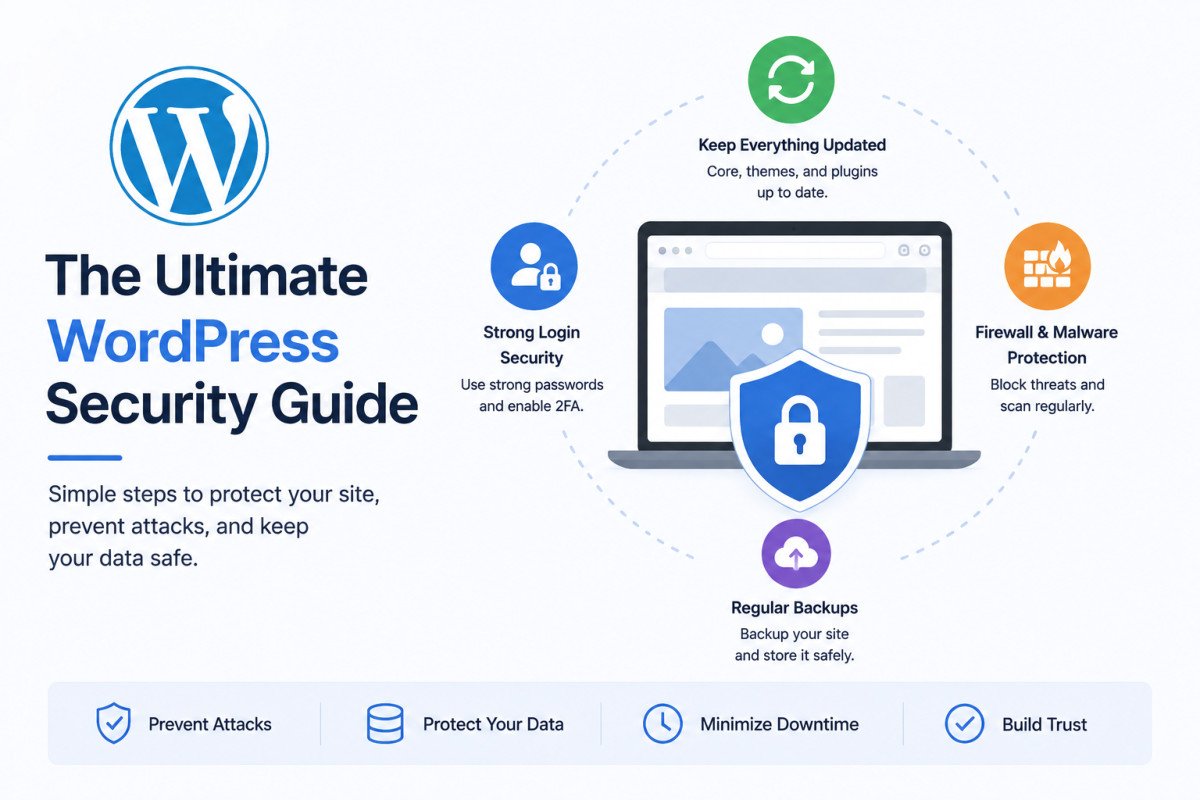
To protect a WordPress site, keep WordPress core, themes, and plugins updated, use a strong unique password with two-factor authentication, limit login attempts, install a trusted security plugin like Wordfence or Sucuri, enforce HTTPS across your entire site, and keep regular backups. Most attacks target outdated plugins and weak logins, not WordPress itself, so these basics cover the vast majority of real-world risk.
Before You Start
Make sure you have the following in place first:
- Administrator access to your WordPress dashboard
- A password manager, or at least a plan for creating a strong, unique admin password
- A recent backup of your site, in case any changes need to be undone
WordPress powers a huge share of the internet, which makes it a constant target for automated bots scanning for weak points. That sounds alarming, but here’s the reassuring part. Most successful attacks aren’t sophisticated. They exploit basic gaps like outdated plugins or weak passwords, which means solid basics prevent the overwhelming majority of real threats.
This guide walks through exactly what those basics are, in order of priority.
What You’ll Learn
- Why most WordPress security issues come from plugins and themes, not core
- The specific steps that prevent the majority of common attacks
- Which security plugin fits your situation
- How to recognize the warning signs if your site has already been compromised
Where WordPress Security Risk Actually Comes From
WordPress core itself is maintained by a large, active team and reviewed constantly by the open-source community. The real risk sits elsewhere: outdated plugins and themes, weak or reused passwords, and unmonitored sites where nobody notices a problem until it’s already serious. Understanding this changes how you prioritize. Keeping your plugins updated and your login secure matters more than any exotic, advanced security setting.
1. Keep Everything Updated
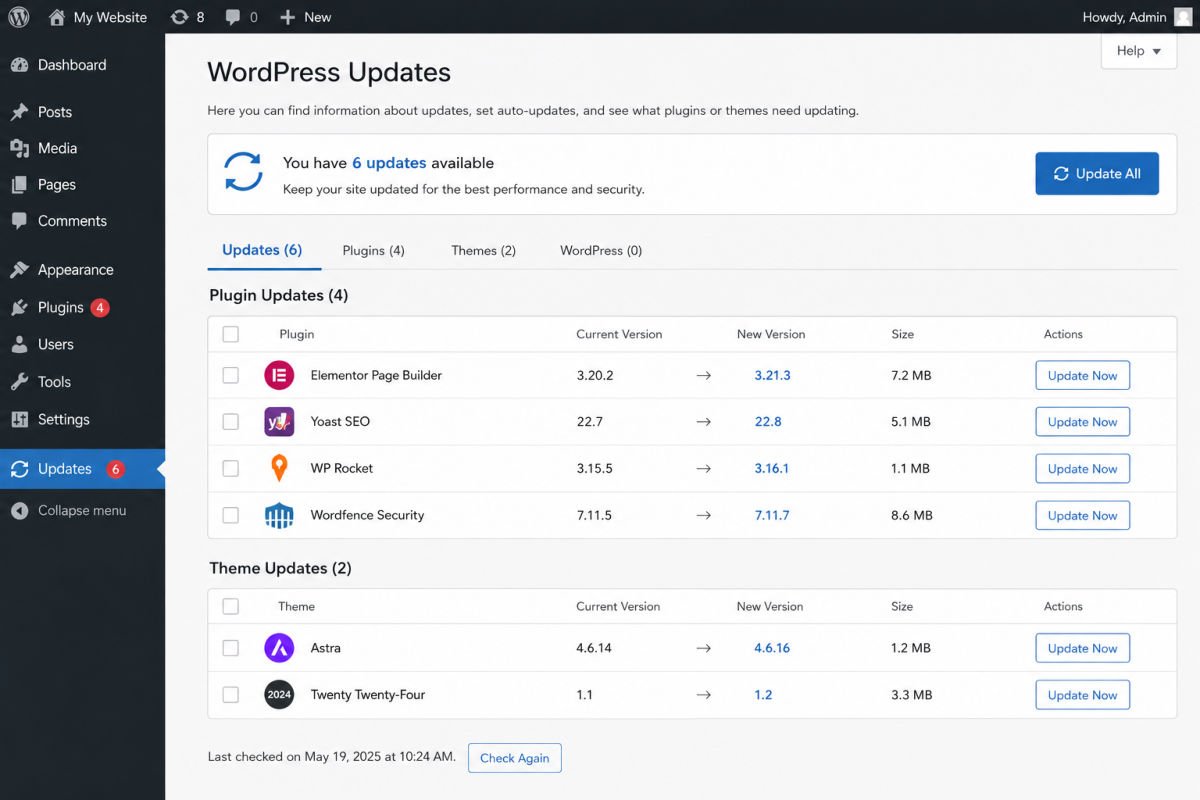
This is the single highest-impact habit. Outdated plugins and themes are the most common entry point for attacks, since known vulnerabilities in old versions are publicly documented and actively scanned for by bots.
- Enable automatic updates for WordPress core under Dashboard → Updates, if not already active
- Update plugins and themes regularly, ideally within a few days of a new release
- Remove any plugins or themes you’re not actively using. Even inactive ones can carry vulnerabilities
2. Strengthen Your Login
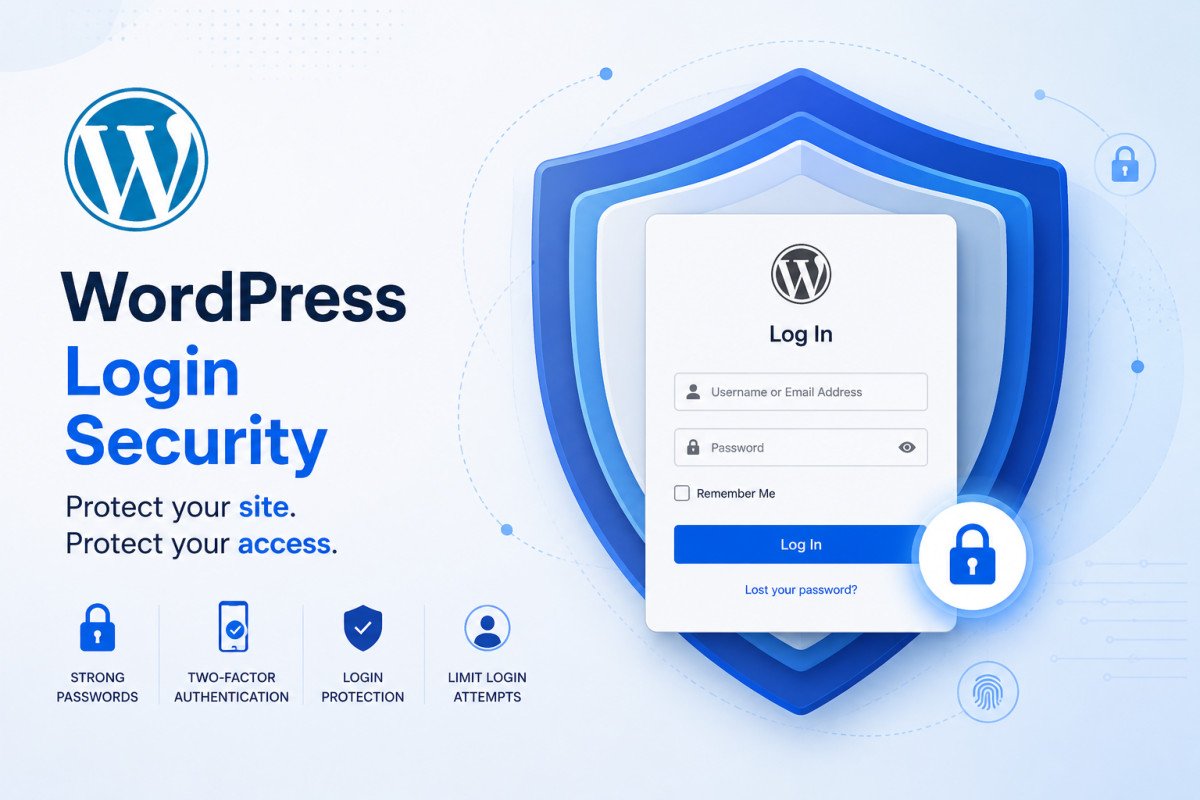
Your login page is one of the most targeted areas of any WordPress site. Strengthen it with these layers:
- Use a strong, unique password. Avoid reusing a password from another site.
- Enable two-factor authentication (2FA). Most security plugins include this, requiring a second code from your phone at login.
- Limit login attempts. This blocks automated bots from repeatedly guessing passwords.
- Avoid the username “admin.” It’s the first guess in most automated attacks.
WebGomu Tip: Changing your login page’s default URL (from /wp-admin to something custom) adds a small extra layer of protection by hiding your login page from casual automated scans. It’s not a replacement for the steps above, just an added layer.
3. Install a Trusted Security Plugin
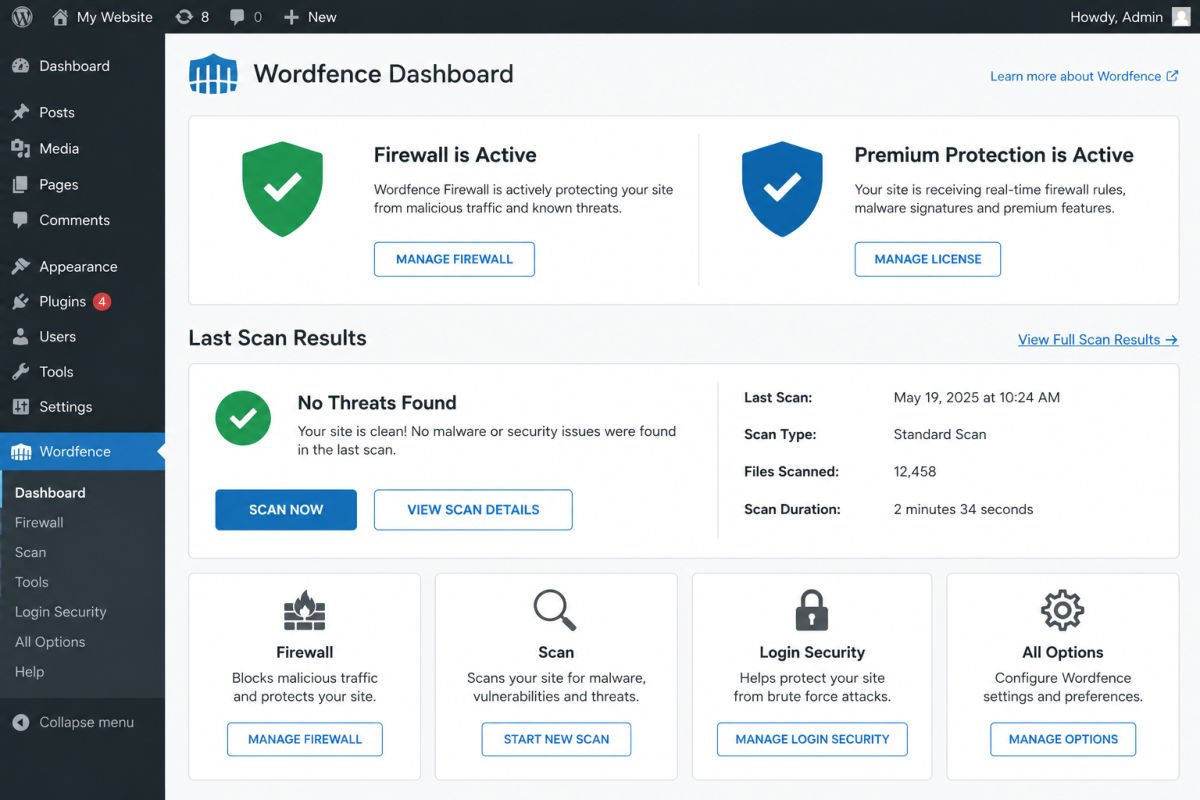
A dedicated security plugin bundles most of these protections into one place: firewall protection, malware scanning, and login hardening.
| Plugin | Known For | Price |
|---|---|---|
| Wordfence | Firewall protection and malware scanning | Free (Premium optional) |
| Sucuri | Website monitoring and cleanup services | Free (Pro optional) |
| MalCare | Automated malware removal, beginner-friendly interface | Paid, free trial available |
For most beginners, Wordfence’s free tier is a solid, well-established starting point. If your site handles sensitive customer data or revenue, a paid option with guaranteed cleanup support is worth the investment.
4. Enforce HTTPS Across Your Entire Site
If your site isn’t fully on HTTPS by now, that’s a real gap. Most hosts provide a free SSL certificate. See our SSL certificate guide for the exact setup steps. Once enabled, confirm HTTPS is enforced everywhere, including your login page, not just your homepage.
5. Keep Regular Backups
Even with strong defenses, backups are your real safety net. See our backup guide for setup. Blogs and low-change sites can generally get by with weekly backups, while ecommerce or membership sites should back up daily to avoid losing order or customer data.
Signs Your Site May Already Be Compromised
Watch for these warning signs:
- Unexpected redirects when visitors load your site
- New admin users you didn’t create
- Unfamiliar files appearing in your file directory
- Sudden, unexplained slow performance
- Search engine warnings or a drop in traffic
If you notice any of these, run an immediate scan with your security plugin, and restore from a clean backup if a scan confirms a compromise.
Common Mistakes
- Delaying plugin and theme updates, leaving known vulnerabilities open longer than necessary.
- Reusing the same password across multiple sites or services.
- Assuming a security plugin alone is enough without also maintaining strong passwords and regular updates.
- Keeping unused plugins or themes installed instead of deleting them.
- Treating security as a one-time setup rather than an ongoing habit.
Recommended Tools
- Wordfence — solid free firewall and malware scanning for most beginner sites
- Sucuri — strong option if monitoring and professional cleanup support matter most to you
- A password manager — makes strong, unique passwords realistic to maintain long-term
Key Takeaways
- Most WordPress security issues come from outdated plugins and weak logins, not WordPress core itself.
- Updates, strong passwords, 2FA, and a security plugin cover the majority of real-world risk.
- HTTPS should be enforced across your entire site, including login pages.
- Security is an ongoing habit, not a one-time setup.
Frequently Asked Questions
Is WordPress itself insecure?
No. WordPress core is actively maintained and reviewed by a large open-source community. Most real-world issues come from outdated plugins, themes, or weak account security, not the core software.
Are small websites really targets for hackers?
Yes. Small sites are frequently targeted by automated bots looking for outdated software or weak logins, since they’re often less protected than larger, actively managed sites.
Are free security plugins good enough?
Free plugins provide solid basic protection suitable for personal blogs and small sites. Business sites handling sensitive data or revenue may benefit from a paid plan with guaranteed support and more advanced features.
How often should I back up my WordPress site?
It depends on how often your site changes. Blogs can often get by with weekly backups, while ecommerce or membership sites should generally back up daily.
What should I do if I think my site has been hacked?
Run an immediate scan with your security plugin, change all passwords, and restore from a clean backup if the scan confirms a compromise. Contact your hosting provider’s support if you need additional help.
Resources Links
Author:

Christoper Enolpe
Founder of WebGomu • WordPress Freelancer with 10+ Years of Experience
Christoper is the founder of WebGomu and a WordPress freelancer with over 10 years of hands-on experience building, optimizing, and maintaining WordPress websites. He writes practical, beginner-friendly guides based on real-world experience, covering WordPress, SEO, website performance, and AI tools to help readers build better websites with confidence.
Learn more: https://webgomu.com/about/
Get one WordPress tip every week
Start Here

The Ultimate Beginner’s Guide to WordPress (2026): Build Your First Website Without Coding
Popular Guides
Our Partner

More from the blog
The Ultimate WordPress Speed Optimization Guide (2026)
The Ultimate WordPress Security Guide (2026)