How to Speed Up a Slow WordPress Website (2026 Guide)

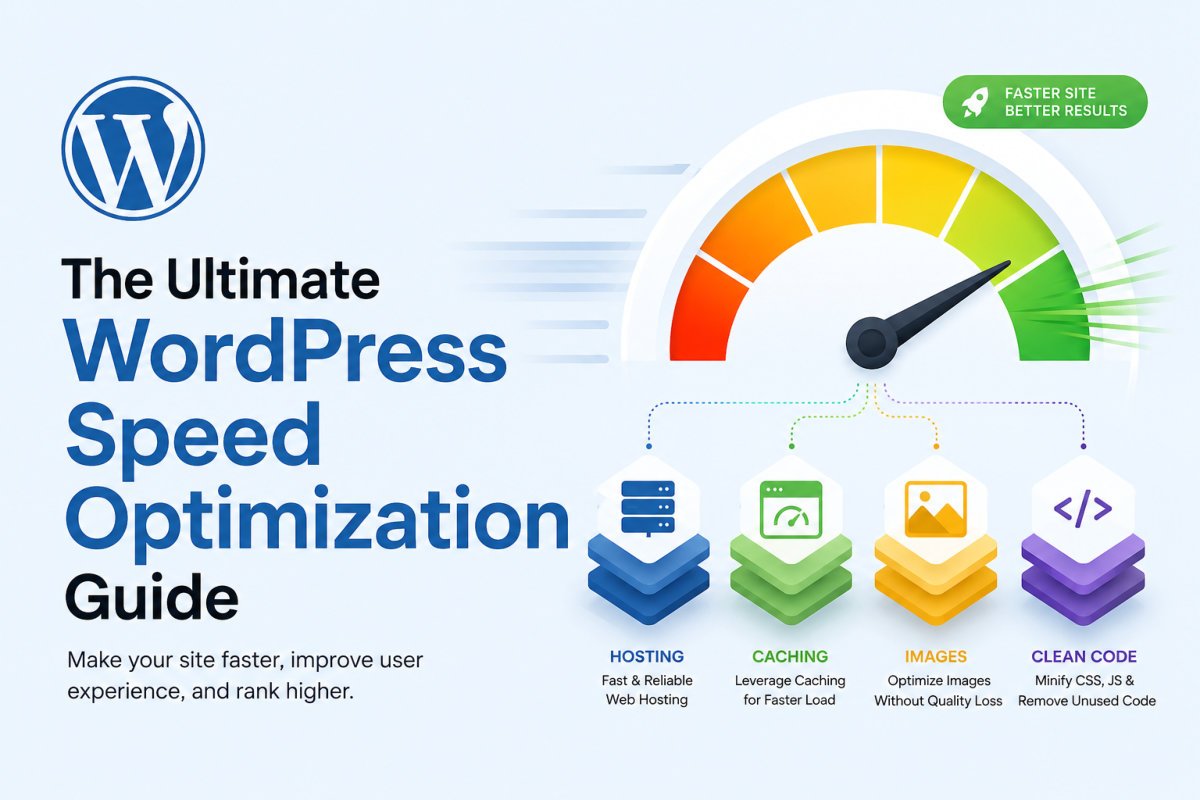
To speed up a slow WordPress site, start with quality hosting, install a caching plugin, compress and convert images to WebP, remove unused plugins, and clean up database bloat. These five changes address the most common causes of slow WordPress sites and typically produce noticeable improvements without needing any coding knowledge.
Before You Start
Make sure you have the following in place first:
- Administrator access to your WordPress dashboard
- A recent backup, in case any plugin changes need to be undone (see our backup guide)
- A baseline speed test result, so you can measure whether your changes actually helped
A slow site frustrates visitors, increases bounce rate, and can hurt your search rankings. It’s also one of the most common complaints from beginners once their site has been live for a while and accumulated a few plugins and images.
The good news: WordPress itself isn’t inherently slow. Most slowdowns come from what gets added on top of it, which means most problems are genuinely fixable.
What You’ll Learn
- How to establish a speed baseline before making changes
- The five changes that fix most slow WordPress sites
- Which testing tools to use, and how they differ
- How to troubleshoot if speed doesn’t improve after these steps
Step 1: Measure Your Current Speed First
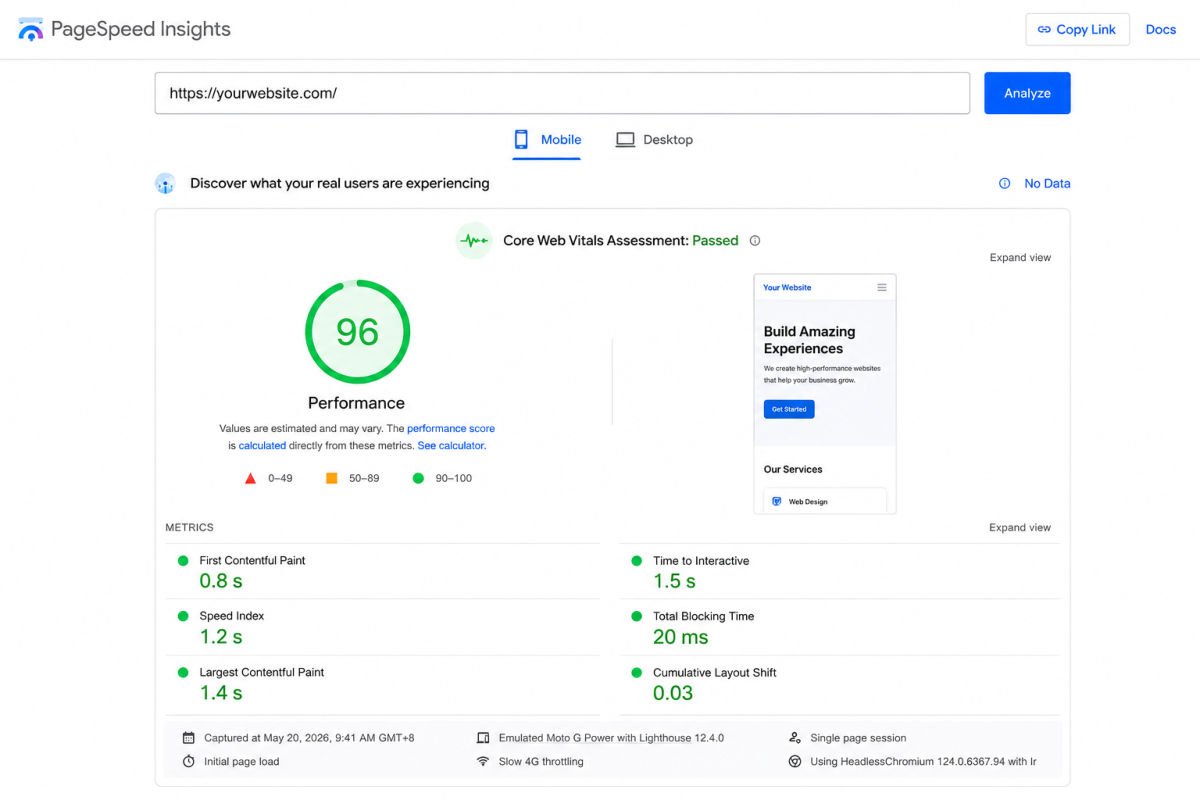
Before changing anything, test your homepage and a couple of key inner pages so you have a baseline to compare against later.
| Tool | Best For | Cost |
|---|---|---|
| Google PageSpeed Insights | Quick check plus Core Web Vitals scoring | Free |
| GTmetrix | More detailed waterfall breakdown of what’s loading slowly | Free tier available |
Step 2: Start With Hosting
No amount of caching or image compression fully compensates for slow hosting. If you’re on very cheap shared hosting and seeing consistently slow load times across your whole site, that’s often the actual root cause. See our hosting guide if you suspect this applies to you.
Step 3: Install a Caching Plugin
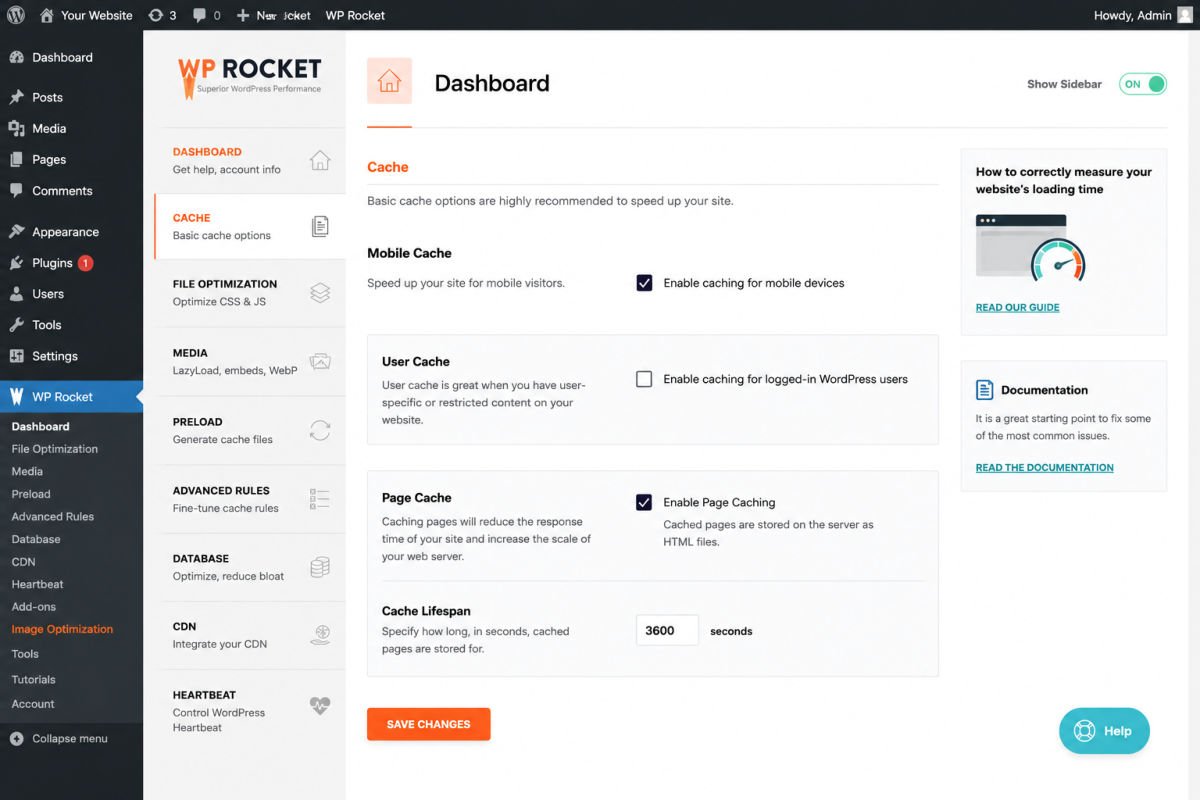
Caching stores a ready-to-serve version of your pages, so WordPress doesn’t have to rebuild them from scratch for every visitor. This is usually the single biggest improvement you can make through a plugin alone.
- Go to Plugins → Add New Plugin.
- Search for a reputable caching plugin (check with your host first, since some hosts recommend a specific one that pairs best with their setup).
- Install, activate, and follow the plugin’s setup wizard to enable basic caching.
Step 4: Optimize Your Images
Large, unoptimized images are one of the most common causes of slow pages. Modern formats like WebP compress noticeably smaller than JPG at comparable quality, with no visible difference for most photos.
- Install an image optimization plugin from the WordPress plugin directory.
- Run a bulk optimization pass on your existing media library.
- Enable automatic compression so future uploads are optimized by default.
WebGomu Tip: Resize images before uploading them, not just after. A photo straight from a phone camera can be several times larger than what your site actually displays. Resizing first, then letting your plugin compress it further, gives the best result.
Step 5: Audit and Reduce Plugins
Every active plugin adds some processing overhead. Sites accumulating a large number of plugins commonly develop measurable slowdowns, especially when several overlap in function. Deactivate plugins one at a time and re-test your speed, so you can identify which ones are actually having a noticeable impact.
Step 6: Clean Up Your Database
Over time, WordPress databases accumulate leftover data such as old post revisions and expired temporary data from plugins. This bloat can slow down queries. A free plugin like WP-Optimize cleans this up safely, without needing to touch anything manually, and can be scheduled to run automatically.
Troubleshooting
I made all these changes and my site is still slow
Re-run your speed test and compare it to your baseline. If there’s little to no improvement, hosting quality is the most likely remaining factor, since it sets a floor that other optimizations can’t fully overcome.
My site got faster on desktop but not mobile
Mobile performance depends heavily on image sizing and whether your caching plugin supports separate mobile caching. Check your caching plugin’s documentation for a mobile-specific caching setting.
A page looks broken after enabling caching or image optimization
This is occasionally caused by overly aggressive minification settings conflicting with your theme. Try disabling CSS/JS minification specifically (keeping page caching on) to see if that resolves the visual issue.
Common Mistakes
- Uploading full-size, uncompressed images straight from a camera or phone.
- Installing multiple plugins that do the same job, like two caching plugins running at once.
- Skipping the baseline speed test, making it impossible to know if changes actually helped.
- Assuming a plugin alone can fix a fundamentally underpowered hosting plan.
Recommended Tools
- Google PageSpeed Insights — free, quick way to measure speed and Core Web Vitals
- A reputable caching plugin — check with your host for their recommended option
- WP-Optimize — free, safe database cleanup and basic image compression in one plugin
Key Takeaways
- Hosting quality sets a floor that other optimizations can’t fully fix.
- Caching and image optimization typically produce the biggest visible improvements.
- Too many active plugins is a common, often-overlooked cause of slowdowns.
- Always test before and after changes so you know what actually helped.
Frequently Asked Questions
Why is my WordPress site slow even with a caching plugin installed?
Caching helps, but it can’t fully compensate for slow hosting, unoptimized images, or excessive plugins. Address all of these together for the best result.
What’s the biggest single cause of a slow WordPress site?
Hosting quality is often the root cause, especially on very cheap shared hosting. Caching, image optimization, and plugin cleanup all help, but can’t fully overcome a slow hosting foundation.
How many plugins is too many for site speed?
There’s no fixed number, but sites with a large number of active plugins commonly see measurable slowdowns, especially when several plugins overlap in function.
Do I need to know how to code to speed up my site?
No. Caching, image optimization, database cleanup, and plugin audits can all be done through plugins and dashboard settings, with no coding required.
How do I know if my speed changes actually worked?
Run a speed test before making changes, then run the same test afterward using the same tool, like Google PageSpeed Insights, to compare results directly.
Resources Links
Author:

Christoper Enolpe
Founder of WebGomu • WordPress Freelancer with 10+ Years of Experience
Christoper is the founder of WebGomu and a WordPress freelancer with over 10 years of hands-on experience building, optimizing, and maintaining WordPress websites. He writes practical, beginner-friendly guides based on real-world experience, covering WordPress, SEO, website performance, and AI tools to help readers build better websites with confidence.
Learn more: https://webgomu.com/about/
Get one WordPress tip every week
Start Here

The Ultimate Beginner’s Guide to WordPress (2026): Build Your First Website Without Coding
Popular Guides
Our Partner

More from the blog
The Ultimate WordPress Speed Optimization Guide (2026)

The Ultimate WordPress Security Guide (2026)