How to Start an Online Store with WooCommerce (2026 Guide)

To start a WooCommerce store, use hosting that meets WooCommerce’s requirements (PHP 8.0+, SSL, sufficient resources), install the free WooCommerce plugin, run its setup wizard to configure store details and payments, set up shipping if selling physical products, choose a lightweight, WooCommerce-compatible theme, and add your first product. WooCommerce is free and powers a large share of online stores worldwide, making it one of the most accessible ways to sell online without recurring platform fees.
Before You Start
Make sure you have the following in place first:
- WordPress already installed (see our installation guide if not)
- Hosting that meets WooCommerce’s technical requirements, covered below
- An active SSL certificate (see our SSL guide), required for secure checkout
- Basic product information ready: at least one product’s name, price, description, and photos
Building an online store used to mean hiring a developer or committing to a monthly platform fee. WooCommerce changes that. It’s a free plugin that turns a regular WordPress site into a fully functional store, and you can realistically go from a blank site to your first published product in an afternoon.
What You’ll Learn
- What WooCommerce actually requires from your hosting before you start
- How to run the setup wizard correctly, step by step
- How to configure payments and shipping
- How to add your first product and test a full purchase before launch
Is WooCommerce Right for You?
WooCommerce is built specifically for selling physical products that need inventory tracking and shipping. If you’re planning to sell digital products, courses, or memberships instead, other tools are often a simpler fit, we cover that specifically in a separate guide. If physical products are the goal, WooCommerce is genuinely one of the most capable, cost-effective options available.
What Your Hosting Needs to Support
Before installing anything, confirm your hosting meets these baseline requirements:
- PHP 8.0 or higher, for both speed and security
- An active SSL certificate, non-negotiable for protecting customer data at checkout
- Sufficient storage and bandwidth, stores with product images and growing traffic need more headroom than a basic blog
- Reliable uptime, downtime during checkout directly costs you sales
Shared hosting (roughly $3-$10/month) is workable for a small store just starting out. As traffic and product count grow, many stores eventually move to a more resource-generous plan. See our hosting guide for the full picture, and our complete WooCommerce cost breakdown for what running a real store actually costs beyond hosting alone.
Step 1: Install WooCommerce
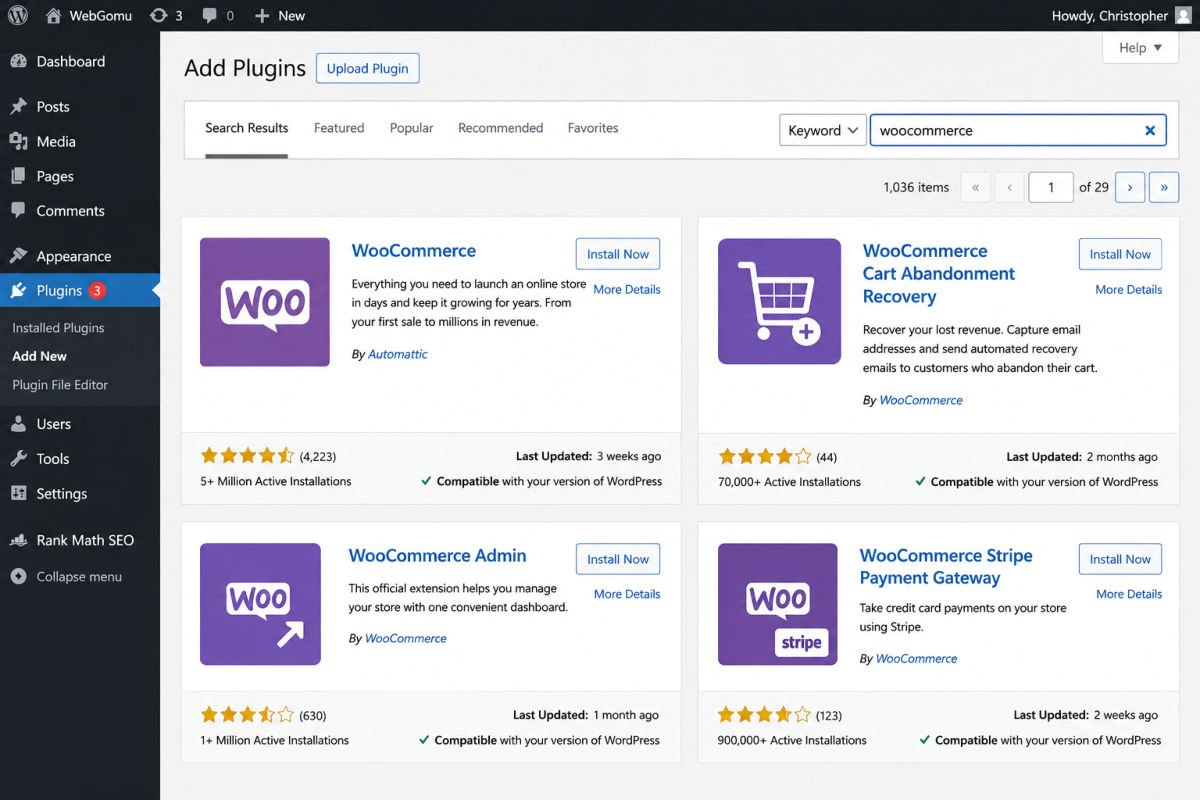
- Go to Plugins → Add New Plugin.
- Search for “WooCommerce.”
- Click Install Now, then Activate.
Activating WooCommerce automatically launches its Setup Wizard.
Step 2: Run the Setup Wizard
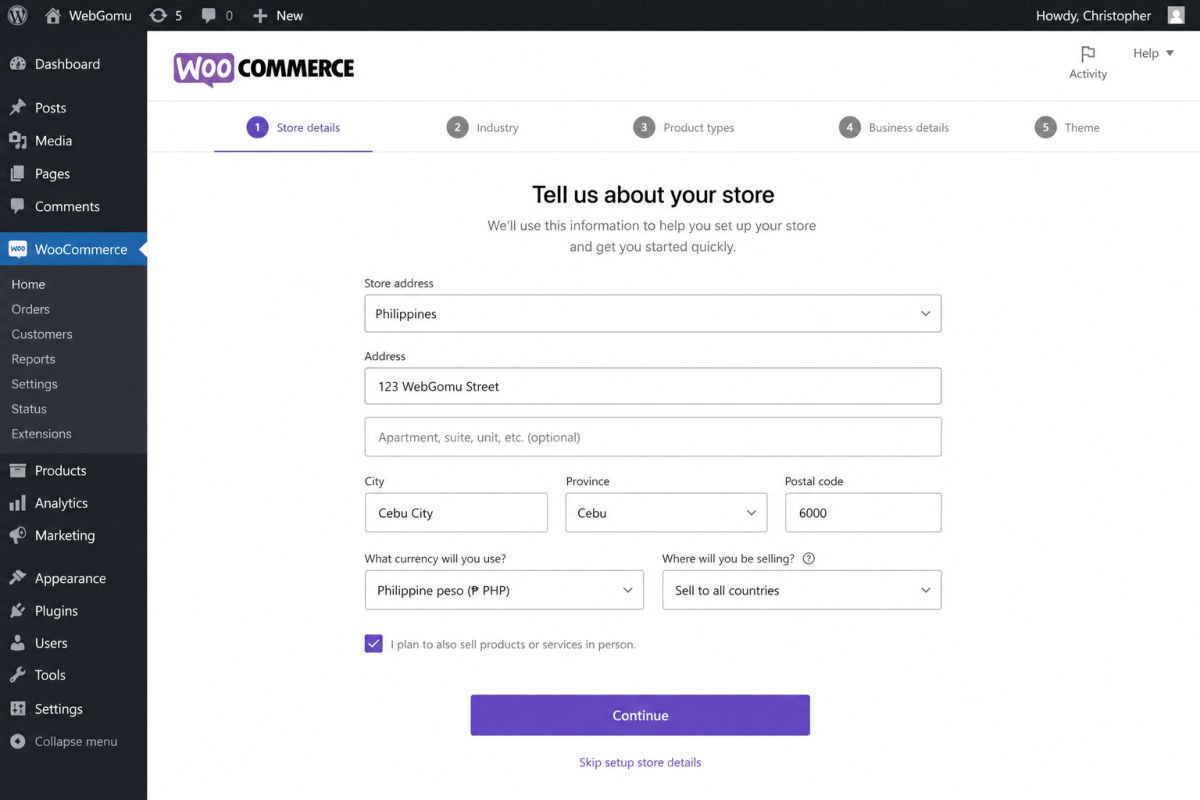
The wizard walks through several key sections:
- Store details — your country, state, and address, which affects available shipping and tax options
- Industry — what type of products you’re selling
- Product types — physical, digital, or both
- Business details — whether you’re already selling elsewhere and roughly how many products you plan to list
Answer honestly rather than guessing, these choices shape which settings and extensions WooCommerce recommends next.
Step 3: Configure General Settings
Go to WooCommerce → Settings → General and confirm:
- Store address — used for tax and shipping calculations
- Selling locations — which countries or regions you’ll ship to
- Currency — and how prices are displayed, including thousand separators
These settings directly affect what your customers see at checkout, worth double-checking before your store goes live.
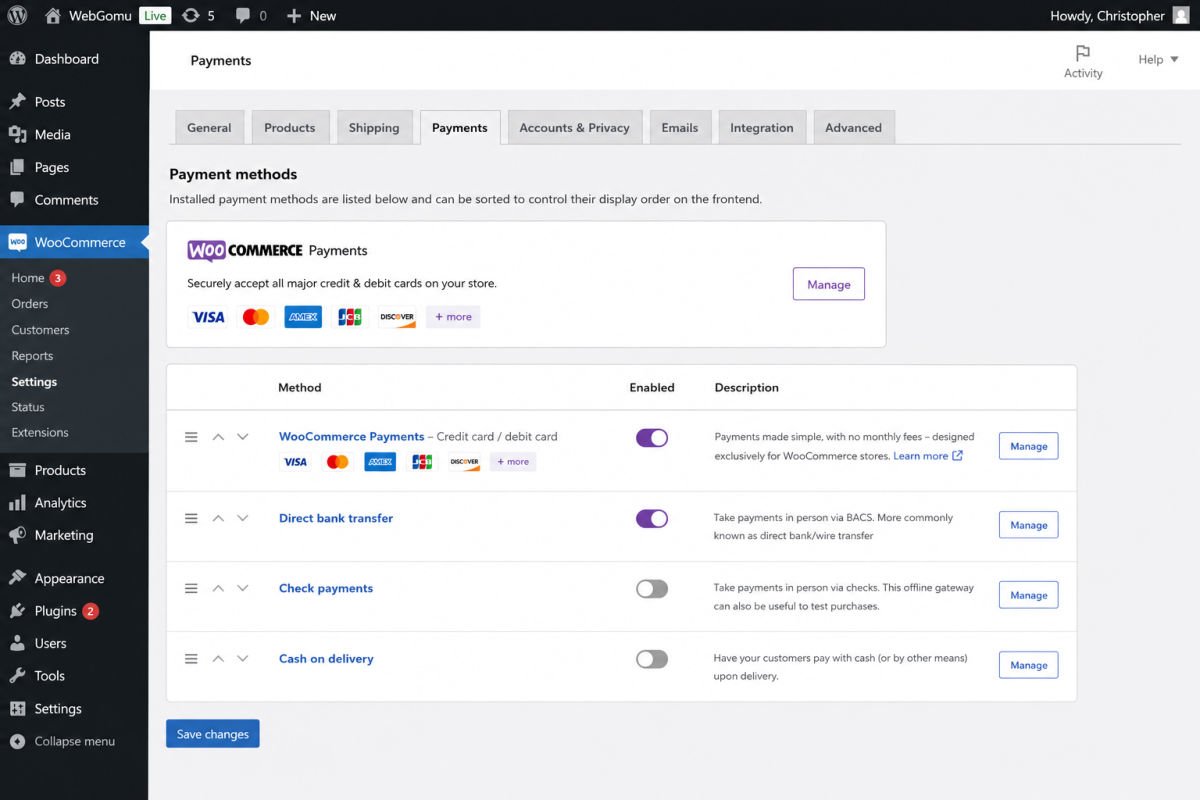
Step 4: Set Up Payment Methods
| Option | Best For | Fees |
|---|---|---|
| WooCommerce Payments | Simplest setup, native integration | Standard per-transaction processing fee |
| Stripe | Flexibility, widely supported | Standard per-transaction processing fee |
| PayPal | Buyer familiarity and trust | Standard per-transaction processing fee |
Most stores enable at least two options, giving customers a choice tends to reduce checkout abandonment. Configure these under WooCommerce → Settings → Payments. See our complete payment gateways guide for a full comparison of fees, checkout experience, and how to add multiple gateways correctly.
Step 5: Set Up Shipping
Under WooCommerce → Settings → Shipping, create shipping zones (regions you’ll ship to) and assign rates to each, flat rate, free shipping above a threshold, or calculated rates, depending on what fits your products and margins. See our complete shipping setup guide for the correct zone ordering and how to avoid the most common configuration mistake.
WebGomu Tip: Start with simple flat-rate shipping for your first few zones. You can always add more complex, calculated shipping options later once you have real order data showing what actually makes sense for your specific products and weights.
Step 6: Choose a WooCommerce-Compatible Theme
Not every WordPress theme handles WooCommerce’s product pages and cart elements equally well. Lightweight, well-supported options like Astra work reliably with WooCommerce without unnecessary bloat. See our theme selection guide for the broader decision framework, the same speed and support priorities apply here, with WooCommerce compatibility as an added filter.
Stick with one theme once chosen. Switching themes later can disrupt your store’s layout and product page design.
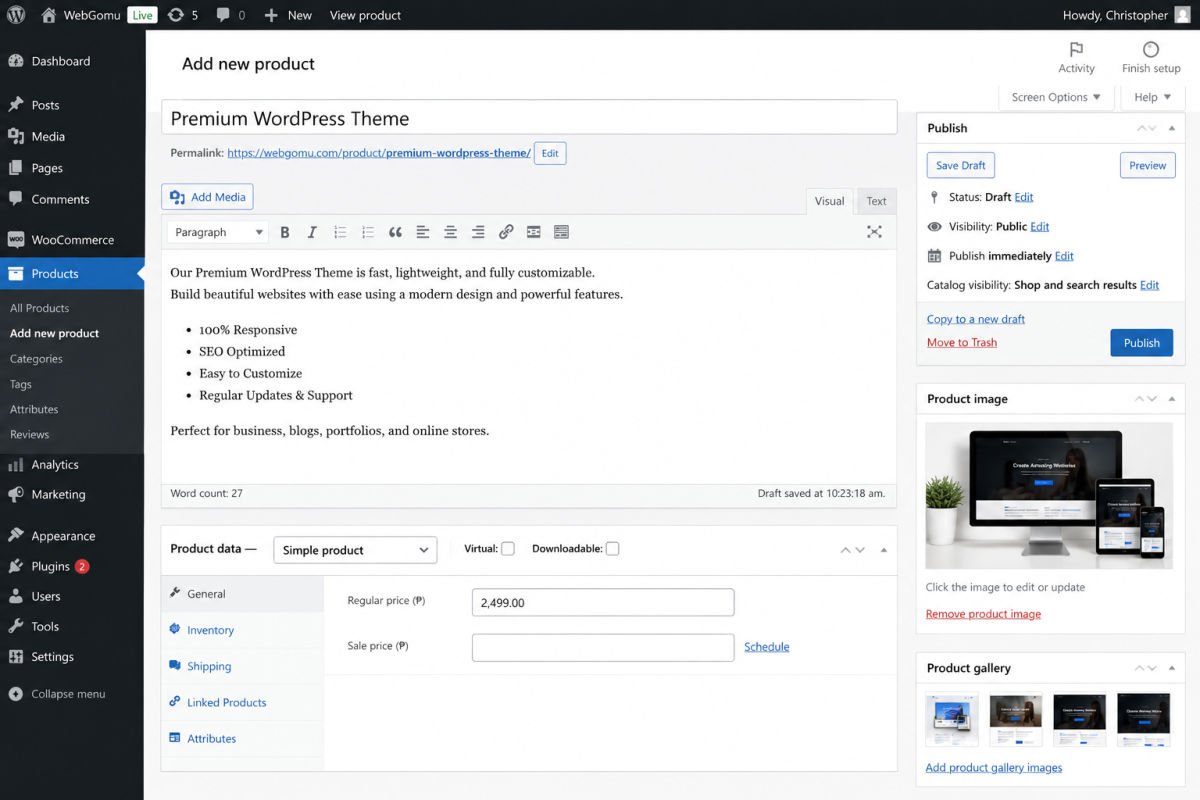
Step 7: Add Your First Product
- Go to Products → Add New Product.
- Enter the product name and a genuinely useful description, not just a specs list.
- Set the price under the Product Data section.
- Upload a clear main image, plus gallery images from multiple angles if relevant.
- Set stock quantity if you’re tracking inventory.
- Click Publish.
Product photos matter more than most beginners expect, poor images are consistently one of the biggest reasons online shoppers don’t complete a purchase.
Step 8: Test a Full Purchase Before Launch
Before announcing your store, place a complete test order yourself, browse a product, add it to cart, go through checkout, and confirm the order and payment notification both arrive correctly. This single step catches the majority of setup issues before a real customer ever encounters them. Once your store is genuinely live, see our checkout optimization guide for how to reduce cart abandonment beyond just a functional checkout.
Essential WooCommerce Extensions
A handful of free plugins genuinely extend WooCommerce’s usefulness: an SEO plugin like Rank Math (see our setup guide) for product page optimization, and a backup plugin (see our backup guide), especially important once you’re handling real orders and customer data. See our complete roundup of the best WooCommerce plugins for the full recommended stack, organized by what each one actually solves.
Resist installing every available WooCommerce extension. Each one adds page weight, and a slow checkout page directly costs you sales.
Troubleshooting
My checkout page shows an error or won’t load
Confirm SSL is active and enforced site-wide, checkout pages that load over an insecure connection are a common cause of this exact issue.
Customers say they never received an order confirmation email
This is often the same default email delivery issue that affects contact forms on shared hosting. An SMTP plugin typically resolves it by routing order emails through a proper delivery service.
My store looks broken or misaligned after a theme or plugin update
Test major updates on a staging copy of your site before applying them to your live store, if your host offers staging. If an update has already broken something live, temporarily deactivating the most recently updated plugin often identifies the conflict quickly.
For a more complete list of common WooCommerce errors and their fixes, checkout failures, payment issues, and more, see our dedicated troubleshooting guide.
Growing Your Store After Launch
Once your store is live and taking real orders, these guides cover the next layer of decisions:
- WooCommerce Pricing — what running a store actually costs as it scales
- Payment Gateways — comparing fees and adding multiple payment options
- Shipping Setup — zones, rates, and the ordering rule most stores get wrong
- Checkout Optimization — reducing cart abandonment beyond the basics
- Best WooCommerce Plugins — the full recommended stack for a new store
- Troubleshooting — fixes for the most common WooCommerce errors
Common Mistakes
- Skipping the SSL requirement, or letting it lapse, both create real friction and risk at checkout.
- Publishing products with poor-quality images, a leading reason online shoppers abandon a purchase.
- Installing every available WooCommerce extension instead of only what’s genuinely needed.
- Launching without placing a real test order first.
Recommended Tools
- WooCommerce (free) — the core plugin, sufficient for most beginner and small business stores
- Astra — lightweight, well-supported, and reliably compatible with WooCommerce
- Rank Math — for product page SEO, using the same setup covered in our dedicated guide
Key Takeaways
- Confirm your hosting meets WooCommerce’s requirements (PHP 8.0+, SSL) before installing.
- The Setup Wizard configures the essentials, store details, payments, and product types, in one guided flow.
- Choose a lightweight, WooCommerce-compatible theme and stick with it.
- Always place a full test order before announcing your store is live.
Frequently Asked Questions
Is WooCommerce really free?
Yes, the core WooCommerce plugin is free. Costs come from hosting, payment processing fees, and any optional premium extensions or themes you choose.
Do I need coding knowledge to use WooCommerce?
No. The Setup Wizard, product editor, and settings panels are all designed for non-technical users, no coding required for a standard store.
Can WooCommerce handle both physical and digital products?
Yes, WooCommerce supports both natively. For a store selling only digital products or courses, other dedicated tools can sometimes be a simpler fit, covered in a separate guide.
How long does it take to set up a basic WooCommerce store?
A basic store with a handful of products can realistically be set up in an afternoon, following the steps in this guide in order.
What’s the most common reason a WooCommerce store fails at launch?
Skipping a full test purchase before going live. Payment, shipping, or email notification issues are far easier to catch and fix before a real customer encounters them.
Resources Links
Author:

Christoper Enolpe
Founder of WebGomu • WordPress Freelancer with 10+ Years of Experience
Christoper is the founder of WebGomu and a WordPress freelancer with over 10 years of hands-on experience building, optimizing, and maintaining WordPress websites. He writes practical, beginner-friendly guides based on real-world experience, covering WordPress, SEO, website performance, and AI tools to help readers build better websites with confidence.
Learn more: https://webgomu.com/about/
Get one WordPress tip every week
Start Here

The Ultimate Beginner’s Guide to WordPress (2026): Build Your First Website Without Coding
Popular Guides
Our Partner

More from the blog
How to Sell Online Courses with WordPress (2026)
Membership Sites on WordPress: How to Get Started (2026)