Best WordPress Plugins Every Beginner Needs (2026)

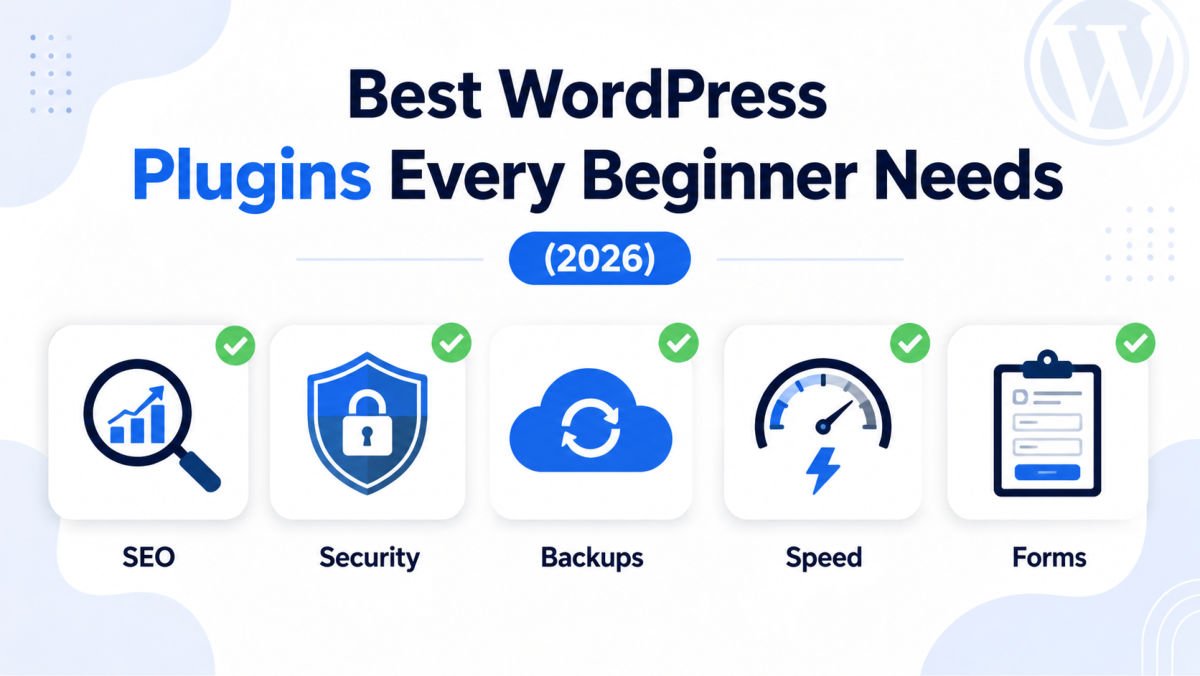
A new WordPress site genuinely needs only five categories of plugins to start: SEO (Rank Math or Yoast), security (Wordfence), backups (UpdraftPlus), caching/speed (a lightweight caching plugin), and contact forms (WPForms Lite). All five have solid free versions, and installing just these covers the core foundation almost every beginner site needs — before adding anything else.
There are more than 60,000 free plugins in the WordPress.org directory alone, and every single one claims to be essential. For a beginner, this is genuine choice paralysis — install too few and you’re missing real protection; install too many and your site slows to a crawl and becomes harder to maintain.
This guide cuts through that noise with a curated, honest short list, plus exactly how to install and set up each one, so by the end you’ll have a solid foundation without plugin bloat.
What You’ll Learn
- The 5 plugin categories every new WordPress site actually needs
- Specific, honest recommendations for each category, with free options
- How to install and activate a plugin, step by step
- How to know when you have too many plugins
- How to vet a plugin before installing it, so you don’t introduce a security risk
Why Plugin Choice Matters More Than It Seems
Every plugin you activate adds code that runs on your site, which means it affects your speed, your security exposure, and your long-term maintenance workload. A small, well-chosen set of actively maintained plugins will almost always outperform a large collection of “nice to have” ones. If you can’t explain what a plugin does and why your site needs it, that’s usually a sign it doesn’t belong on your site yet.
How to Install a Plugin (Quick Reference)
Before the list, here’s the process you’ll repeat for each one:
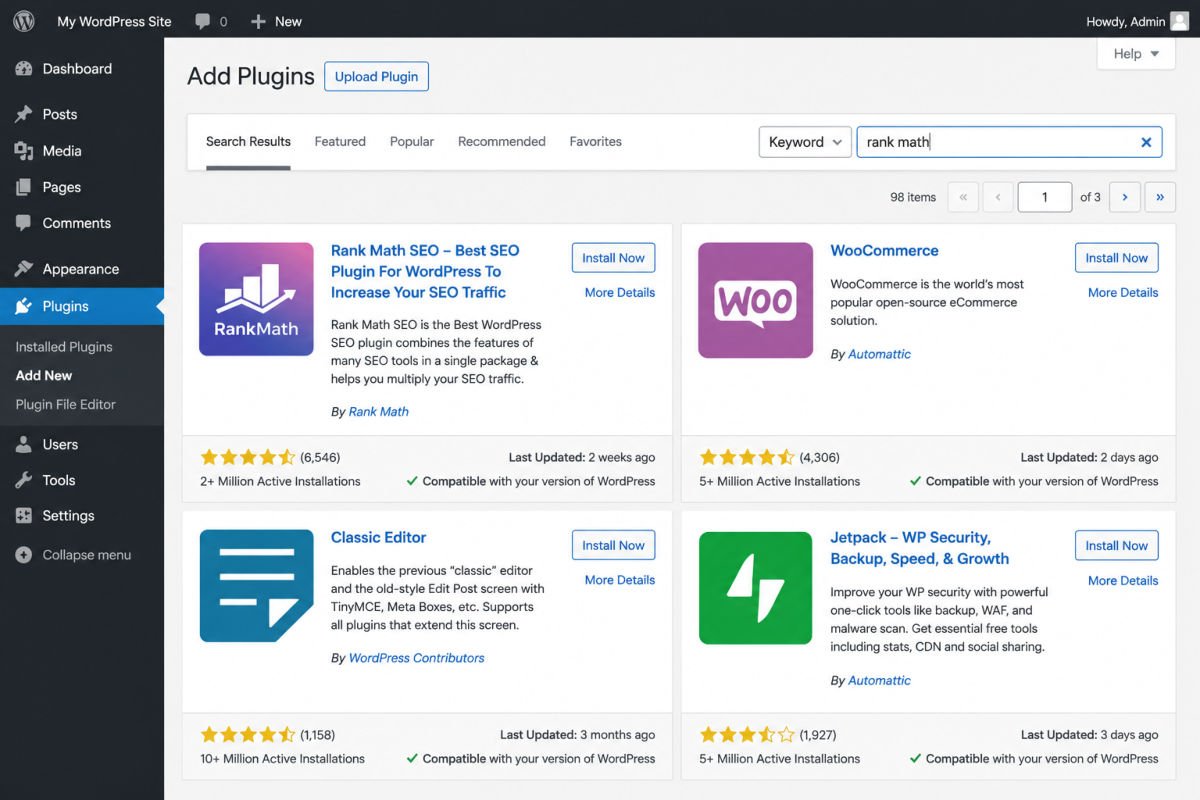
- In your dashboard, go to Plugins → Add New Plugin.
- Search for the plugin by name in the search bar.
- Click Install Now, then click Activate once installation finishes.
- Look for a new menu item in your sidebar (the plugin’s settings) and complete its setup wizard if one appears.
1. SEO Plugin: Rank Math or Yoast SEO
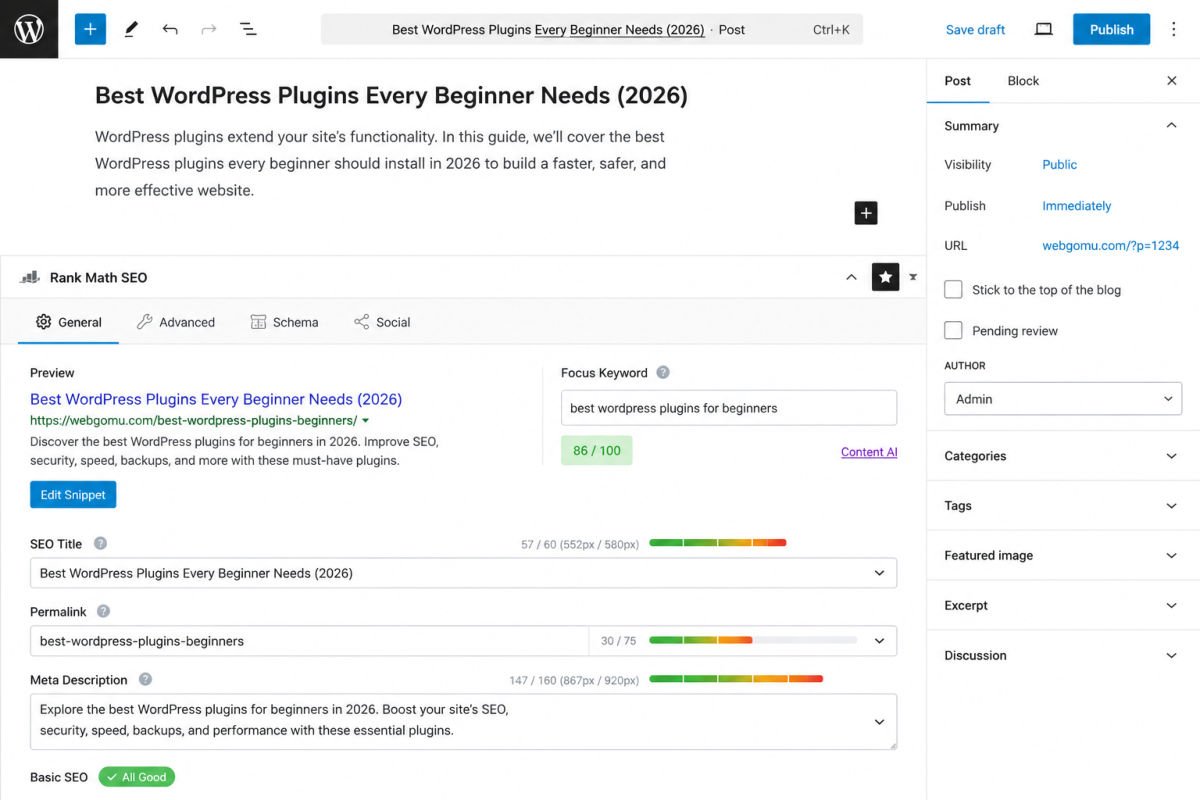
An SEO plugin helps search engines understand your content, generates your sitemap, and gives you on-page guidance (like whether your meta description is a good length) as you write.
Rank Math has become popular for offering more features in its free tier compared to Yoast’s free version. Yoast SEO remains a long-standing, reliable choice with a simpler interface that some beginners find easier to start with. Both are free, well-maintained, and a genuinely reasonable choice — try either one rather than assuming there’s a single correct answer.
Setup essentials: After activating, run through the setup wizard, connect Google Search Console if prompted, and make sure your sitemap is generated (usually at yoursite.com/sitemap_index.xml).
2. Security Plugin: Wordfence
A security plugin monitors your site for malware, blocks repeated failed login attempts (a common attack method), and can alert you to suspicious activity. Wordfence has a strong, well-regarded free tier that covers firewall protection and malware scanning, making it a solid default for beginners.
Setup essentials: After activating, run the initial scan, enable the firewall, and turn on login attempt limiting to protect against brute-force attacks.
WebGomu Tip: Install your security plugin early, ideally right after your theme, rather than waiting until “later.” Most attacks target new, unprotected sites through automated bots scanning for vulnerabilities — being unprotected for even a few days carries real risk.
3. Backup Plugin: UpdraftPlus
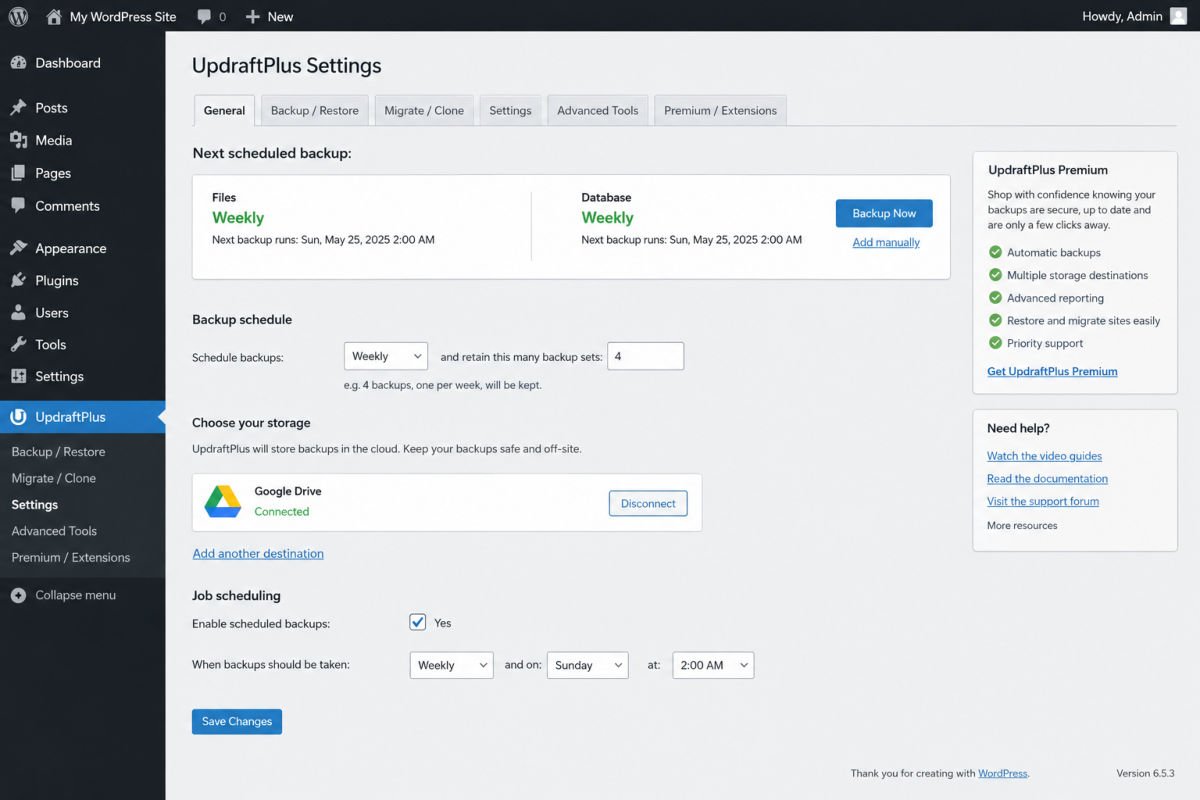
Backups are your safety net. If something breaks, a plugin conflict corrupts your site, or you get hacked despite your security plugin, a recent backup lets you restore your site instead of starting over. UpdraftPlus is widely used, has a dependable free tier, and supports scheduling automatic backups to cloud storage like Google Drive or Dropbox.
Setup essentials: Schedule automatic backups (weekly is a reasonable minimum for a low-traffic new site), and connect a remote storage location — don’t rely on backups stored only on your hosting server, since a server failure would take both down together.
4. Caching / Speed Plugin
Caching plugins store a ready-to-serve version of your pages, which reduces load time significantly compared to generating each page from scratch on every visit. Which specific plugin makes sense depends partly on your host — some hosts (like those running LiteSpeed servers) work best with a matching plugin like LiteSpeed Cache, while general-purpose options like WP Super Cache work well across most hosting environments.
Setup essentials: Check with your host first — many hosting providers include server-level caching or recommend a specific plugin that pairs best with their infrastructure, which can save you from installing a redundant one.
5. Contact Form Plugin: WPForms Lite
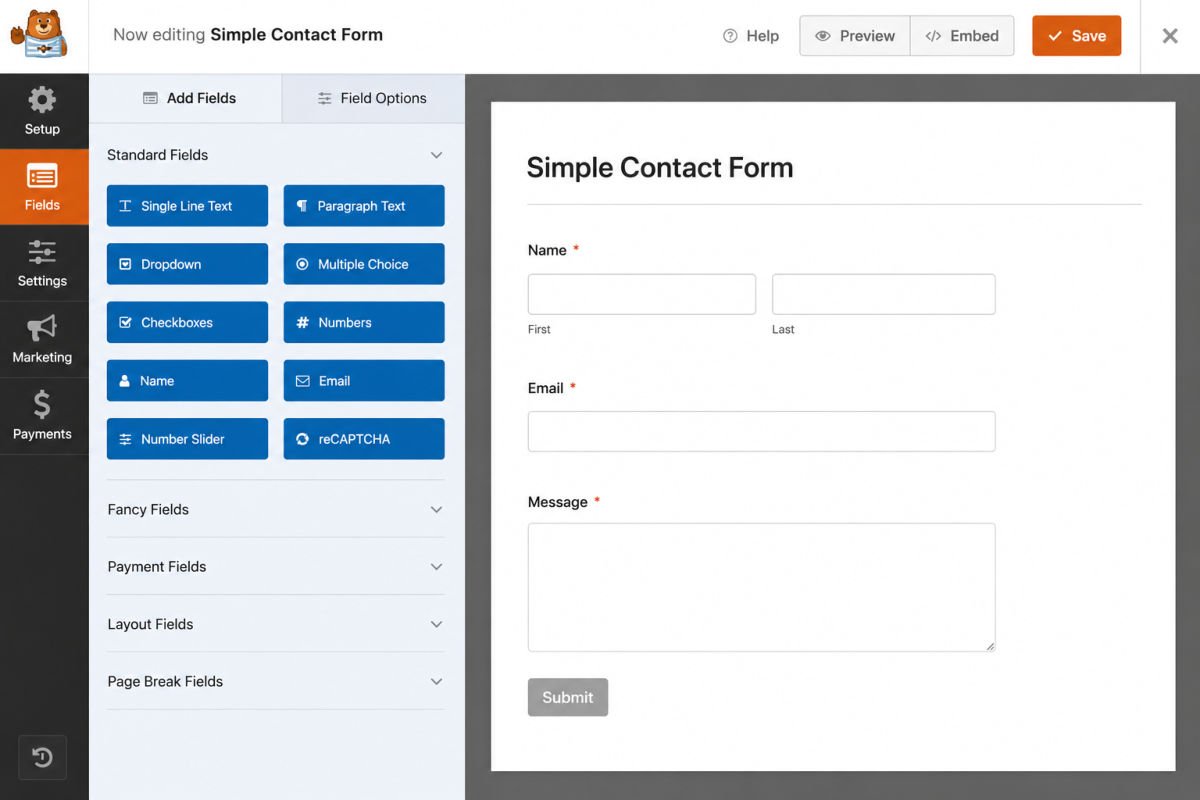
Your Contact page needs a working form, and WPForms Lite is a genuinely simple, free way to build one with drag-and-drop fields, no coding required.
Setup essentials: Use the pre-built “Simple Contact Form” template, confirm your notification email address is correct, and send yourself a test submission before considering the page finished.
The 5 Core Plugins at a Glance
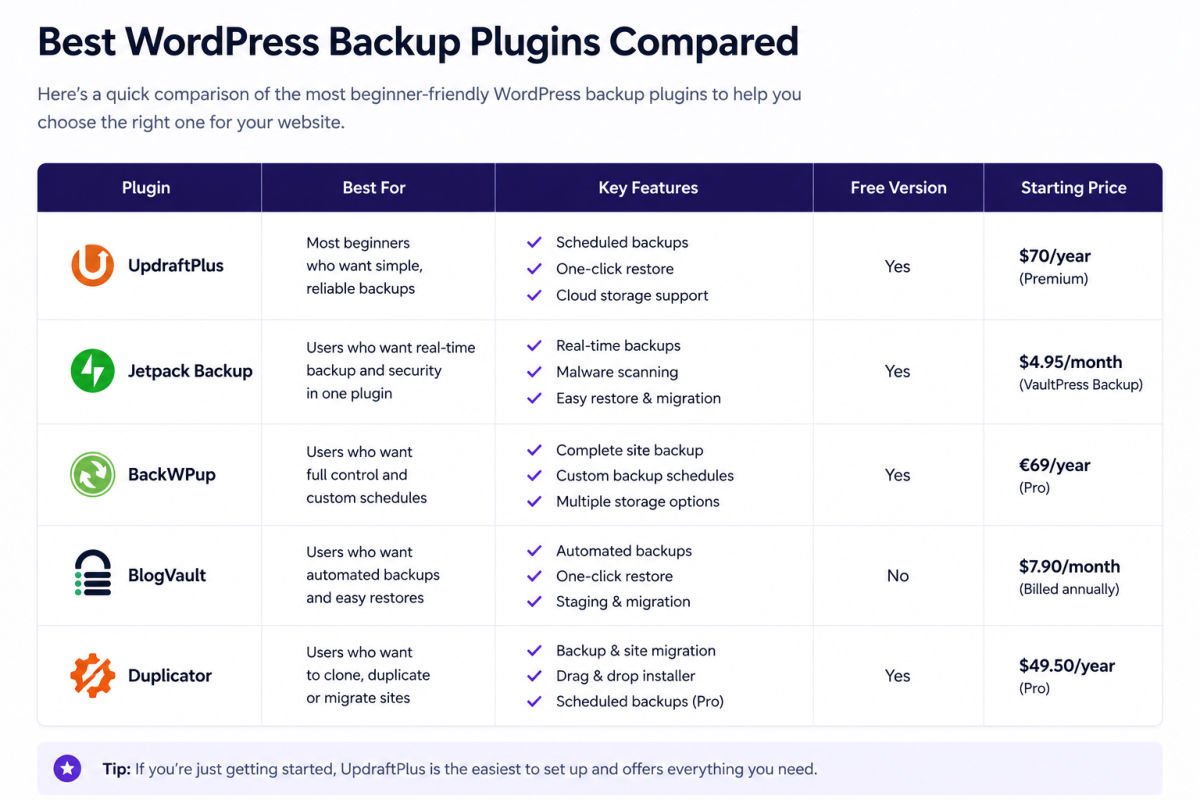
| Category | Recommended Plugin | Price | What It Does |
|---|---|---|---|
| SEO | Rank Math or Yoast SEO | Free (paid upgrades optional) | Sitemaps, on-page guidance, meta titles/descriptions |
| Security | Wordfence | Free (Premium optional) | Firewall, malware scanning, login attempt limiting |
| Backups | UpdraftPlus | Free (Premium optional) | Scheduled backups to remote/cloud storage |
| Speed / Caching | WP Super Cache or host-specific plugin | Free | Serves cached pages to reduce load time |
| Contact Forms | WPForms Lite | Free (paid upgrades optional) | Drag-and-drop contact form builder |
Optional, But Worth Knowing About
- Google Site Kit — connects Google Analytics and Search Console data directly into your dashboard, useful once you want to track traffic
- MonsterInsights — an alternative analytics option with a more beginner-friendly reporting interface
- WooCommerce — only needed if you’re building an online store, not a default install for a blog or business site
These aren’t part of the core five because not every beginner site needs them immediately — add them when you have a specific reason to.
How Many Plugins Is Too Many?
There’s no universal number, but a useful test: if you can’t name every active plugin on your site and explain why it’s there, you likely have too many. Sites accumulating 30-plus active plugins commonly develop redundant functionality and measurable performance issues. Do a quick plugin audit every few months, and deactivate and delete anything you can’t immediately justify keeping.
How to Vet a Plugin Before Installing It
Before installing any plugin beyond this core list, check:
- Last updated date — avoid plugins not updated in over a year
- Active install count and rating — a strong track record is a good (though not perfect) signal
- Support forum activity — are the developers actually responding to recent user issues?
- Whether it duplicates something you already have — redundant plugins (like two caching plugins) can conflict with each other
Common Mistakes
- Installing plugins for every feature you might want someday, rather than what your site actually needs right now.
- Running two plugins that do the same job (e.g., two SEO plugins or two caching plugins), which can cause conflicts.
- Never updating plugins, leaving known security vulnerabilities unpatched.
- Skipping backups until after something goes wrong, when it’s too late to recover cleanly.
- Installing a plugin with no recent updates or reviews just because it appeared first in a search.
Recommended Tools
- Rank Math / Yoast SEO — either is a solid, free SEO foundation
- Wordfence — reliable free-tier security monitoring and firewall
- UpdraftPlus — dependable, widely used free backup solution
- WPForms Lite — simplest free way to get a working contact form live
We’re recommending these because they consistently show strong maintenance records, active install bases, and genuinely useful free tiers — not because they’re simply the most popular names in each category.
Key Takeaways
- Five categories cover the real foundation: SEO, security, backups, speed, and forms.
- Free versions of each recommended plugin are genuinely sufficient to start.
- Install your security and backup plugins early, not as an afterthought.
- Periodically audit your plugins — if you can’t explain why one is active, consider removing it.
Frequently Asked Questions
How many plugins should a beginner website have?
There’s no fixed number, but the core five categories covered in this guide (SEO, security, backups, speed, forms) are enough for most new sites. Add more only when you have a specific, clear need.
Do plugins slow down my website?
Well-coded, actively maintained plugins add minimal overhead. Poorly coded or excessive plugins are a common cause of slow sites, which is why quality and necessity matter more than quantity.
Are free plugins safe to use?
Yes, when they’re actively maintained with a strong install base and recent updates. Check the last updated date and reviews before installing any plugin, free or paid.
Do I need both a security plugin and a backup plugin?
Yes. They serve different purposes — a security plugin helps prevent problems, while a backup plugin lets you recover if something still goes wrong despite your defenses.
Should I install a caching plugin if my host already offers caching?
Check with your host first. Running a caching plugin on top of server-level caching can sometimes cause conflicts rather than added benefit, so confirm what your host already provides before adding one.
Resources Links
Author:

Christoper Enolpe
Founder of WebGomu • WordPress Freelancer with 10+ Years of Experience
Christoper is the founder of WebGomu and a WordPress freelancer with over 10 years of hands-on experience building, optimizing, and maintaining WordPress websites. He writes practical, beginner-friendly guides based on real-world experience, covering WordPress, SEO, website performance, and AI tools to help readers build better websites with confidence.
Learn more: https://webgomu.com/about/
Get one WordPress tip every week
Start Here

The Ultimate Beginner’s Guide to WordPress (2026): Build Your First Website Without Coding
Popular Guides
Our Partner

More from the blog
WooCommerce Checkout Optimization: Reduce Cart Abandonment
WooCommerce Payment Gateways: Setup & Comparison (2026)