How to Create a Contact Form in WordPress (2026 Guide)

WordPress doesn’t include contact forms by default, so you’ll need a plugin. Install WPForms Lite (free), open the drag-and-drop form builder, choose the Simple Contact Form template, and embed it on your Contact page. The whole process takes about 5 minutes and requires no coding.
WordPress focuses on publishing content rather than collecting visitor information. Because every website needs different types of forms — contact, inquiry, booking, feedback — contact forms are added through plugins instead of being built into WordPress itself.
If you followed our essential pages guide, you already know your site needs a Contact page. But an empty page with just your email address written out isn’t as effective, or as safe from spam, as an actual form. This guide gets a working form live in minutes.
What You’ll Learn
- Which contact form plugin to use, and why
- How to build your first form, step by step
- How to add it to your Contact page (block or shortcode)
- How to protect it from spam and test that it actually works
- How to troubleshoot the most common contact form problems
Before You Start
Make sure you have the following in place before creating your form:
- Administrator access to your WordPress dashboard
- A Contact page already created (see our essential pages guide if you haven’t yet)
- A working email address you check regularly, for form notifications
- WordPress updated to its latest version
Choosing a Contact Form Plugin
Several solid options exist, and which one fits depends on how advanced your needs are:
| Plugin | Best For | Price | Ease of Use |
|---|---|---|---|
| WPForms Lite | Beginners wanting a simple form fast | Free (Pro from ~$49/yr) | Drag-and-drop, very beginner-friendly |
| Contact Form 7 | Minimalists who want a lightweight, no-frills form | Free | More manual, HTML-based setup |
| Fluent Forms / Formidable Forms | Advanced needs like conditional logic or multi-step forms | Free tier + paid upgrades | Moderate — more settings to learn |
| Gravity Forms | Power users needing advanced integrations and payment gateways | Paid only | Moderate — built for advanced use |
For a beginner’s first contact form, WPForms Lite is the easiest starting point — free, genuinely drag-and-drop, and covers everything a simple Contact page needs. This guide uses it, but the general process (build form → embed on page → test) is similar across any of these options.
Step 1: Install WPForms
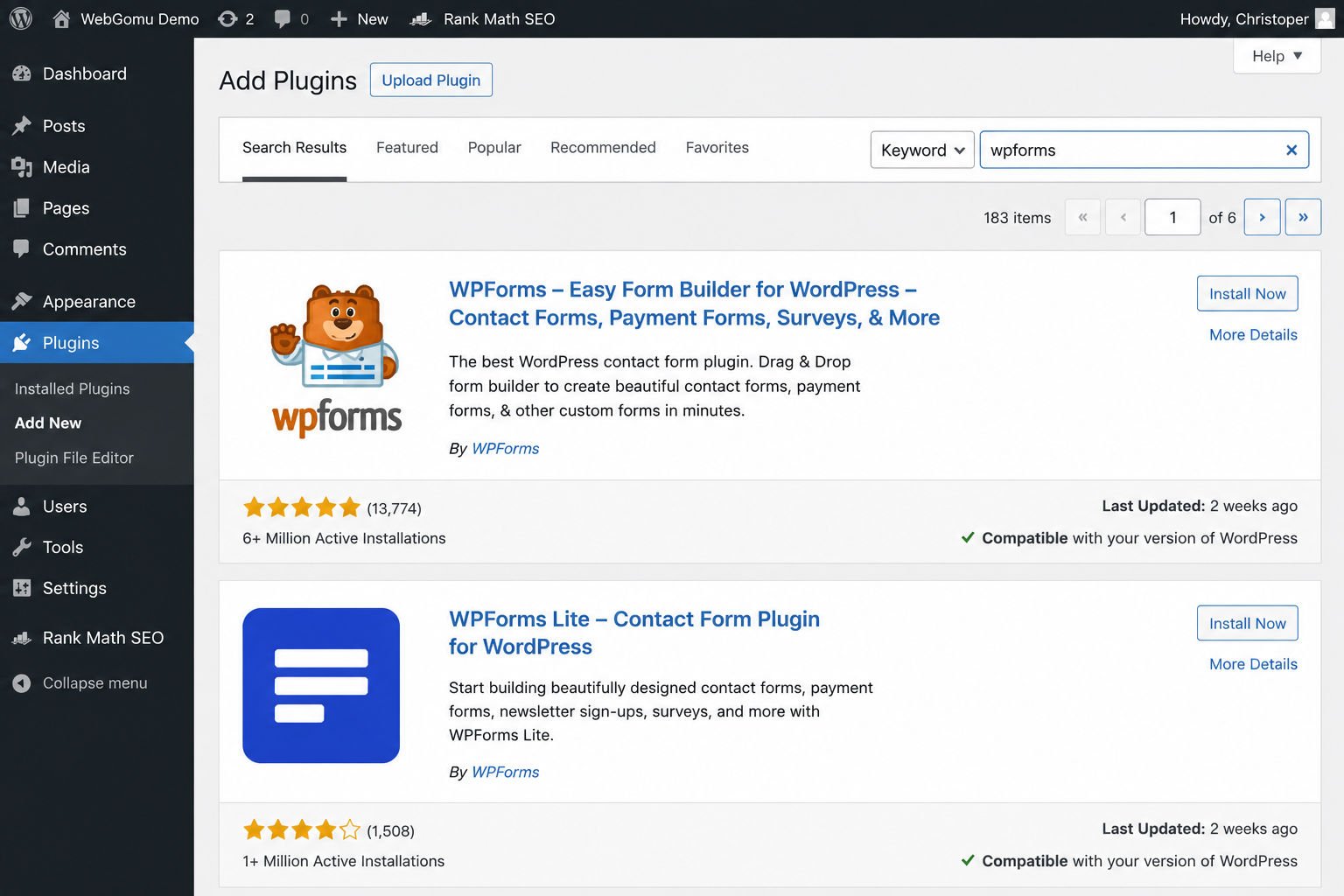
- In your dashboard, go to Plugins → Add New Plugin.
- Search for “WPForms.”
- Click Install Now next to “Contact Form by WPForms,” then click Activate.
Step 2: Build Your Form
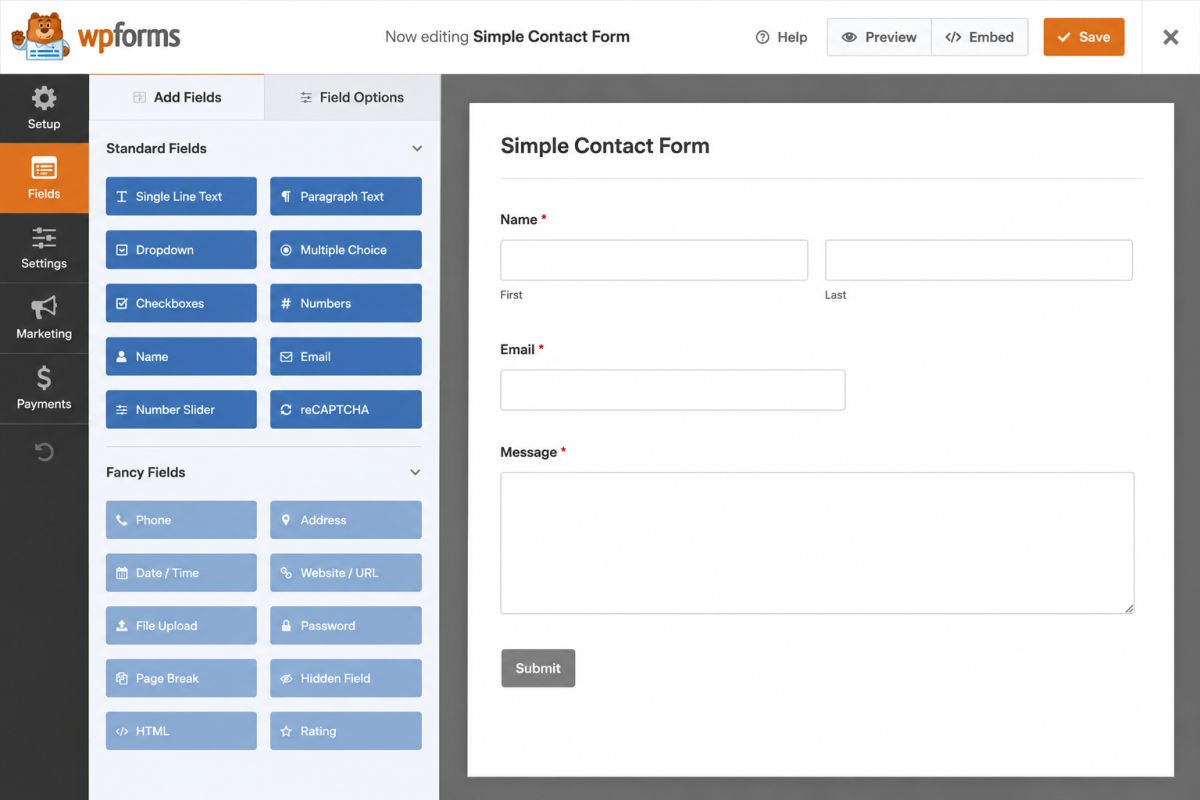
- In your dashboard sidebar, click WPForms → Add New.
- Give your form a name (only visible to you, not visitors) — something like “Contact Us Form.”
- Select the Simple Contact Form template. This automatically adds Name, Email, and Message fields.
- Click any field to open its settings on the left if you want to adjust labels or mark fields as required.
- Click Save once you’re happy with the form.
Step 3: Set Your Notification Email
Under the form builder’s Settings → Notifications tab, confirm the email address where submissions should be sent. By default, this is usually your WordPress admin email, but double-check it’s an address you actually check regularly.
Step 4: Embed the Form on Your Contact Page
- Go to Pages and open your Contact page (or create one if you haven’t yet).
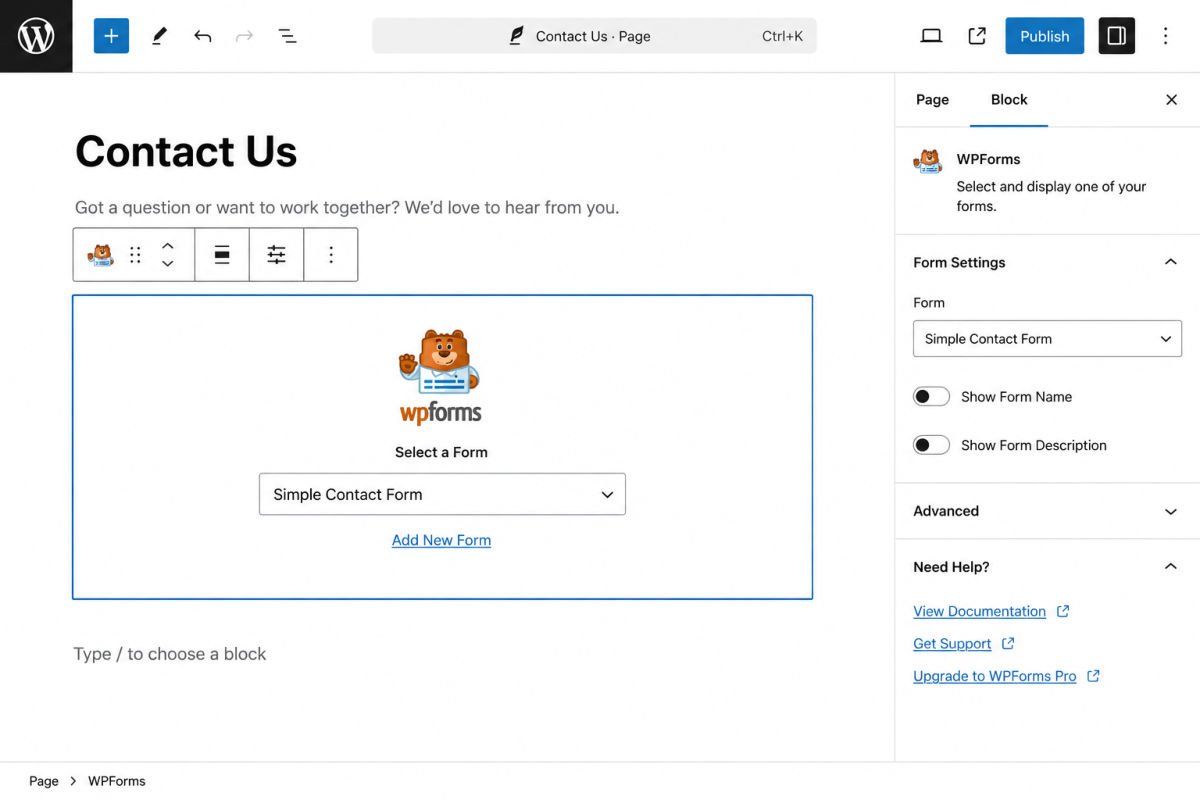
- Click the block inserter (+) and search for “WPForms.”
- Add the WPForms block, then select your newly created form from the dropdown.
- Publish or update the page.
Whether you’re using a classic theme or a block theme, the WPForms block works the same way inside the editor — so this process applies whether you’re running a traditional theme, a Full Site Editing theme like Twenty Twenty-Six, or a block-based theme like Spectra One or Ollie.
Alternative: Embed Using a Shortcode
Most modern WordPress themes support the WPForms block, but you can also embed your contact form using a shortcode — useful for classic themes, widget areas, or page builders that support shortcodes but not native blocks.
- In the WPForms builder, go to the Embed button at the top, or find your form’s shortcode under WPForms → All Forms.
- Copy the shortcode (it looks like
[wpforms id="123"]). - Paste it into a Shortcode block, a widget area, or any shortcode-compatible section of your site.
- Publish or update the page.
Step 5: Test It
Before considering this task done, submit a test entry through the live form on your actual Contact page, and confirm the notification email arrives. This single step catches the majority of setup issues beginners run into.
WebGomu Tip: If your test submission doesn’t arrive, check your spam folder first, then consider setting up an SMTP plugin. WordPress’s default email delivery method is unreliable on many hosts, and SMTP fixes this by sending through a proper email service instead.
Protecting Your Form From Spam
Contact forms attract automated spam submissions. WPForms includes built-in Honeypot spam protection (invisible to real visitors, but effective against bots) in both the free and paid versions, active by default. For sites getting heavier spam, adding Google reCAPTCHA under the form’s spam protection settings adds another layer of anti-spam protection.
A Quick Note on Accessibility
Keep your inquiry form simple. Only ask for information you actually need, use clear field labels, and avoid making every field required. Short, accessible website contact forms are also easier for visitors using screen readers or on-screen keyboards to complete — and generally receive more submissions as a result.
Troubleshooting
I don’t receive emails from form submissions
This is almost always an email delivery issue, not a form issue. Install an SMTP plugin like WP Mail SMTP to route notifications through a proper email delivery service instead of your host’s default (and often unreliable) mail function.
The form doesn’t appear on my page
Confirm the WPForms block is correctly selected and that a form is actually chosen from its dropdown — an empty WPForms block will show nothing on the published page.
The form looks different from the demo or template
Your active theme’s styles are applied to the form’s appearance, so some visual variation between themes is expected and normal. This isn’t a bug — it’s the form inheriting your site’s design.
Spam is still getting through
Enable Google reCAPTCHA in addition to the default Honeypot protection, under the form’s spam protection settings.
Common Mistakes
- Forgetting to test the form after publishing, and not discovering a broken notification email until a real visitor’s message never arrives.
- Leaving the notification email pointed at an address you don’t check.
- Adding too many required fields, which reduces how many visitors actually complete the form.
- Not enabling any spam protection, leading to a cluttered inbox of bot submissions.
Recommended Tools
- WPForms Lite — the simplest free option for a beginner’s first contact form
- WP Mail SMTP — worth installing if your test emails aren’t arriving reliably
Key Takeaways
- WordPress doesn’t include contact forms by default — a plugin is required.
- WPForms Lite is the easiest free option for a first contact form.
- Always test your form with a real submission before considering it done.
- Built-in spam protection like Honeypot is on by default and worth keeping enabled.
Frequently Asked Questions
Does WordPress have a built-in contact form?
No, self-hosted WordPress.org sites don’t include a native contact form. A plugin like WPForms or Contact Form 7 is needed to add one.
Is WPForms Lite really free?
Yes, the Lite version is free and includes the core features most beginners need — the paid Pro version adds features like multi-page forms and payment collection.
Why isn’t my contact form sending emails?
This is usually caused by unreliable default email delivery on shared hosting. Installing an SMTP plugin like WP Mail SMTP typically resolves it by routing emails through a proper email service.
How do I stop spam submissions on my contact form?
Enable built-in spam protection like Honeypot (often on by default), and add Google reCAPTCHA for extra protection if spam becomes a persistent issue.
Can I create more than one contact form?
Yes, most contact form plugins, including WPForms, support creating multiple separate forms for different pages or purposes.
Resources Links
Author:

Christoper Enolpe
Founder of WebGomu • WordPress Freelancer with 10+ Years of Experience
Christoper is the founder of WebGomu and a WordPress freelancer with over 10 years of hands-on experience building, optimizing, and maintaining WordPress websites. He writes practical, beginner-friendly guides based on real-world experience, covering WordPress, SEO, website performance, and AI tools to help readers build better websites with confidence.
Learn more: https://webgomu.com/about/
Get one WordPress tip every week
Start Here

The Ultimate Beginner’s Guide to WordPress (2026): Build Your First Website Without Coding
Popular Guides
Our Partner

More from the blog
WooCommerce Checkout Optimization: Reduce Cart Abandonment

WooCommerce Payment Gateways: Setup & Comparison (2026)