WordPress Dashboard Tour: A Beginner’s Guide

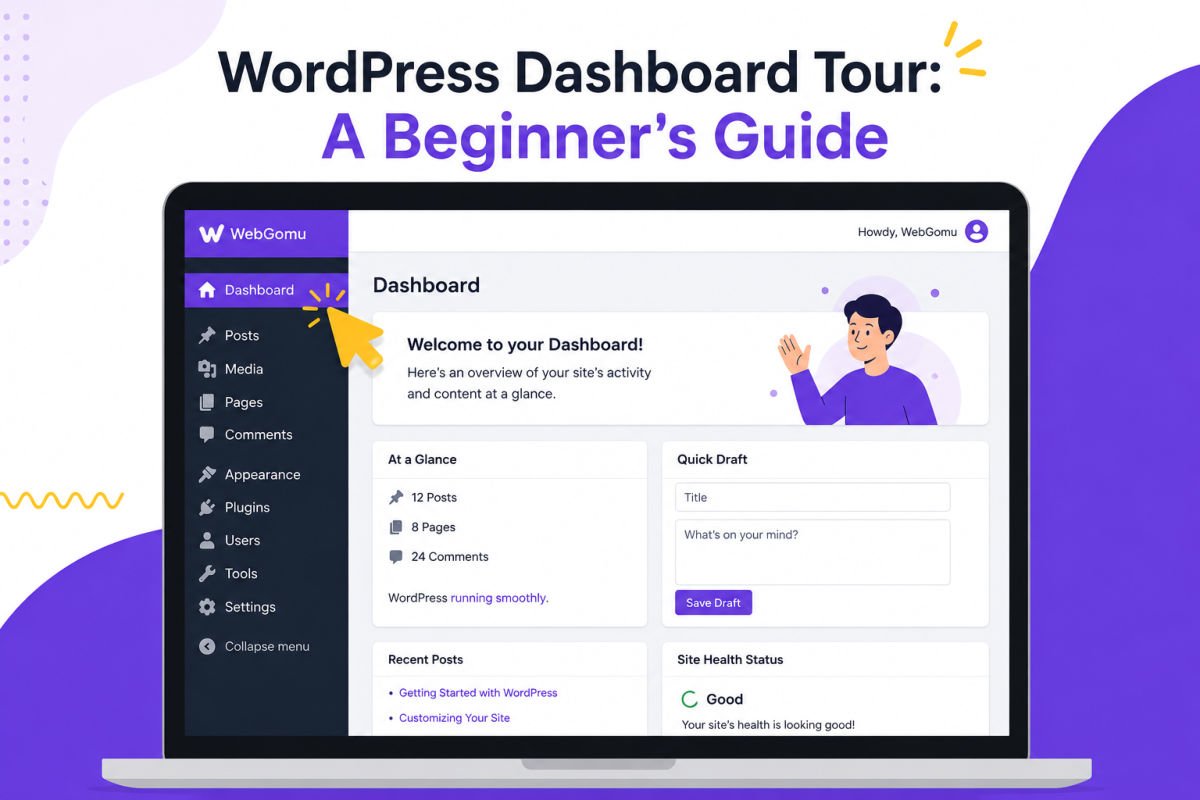
If you just finished installing WordPress and logged in for the first time, the dashboard can feel like a lot. Menus, sub-menus, buttons you don’t recognize — it’s normal to feel a little lost.
The good news: you don’t need to understand everything on day one. This tour walks through exactly what each section does, in plain English, so you know where to go when you’re ready.
What You’ll Learn
- How to log into your dashboard
- What each item in the sidebar menu actually does
- What the “Home” screen is showing you
- The first things to do once you’re comfortable navigating
Logging Into Your Dashboard
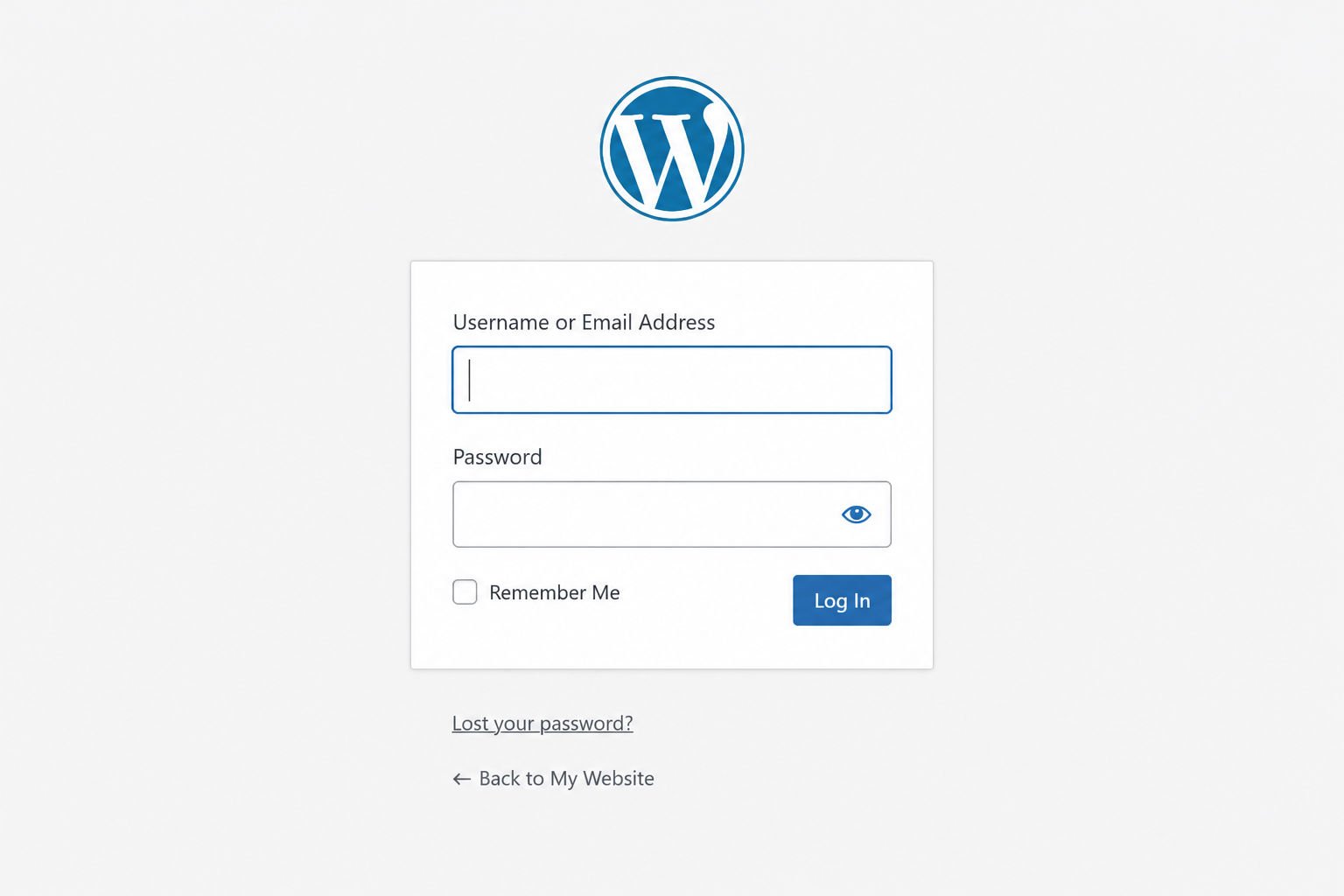
Log in by visiting yourdomain.com/wp-admin and entering the username and password you set during installation.
If you forget your password, click “Lost your password?” on the login screen, and WordPress will email a reset link to your admin email address — this is exactly why it’s worth double-checking that email during installation.
The Dashboard Home Screen
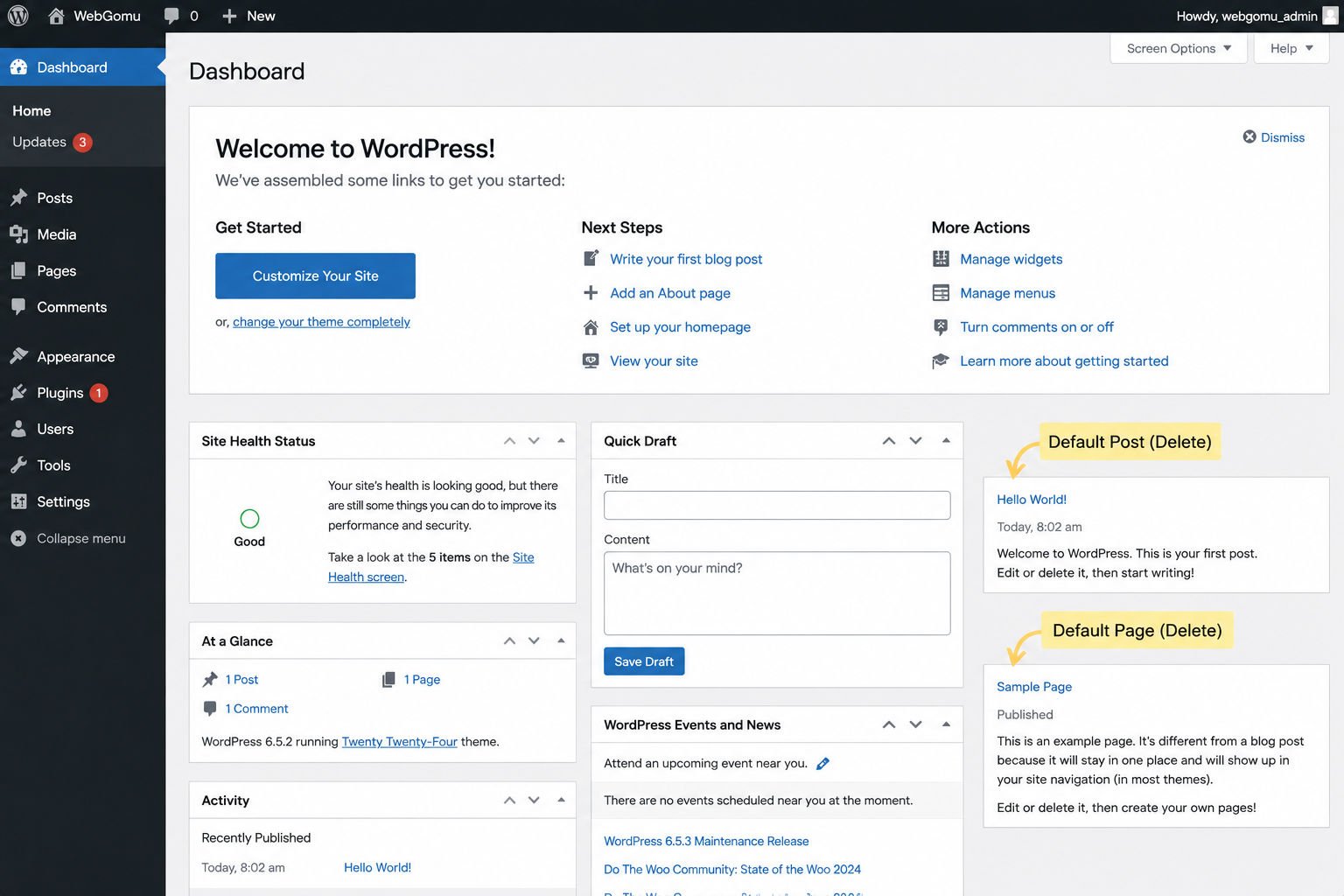
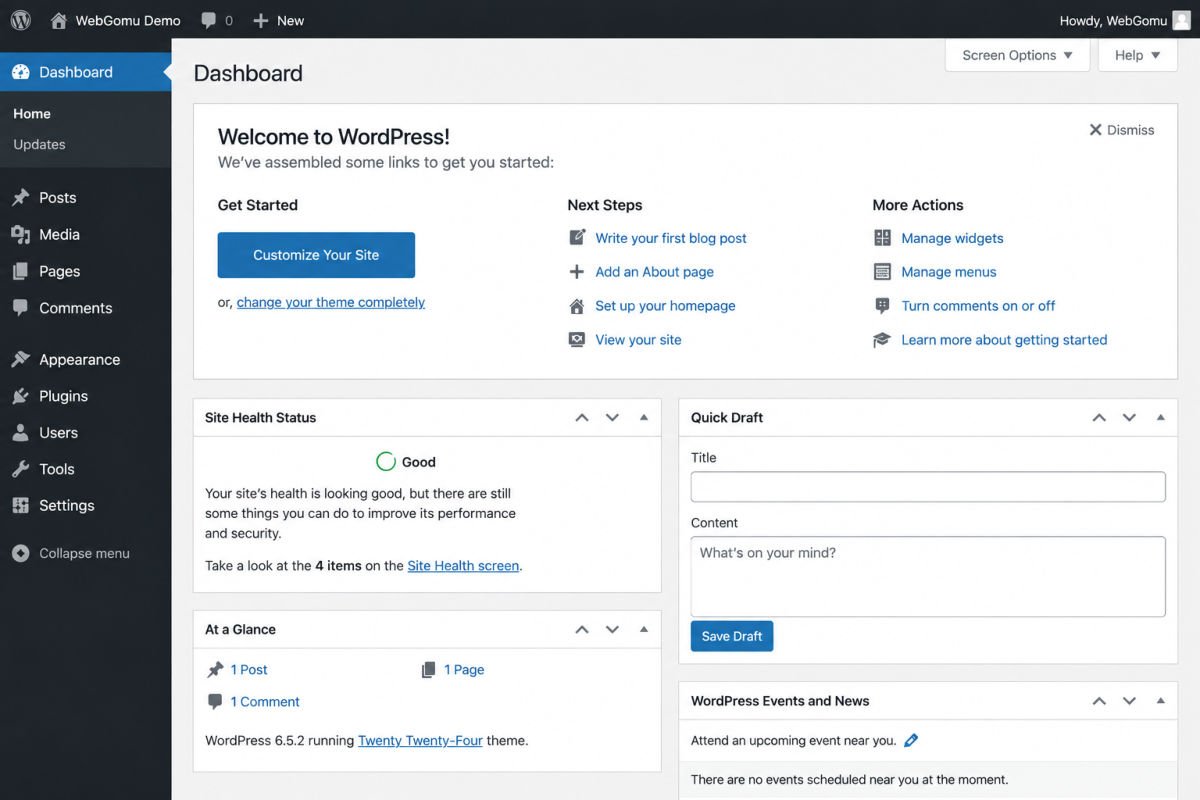
The Home screen is the first thing you see after logging in — a summary of your site showing quick-access buttons, your WordPress version, and any pending updates.
You’ll typically see shortcuts for creating a new page, opening the editor, checking Site Health, and a quick-draft box for jotting down post ideas. Don’t worry about using all of these right away — they’re shortcuts you’ll grow into.
Touring the Left-Hand Sidebar
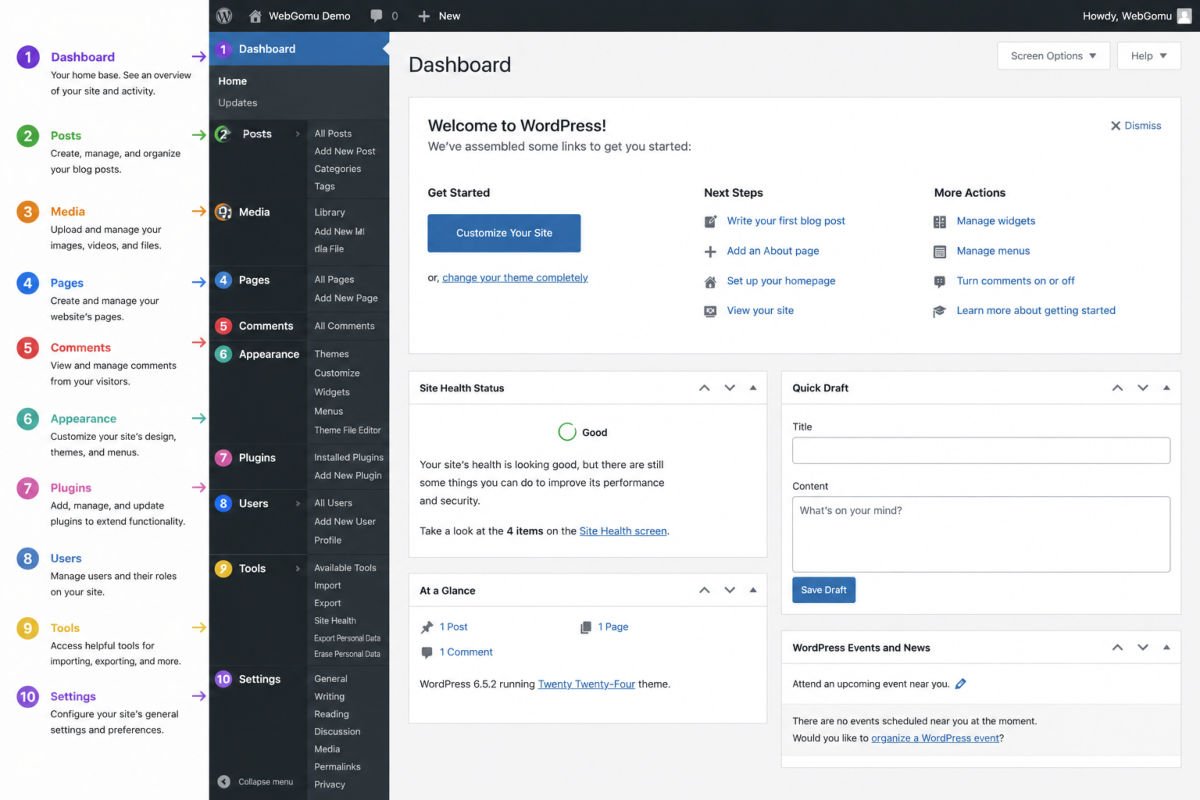
Every core function of your site is organized into sections in the left sidebar — Posts, Media, Pages, Comments, Appearance, Plugins, Users, Tools, and Settings.
Posts
Where you write and manage blog posts, including categories and tags to organize them. If your site includes a blog, you’ll spend a lot of time here.
Media
Your library of uploaded images, videos, and documents. Anything you’ve added to a post or page lives here and can be reused.
Pages
Similar to Posts, but for standalone content like your Home, About, or Contact pages — content that isn’t part of a chronological blog feed.
Comments
Where you moderate, approve, or delete comments left by visitors on your posts.
Appearance
Where you manage your site’s theme, menus, and design. This is where you’ll install a new theme or adjust how your site looks.
Plugins
Where you install, activate, and manage plugins — the tools that add functionality to your site, like SEO optimization, forms, or security.
Users
A list of everyone with login access to your site, along with their permission level (called a “role”). If you ever bring on a writer or developer, you’ll manage their access here.
Tools
A utilities section for importing/exporting content, checking your Site Health status, and accessing advanced options you likely won’t need as a beginner.
Settings
The global control panel for your site — site title, URL structure (permalinks), reading preferences (like your homepage), and more.
WebGomu Tip: You genuinely don’t need to memorize this list. Come back to this guide anytime you’re not sure where something lives.
What to Do First
After your first login, the highest-priority tasks are deleting sample content, setting your permalink structure, installing a theme, installing essential plugins, and setting your homepage.
- Delete the sample content — the “Hello World!” post, the sample page, and the spam comment WordPress installs by default.
- Set your permalinks under Settings → Permalinks (choose “Post name” for clean URLs).
- Install a theme under Appearance → Themes.
- Install essential plugins — at minimum, an SEO plugin, a backup plugin, and a security plugin.
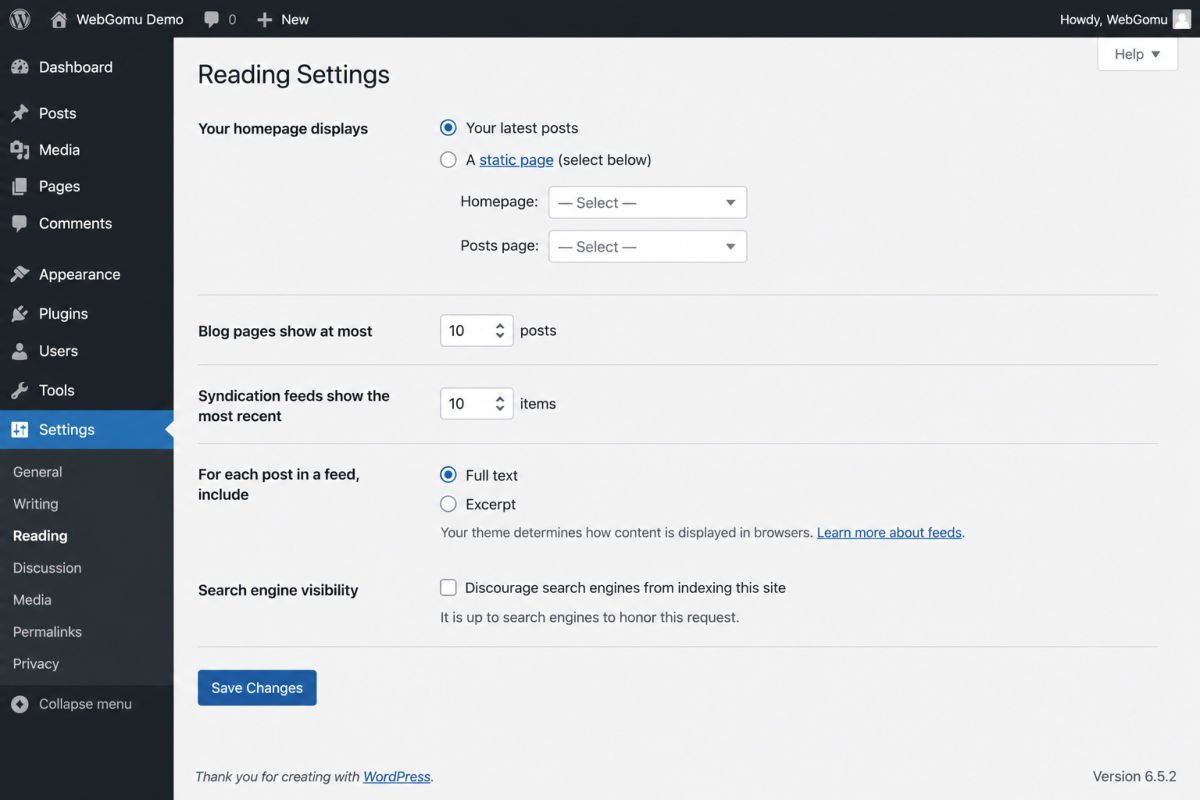
- Set your homepage under Settings → Reading, choosing whether it shows your blog feed or a custom page.
Common Mistakes
- Feeling like you need to understand every menu item immediately. You don’t — most beginners only regularly use 4–5 sections.
- Skipping the permalink setup, which leads to messy, unfriendly URLs later.
- Leaving sample content live on the published site.
- Not checking Users → Profile to confirm your admin email is correct and current.
- Ignoring the Updates section, which flags when WordPress core, themes, or plugins need attention.
Recommended Tools
- Site Health tool (under Tools) — built into WordPress, worth checking periodically for performance or security flags
- Screen Options (top-right of most dashboard pages) — lets you customize what information is shown, useful once you’re comfortable navigating
Key Takeaways
- Access your dashboard anytime at yourdomain.com/wp-admin.
- The left sidebar is your main navigation — Posts, Pages, and Media are what you’ll use most as a beginner.
- The Home screen gives you a quick summary and shortcuts, not a full picture — explore the sidebar for everything else.
- Handle the “first 5 things” checklist early to avoid messy defaults later.
Frequently Asked Questions
How do I get to my WordPress dashboard?
Add /wp-admin to the end of your domain name (e.g., yourdomain.com/wp-admin) and log in with your admin username and password.
What if my dashboard looks different from the screenshots I see online?
This usually means a plugin or theme has customized your admin appearance. The core sections (Posts, Pages, Media, etc.) will still function the same way underneath.
Do I need to understand every section of the dashboard right away?
No. Most beginners regularly use only Posts, Pages, Media, Appearance, and Plugins. The rest you can learn as needed.
What’s the difference between Posts and Pages?
Posts are for blog content shown in a chronological feed. Pages are for standalone content like your Home, About, or Contact pages.
I forgot my password — what do I do?
Click “Lost your password?” on the login screen. WordPress will email a reset link to your admin email address.
Resources Links
- The Ultimate Beginner’s Guide to WordPress (2026)
- How to Install WordPress: The Complete Beginner’s Guide
- How to Choose the Right WordPress Theme
- Best WordPress Plugins Every Beginner Needs
- WordPress Permalinks Explained
- Categories vs Tags in WordPress
- WordPress Security Basics
- The Complete WordPress SEO Checklist
Author:

Christoper Enolpe
Founder of WebGomu • WordPress Freelancer with 10+ Years of Experience
Christoper is the founder of WebGomu and a WordPress freelancer with over 10 years of hands-on experience building, optimizing, and maintaining WordPress websites. He writes practical, beginner-friendly guides based on real-world experience, covering WordPress, SEO, website performance, and AI tools to help readers build better websites with confidence.
Learn more: https://webgomu.com/about/
Get one WordPress tip every week
Start Here

The Ultimate Beginner’s Guide to WordPress (2026): Build Your First Website Without Coding
Popular Guides
Our Partner

More from the blog
WPCode Review 2026: The Safe Way to Add Custom Code
WordPress REST API Explained: A Beginner’s Guide (2026)