How to Back Up Your WordPress Website (2026 Guide)

To back up your WordPress site, install the free UpdraftPlus plugin, go to Settings → UpdraftPlus Backups, choose a backup schedule for your files and database, and connect a remote storage location like Google Drive or Dropbox. Blogs generally need weekly backups, while ecommerce or membership sites should back up daily to avoid losing customer or order data.
Before You Start
Make sure you have the following in place first:
- Administrator access to your WordPress dashboard
- A free account with a cloud storage service (Google Drive or Dropbox both work well)
- A rough sense of how often your site changes, to decide on a backup schedule
There will come a day when something breaks your site. A bad plugin update, a theme conflict, a hosting outage, or a hacked password. It happens to almost every site eventually. The difference between a five-minute fix and starting over from scratch usually comes down to one thing: did you have a recent backup?
This guide gets a reliable, automatic backup system running in a few minutes.
What You’ll Learn
- Why backups matter more than almost any other maintenance task
- How to install and configure UpdraftPlus, step by step
- How often to back up, based on your site type
- How to restore your site if something goes wrong
Choosing a Backup Method
There are a few ways to back up a WordPress site. Here’s how they compare:
| Method | Best For | Effort Required |
|---|---|---|
| UpdraftPlus (plugin) | Most beginners, automated and reliable | Low, set up once |
| Host-provided backups | Sites on hosts with built-in backup tools | Low, but check retention limits |
| Manual FTP/database export | Advanced users comfortable with file management | High, repeated manually |
For most beginners, a plugin like UpdraftPlus is the easiest and most reliable option. It backs up both your files and database in just a few clicks, without needing to dig into your site’s backend.
Step 1: Install UpdraftPlus
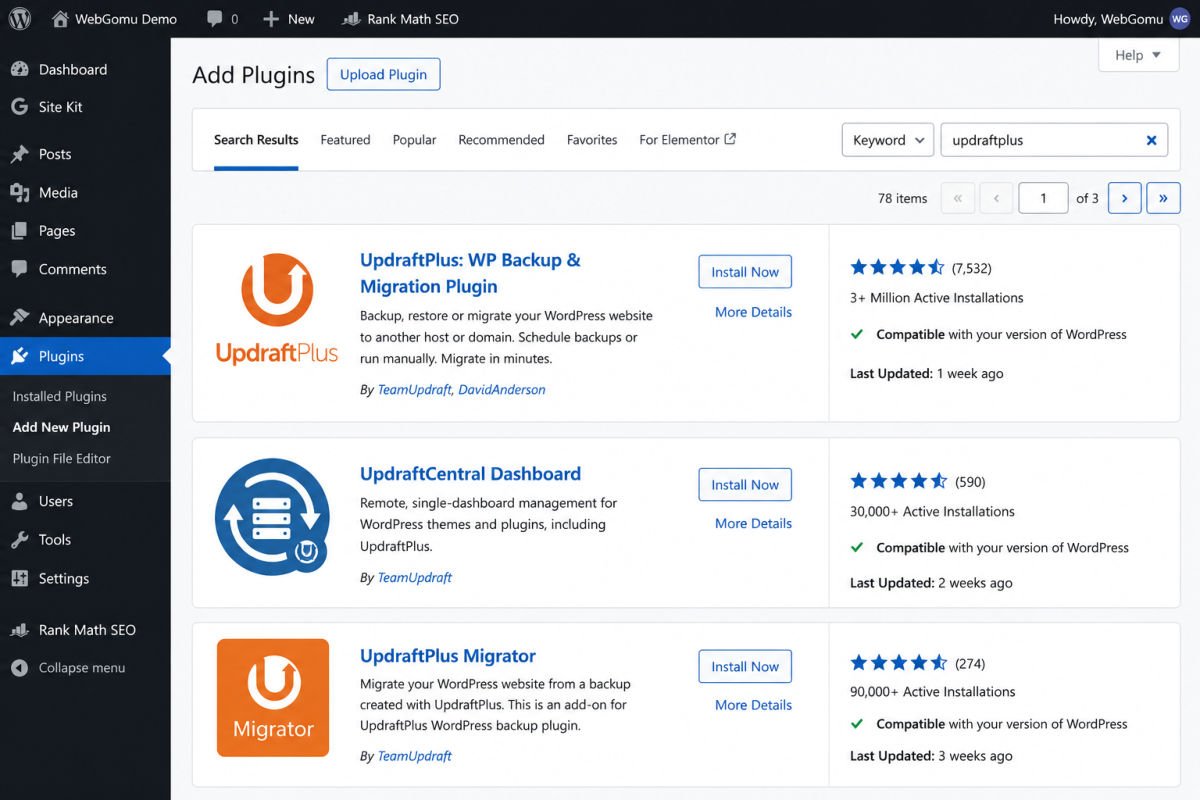
- Go to Plugins → Add New Plugin.
- Search for “UpdraftPlus.”
- Click Install Now, then Activate.
Step 2: Set Up a Backup Schedule
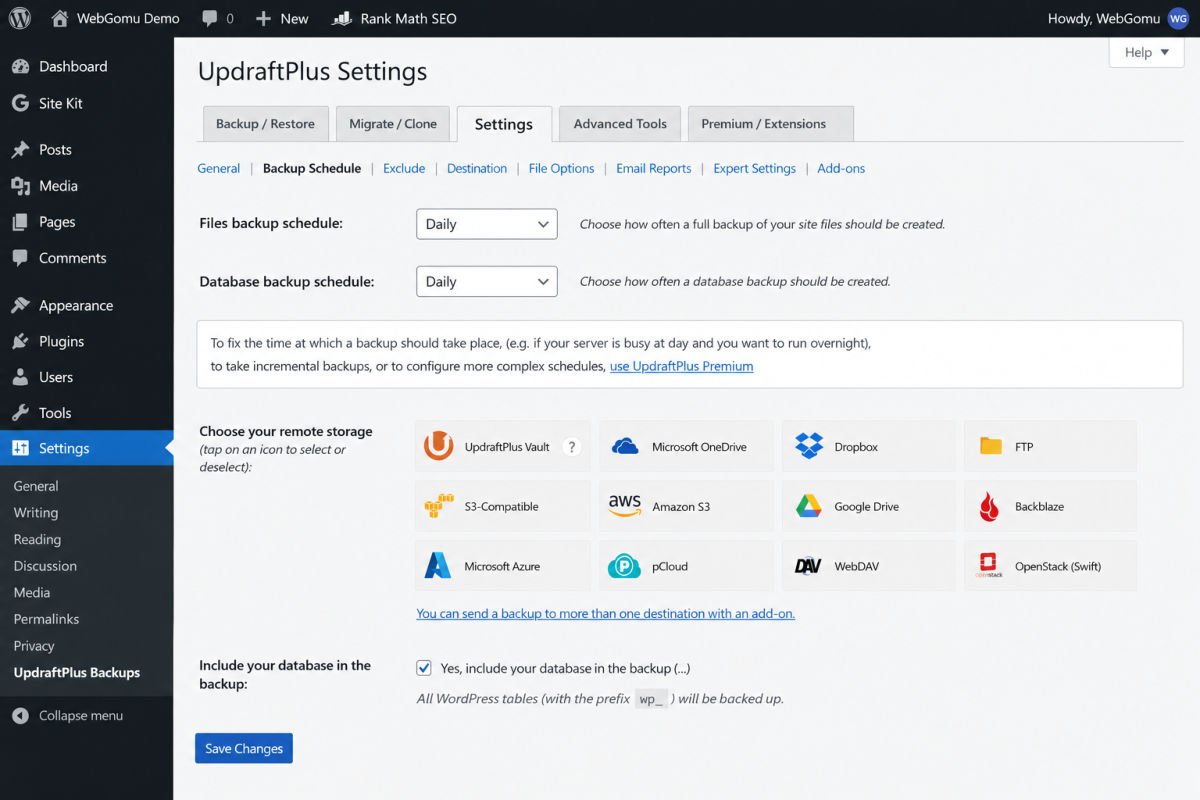
- Go to Settings → UpdraftPlus Backups.
- Open the Settings tab.
- Choose a backup schedule for your files (themes, plugins, images, uploads).
- Choose a schedule for your database separately. WordPress stores your posts, pages, and settings here.
- Click Save Changes.
Step 3: Connect Remote Storage
Don’t rely on backups stored only on your hosting server. If your server has an issue, both your site and its backup could be affected together. In the same Settings tab, choose a remote storage option like Google Drive, Dropbox, or Amazon S3, and follow the authentication prompts to connect your account.
WebGomu Tip: Enable email reporting under the Settings tab so you get a quick email confirmation every time a backup runs. This small habit means you’ll actually notice quickly if a backup ever silently fails.
Step 4: Run a Manual Backup (Optional, But Worth Doing Now)
- Go to the Backup/Restore tab.
- Click Backup Now.
- Choose to include both files and database, then confirm.
This confirms everything works correctly right away, rather than waiting for your first scheduled backup to find out.
How to Restore From a Backup
If something goes wrong, go to Settings → UpdraftPlus Backups → Backup/Restore, find the backup you want to use, and click Restore. Choose which parts to restore (files, database, or both) and follow the prompts. If you can’t access your dashboard at all, backups are also stored directly on your server in the /wp-content/updraft folder as a fallback.
Troubleshooting
My backup keeps failing or timing out
This is usually caused by limited server resources on the hosting side. Try reducing the backup file split size under Expert Settings, or consider a more resource-generous hosting plan if the issue persists.
I can’t find my backups after connecting cloud storage
Double-check the authentication step completed successfully under Settings → UpdraftPlus Backups. An interrupted connection is the most common cause of backups not appearing in your cloud account.
How do I know if my backup actually worked?
Enable email reporting so you receive a confirmation after each backup. You can also check the Backup/Restore tab directly to see your most recent completed backups listed.
Common Mistakes
- Storing backups only on the same server as your live site, leaving no protection if the server itself fails.
- Setting up backups once and never checking whether they’re actually still running.
- Backing up too infrequently for a site that changes daily, like an online store.
- Waiting until after a problem happens to think about backups at all.
Recommended Tools
- UpdraftPlus — reliable, widely used free backup plugin, sufficient for most beginner and small business sites
- Google Drive or Dropbox — simple, free remote storage destinations to pair with your backup schedule
Key Takeaways
- A recent backup is often the difference between a quick fix and starting over completely.
- UpdraftPlus is a reliable, beginner-friendly way to automate backups.
- Always store backups remotely, not only on your hosting server.
- Match your backup frequency to how often your site actually changes.
Frequently Asked Questions
How often should I back up my WordPress site?
Blogs and low-change sites typically do fine with weekly backups. Ecommerce or membership sites should back up daily to avoid losing order or customer data.
Is UpdraftPlus really free?
Yes, the free version includes scheduled backups, remote storage connections, and manual backups. The premium version adds features like incremental backups and pre-update backup automation.
Where should I store my backups?
A remote location like Google Drive, Dropbox, or Amazon S3, separate from your hosting server. This protects your backup even if your server has an outage or issue.
Can I restore my site myself if something breaks?
Yes. UpdraftPlus lets you restore directly from your dashboard under Backup/Restore, or from files stored on your server if your dashboard is inaccessible.
Do I still need backups if I have a security plugin?
Yes. A security plugin helps prevent problems, but a backup is what lets you actually recover if something still goes wrong despite those defenses.
Resources Links
Author:

Christoper Enolpe
Founder of WebGomu • WordPress Freelancer with 10+ Years of Experience
Christoper is the founder of WebGomu and a WordPress freelancer with over 10 years of hands-on experience building, optimizing, and maintaining WordPress websites. He writes practical, beginner-friendly guides based on real-world experience, covering WordPress, SEO, website performance, and AI tools to help readers build better websites with confidence.
Learn more: https://webgomu.com/about/
Get one WordPress tip every week
Start Here

The Ultimate Beginner’s Guide to WordPress (2026): Build Your First Website Without Coding
Popular Guides
Our Partner

More from the blog
The Ultimate WordPress Speed Optimization Guide (2026)
The Ultimate WordPress Security Guide (2026)