How to Choose the Right WordPress Theme for Beginners (2026)

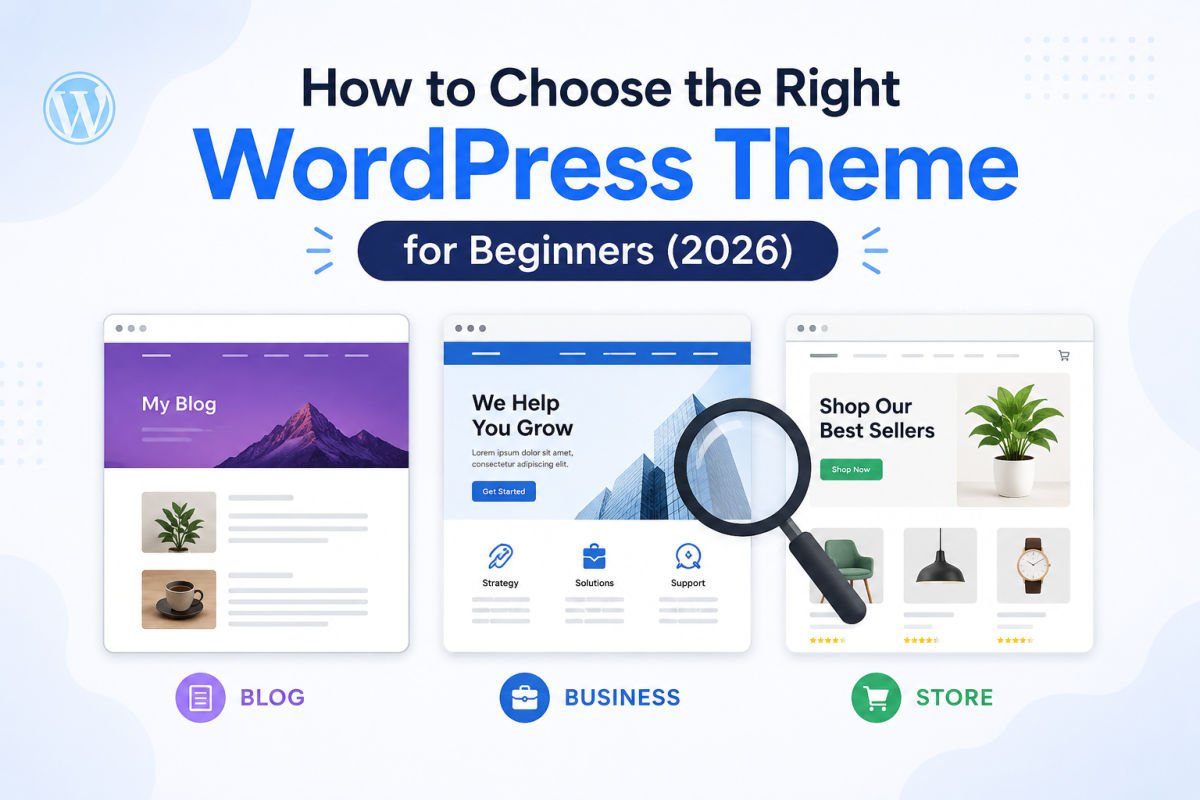
To choose a WordPress theme, start with your site’s purpose (blog, business, portfolio, or store), then evaluate speed, mobile responsiveness, and whether it’s a block theme or classic theme. Prioritize lightweight, well-supported themes over feature-heavy ones — you can always add functionality with plugins later, but a slow, bloated theme is hard to fix.
Open the WordPress theme directory and you’ll find thousands of options, all claiming to be fast, modern, and beginner-friendly. It’s genuinely overwhelming, and picking based on looks alone is how most beginners end up stuck with something slow or hard to customize.
This guide gives you a simple filter to cut through the noise, so you land on a theme that actually fits your site — not just the one with the prettiest demo screenshot.
What You’ll Learn
- The real difference between block themes and classic themes
- The 4 factors that matter more than how a theme looks
- Free vs. premium themes, and when each makes sense
- How to test a theme before you commit to it
Block Themes vs. Classic Themes
Every WordPress theme released today falls into one of two categories, and understanding the difference shapes your entire editing experience going forward.
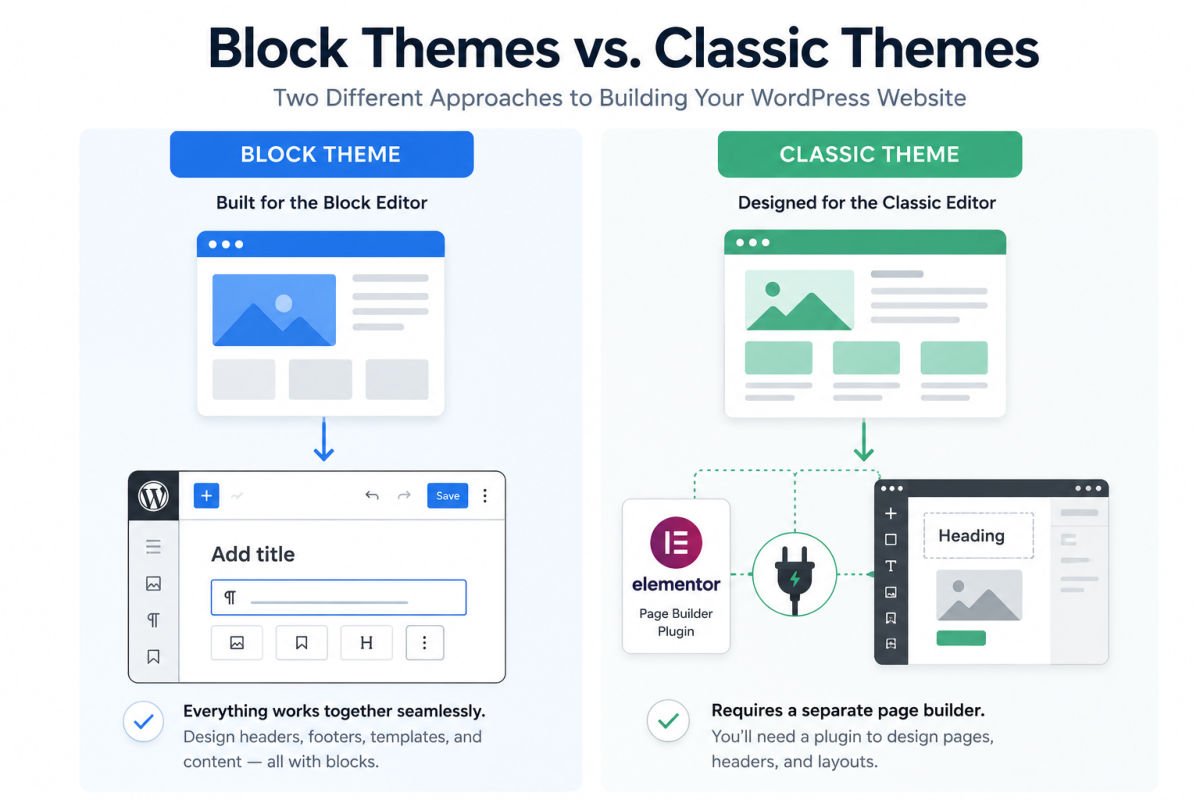
Block themes are built for WordPress’s Full Site Editing system. With a block theme, you can customize your headers, footers, and page templates using the same block editor you already use to write posts — no separate “theme customizer” screen required.
Classic themes use a more traditional setup, often paired with a separate page builder plugin (like Elementor) for deeper design control.
Neither is objectively better for a beginner. Block themes are simpler and more future-aligned with where WordPress is heading. Classic themes paired with a page builder often offer more design flexibility today, at the cost of an extra plugin to learn. If you’re not sure yet, a block theme is the lower-friction starting point — see our Gutenberg Block Editor tutorial to get a feel for it first.
The 4 Factors That Actually Matter
Looks matter less than these four things, in this order:
1. Loading Speed
A beautiful theme that loads slowly will hurt both your visitors’ experience and your SEO. Before installing any theme, check whether reviews or demo sites mention performance testing, and once installed, run your own test using a free tool like Google PageSpeed Insights, see our speed optimization guide for how to interpret and act on the results.
2. Mobile Responsiveness
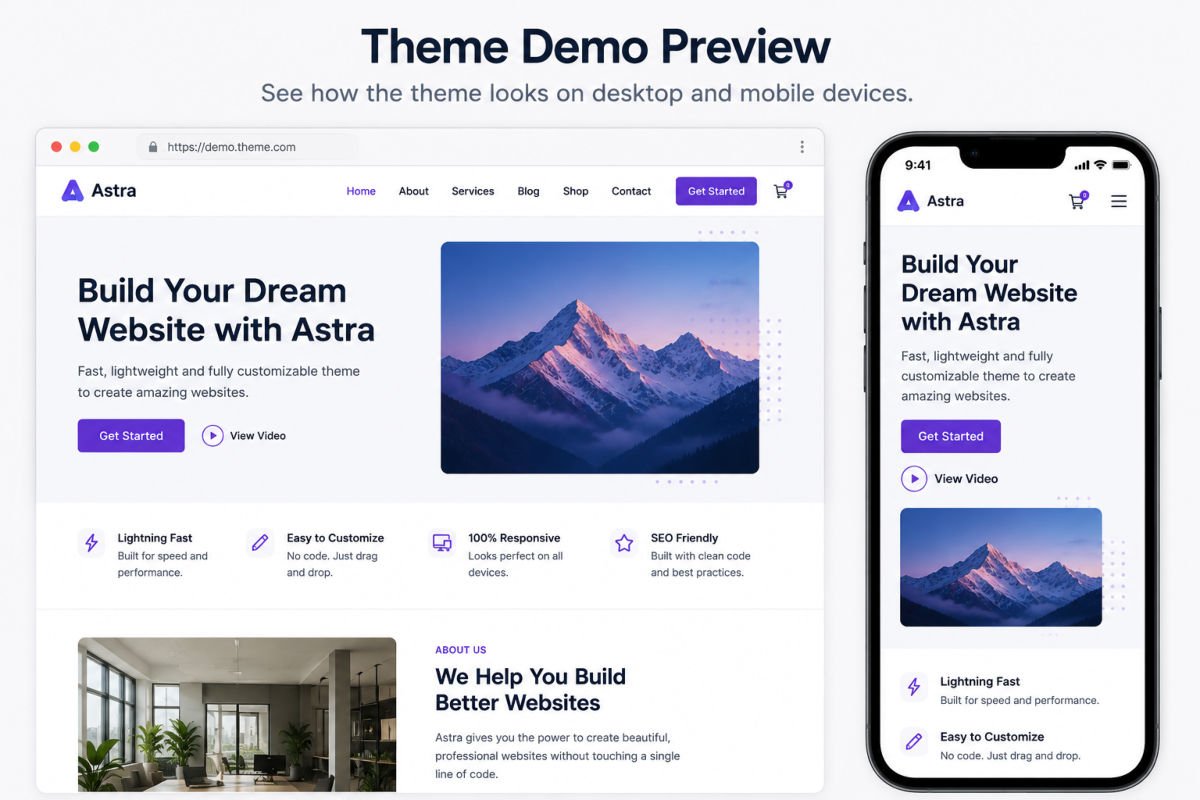
Nearly every modern theme claims to be “responsive,” but the quality varies. Always check the live demo on an actual phone, not just by resizing your desktop browser window.
3. Update Frequency & Support
Check the theme’s last update date and how recently the developer responded to support requests, visible on the WordPress.org theme page for free themes. A theme that hasn’t been updated in over a year is a security and compatibility risk.
4. Plugin & Page Builder Compatibility
If you already know you’ll need WooCommerce for a store, or Elementor for design flexibility, confirm the theme explicitly supports it before you fall in love with it.
WebGomu Tip: Resist choosing a theme purely because it has the most built-in features. Extra sliders, animations, and layout options you’ll never use are often exactly what slows a theme down. Simpler is usually faster and easier to maintain.
Free vs. Premium Themes
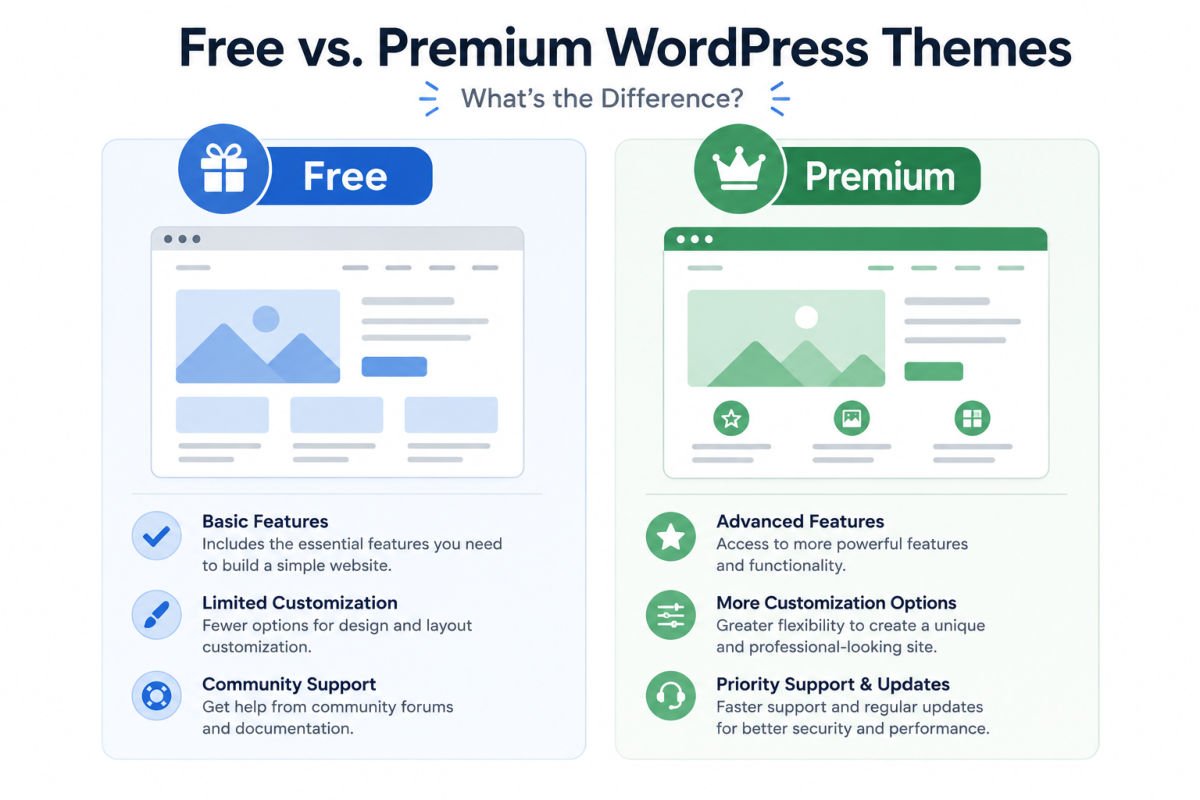
Free themes from the official WordPress.org directory go through a review process for quality and security, and are genuinely a solid starting point for most beginners — themes like Astra, GeneratePress, and the default Twenty Twenty-Five theme are well-regarded free options.
Premium themes, often priced roughly $30–$200, typically offer more built-in design options, dedicated support, and pre-built page templates. They’re worth considering once you know exactly what your site needs, rather than as a default first choice.
How to Test a Theme Before Committing
- View the live demo on both desktop and mobile.
- Check the theme’s rating and review count (for free themes) or independent reviews (for premium ones).
- Install it on a staging site or a fresh test install first, if possible, rather than directly on your live site.
- Back up your site before switching themes on an existing site — theme changes can affect layout and, occasionally, content display.
Common Mistakes
- Choosing a theme based only on the demo screenshot, without checking speed or mobile performance.
- Picking the theme with the most features, which often means the slowest load time.
- Ignoring update history, and ending up on an abandoned, insecure theme.
- Switching themes on a live site without a backup.
- Assuming a premium theme is automatically better than a free one — many top-performing themes are free.
Recommended Tools
- Astra, GeneratePress — lightweight, well-supported free themes popular for their speed and flexibility
- Google PageSpeed Insights — free tool to test a theme’s real-world loading speed
- UpdraftPlus — free backup plugin, useful before switching themes on a live site
We’re naming these because they consistently perform well in independent speed and compatibility testing — not because any of them are the only good option. The right theme still depends on your specific site goals.
Key Takeaways
- Start with your site’s purpose, not the prettiest demo.
- Speed, mobile responsiveness, update frequency, and plugin compatibility matter more than built-in features.
- Free themes from WordPress.org are a legitimate, well-tested starting point.
- Always back up before switching themes on a live site.
Frequently Asked Questions
Is a free WordPress theme good enough for a real business site?
Yes, in many cases. Well-maintained free themes like Astra and GeneratePress are used on professional business sites every day. The key is choosing based on performance and support, not price.
What’s the difference between a block theme and a classic theme?
Block themes let you customize your entire site using the block editor. Classic themes typically rely on a separate customizer or page builder plugin for design control.
How do I know if a theme is well-supported?
Check the last update date and read recent reviews or support forum activity, especially for free themes listed on WordPress.org.
Can I switch themes later without losing my content?
Yes, your content (posts and pages) is stored separately from your theme. However, layout and design elements specific to your old theme may not transfer, so always back up first.
Do I need a premium theme to build a professional-looking site?
No. Many free themes offer professional, polished designs. Premium themes add convenience and extra design options, but they aren’t required for a great-looking result.
Resources Links
Author:

Christoper Enolpe
Founder of WebGomu • WordPress Freelancer with 10+ Years of Experience
Christoper is the founder of WebGomu and a WordPress freelancer with over 10 years of hands-on experience building, optimizing, and maintaining WordPress websites. He writes practical, beginner-friendly guides based on real-world experience, covering WordPress, SEO, website performance, and AI tools to help readers build better websites with confidence.
Learn more: https://webgomu.com/about/
Get one WordPress tip every week
Start Here

The Ultimate Beginner’s Guide to WordPress (2026): Build Your First Website Without Coding
Popular Guides
Our Partner

More from the blog
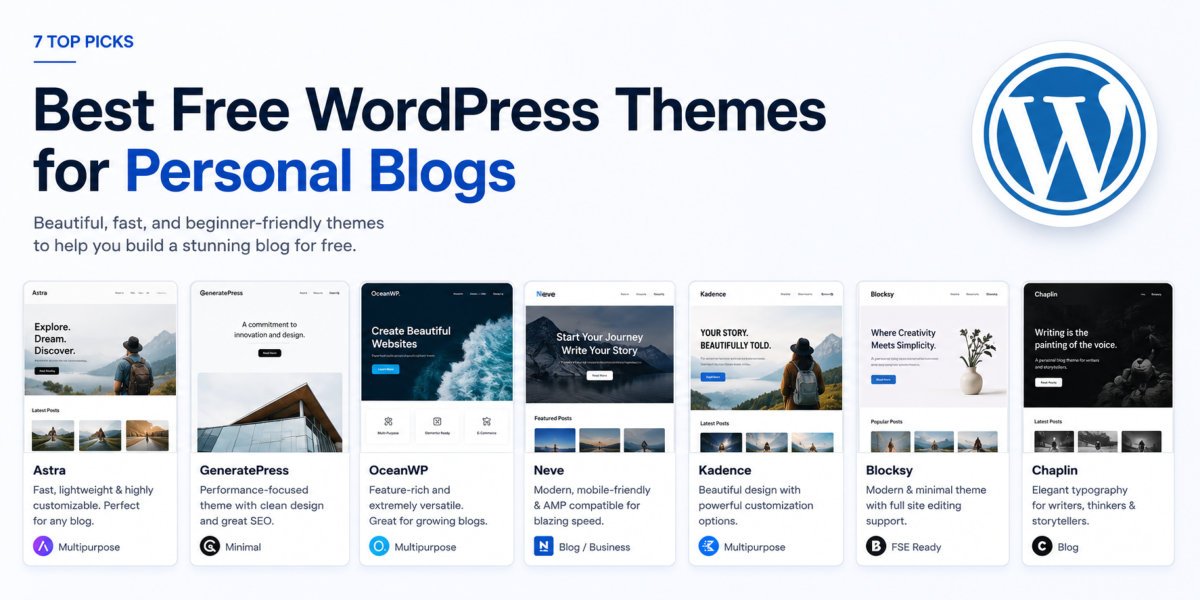
7 Best Free WordPress Themes for Personal Blogs (2026)
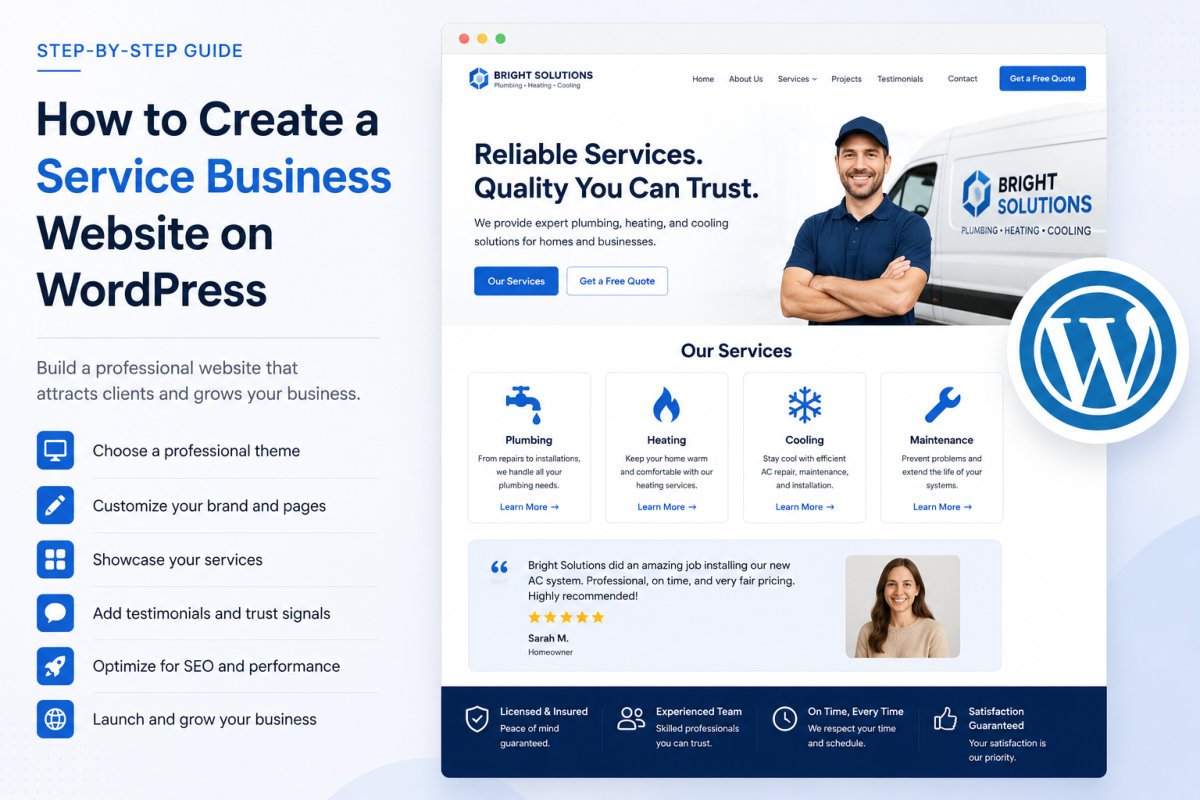
How to Create a Service Business Website on WordPress