How to Build a Professional Portfolio Website on WordPress

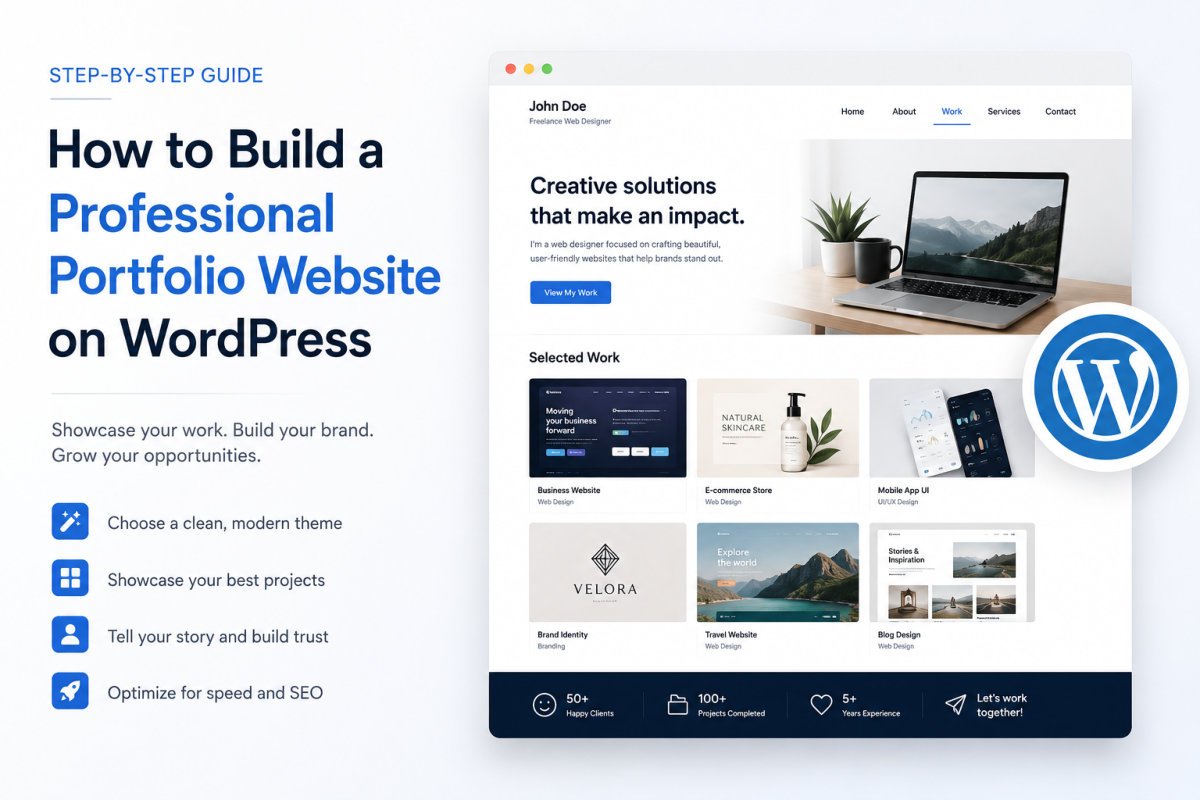
A professional WordPress portfolio needs 5 core pages: Home, About, a Portfolio or Work page, a single project template, and Contact. Build the gallery using a lightweight free theme (Astra, Neve, or Kadence) paired with a free portfolio plugin (WPZOOM Portfolio or Visual Portfolio), add a contact form, and connect your own domain with SSL. With a clear structure, you can have a professional portfolio live in an afternoon, no coding or custom development required.
Before You Start
Make sure you have the following in place first:
- WordPress installed (see our installation guide if you haven’t yet)
- 3-5 of your best projects ready to showcase, images or case study material
- A domain name (see our domain guide), a portfolio under your own domain reads far more professionally than a subdomain or demo URL
A PDF resume doesn’t cut it anymore. Clients and employers want to see your actual work, your process, and enough personality to feel confident reaching out. WordPress is a genuinely strong choice for this, you own the site outright, choose from a huge range of design options, and can grow it into a full business site later if needed.
What You’ll Learn
- The 5 pages every professional portfolio actually needs
- The 4 ways to build your project gallery, and which fits your situation
- How to set up projects, a contact form, and your own domain
- Why speed matters more for a portfolio than almost any other site type
The 5 Pages a Portfolio Actually Needs
- Home — a clear, immediate sense of who you are and what you do
- About — your background, skills, and personality (see our essential pages guide for the full framework)
- Portfolio/Work — a gallery displaying your projects
- Single project template — a consistent, repeatable layout for each individual project’s details
- Contact — a working form, not just a listed email address
Choosing How to Build Your Gallery
There are 4 genuine methods, each with real trade-offs:
| Method | Best For | Effort |
|---|---|---|
| Dedicated portfolio theme | Fastest path to a polished look on a new site | Low |
| Portfolio plugin | Adding a gallery to a site you already like | Low-Medium |
| Page builder (e.g., Elementor) | Maximum design control and custom layouts | Medium-High |
| Native block editor with patterns | Lightest weight, no extra plugin dependency | Medium |
For most beginners, a lightweight free theme paired with a dedicated portfolio plugin offers the best balance of speed and control, no page builder license required.
Step 1: Choose a Lightweight Theme
Astra, Neve, and Kadence are all free, well-supported options that pair cleanly with portfolio plugins. See our theme selection guide for the broader decision framework, the same speed and support priorities apply here.
Step 2: Install a Portfolio Plugin
- Go to Plugins → Add New Plugin.
- Search for “WPZOOM Portfolio” or “Visual Portfolio.”
- Install and activate it.
WPZOOM Portfolio’s free tier includes a custom post type built specifically for projects, a Gutenberg block, grid layouts, and category filtering, genuinely sufficient for most portfolios without paying anything.
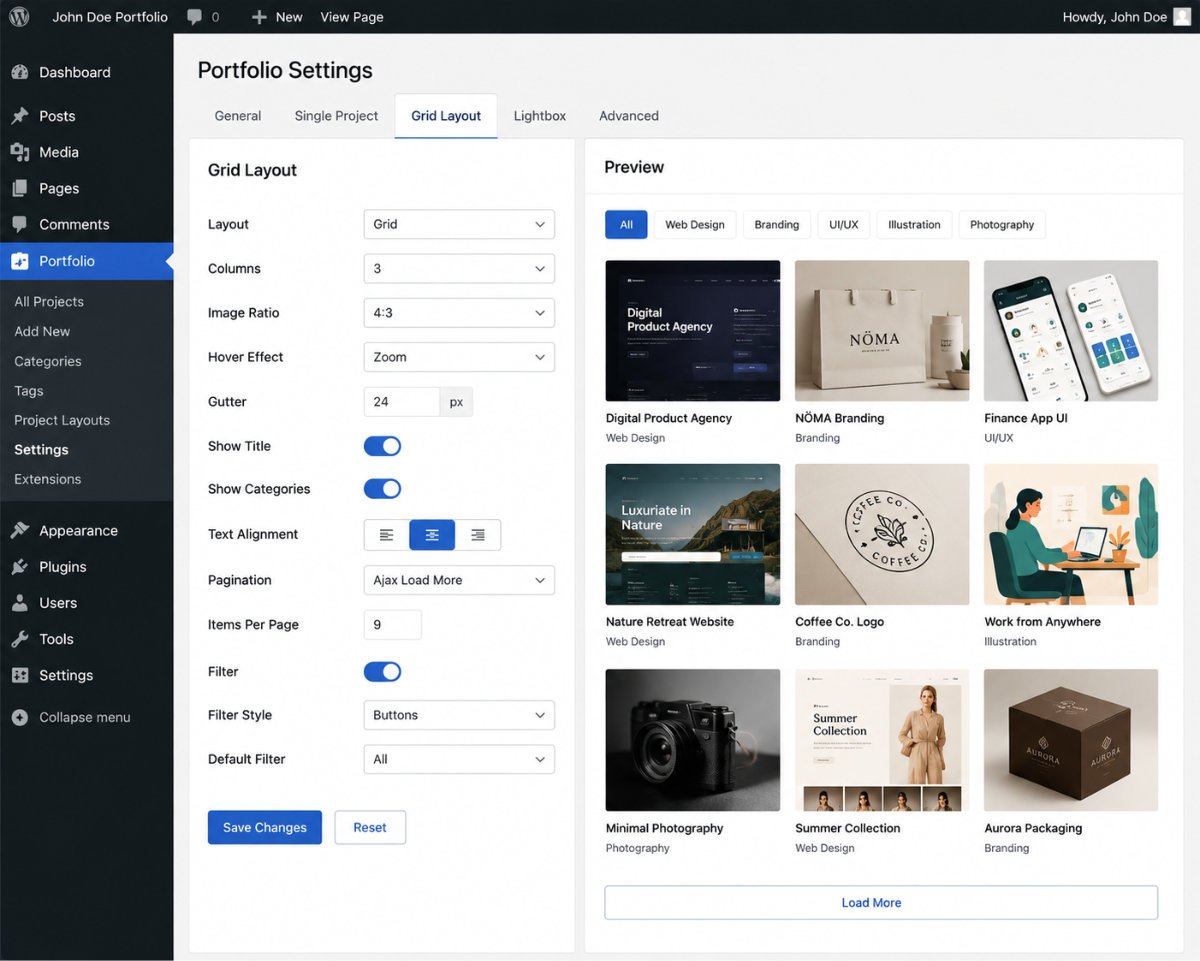
Step 3: Build Your Project Gallery
Create a new page for your Portfolio/Work section, then insert the portfolio block or shortcode your plugin provides. Choose a grid layout and confirm category filtering if you want visitors to browse by project type.
Step 4: Add Your Projects
Add each project as its own entry, using the custom post type your plugin created. Include a strong featured image, a short project description, and if relevant, the specific problem it solved, this reads as more compelling than a plain image gallery alone.
WebGomu Tip: Quality beats quantity here. Three to five genuinely strong, well-documented projects make a stronger impression than ten thin ones with a single image and no context. Curate ruthlessly.
Step 5: Add a Contact Form
Some lightweight themes don’t include a built-in contact page. See our contact form guide for the full WPForms setup, a working form reads far more professional than simply listing an email address.
Step 6: Connect Your Own Domain and SSL
A custom domain plus active SSL turns a demo site into a genuine professional identity. See our SSL certificate guide if you haven’t confirmed this is active yet.
Why Speed Matters More for a Portfolio
Portfolio visitors are often evaluating you against other candidates or freelancers in the same sitting, a slow-loading site creates a real, immediate negative impression at exactly the moment you’re trying to make a good one. See our speed optimization guide to confirm your site loads quickly, especially on mobile.
Common Mistakes
- Filling the gallery with too many thin, under-documented projects instead of a few genuinely strong ones.
- Launching without a working contact form, just a listed email address.
- Skipping a custom domain, staying on a demo or subdomain URL undercuts the professional impression you’re going for.
- Ignoring page speed on a portfolio specifically, where first impressions matter more than almost any other site type.
Recommended Tools
- Astra, Neve, or Kadence — lightweight, free themes that pair well with portfolio plugins
- WPZOOM Portfolio or Visual Portfolio — free, purpose-built portfolio gallery plugins
- WPForms — for a working contact form, covered in our dedicated guide
Key Takeaways
- A portfolio needs 5 core pages: Home, About, Portfolio, a single project template, and Contact.
- A free theme paired with a free portfolio plugin is the fastest path for most beginners.
- Curate a handful of strong, well-documented projects rather than many thin ones.
- A custom domain, SSL, and fast load times all meaningfully affect first impressions on a portfolio specifically.
Frequently Asked Questions
Do I need a page builder like Elementor to build a portfolio?
No, a lightweight theme paired with a free portfolio plugin covers most beginners’ needs without a page builder license.
How many projects should I include in my portfolio?
Three to five genuinely strong, well-documented projects typically make a stronger impression than a larger number of thin entries.
Do I need a custom domain for a portfolio site?
It’s strongly recommended. A custom domain reads as significantly more professional than a subdomain or demo URL, especially when a portfolio is meant to represent you to potential clients or employers.
Which free theme works best for a WordPress portfolio?
Astra, Neve, and Kadence are all commonly recommended, lightweight, well-supported, and designed to pair cleanly with portfolio plugins.
Why does page speed matter so much for a portfolio specifically?
Portfolio visitors are often comparing you against other candidates in the same sitting, a slow site creates an immediate negative impression at exactly the moment you’re trying to make a strong one.
Resources Links
Author:

Christoper Enolpe
Founder of WebGomu • WordPress Freelancer with 10+ Years of Experience
Christoper is the founder of WebGomu and a WordPress freelancer with over 10 years of hands-on experience building, optimizing, and maintaining WordPress websites. He writes practical, beginner-friendly guides based on real-world experience, covering WordPress, SEO, website performance, and AI tools to help readers build better websites with confidence.
Learn more: https://webgomu.com/about/
Get one WordPress tip every week
Start Here

The Ultimate Beginner’s Guide to WordPress (2026): Build Your First Website Without Coding
Popular Guides
Our Partner

More from the blog
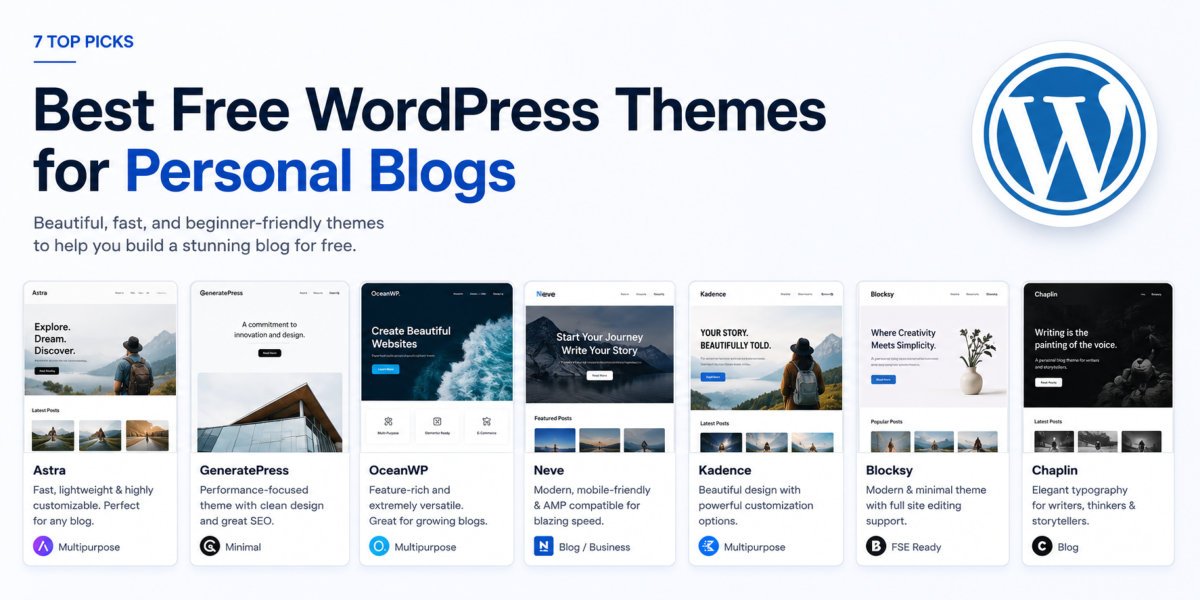
7 Best Free WordPress Themes for Personal Blogs (2026)
How to Create a Service Business Website on WordPress