How to Set Up Menus and Navigation in WordPress (2026)


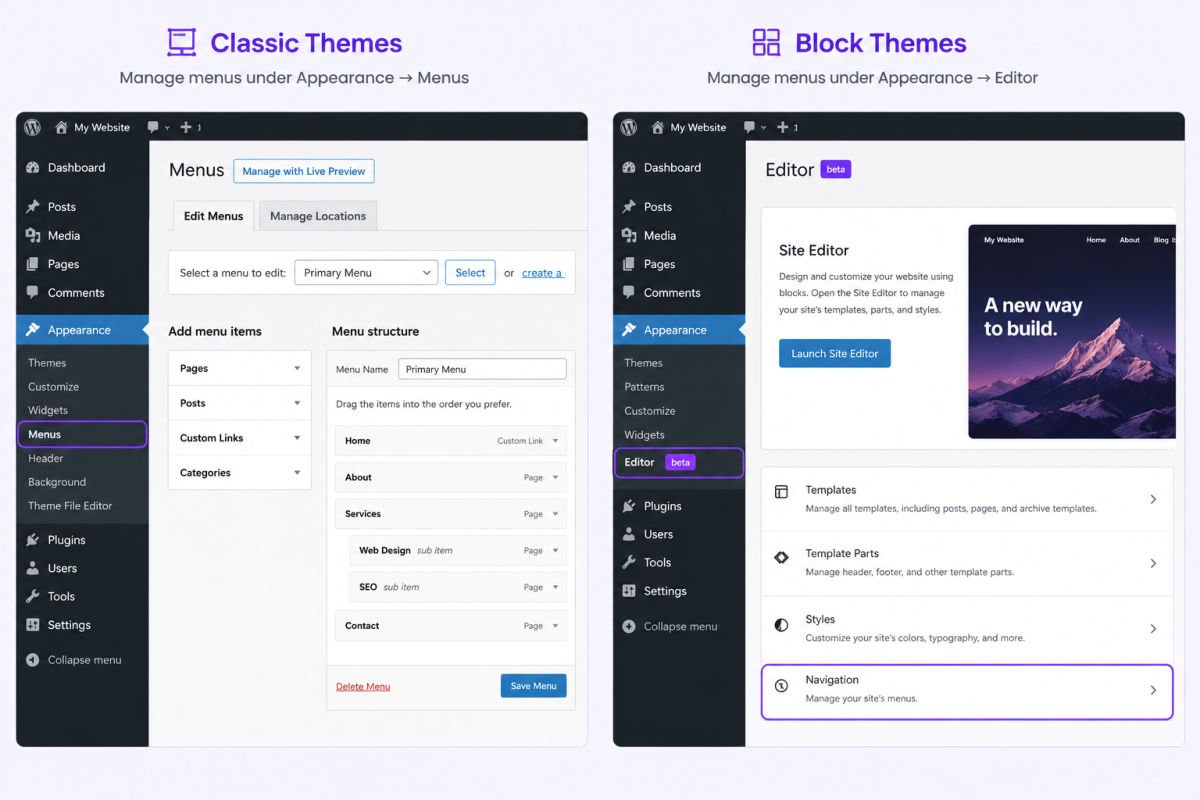
To set up a menu in classic themes, go to Appearance → Menus, create a new menu, add your pages, drag to reorder them, assign a display location, and save. On block themes, go to Appearance → Editor → Navigation instead, where the same process happens inside the Navigation block. Either way, a working menu is what actually makes your pages discoverable to visitors.
If you’ve followed our essential pages guide and built out your Home, About, and Contact pages, there’s one important step left: making sure visitors can actually find them. A page that exists but isn’t linked anywhere in your navigation is effectively invisible.
This guide walks through setting up your main menu, whichever type of theme you’re using.
What You’ll Learn
- How to create a menu on a classic theme
- How to create a menu on a block theme
- How to add dropdown (sub-menu) items
- Where menus typically appear, and best practices for structuring them
Check Your Theme Type First
Your setup steps depend on whether you’re using a classic theme or a block theme (see our theme selection guide if you’re not sure which you have). Go to Appearance in your dashboard sidebar — if you see “Menus” as its own option, you’re on a classic theme. If you only see “Editor,” you’re on a block theme.
Setting Up a Menu on a Classic Theme
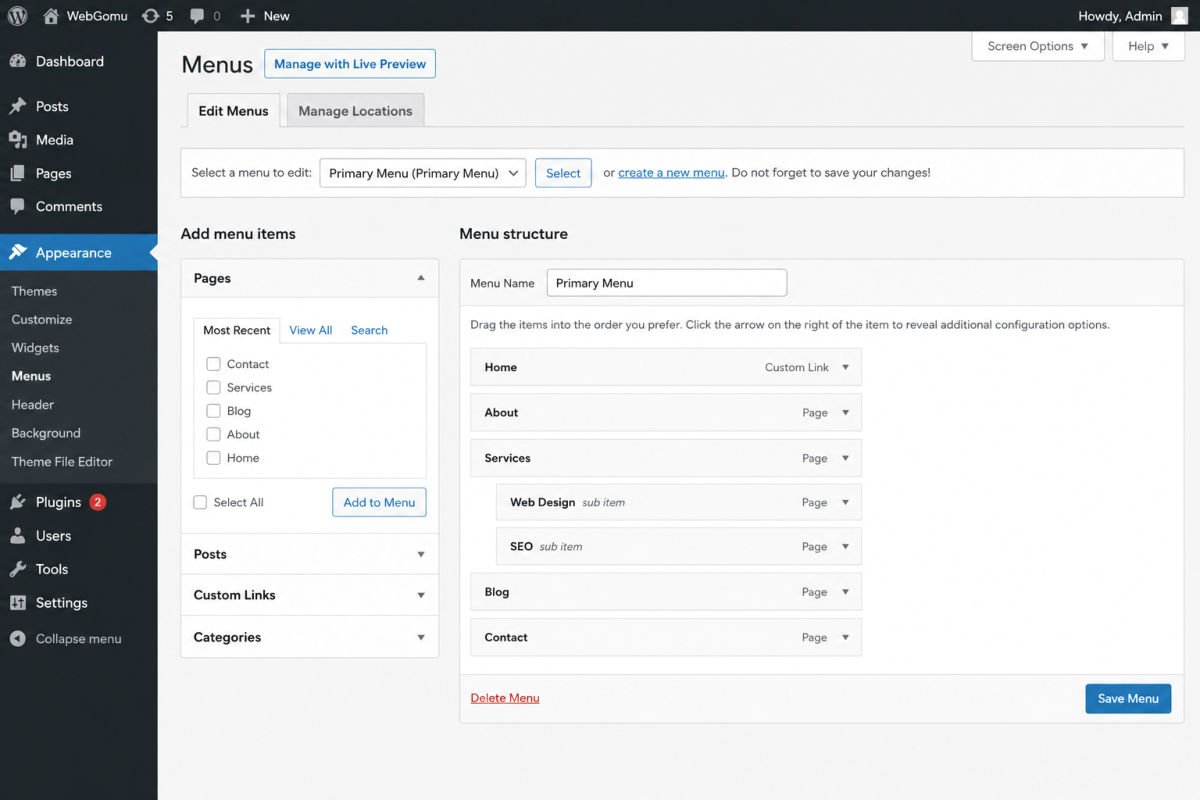
- Go to Appearance → Menus.
- Click Create a new menu, give it a clear name like “Main Navigation,” and click Create Menu.
- From the left panel, check the boxes next to the Pages (or Posts, Categories, or Custom Links) you want to include, then click Add to Menu.
- Drag items in the right panel to reorder them.
- To create a dropdown, drag an item slightly to the right, underneath the item you want it nested beneath.
- Under Menu Settings, select a display location (usually “Primary” or “Header”).
- Click Save Menu.
Setting Up a Menu on a Block Theme
- Go to Appearance → Editor.
- Select the template or template part where your navigation should appear (usually the Header).
- Click the Navigation block, then use the block inserter (+) to add links, one at a time, or connect it to an existing menu if you have one.
- Reorder or nest items directly within the block by dragging them.
- Save your changes.
WebGomu Tip: Whichever theme type you’re using, keep your main menu to 5-7 items maximum. A menu with too many options overwhelms visitors and actually makes it harder for them to find what they need — this is one of the most common navigation mistakes on new sites.
Where Menus Typically Appear
Most themes support at least a couple of menu locations:
- Primary/Header menu — your main navigation, visible at the top of every page
- Footer menu — often used for secondary links like Privacy Policy or Terms
- Social menu — some themes offer a dedicated location for social media icons
You can create multiple separate menus and assign each to a different location.
Structuring Your Menu Well
A good navigation structure follows a logical order that matches how visitors think, not necessarily how your pages were created. A common, effective order is: Home, About, [Core content — Blog/Services/Shop], Contact. Save less-frequently-needed pages (like Privacy Policy) for the footer menu instead of cluttering your main navigation.
Common Mistakes
- Building pages but never adding them to a menu, leaving them undiscoverable except by direct link.
- Overloading the main menu with too many items or excessive dropdowns.
- Forgetting to assign a display location after creating a menu on a classic theme, so it never actually appears on the site.
- Inconsistent labeling, like naming a menu item something different from the actual page title, which can confuse visitors.
Recommended Tools
- Built-in WordPress menu editor — sufficient for the vast majority of beginner sites, no plugin required
- A mega menu plugin — only necessary later, for larger sites with many categories needing a more complex dropdown structure
Most beginners never need anything beyond the built-in menu system — it’s worth getting comfortable with it before considering any menu plugin.
Key Takeaways
- Classic themes use Appearance → Menus; block themes use Appearance → Editor → Navigation.
- A page that isn’t added to a menu is effectively invisible to most visitors.
- Keep your main menu to 5-7 items for the best visitor experience.
- Use dropdowns and footer menus to organize secondary pages without cluttering your main navigation.
Frequently Asked Questions
Why isn’t my menu showing up on my site?
On classic themes, this is almost always because a display location wasn’t assigned under Menu Settings. Double-check that a location like “Primary” is selected and the menu is saved.
Can I have different menus in different places?
Yes. Most themes support multiple menu locations, such as a header menu and a separate footer menu, and you can assign a different set of links to each.
How do I create a dropdown menu?
On classic themes, drag a menu item slightly to the right, underneath the item you want it nested beneath. On block themes, submenu items can be added within the Navigation block using a similar nested structure.
How many items should my main menu have?
Generally 5-7 items works best. More than that tends to overwhelm visitors and can actually make navigation harder, not easier.
Do I need a plugin to build a good navigation menu?
No, WordPress’s built-in menu editor handles the vast majority of beginner and small business site needs without any additional plugin.
Resources Links
Author:

Christoper Enolpe
Founder of WebGomu • WordPress Freelancer with 10+ Years of Experience
Christoper is the founder of WebGomu and a WordPress freelancer with over 10 years of hands-on experience building, optimizing, and maintaining WordPress websites. He writes practical, beginner-friendly guides based on real-world experience, covering WordPress, SEO, website performance, and AI tools to help readers build better websites with confidence.
Learn more: https://webgomu.com/about/
Get one WordPress tip every week
Start Here

The Ultimate Beginner’s Guide to WordPress (2026): Build Your First Website Without Coding
Popular Guides
Our Partner

More from the blog
7 Best Free WordPress Themes for Personal Blogs (2026)

How to Create a Service Business Website on WordPress