WordPress Maintenance Checklist: Monthly and Quarterly Tasks

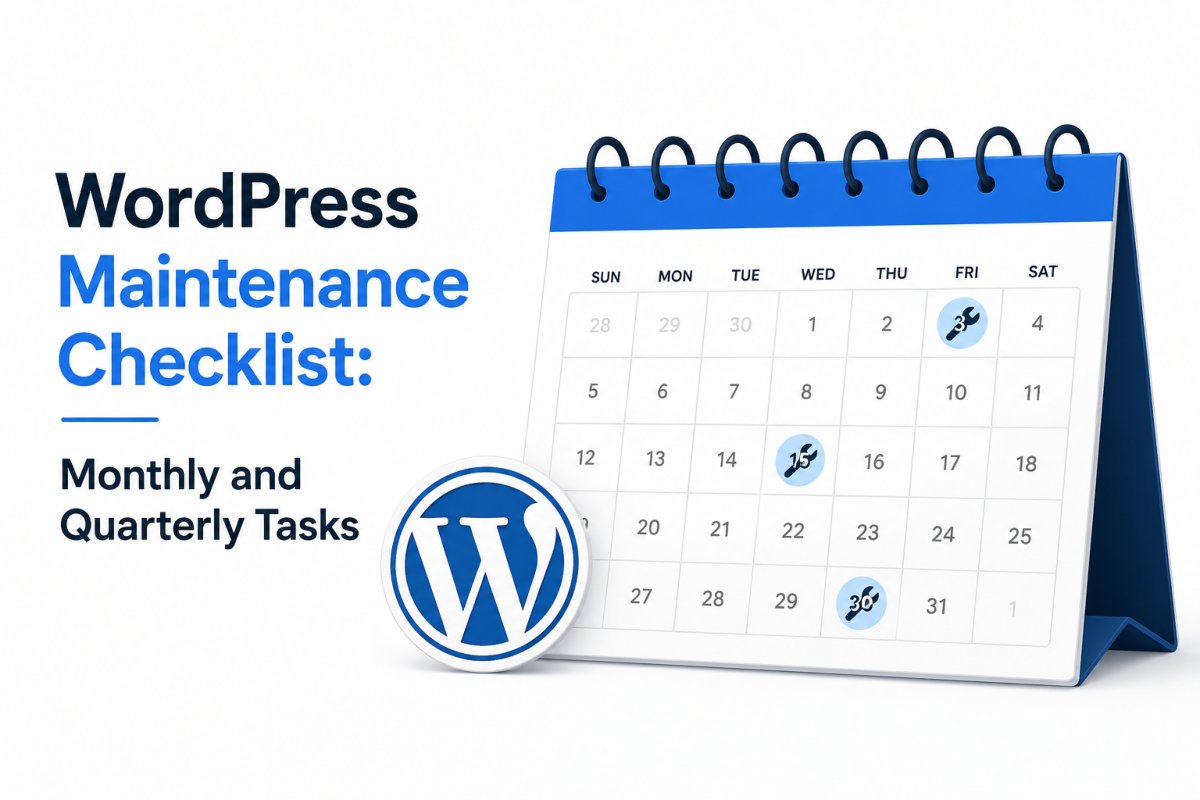
A solid monthly WordPress maintenance routine covers a security scan, a speed check, database cleanup, broken link and form testing, and a review of your Analytics and Search Console data, roughly 45-90 minutes of work. Quarterly maintenance goes deeper: a full plugin and theme audit, user account and credential review, SSL and PHP version checks, and a content refresh on underperforming pages, another 2-4 hours every three months. Together, this routine catches small problems before they quietly become expensive ones.
Before You Start
Make sure you have the following in place first:
- Automated backups already running (see our backup guide), daily and weekly tasks like uptime monitoring and backups are best automated, not manually checked
- A calendar reminder set for the first of each month and the start of each quarter
Daily and weekly upkeep, uptime monitoring, backups, minor updates, are things you should automate, not manually chase (see our automation guide for exactly how). Monthly and quarterly maintenance is different: these are the deeper checks worth deliberately sitting down for, since they catch the kind of gradual drift that automation alone won’t flag.
What You’ll Learn
- Exactly what to check every month, and why
- The deeper quarterly tasks that catch slow-building problems
- Roughly how much time to budget for each
- Which of WebGomu’s other guides to lean on for each specific task
Monthly Checklist (45-90 Minutes)
1. Run a Full Security Scan
Check for malware, unexpected file changes, and unknown admin accounts. See our security basics guide for the tools that handle this.
2. Test Site Speed
Run your key pages through PageSpeed Insights and compare against your baseline. See our speed guide if scores have slipped.
3. Optimize Your Database
Clean up accumulated post revisions and expired temporary data, a plugin like WP-Optimize handles this safely without manual queries.
4. Fix Broken Links and 404 Errors
Broken internal or external links quietly hurt both user experience and crawlability. A broken link checker plugin surfaces these quickly.
5. Test Every Form on Your Site
Plugin or theme updates can silently break form submissions. Submit a real test entry through each one, exactly the habit we recommended in our contact form guide.
6. Review Analytics and Search Console
Check your Performance report for real query and click trends, and your Coverage report for any new indexing issues. See our Search Console guide and our guide to fixing “Discovered – currently not indexed” if anything looks off.
WebGomu Tip: Set a recurring calendar reminder for the first of each month specifically. Maintenance that “happens whenever you remember” reliably turns into maintenance that doesn’t happen, a fixed date is what actually makes this routine stick long-term.
Quarterly Checklist (2-4 Hours)
1. Full Plugin and Theme Audit
Check the last update date of every plugin. Remove anything not updated in over a year, and replace abandoned plugins with actively maintained alternatives. See our plugins guide for how to vet a replacement properly.
2. Review User Accounts and Permissions
Remove any user accounts that no longer need access, and confirm remaining accounts have appropriately scoped roles, not more access than they genuinely need.
3. Rotate Credentials
Update passwords for admin accounts and any connected third-party services (like Zapier or Make connections, see our integration guide), especially for accounts that haven’t been changed recently.
4. Verify SSL Certificate and PHP Version
Confirm your SSL certificate hasn’t lapsed and auto-renewal is active (see our SSL guide), and check whether your PHP version is current.
5. Check Image Alt Text and Filenames
Spot-check recently added images for descriptive filenames and genuine alt text. See our Image SEO guide for what good alt text actually looks like.
6. Test a Real Backup Restore
Don’t just confirm backups are running, actually test restoring one, ideally on a staging site (see our staging guide), to confirm your backups genuinely work when you’d need them most.
7. Refresh Your Best-Performing Content
Sort your posts by last-modified date and revisit anything older than six months. Update statistics, screenshots, and pricing, and add anything new worth covering since the original publish date. This single habit often recovers gradually-lost rankings without needing a full rewrite.
Troubleshooting
I’ve fallen behind and haven’t done any of this in months
Start with the security scan and a backup restore test specifically, these two catch the highest-risk gaps. Then work through the rest of the list without trying to catch up on every missed month retroactively.
This feels like too much to keep up with alongside client work
If you’re managing several sites, see our guide to managing multiple client sites, centralized tools can automate and batch much of this checklist across your entire portfolio.
My content refresh isn’t recovering lost rankings
Check whether the page’s original keyword still matches current search intent, by actually looking at what’s ranking for that term now. Search intent can shift over time even when your content quality hasn’t changed.
Common Mistakes
- Treating maintenance as something to do “whenever there’s time,” rather than on a fixed schedule.
- Confirming backups exist without ever testing whether a restore actually works.
- Letting plugins accumulate indefinitely without a regular audit to remove unused or abandoned ones.
- Skipping content refreshes, leaving genuinely good older articles to quietly lose rankings over time.
Recommended Tools
- WP-Optimize — safe, straightforward database cleanup
- A broken link checker plugin — quickly surfaces dead internal and external links
- Your existing security, backup, and SEO plugins — most of this checklist uses tools already covered across WebGomu’s other guides, no new stack required
Key Takeaways
- Automate daily and weekly tasks; reserve monthly and quarterly maintenance for deeper, deliberate checks.
- Monthly maintenance takes roughly 45-90 minutes; quarterly takes 2-4 hours.
- Testing an actual backup restore matters more than just confirming backups exist.
- A regular content refresh on older posts often recovers lost rankings without a full rewrite.
Frequently Asked Questions
How long does WordPress maintenance take each month?
Roughly 45 to 90 minutes for a standard monthly routine, with quarterly tasks adding another 2 to 4 hours every three months.
What’s the difference between monthly and quarterly maintenance?
Monthly tasks catch immediate issues like security threats, broken forms, and speed regressions. Quarterly tasks go deeper, auditing plugins, reviewing user access, and refreshing older content, catching problems that build up gradually.
Should daily backups be checked manually every day?
No, daily and weekly tasks like backups and uptime monitoring should be automated rather than manually checked. Monthly and quarterly reviews are where deliberate, hands-on attention matters most.
Why is testing a backup restore important, not just confirming backups run?
A backup that exists but fails to restore correctly provides false confidence. Testing an actual restore, ideally on a staging site, confirms it genuinely works when you’d need it most.
How often should old content be refreshed?
Reviewing content older than six months on a quarterly basis is a reasonable rhythm, updating statistics, screenshots, and pricing as needed to keep it accurate and competitive.
Resources Links
Author:

Christoper Enolpe
Founder of WebGomu • WordPress Freelancer with 10+ Years of Experience
Christoper is the founder of WebGomu and a WordPress freelancer with over 10 years of hands-on experience building, optimizing, and maintaining WordPress websites. He writes practical, beginner-friendly guides based on real-world experience, covering WordPress, SEO, website performance, and AI tools to help readers build better websites with confidence.
Learn more: https://webgomu.com/about/
Get one WordPress tip every week
Start Here

The Ultimate Beginner’s Guide to WordPress (2026): Build Your First Website Without Coding
Popular Guides
Our Partner

More from the blog
Managing Multiple WordPress Client Sites: A Freelancer’s Guide (2026)
How to Set Up a Staging Site in WordPress (2026)