Connecting WordPress to Zapier/Make: A Beginner’s Guide (2026)

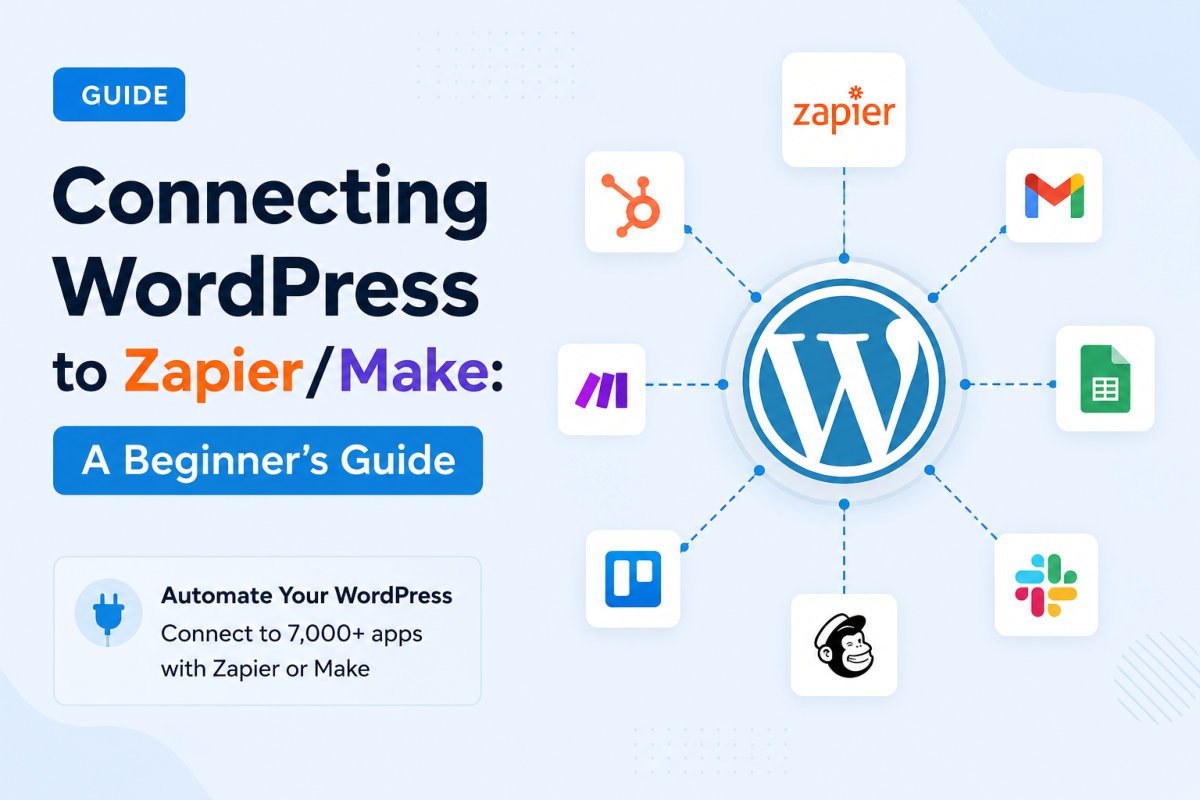
To connect WordPress to Zapier, create a dedicated WordPress user account with Editor or Administrator permissions, install the official Zapier for WordPress plugin, then add the connection in Zapier using your site’s base URL and that account’s credentials. Make (formerly Integromat) works on a similar trigger-action model and connects to WordPress in a comparable way. Both let you link WordPress to thousands of external apps without writing code, going well beyond what any single WordPress plugin can do alone.
Before You Start
Make sure you have the following in place first:
- An active SSL certificate on your site (see our SSL guide), strongly recommended before connecting any external service to your login credentials
- A Zapier or Make account (free tiers are available on both)
- Administrator access to create a new WordPress user specifically for this connection
WordPress plugins cover a lot, but they’re limited to what’s built specifically for WordPress. Zapier and Make go further, connecting your site to thousands of external apps, spreadsheets, CRMs, Slack, project management tools, that no WordPress-specific plugin could realistically integrate with individually. This guide covers the setup, done securely.
What You’ll Learn
- How Zapier and Make compare, and which might fit your needs
- Why a dedicated WordPress user account matters for security
- How to connect WordPress to Zapier, step by step
- How to troubleshoot the most common connection issues
Zapier vs. Make: A Quick Comparison
| Platform | Known For | Best For |
|---|---|---|
| Zapier | Largest app library, simplest beginner interface | Beginners wanting the widest range of ready-made integrations |
| Make | More visual, flexible workflow builder, often more generous free tier | Users comfortable with a slightly steeper learning curve for more control |
Both operate on the same underlying logic: a trigger (something happens) connects to an action (something happens automatically in response). Zapier tends to be the simpler starting point for absolute beginners, Make often rewards a bit more setup time with more flexible, multi-step workflows.
Step 1: Create a Dedicated WordPress User
Rather than connecting with your main admin account, create a separate WordPress user specifically for this integration, with Editor or Administrator permissions as needed. Use a strong, unique password generated specifically for this purpose.
WebGomu Tip: A dedicated account isn’t just extra caution, it genuinely limits your exposure. If that specific connection is ever compromised or needs to be revoked, you can disable just that one account without touching your primary login credentials.
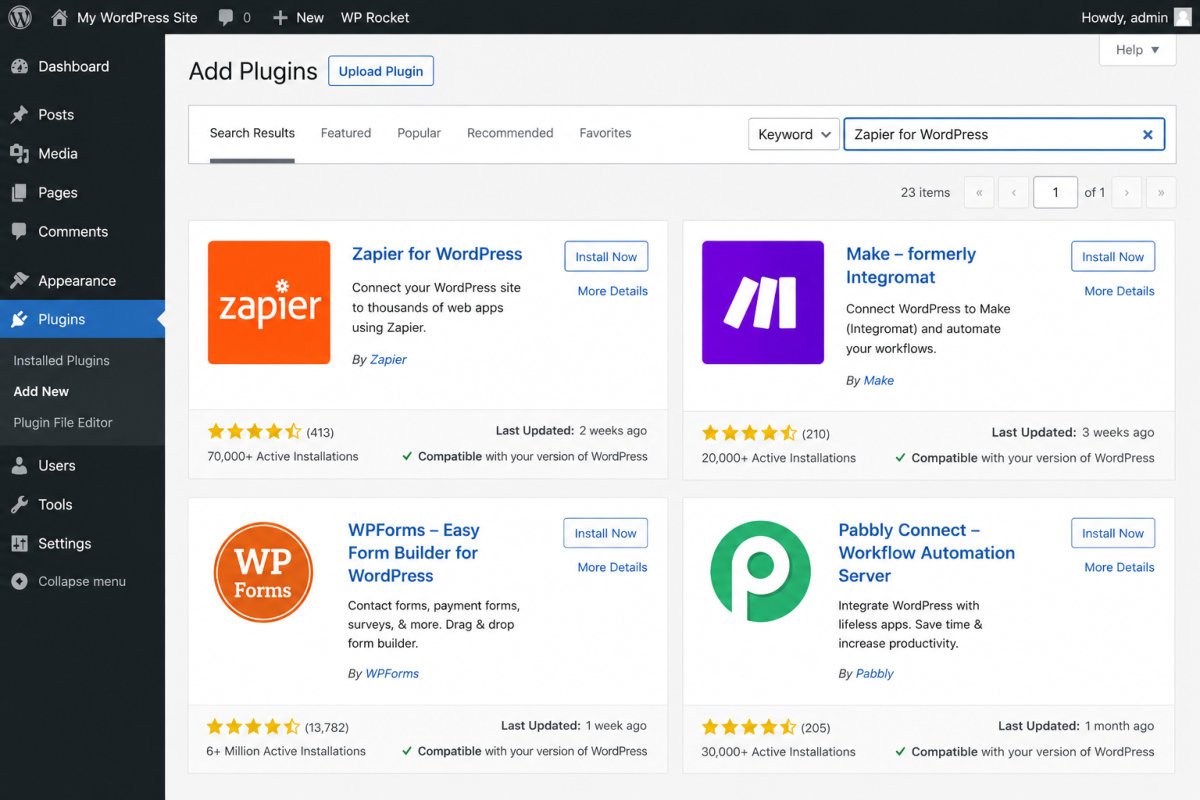
Step 2: Install the Zapier for WordPress Plugin
- Go to Plugins → Add New Plugin.
- Search for “Zapier for WordPress.”
- Install and activate it.
Step 3: Connect WordPress to Zapier
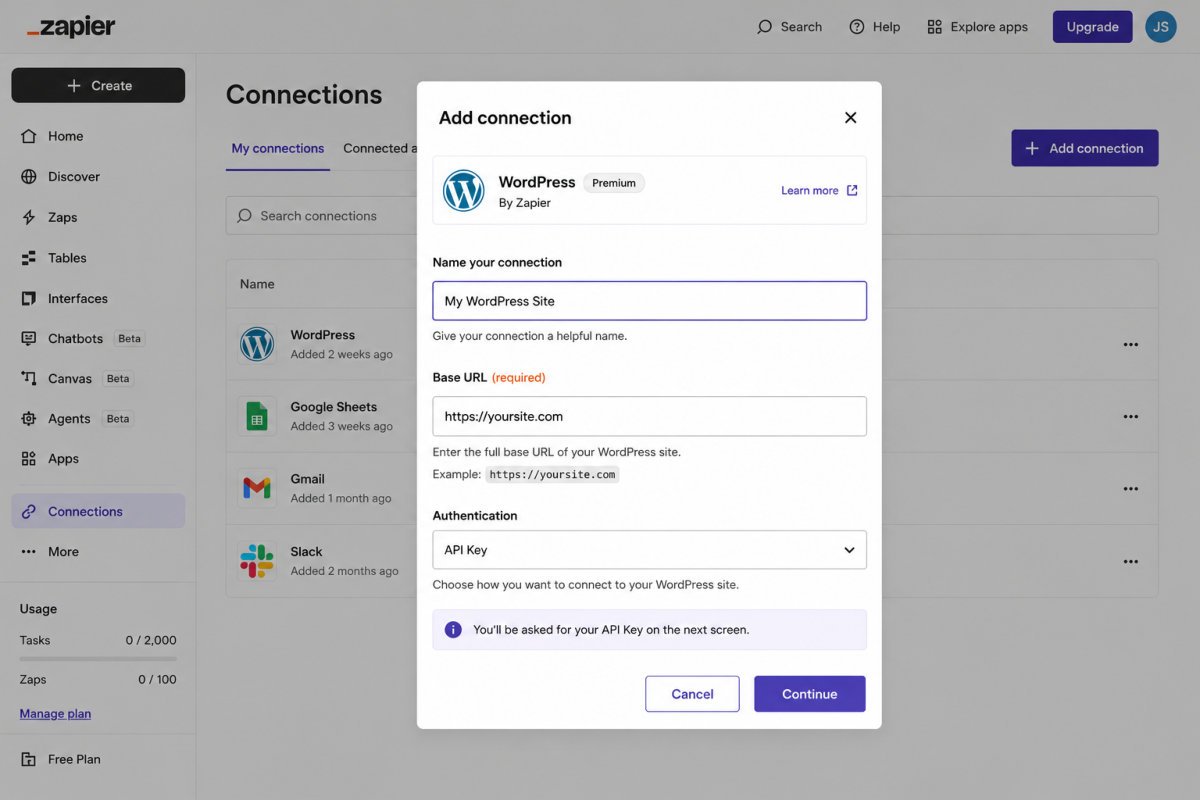
- In Zapier, go to the Apps page and click + Add connection.
- Search for and select WordPress.
- Enter your site’s Base URL, your domain without /wp-admin/ or wp-login.php at the end.
- Enter the username and password for the dedicated account created in Step 1.
- Confirm the connection.
Step 4: Create Your First Zap
- Click Create Zap.
- Choose your trigger app, WordPress, for something like “New Post” or “New Comment.”
- Choose your action app, whatever you want to happen in response, like adding a row to a Google Sheet or sending a Slack notification.
- Map the specific data fields between the two (post title, content, category, and so on).
- Test the Zap with sample data before turning it on fully.
Troubleshooting
Zapier can’t connect to my WordPress site
Some security or firewall plugins can block Zapier’s connection attempts. Check your plugin settings for an allow-list option for Zapier, or temporarily disable a recently added security plugin to isolate the conflict.
My Base URL isn’t being accepted
Double-check you’ve entered your domain exactly, without /wp-admin/ or wp-login.php appended, and that it includes https:// if your SSL is active.
My Zap ran but the data looks wrong
Revisit your field mapping, a common cause is mapping the wrong source field (like mapping an entire form submission to a single text field instead of the correct specific one).
Common Mistakes
- Connecting with your main admin account instead of a dedicated user created specifically for this integration.
- Skipping SSL, which puts login credentials at real risk during the connection process.
- Turning a new Zap fully on before testing it with sample data first.
- Assuming a security plugin conflict is a Zapier problem, rather than checking your own plugin’s settings first.
Recommended Tools
- Zapier — the simplest starting point, with the widest range of ready-made integrations
- Make — worth considering once you want more flexible, multi-step workflows
Key Takeaways
- Both Zapier and Make connect WordPress to thousands of apps beyond what WordPress plugins alone can reach.
- Always use a dedicated WordPress user account for the connection, not your main admin login.
- SSL is strongly recommended before connecting any external service to your site’s credentials.
- Test every new automation with sample data before fully activating it.
Frequently Asked Questions
Is Zapier or Make better for beginners?
Zapier is generally considered the simpler starting point, with the widest range of ready-made integrations. Make offers more flexibility once you’re comfortable with a slightly steeper learning curve.
Do I need to install a plugin to connect WordPress to Zapier?
Yes, the official Zapier for WordPress plugin is required to establish the connection securely.
Why should I use a dedicated WordPress user for this connection?
It limits your exposure. If the connection is ever compromised, you can disable that specific account without affecting your main admin login.
Why can’t Zapier connect to my WordPress site?
This is often caused by a security or firewall plugin blocking the connection attempt. Checking for an allow-list option, or temporarily disabling a recently added plugin, typically resolves it.
Are Zapier and Make free to use?
Both offer free tiers with limited monthly automation runs, sufficient for testing and lighter use. Paid plans unlock higher volume and more advanced features.
Resources Links
Author:

Christoper Enolpe
Founder of WebGomu • WordPress Freelancer with 10+ Years of Experience
Christoper is the founder of WebGomu and a WordPress freelancer with over 10 years of hands-on experience building, optimizing, and maintaining WordPress websites. He writes practical, beginner-friendly guides based on real-world experience, covering WordPress, SEO, website performance, and AI tools to help readers build better websites with confidence.
Learn more: https://webgomu.com/about/
Get one WordPress tip every week
Start Here

The Ultimate Beginner’s Guide to WordPress (2026): Build Your First Website Without Coding
Popular Guides
Our Partner

More from the blog
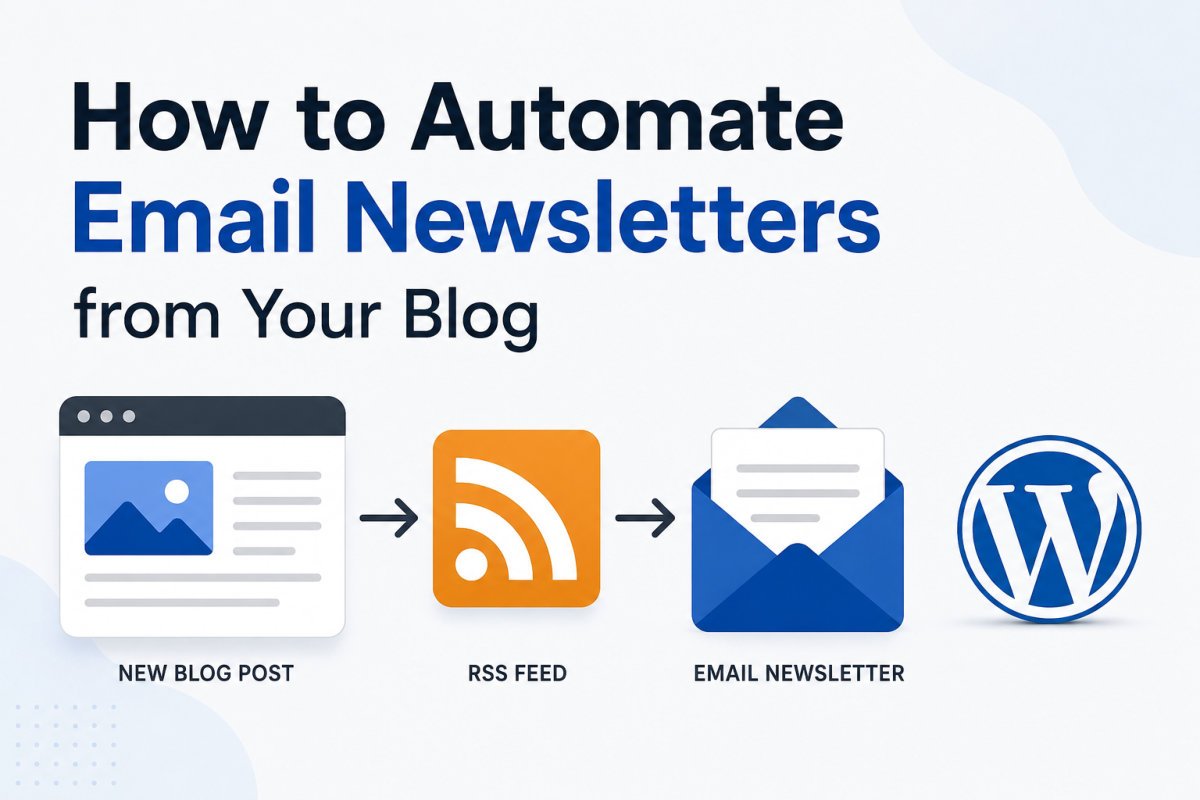
How to Automate Email Newsletters from Your Blog (2026)

How to Automate Social Media Posting from WordPress (2026)