How to Automate Social Media Posting from WordPress (2026)

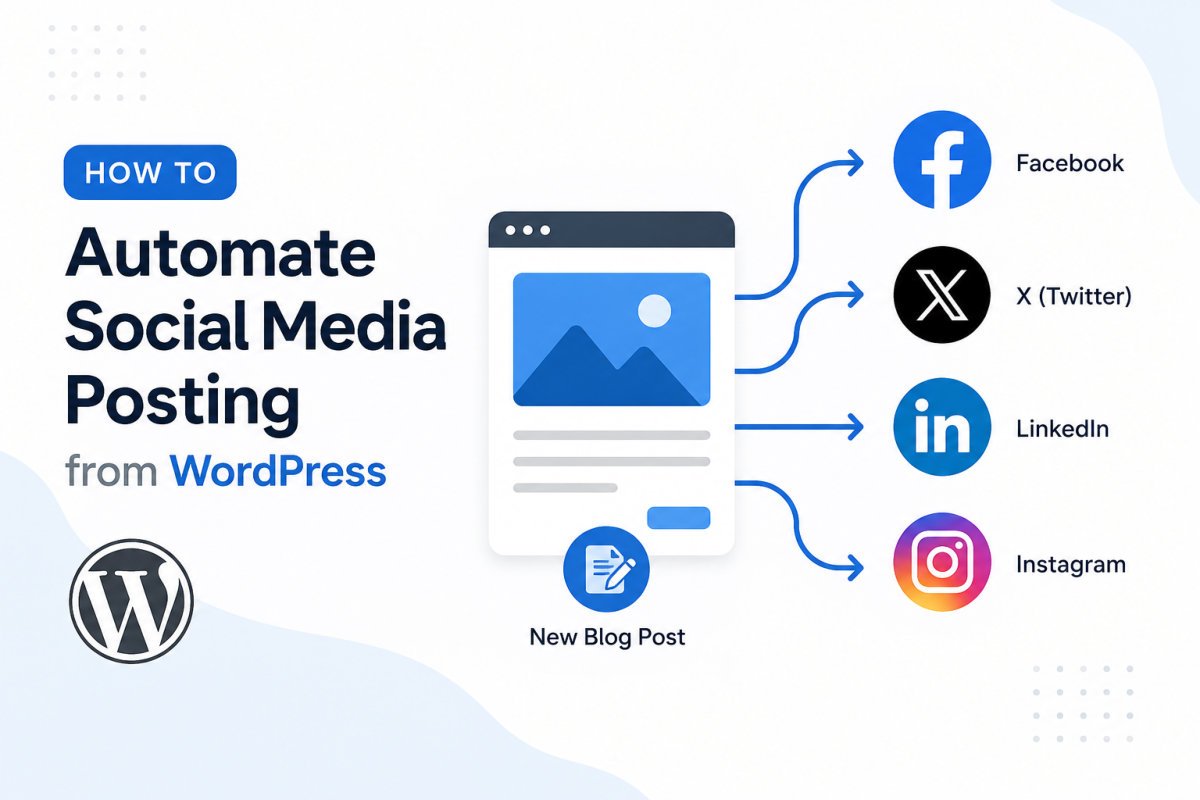
To automate social media posting from WordPress, install Jetpack Social, Google’s own free plugin isn’t required here since this is built by Automattic, WordPress’s own creators, connect your social accounts (Facebook, X, LinkedIn, Instagram, and others), then enable automatic sharing whenever you publish. Your content goes out the moment it’s live, with no manual copying, pasting, or logging into separate platforms.
Before You Start
Make sure you have the following in place first:
- Active accounts on the social platforms you want to auto-post to
- Administrator access to your WordPress dashboard
- A sense of which platforms your actual audience uses, no need to automate to a network you don’t genuinely use
Publishing a post and then manually sharing it across four or five different platforms adds up fast, writing separate captions, finding the right image size, remembering to actually do it every single time. Automating this single step gives back real time without sacrificing reach.
What You’ll Learn
- How to set up Jetpack Social, the simplest official option
- How it compares to other popular auto-posting plugins
- How to customize your automated posts per platform
- What to test before fully relying on it
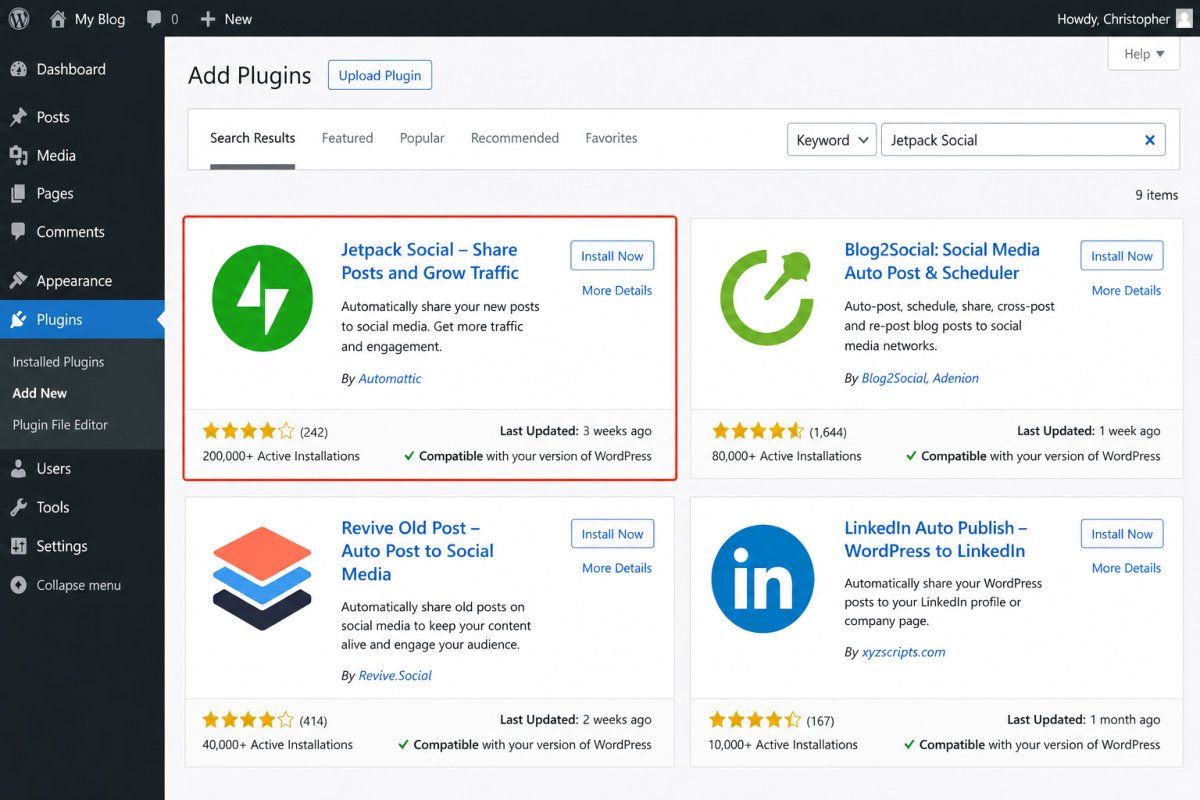
Step 1: Install Jetpack Social
- Go to Plugins → Add New Plugin.
- Search for “Jetpack Social.”
- Install and activate it.
Step 2: Connect Your Social Accounts
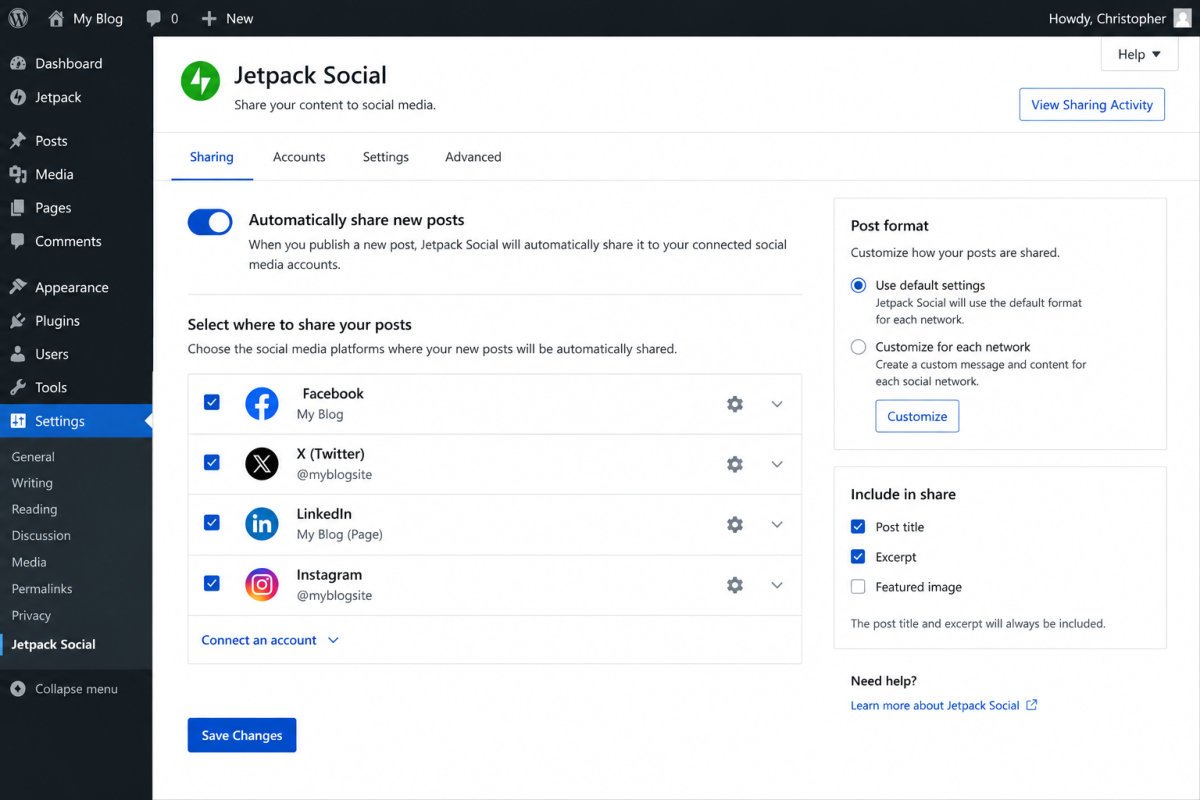
- Go to Jetpack → Social in your dashboard.
- Click to connect each platform you want to share to (Facebook, X, LinkedIn, Instagram, and others are supported).
- Authorize the connection through each platform’s own login prompt.
Step 3: Enable Automatic Sharing
- Still under Jetpack → Social, toggle on “Automatically share your posts to social networks.”
- Choose which connected platforms should receive automatic shares.
Once enabled, any new post you publish shares automatically, no extra step required at publish time.
Step 4: Customize Your Message
Right from the WordPress post editor, you can customize the message that accompanies each share, up to a limited character count on the free tier. Write something that actually reads well as a standalone social post, not just your article title copied verbatim.
WebGomu Tip: Don’t let every platform receive the exact same generic caption. Even a small variation, a question for LinkedIn, a punchier line for X, meaningfully improves engagement compared to one identical message blasted everywhere.
Comparing the Main Options
| Plugin | Known For | Price |
|---|---|---|
| Jetpack Social | Official, direct WordPress integration, simplest setup | Free tier available, premium unlocks more features |
| Blog2Social | Supports 20+ networks, social media calendar | Free tier, premium for advanced scheduling |
| Social Post Flow | Flat annual fee covering many networks at once | Roughly $49/year |
Jetpack Social is the recommended starting point for most beginners, being built directly by WordPress’s own creators means tighter integration and fewer setup surprises. The alternatives are worth considering if you need more networks or more advanced scheduling than Jetpack’s free tier covers.
Step 5: Test Before You Rely On It
Publish a low-stakes test post first, and confirm it actually appears correctly on each connected platform, checking image display, caption formatting, and link functionality, before trusting the automation with something you actually care about promoting well.
Troubleshooting
My post published but didn’t share to social media
Confirm the auto-share toggle is actually enabled, and that the specific platform’s connection hasn’t expired, social platforms occasionally require reauthorization after a period of time.
The shared post looks wrong on one specific platform
Check that platform’s specific formatting requirements (image dimensions, caption length) separately, what looks right on one network doesn’t always translate cleanly to another.
I want different messages for different platforms
Most auto-posting plugins, including Jetpack Social, let you customize the message per platform directly within the post editor before publishing, rather than sending one identical caption everywhere.
Common Mistakes
- Sending the exact same generic caption to every platform instead of tailoring it slightly for each.
- Never testing with a low-stakes post before relying on automation for something important.
- Automating to platforms your actual audience doesn’t use, just because the plugin supports them.
- Forgetting that social account connections can expire and occasionally need reauthorization.
Recommended Tools
- Jetpack Social — official, simplest setup, solid free tier
- Blog2Social — worth considering if you need a wider range of networks than Jetpack covers
Key Takeaways
- Jetpack Social is the simplest, official way to auto-share new WordPress posts.
- Customize your message per platform rather than sending one identical caption everywhere.
- Always test with a low-stakes post before fully relying on the automation.
- Only automate to platforms your actual audience genuinely uses.
Frequently Asked Questions
Is Jetpack Social free?
Yes, the free tier supports automatic sharing to connected platforms with a customizable message. Premium tiers add features like engagement optimization and an image generator.
Can I customize my post’s caption for each social platform?
Yes, most auto-posting plugins, including Jetpack Social, let you write a custom message per platform directly within the post editor.
Will automated posts look the same on every platform?
Not necessarily, each platform has its own formatting quirks. It’s worth testing a post on each connected network to confirm it displays correctly.
Do I need a separate plugin for every social platform?
No, tools like Jetpack Social and Blog2Social connect multiple platforms through a single plugin, no need for one separate tool per network.
What should I do before fully trusting an automated posting setup?
Publish a low-stakes test post first and check how it actually appears on each connected platform, catching formatting issues before something important goes out incorrectly.
Resources Links
Author:

Christoper Enolpe
Founder of WebGomu • WordPress Freelancer with 10+ Years of Experience
Christoper is the founder of WebGomu and a WordPress freelancer with over 10 years of hands-on experience building, optimizing, and maintaining WordPress websites. He writes practical, beginner-friendly guides based on real-world experience, covering WordPress, SEO, website performance, and AI tools to help readers build better websites with confidence.
Learn more: https://webgomu.com/about/
Get one WordPress tip every week
Start Here

The Ultimate Beginner’s Guide to WordPress (2026): Build Your First Website Without Coding
Popular Guides
Our Partner

More from the blog
How to Automate Email Newsletters from Your Blog (2026)
Connecting WordPress to Zapier/Make: A Beginner’s Guide (2026)