How to Add Social Sharing Buttons to WordPress Without Slowing It Down

To add social sharing buttons without slowing your site down, avoid official embed widgets from Facebook or X (formerly Twitter), since these load heavy external scripts. Instead, use a lightweight, self-hosted plugin like Simple Share Buttons Adder, or add native share buttons through a code snippet plugin like WPCode, which uses the visitor’s own device to share, with zero external JavaScript. Test your page speed before and after adding any sharing solution to confirm it hasn’t hurt your Core Web Vitals.
Before You Start
Make sure you have the following in place first:
- A baseline speed test result for a typical post, using a tool like Google PageSpeed Insights (see our speed guide)
- A clear idea of which platforms your actual audience shares to, no need to include every network that exists
Social sharing buttons genuinely help content spread, but there’s a real trade-off most beginners don’t realize until it’s too late: a lot of popular sharing plugins load heavy external scripts from every platform they support, which can quietly drag down your page speed and hurt your Core Web Vitals. This guide covers how to get the benefit without the performance cost.
What You’ll Learn
- Why official share widgets tend to be the slowest option
- How to add lightweight sharing buttons using a self-hosted plugin
- How to add native, zero-JavaScript sharing buttons using a code snippet
- How to verify your sharing buttons haven’t hurt your site speed
Why Some Sharing Buttons Slow Your Site Down
Official share buttons provided directly by social platforms typically load large external JavaScript files connected back to that platform’s own servers. Add a handful of these, one per network, and you’re loading several separate heavy scripts on every single page, whether or not a visitor ever clicks one. This directly affects your Largest Contentful Paint, a core part of your Core Web Vitals score, which is itself a real ranking factor.
Method 1: A Lightweight, Self-Hosted Plugin
The key difference to look for: does the plugin generate its own lightweight icons locally, or does it load each platform’s official script? Self-hosted, lightweight plugins avoid the external script problem entirely.
| Plugin | Known For | Price |
|---|---|---|
| Simple Share Buttons Adder | Minimal, fast-loading, does one thing well | Free |
| Novashare | Performance-focused, includes Click-to-Tweet boxes | Paid |
| Shareaholic | Adds related content and monetization alongside sharing | Free tier available |
- Go to Plugins → Add New Plugin.
- Search for a lightweight option like “Simple Share Buttons Adder.”
- Install and activate it.
- In its settings, choose which networks to display, and where (before content, after content, or both).
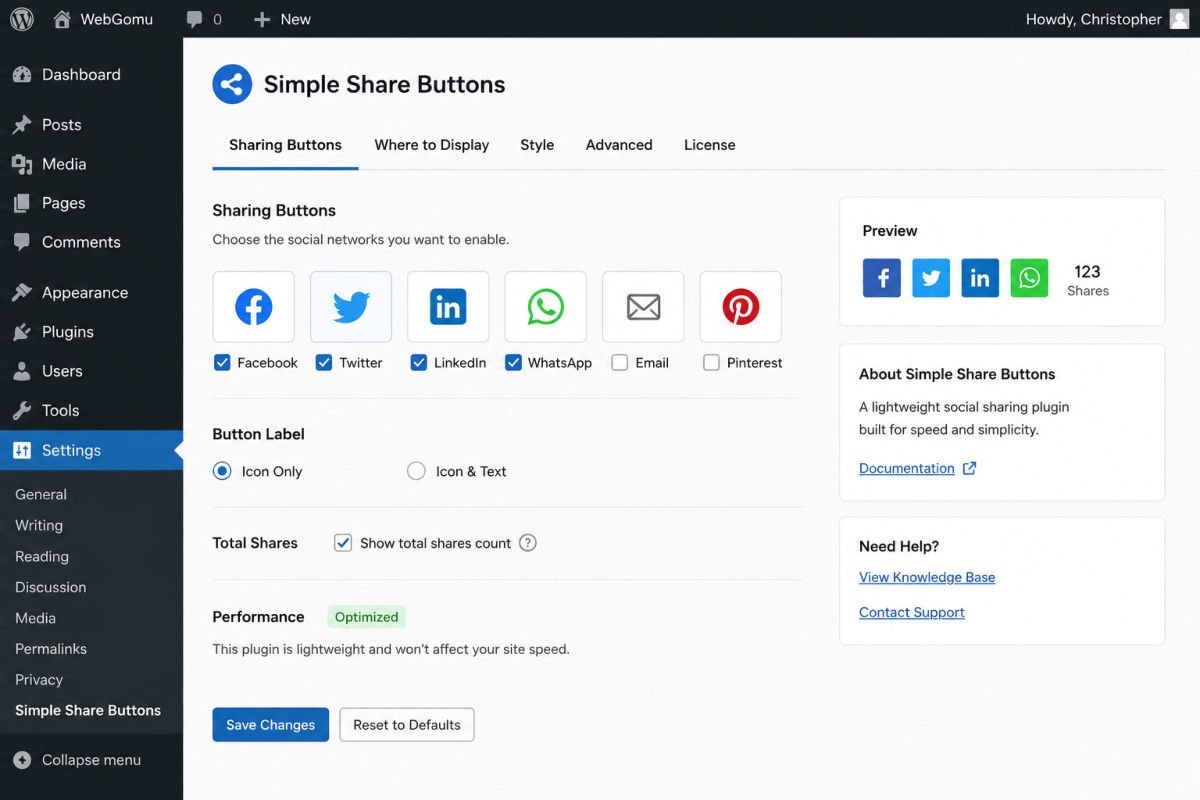
WebGomu Tip: Only enable the networks your actual audience uses. Every additional icon is another small piece of visual clutter and, depending on the plugin, potentially another resource being loaded. Two or three well-chosen platforms usually outperform eight generic ones.
Method 2: Native Share Buttons (Fastest Option)
Modern browsers and devices include a built-in sharing feature, the same one used when sharing a link from a phone’s browser menu. A native share button hooks into this directly, using inline code with zero external JavaScript and no server requests, genuinely the fastest possible method.
- Install a code snippet plugin like WPCode (Plugins → Add New Plugin, search “WPCode”).
- Go to Code Snippets → Add Snippet, and search the snippet library for a native social share snippet, or the “Most Popular” tab.
- Add and activate the snippet.
This approach also survives theme changes, since the snippet lives independently of your theme files, unlike code pasted directly into a theme’s functions file.
What to Avoid
- Official embed widgets straight from Facebook, X, or LinkedIn, these load the heaviest external scripts.
- Share count features using the Facebook Graph API directly, a known performance drag, a third-party count service is typically lighter if share counts matter to you.
- Stacking multiple sharing plugins at once, which multiplies the performance cost for no real benefit.
Step: Verify You Haven’t Hurt Your Speed
After adding sharing buttons through either method, run the same page through PageSpeed Insights again and compare it to your baseline. A well-implemented lightweight or native solution should show little to no meaningful difference.
Troubleshooting
My page speed dropped noticeably after adding share buttons
Check whether the plugin is loading official platform scripts rather than self-hosted icons. Switching to a lightweight plugin or the native code snippet method typically resolves this.
Share counts aren’t displaying
If using a plugin with count display, confirm it’s using a third-party count service rather than pulling directly from each platform’s API, which is both slower and more prone to connection issues.
Buttons disappeared after a theme update
If buttons were added via a code snippet plugin like WPCode rather than pasted directly into theme files, this shouldn’t happen, worth switching to that method specifically to avoid this in the future.
Common Mistakes
- Installing a heavy, all-in-one social plugin for what’s really just a simple sharing need.
- Enabling every available social network instead of the two or three your audience actually uses.
- Never testing page speed before and after, so a real slowdown goes unnoticed.
- Displaying share counts that are low enough to look unimpressive, which can actually discourage sharing rather than encourage it.
Recommended Tools
- Simple Share Buttons Adder — lightweight, free, does one job well
- WPCode — for the native, zero-JavaScript share button approach, also useful more broadly for safely adding code snippets
- Google PageSpeed Insights — free tool to confirm sharing buttons haven’t hurt your speed
Key Takeaways
- Official platform share widgets tend to be the heaviest, slowest option available.
- A lightweight, self-hosted plugin avoids loading unnecessary external scripts.
- Native share buttons via a code snippet are the fastest option, with zero external JavaScript.
- Always test page speed before and after adding any sharing solution.
Frequently Asked Questions
Do social sharing buttons actually affect SEO?
Not directly, social signals aren’t a confirmed direct Google ranking factor. Indirectly, yes, if sharing buttons slow your page down, that hurts your Core Web Vitals, which is a real ranking factor.
What’s the fastest way to add sharing buttons to WordPress?
Native share buttons added via a code snippet, using the visitor’s own device sharing feature, with zero external JavaScript loaded.
Should I show share counts on my buttons?
Only if your numbers are genuinely impressive. Low share counts can actually discourage visitors from sharing, functioning as negative social proof instead of positive.
How many social networks should I include?
Two or three platforms your actual audience genuinely uses tend to outperform eight generic ones, both for clarity and for minimizing unnecessary page weight.
Will adding sharing buttons definitely slow my site down?
Not necessarily. Heavy official embed widgets often do. A lightweight, self-hosted plugin or a native code snippet approach typically shows little to no measurable speed impact.
Resources Links
Author:

Christoper Enolpe
Founder of WebGomu • WordPress Freelancer with 10+ Years of Experience
Christoper is the founder of WebGomu and a WordPress freelancer with over 10 years of hands-on experience building, optimizing, and maintaining WordPress websites. He writes practical, beginner-friendly guides based on real-world experience, covering WordPress, SEO, website performance, and AI tools to help readers build better websites with confidence.
Learn more: https://webgomu.com/about/
Get one WordPress tip every week
Start Here

The Ultimate Beginner’s Guide to WordPress (2026): Build Your First Website Without Coding
Popular Guides
Our Partner

More from the blog

How to Automate Email Newsletters from Your Blog (2026)
Connecting WordPress to Zapier/Make: A Beginner’s Guide (2026)