WordPress Automation 101: Tools and Use Cases (2026)

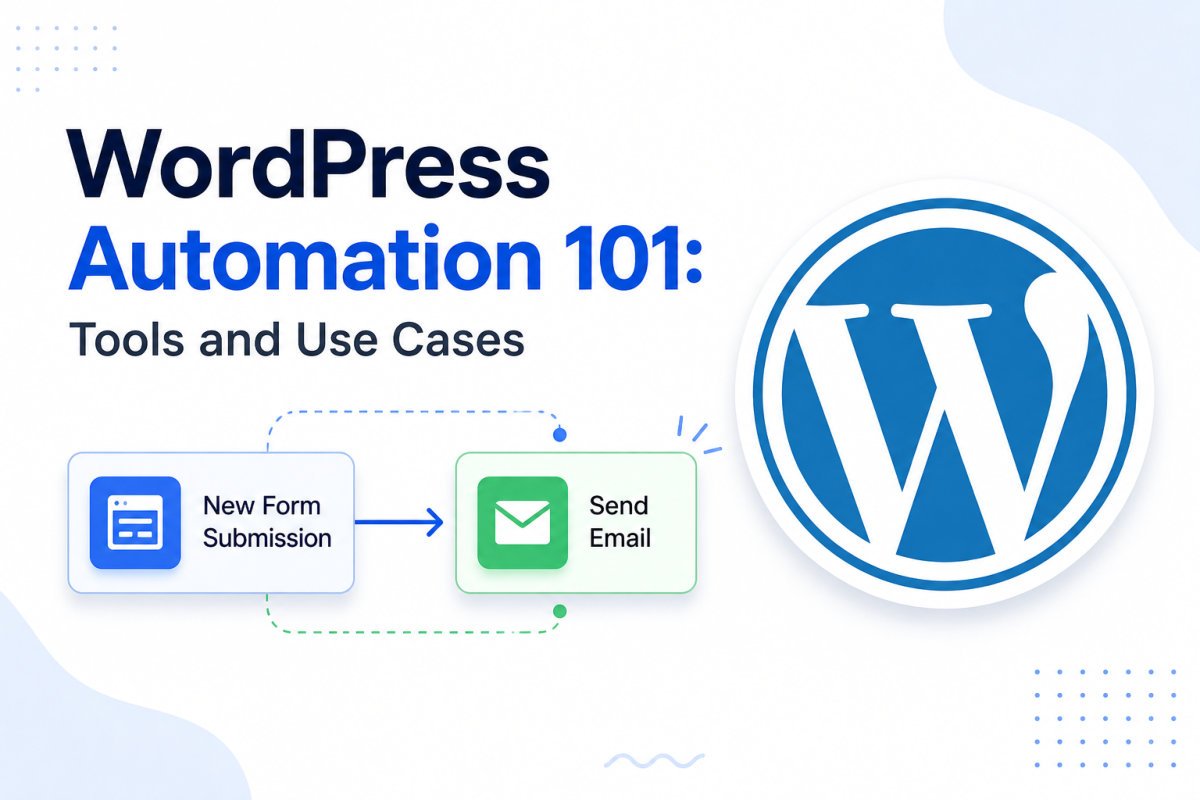
WordPress automation means connecting a trigger (something that happens on your site, like a new form submission or published post) to an automatic action (like adding a subscriber to your email list, or posting to social media), without manually doing it yourself each time. No-code plugins like Uncanny Automator, Bit Flows, and FlowMattic make this accessible without any coding knowledge, letting you build these connections through a simple visual interface.
Before You Start
Make sure you have the following in place first:
- At least one repetitive task you’ve noticed yourself doing manually, this guide works best once you have a real use case in mind
- Any external accounts you’d want to connect (email provider, CRM, social media), already set up
If you’ve ever manually copied a new subscriber’s email into a spreadsheet, or remembered to post a new article to social media by hand, that’s exactly the kind of repetitive task automation exists to remove. It’s not about replacing your judgment, it’s about removing the manual, repeatable steps so your time goes toward things that actually need a human.
What You’ll Learn
- How WordPress automation actually works, in plain terms
- How the leading no-code automation tools compare
- Several real, practical use cases to try first
- How to avoid the most common automation pitfalls
How Automation Actually Works
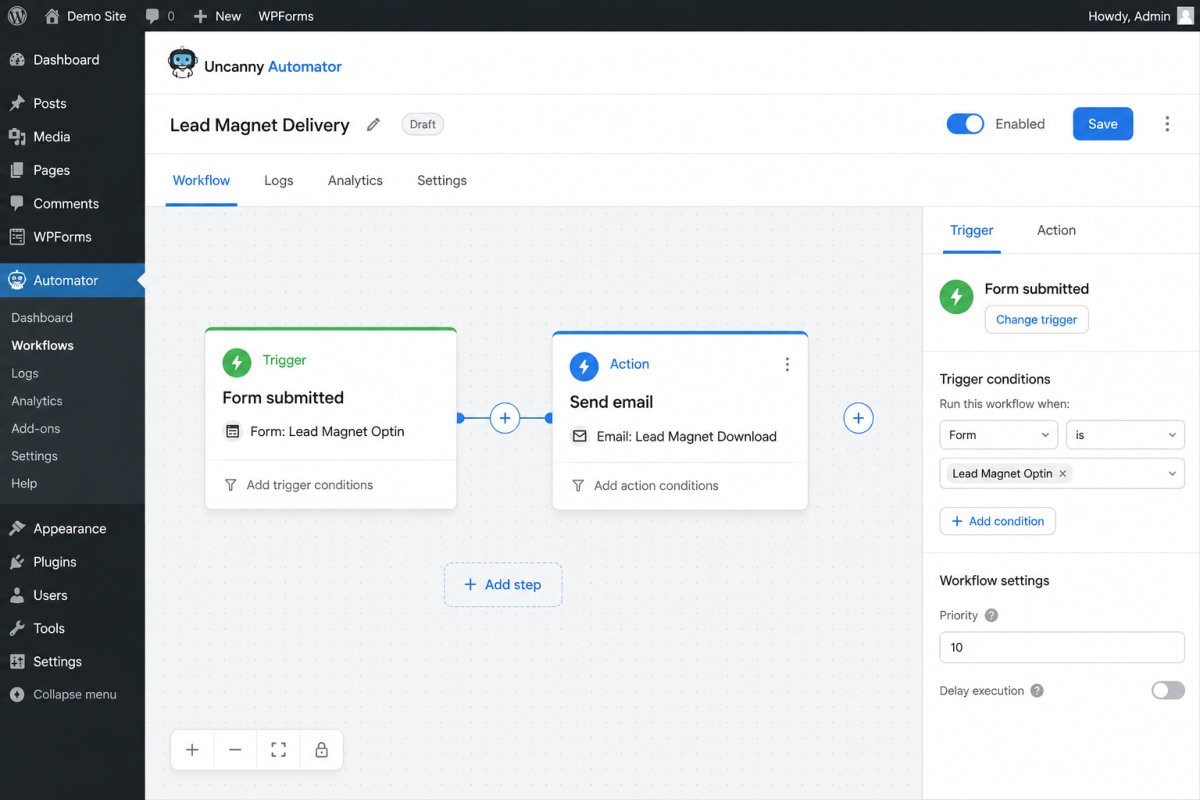
Nearly every automation follows the same basic pattern: a trigger (something happens) leads to an action (something happens automatically in response). For example: a visitor submits a contact form (trigger) → their email is automatically added to your newsletter list (action). You don’t need to understand anything more technical than that to get started, automation plugins handle the actual connection work behind the scenes.
Comparing the Leading No-Code Tools
| Tool | Known For | Price |
|---|---|---|
| Uncanny Automator | Widest range of integrations, strong WordPress plugin support | Free tier available, paid tiers for more integrations |
| Bit Flows / Bit Integrations | Visual, multi-step workflow builder, often compared to Zapier | Free tier, paid plans for advanced workflows |
| FlowMattic | Runs natively inside WordPress with a Zapier-style editor | Free for basic automations, paid plans from roughly $149/year |
For most beginners, Uncanny Automator’s free tier is a solid starting point, it has a genuinely wide range of built-in integrations with popular WordPress plugins already in your stack.
Real Use Cases Worth Trying First
Automatically Add Form Submissions to Your Email List
Connect your contact form plugin (see our contact form guide) directly to your email provider, so new inquiries are automatically added to a relevant list, no manual copying required.
Automatically Enroll New Members Into a Course or Membership Area
When someone purchases a membership or course, automatically grant access and send a welcome sequence, without manually managing each new signup by hand.
Automatically Back Up Your Site on a Schedule
If you followed our backup guide, this is technically automation you’re likely already using, scheduled backups without needing to remember to trigger them manually.
Automatically Share New Posts to Social Media
We cover this specific use case in full detail in a dedicated guide, since it deserves its own careful setup.
WebGomu Tip: Start with just one automation, the single most repetitive task you actually do by hand today. Get it working reliably before adding a second one. Beginners who try to automate five things at once often end up with workflows they don’t fully understand and can’t easily troubleshoot later.
What to Watch Out For
Automation tools connect real accounts and real data. A misconfigured trigger can send unwanted emails, create duplicate entries, or take an action you didn’t intend, at scale, automatically, before you notice. Always test a new automation with a real but low-stakes example before trusting it with something important.
Troubleshooting
My automation isn’t triggering at all
Confirm the trigger is correctly connected to the exact plugin or event you intended, and check whether the automation is actually turned on/published, not just saved as a draft within the automation tool itself.
My automation ran, but the action didn’t complete correctly
Check the connected external account (email provider, CRM) is still properly authenticated, expired API connections are a common cause of silently failing automations.
I set up too many automations and now something feels broken
Disable them one at a time to isolate which one is causing the issue, rather than troubleshooting several at once. This is exactly why starting with just one automation at a time is worth the initial patience.
Common Mistakes
- Setting up several automations at once before fully understanding how any single one works.
- Never testing a new automation with a low-stakes example before trusting it with something important.
- Choosing an automation tool based on features you won’t actually use, rather than your real, specific need.
- Forgetting that automation tools rely on external account connections, which can expire or need reauthorizing.
Recommended Tools
- Uncanny Automator — solid free-tier starting point with wide WordPress plugin support
- Bit Flows — worth considering for more advanced, multi-step workflows as your needs grow
Key Takeaways
- Automation connects a trigger to an action, removing manual, repetitive steps.
- No-code tools make this accessible without any development knowledge.
- Start with one automation, get it working reliably, before adding more.
- Always test with a low-stakes example before trusting an automation with something important.
Frequently Asked Questions
Do I need coding knowledge to automate my WordPress site?
No. Tools like Uncanny Automator, Bit Flows, and FlowMattic all use visual, no-code interfaces designed specifically for non-technical users.
What’s a trigger and an action in automation?
A trigger is something that happens (a form submission, a new post, a purchase). An action is what happens automatically in response (an email sent, a subscriber added, a task created).
Is automation only useful for large or complex sites?
No. Even a small site benefits from automating simple, repetitive tasks like adding form submissions to an email list or scheduling regular backups.
What’s the biggest risk with WordPress automation?
A misconfigured automation can take unintended actions automatically and repeatedly before you notice. Testing with a low-stakes example first meaningfully reduces this risk.
Should I set up multiple automations right away?
It’s better to start with one, confirm it works reliably, and understand it fully before adding more. This makes troubleshooting far easier if something eventually goes wrong.
Resources Links
Author:

Christoper Enolpe
Founder of WebGomu • WordPress Freelancer with 10+ Years of Experience
Christoper is the founder of WebGomu and a WordPress freelancer with over 10 years of hands-on experience building, optimizing, and maintaining WordPress websites. He writes practical, beginner-friendly guides based on real-world experience, covering WordPress, SEO, website performance, and AI tools to help readers build better websites with confidence.
Learn more: https://webgomu.com/about/
Get one WordPress tip every week
Start Here

The Ultimate Beginner’s Guide to WordPress (2026): Build Your First Website Without Coding
Popular Guides
Our Partner

More from the blog
How to Automate Email Newsletters from Your Blog (2026)
Connecting WordPress to Zapier/Make: A Beginner’s Guide (2026)