How to Install Google Analytics 4 (GA4) on WordPress (2026)

To install Google Analytics 4 on WordPress, create a free GA4 property at analytics.google.com, then install Site Kit by Google, WordPress’s official Google plugin, and connect it to your GA4 property through its setup wizard. Site Kit automatically inserts the tracking code on every page, so no manual code editing is required. A new setup usually takes 15–30 minutes, and the Realtime report can confirm that tracking is working shortly after setup.
Before You Start
Make sure you have the following in place first:
- A Google account you want to permanently own this property with
- Administrator access to your WordPress dashboard
- A live WordPress website with the correct URL
- Google Search Console is helpful but optional. Site Kit can connect Search Console and Analytics from the same dashboard, but you can install GA4 without setting up Search Console first. If you want to connect both services, follow the Google Search Console setup guide.
GA4 shows where WordPress visitors come from, which pages they view, and how they interact with your site. If WordPress itself is not installed yet, start with the complete WordPress installation guide. The setup below uses Site Kit by Google, so you can connect Analytics without editing theme files or pasting code manually. Universal Analytics, the older version of Google Analytics, stopped collecting data in 2023, so GA4 is the current option for new website tracking.
What You’ll Learn
- How to create a GA4 property, step by step
- How to choose an installation method
- How to connect GA4 to WordPress using Google’s official plugin
- How to verify that tracking is working
- Which reports are worth checking first
At a Glance
| Item | Answer |
|---|---|
| Recommended method | Site Kit by Google |
| Cost | Free for standard website use |
| Coding required | No for the Site Kit method |
| Typical setup time | About 15–30 minutes |
| Verification | GA4 Realtime, followed by DebugView if needed |
| Main warning | Do not run multiple GA4 installation methods at the same time |
Choose How You Want to Install GA4
For most beginners, Site Kit by Google is the simplest option because it is Google’s official WordPress plugin and avoids editing theme files. Choose one installation method only:
| Method | Best For | Main Trade-Off |
|---|---|---|
| Site Kit by Google | Beginners who want Analytics and Search Console in WordPress | Fewer advanced tag-management controls |
| Google tag or header plugin | Users who already manage site-wide scripts | It is easier to create duplicate tracking if another plugin is active |
| Google Tag Manager | Marketers managing multiple tags and events | More setup and testing are required |
| MonsterInsights | Users who want expanded Analytics reports inside WordPress | Some reporting features require the paid version |
Recommendation: Follow the Site Kit method below unless another Google tag or Analytics plugin is already active on your site. Do not install GA4 through two methods at the same time.
Step 1: Create a GA4 Property
- Go to analytics.google.com and sign in with your Google account.
- Click Admin, then Create property.
- Enter your property name. Your website name works well.
- Choose the reporting time zone and currency.
- Complete the basic business details, including industry, business size, and how you plan to use Analytics.
- Accept the terms of service.
Step 2: Create a Web Data Stream
- Choose Web as your platform.
- Enter your site’s name and full URL, including HTTPS if your website uses it.
- Keep Enhanced Measurement enabled. It automatically tracks page views, scrolling, and outbound clicks without extra setup.
Once the stream is created, you’ll see a Measurement ID in the format G-XXXXXXXXXX. Note it for reference, although you will not need to copy it manually if you use the Site Kit method below.
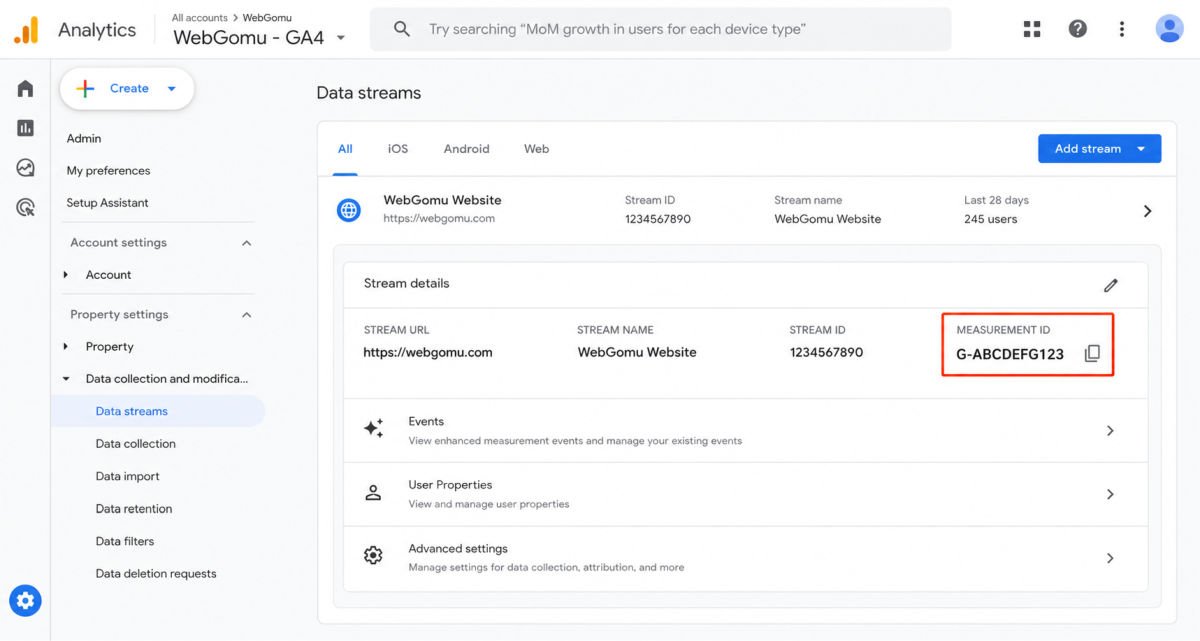
Google Analytics web data stream screen showing the Measurement ID. Blur personal account information before publishing screenshots.
Step 3: Install Site Kit by Google
- In your WordPress dashboard, go to Plugins → Add New Plugin.
- Search for Site Kit by Google.
- Confirm that the plugin is published by Google.
- Click Install Now, then Activate.
Site Kit is Google’s official WordPress plugin. It can connect Analytics, Search Console, and AdSense from one dashboard, removing the need to manually paste tracking code. If you are unfamiliar with the WordPress admin area, the WordPress dashboard tour explains where the Plugins menu and other settings are located.
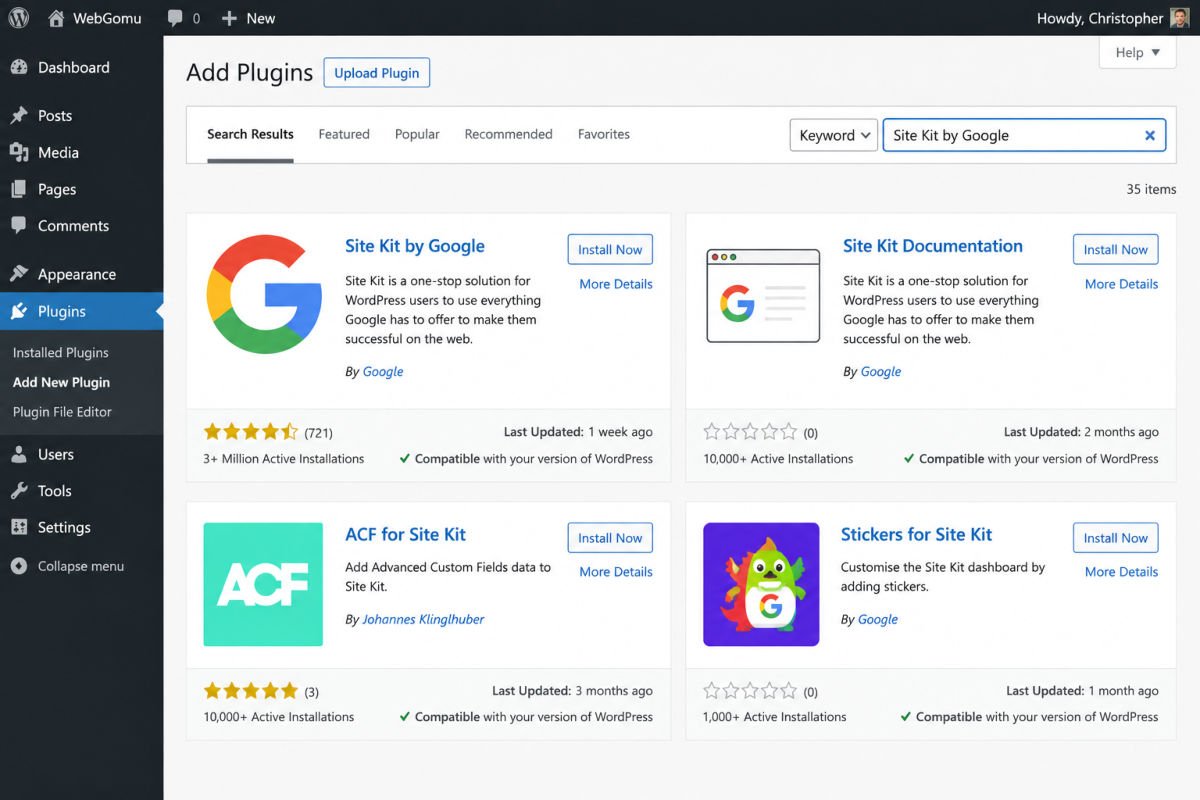
WordPress Add Plugins screen with Site Kit by Google selected.
Step 4: Connect Site Kit to Your Google Account
- Open Site Kit and click Start Setup.
- Sign in using the Google account that owns or has access to your GA4 property.
- Grant the requested permissions so Site Kit can access your site and Analytics data.
- When prompted, select Google Analytics.
- Choose the GA4 property and web data stream created in the previous steps.
- Complete the setup wizard.
WebGomu Tip: Avoid installing GA4 through more than one method at once, such as Site Kit plus a manually pasted tracking code. Running both simultaneously can double-count traffic and skew future reports. Pick one method and stick with it.
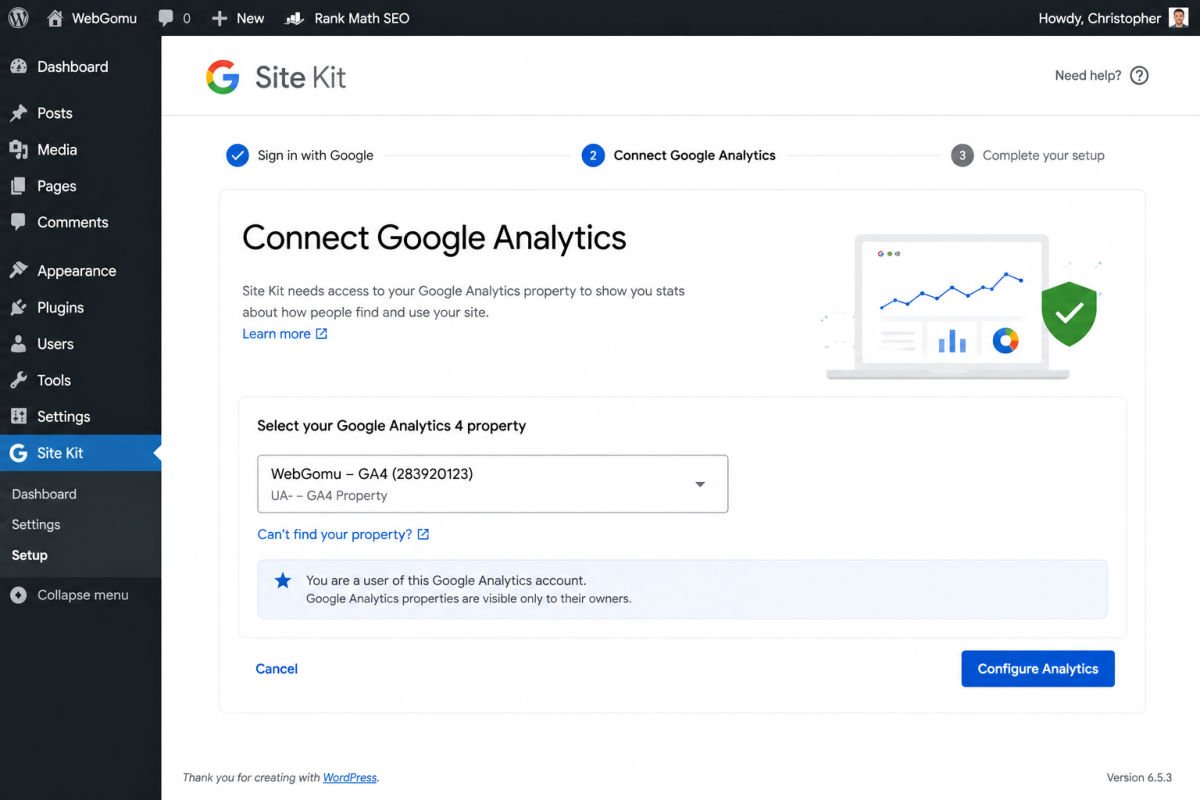
Site Kit setup screen in WordPress with Google Analytics connection options.
Step 5: Verify That GA4 Is Working
- Open your website in a private or incognito window, or use a second browser that is not blocking Analytics.
- In Google Analytics, open Reports → Realtime.
- Load a page on your website and click to another page.
- Confirm that an active user appears and that a page view or other event is visible in the Realtime cards.
- If Realtime does not show your visit, check Admin → Data streams → Web and confirm that the stream URL matches the website you are testing.
A test visit should appear in Realtime within seconds or a few minutes. Normal reports may take longer to populate, so do not judge the installation from standard report totals immediately after setup.
For deeper troubleshooting, use Google Analytics DebugView with a supported debug method. Realtime confirms that data is arriving; DebugView is more useful when you need to inspect individual events. Google provides additional guidance in its GA4 implementation verification documentation.
Important: Ad blockers, browser privacy extensions, caching, cookie-consent choices, and duplicate installations can affect the data you see. Test without an ad blocker, and accept analytics cookies when your consent banner requires that choice.
Analytics Consent and Privacy
If the website receives visitors from the European Economic Area, Switzerland, or the United Kingdom, review Google’s consent requirements before collecting Analytics data. Site Kit supports consent mode, but consent mode itself is not a cookie banner. A consent-management plugin may also be needed to communicate visitor choices to Site Kit.
Site owners are responsible for reviewing the requirements that apply to their visitors and for keeping their privacy information accurate. This is general information, not legal advice. See the current Site Kit consent mode documentation for the setup details.
Choosing Between Site Kit, MonsterInsights, and Other Methods
| Method | Best For | Price or Complexity |
|---|---|---|
| Site Kit by Google | Official connection between Analytics, Search Console, and WordPress | Free |
| MonsterInsights | More detailed in-dashboard reports and beginner-friendly explanations | Free version; Pro plans are paid |
| Google Tag Manager | Managing multiple marketing tags and custom events | More setup and testing required |
Site Kit is the recommended default in this guide because it is official, free, and simple for most WordPress beginners. MonsterInsights is a reasonable alternative if more reporting is needed directly inside WordPress. Google Tag Manager is more appropriate when multiple tags, events, or marketing tools need centralized management.
If broader search optimization is also part of the plan, see the guide to the best WordPress SEO plugins.
What to Check First Once GA4 Is Connected
- Acquisition report — where visitors come from, including organic search, social, direct, and referral traffic
- Engagement report — which pages hold attention and which events visitors trigger
- Realtime report — useful immediately after publishing or making a change
Give the site a week or two of real data before drawing conclusions. A few days of traffic is usually not enough to identify a meaningful pattern. Use the WordPress SEO checklist to turn these reports into a regular optimization routine. When investigating poor engagement or conversions, compare the Analytics data with the recommendations in the WordPress speed optimization guide.
Troubleshooting
Realtime shows no active users after I visited my own site
Confirm that the test browser is not running an ad blocker or privacy extension that blocks Analytics scripts. Try an incognito window or a second browser. If the site has a cookie banner, accept analytics cookies before testing. Caching, consent settings, and another plugin blocking the Google tag can also prevent the visit from appearing.
Site Kit does not show my GA4 property
Confirm that the Google account signed into Site Kit has access to the GA4 property. Then check that the web data stream belongs to the correct property and uses the website’s current URL. If access was recently granted, sign out and complete the Site Kit connection again.
I already had Universal Analytics set up. What happens to that old data?
Universal Analytics stopped processing new data in 2023, and its historical data is not accessible within GA4. A new GA4 setup starts collecting data from the point of installation.
My numbers look inflated
Check whether GA4 tracking has been installed through more than one method, such as Site Kit plus a manual code paste, a header plugin, or Google Tag Manager. Running overlapping installations can double-count traffic. Disable the extra implementation, then test Realtime again.
How can I check for duplicate GA4 tracking?
Review active Analytics, tag, header, and marketing plugins. Also inspect the rendered page source for multiple Google tags or duplicate measurement implementations. Do not edit theme files unless the chosen installation method includes a safe, documented procedure.
Common Mistakes
- Installing GA4 through multiple methods at once, resulting in inflated and unreliable data
- Checking data too soon and drawing conclusions from only a day or two
- Forgetting to keep Enhanced Measurement enabled
- Testing with an ad blocker enabled
- Ignoring cookie-consent settings that prevent Analytics data collection
- Not verifying the connection with the Realtime report before considering setup complete
Recommended Tools
- Site Kit by Google — official, free, and the simplest path for most beginners
- MonsterInsights — a reasonable alternative for more detailed in-dashboard reporting
- Google Tag Manager — useful when several tags and custom events need centralized management
If you also plan to monetize the site, see the guide to adding AdSense to WordPress.
Key Takeaways
- GA4 is the current version of Google Analytics for new website tracking.
- Site Kit by Google is the simplest official way to connect GA4 to WordPress without code.
- Google Search Console is helpful but not required for GA4 installation.
- Never run more than one GA4 installation method simultaneously.
- Verify tracking with the Realtime report, then use DebugView for deeper event troubleshooting.
- Review consent settings if the website receives visitors from regions where consent requirements apply.
Frequently Asked Questions
Is Google Analytics 4 free?
Yes, GA4 is free for standard use, with no cost to create a property or track a typical website’s traffic.
Do I need to know how to code to install GA4?
No. Using Site Kit by Google, the setup happens through guided menus and a setup wizard, so no code editing is required.
Is Google Search Console required to install GA4?
No. Search Console is optional. Site Kit can connect Search Console and Analytics from the same WordPress dashboard, but GA4 can be installed without setting up Search Console first.
What happened to my old Universal Analytics data?
Universal Analytics stopped processing new data in 2023, and its historical data is no longer accessible within GA4. GA4 setup starts collecting data from the point of installation.
How long does it take for GA4 data to start appearing?
Realtime data usually appears within seconds or a few minutes of a correctly connected setup. Standard reports typically need a day or two to populate meaningfully.
Can I use both Site Kit and MonsterInsights at the same time?
It is best to choose one Analytics installation method. Running multiple GA4 installation methods simultaneously can result in duplicate tracking and inflated, unreliable data.
Related WordPress Guides
- The Ultimate Beginner’s Guide to WordPress (2026)
- How to Set Up Google Search Console for WordPress
- The Complete WordPress SEO Checklist for 2026
For the broader WordPress setup path, start with the beginner WordPress guide.
Author:

Christoper Enolpe
Founder of WebGomu • WordPress Freelancer with 10+ Years of Experience
Christoper is the founder of WebGomu and a WordPress freelancer with over 10 years of hands-on experience building, optimizing, and maintaining WordPress websites. He writes practical, beginner-friendly guides based on real-world experience, covering WordPress, SEO, website performance, and AI tools to help readers build better websites with confidence.
Learn more: https://webgomu.com/about/
Get one WordPress tip every week
Start Here

The Ultimate Beginner’s Guide to WordPress (2026): Build Your First Website Without Coding
Popular Guides
Our Partner

More from the blog

How to Automate Email Newsletters from Your Blog (2026)
Connecting WordPress to Zapier/Make: A Beginner’s Guide (2026)