WordPress REST API Explained: A Beginner’s Guide (2026)


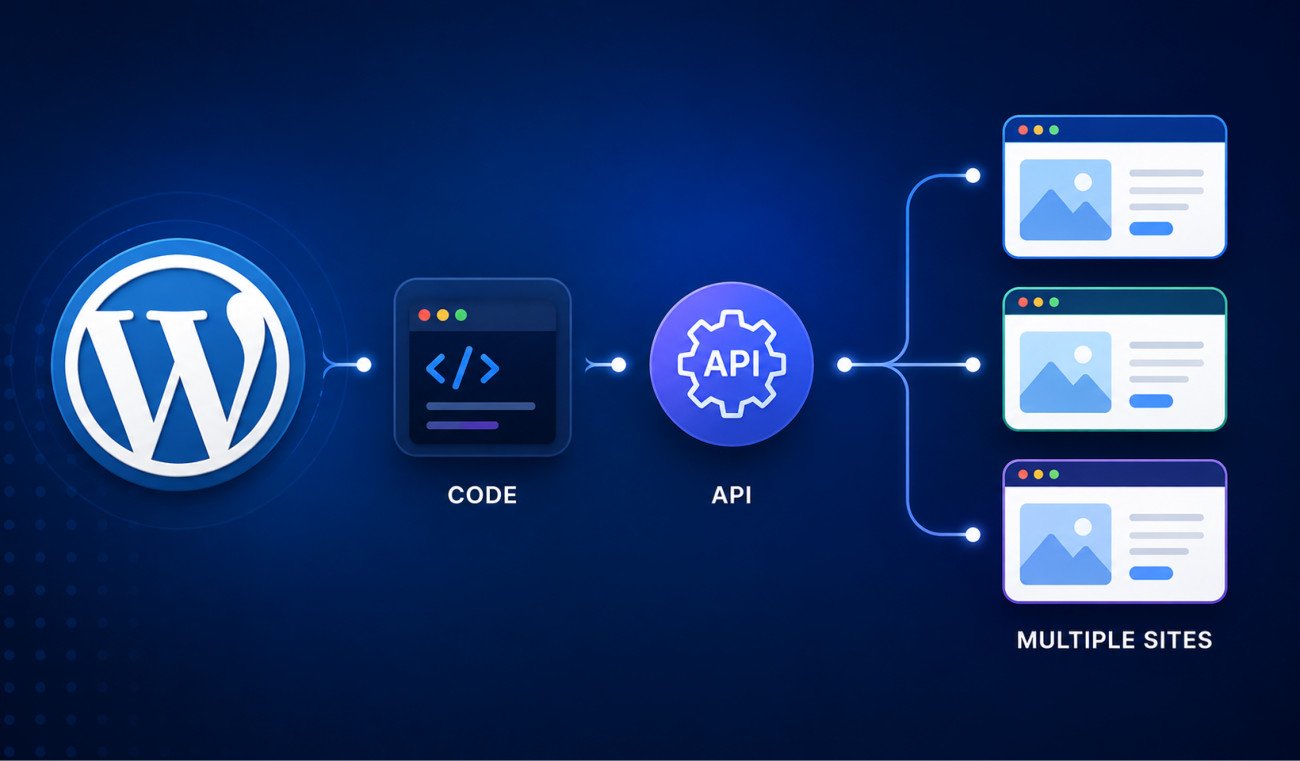
The WordPress REST API is a standardized way to read and write your site’s content, posts, pages, users, media, from outside the WordPress admin, using standard web requests and JSON data. If you’ve ever used the block editor, you’ve already used it without realizing, every single save in Gutenberg is an authenticated REST API call happening behind the scenes. It’s what allows mobile apps, custom applications, and increasingly in 2026, AI coding tools like Claude and Cursor, to treat WordPress as a genuine content backend, reading and writing data programmatically rather than through a browser.
Before You Start
Make sure you have the following in place first:
- Basic familiarity with the previous guides in this series, particularly our custom post types guide, since the REST API interacts directly with post types
- A recent backup (see our backup guide) before testing any write operations
Here’s a genuinely fun fact to open with: you’ve already used the WordPress REST API, whether you knew it or not. Every time you click Save in the block editor, WordPress makes an authenticated API call behind the scenes to store your changes. This guide just makes that invisible process visible, and shows you what else it can do.
What You’ll Learn
- What the REST API actually does, using something you’ve already unknowingly used
- How to try a safe, read-only request yourself
- The built-in, beginner-safe way to authenticate write requests
- Why AI coding tools increasingly rely on this exact API in 2026
What the REST API Actually Is
REST stands for Representational State Transfer, a standardized way applications communicate over the web using familiar HTTP methods, GET to read data, POST to create it, PUT to update it, DELETE to remove it. WordPress has exposed its content this way since version 4.7 (2016), and the API is now fully mature and battle-tested, it’s literally what powers the block editor internally, every save action in Gutenberg is an authenticated REST API call happening behind the scenes.
Trying It Yourself: A Safe, Read-Only Request
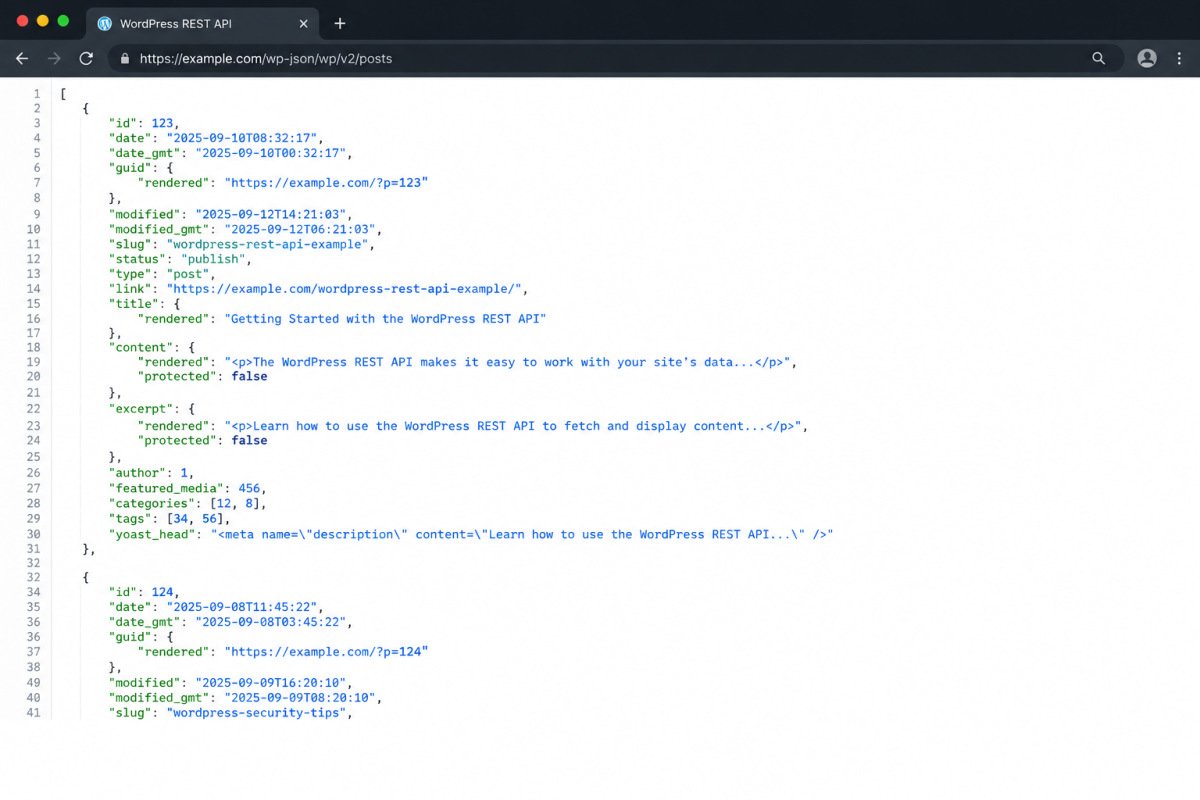
You can see this in action right now without any setup at all. Visit your own site at yourdomain.com/wp-json/wp/v2/posts directly in your browser. You’ll see your published posts returned as raw JSON data, exactly the same data the block editor and mobile apps work with internally.
Understanding Endpoints and Query Parameters
Each content type has its own endpoint, /wp/v2/posts, /wp/v2/pages, /wp/v2/media, /wp/v2/users, and so on. You can refine what comes back using query parameters:
?per_page=5— limits results per request?categories=12— filters by a specific category ID?search=wordpress— searches for a keyword?_fields=id,title,slug— returns only the specific fields you need, genuinely worth using in any real application, since it reduces payload size and speeds up the response
Authentication: Application Passwords
Reading public data requires no authentication at all, but creating, updating, or deleting content does. WordPress includes a built-in method called Application Passwords, no additional plugin required, genuinely the safest, most accessible starting point for beginners, compared to more complex methods like JWT or OAuth that require extra setup. Generate one under your user profile in wp-admin, and use it specifically for API access rather than your actual login password.
The 2026 Connection: AI Tools and the REST API
This is genuinely current and worth knowing: AI coding tools like Claude and Cursor increasingly treat WordPress as a content backend specifically because the REST API is documented clearly and consistently enough for these tools to reason about it reliably. Prompting an AI coding assistant to “build an app that pulls content from my WordPress site” works, in large part, because of exactly this API. This connects directly to what we’ve covered in our AI for WordPress guide, the REST API is a real, technical piece of why AI-WordPress integration has matured so quickly.
This Is What Powers Headless WordPress
If you’ve read our guide to headless WordPress, this is the actual technology making it possible. A headless setup uses WordPress purely as a content backend, editors keep the familiar wp-admin experience, while a separate frontend (built in React, Next.js, or similar) pulls content through exactly the REST API endpoints covered in this guide.
A Security Note
Some site owners disable the REST API entirely for perceived security or performance reasons. Worth knowing before you do this yourself: several popular plugins, including some contact form tools, rely on REST API endpoints internally, and disabling it broadly can break functionality you didn’t intend to affect. If you have a specific security concern, restrict access more surgically rather than disabling the whole API.
WebGomu Tip: Before writing any code against the REST API, spend a few minutes just browsing your own endpoints in a browser, /wp-json/wp/v2/posts, /wp-json/wp/v2/pages, and so on. Seeing the actual data structure firsthand makes everything that follows, authentication, custom endpoints, genuinely easier to understand.
Common Mistakes
- Using your real WordPress login password for API authentication instead of a dedicated Application Password.
- Disabling the entire REST API to address a narrow security concern, breaking unrelated plugin functionality in the process.
- Requesting full post objects when only a few fields are needed, unnecessarily slowing down your application.
- Testing write operations directly on a live site instead of a staging environment first.
Recommended Tools
- Application Passwords (built into WordPress core) — the safest, no-plugin-required way to authenticate API requests
- Your browser — genuinely sufficient for exploring read-only endpoints before writing any actual code
Key Takeaways
- The REST API is a standardized way to read and write WordPress content from outside wp-admin, and it already powers the block editor internally.
- You can safely explore read-only endpoints directly in a browser with no setup required.
- Application Passwords are the built-in, beginner-safe authentication method, no additional plugin needed.
- AI coding tools increasingly rely on this exact API to treat WordPress as a genuine content backend.
Frequently Asked Questions
Have I already used the WordPress REST API without knowing it?
Yes, if you’ve used the block editor. Every save action in Gutenberg is an authenticated REST API call happening behind the scenes.
Do I need a plugin to authenticate REST API requests?
No, WordPress includes Application Passwords built into core, genuinely the safest and simplest authentication method for beginners compared to more complex options like JWT or OAuth.
Can I view REST API data without any setup?
Yes, visiting yourdomain.com/wp-json/wp/v2/posts directly in a browser returns your published posts as raw JSON data, no authentication required for public, read-only data.
Why do AI coding tools use the WordPress REST API?
Because it’s documented clearly and consistently enough for these tools to reliably reason about it, letting them treat a WordPress site as a genuine content backend when building custom applications.
Is it safe to disable the WordPress REST API entirely?
Not without caution, several popular plugins rely on REST API endpoints internally, and disabling it broadly can break functionality unrelated to the original concern.
Resources Links
Author:

Christoper Enolpe
Founder of WebGomu • WordPress Freelancer with 10+ Years of Experience
Christoper is the founder of WebGomu and a WordPress freelancer with over 10 years of hands-on experience building, optimizing, and maintaining WordPress websites. He writes practical, beginner-friendly guides based on real-world experience, covering WordPress, SEO, website performance, and AI tools to help readers build better websites with confidence.
Learn more: https://webgomu.com/about/
Get one WordPress tip every week
Start Here

The Ultimate Beginner’s Guide to WordPress (2026): Build Your First Website Without Coding
Popular Guides
Our Partner

More from the blog
How to Debug and Fix WordPress Critical Errors Safely (Without Crashing Live Sites)
Essential PHP Snippets to Remove WordPress Bloat and Improve Speed