How to Create Custom Post Types in WordPress (2026)

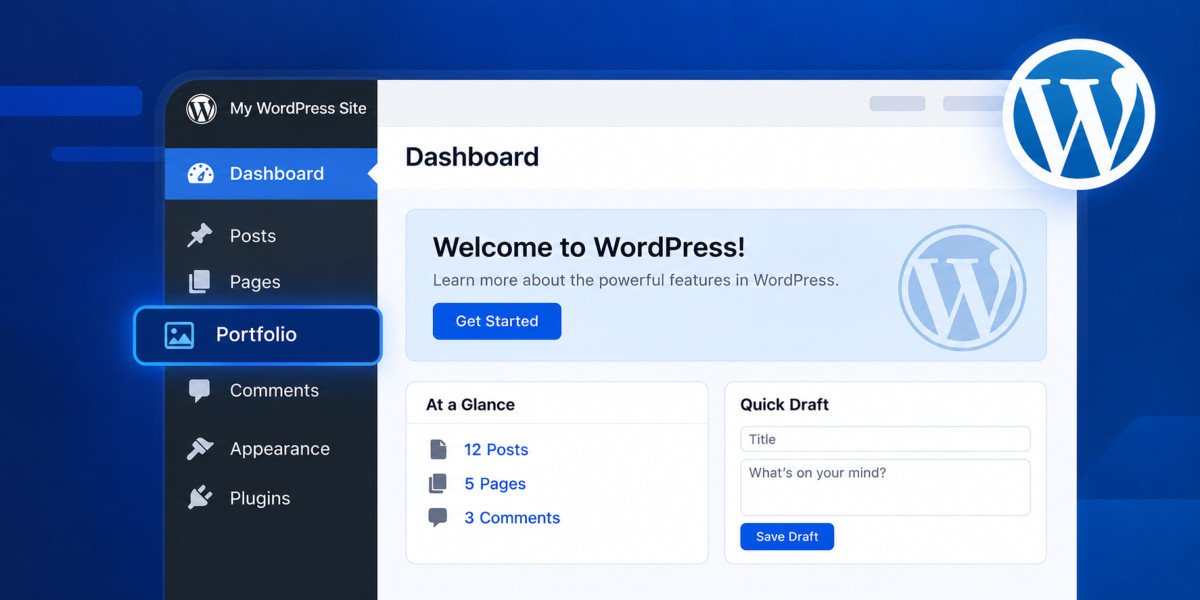
A custom post type lets you create a genuinely separate content type beyond WordPress’s default Posts and Pages, portfolios, testimonials, team members, events, anything that deserves its own structure rather than being forced into a generic post. You’ve likely already used one without realizing it, WooCommerce’s “Products” section is itself a custom post type. You can create one two ways: a plugin like Custom Post Type UI (no coding required), or by registering it with code, which this guide does safely through WPCode rather than editing your theme’s functions.php file directly.
Before You Start
Make sure you have the following in place first:
- A recent backup (see our backup guide)
- Clarity on what content genuinely needs its own type, portfolios, team members, and events are common examples that don’t fit naturally into standard posts
Every WordPress site eventually hits the same wall: you’re trying to manage products, or testimonials, or team bios, and jamming them all into regular blog posts feels increasingly wrong the more of them you add. That instinct is correct, and custom post types are exactly the tool built to fix it.
What You’ll Learn
- What a custom post type actually is, using one you’re probably already running
- Two safe ways to create one, plugin or code
- The one setting most older tutorials forget, and why skipping it breaks your editor
- How custom taxonomies extend the idea further
What a Custom Post Type Actually Is
If you’ve ever run a WooCommerce store, you’ve already used a custom post type without necessarily knowing it, “Products” is itself a custom post type WooCommerce registers when you install it, complete with its own admin menu, its own archive page, and its own specific fields. Custom post types work the same way for anything else that deserves that same dedicated treatment, portfolios, team directories, event listings, testimonials, rather than being crammed into standard blog posts.
Method 1: Using a Plugin (Recommended for Most Beginners)
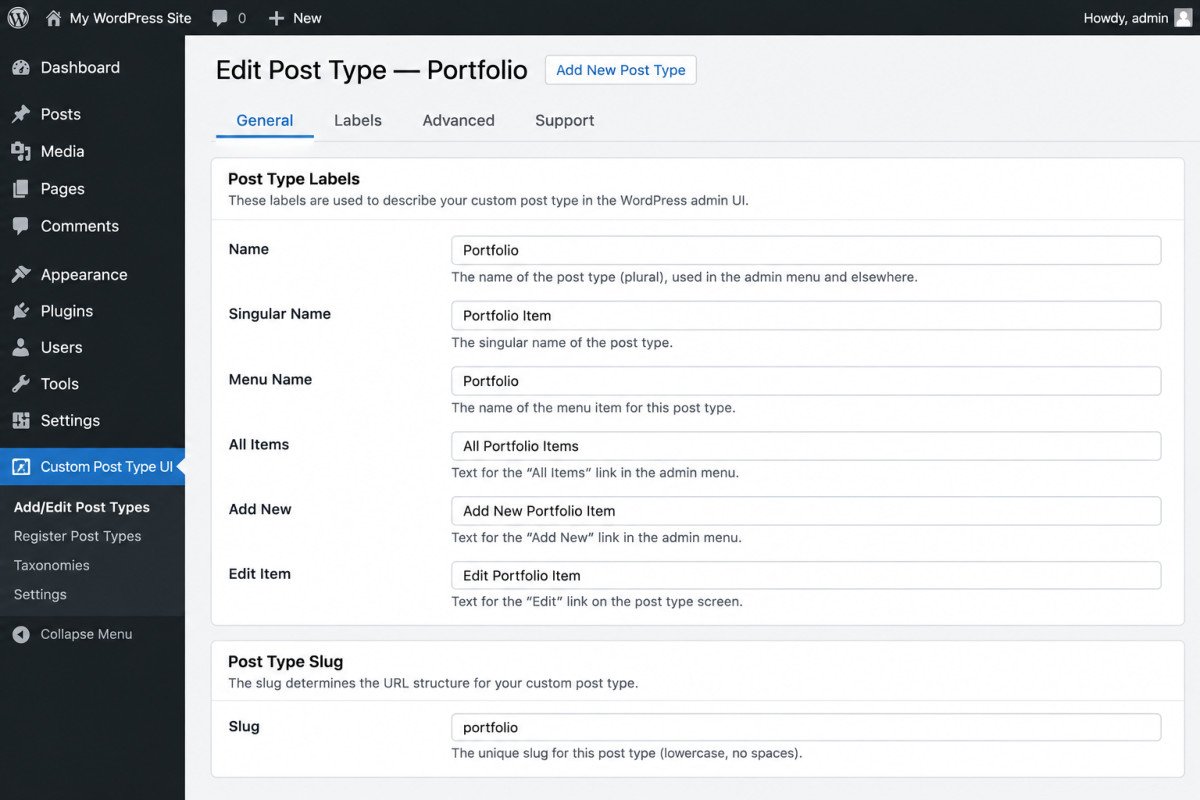
Custom Post Type UI is a genuinely popular, free plugin that handles registration entirely through a visual interface, no code required.
- Go to Plugins → Add New Plugin, search for “Custom Post Type UI,” install and activate it.
- Go to CPT UI → Add/Edit Post Types.
- Enter your post type’s singular and plural labels, and a URL slug.
- Save, and your new content type appears in your dashboard sidebar immediately.
Method 2: Registering One with Code
If you want more control or a lighter setup without an additional plugin, you can register a custom post type with code, safely, through WPCode rather than your theme’s functions.php file. Editing functions.php directly is genuinely risky, a single syntax error there can break your entire site, and any customization there is wiped out on the next theme update anyway.
function webgomu_register_portfolio() {
    register_post_type('portfolio', array(
        'label' => 'Portfolio',
        'public' => true,
        'has_archive' => true,
        'show_in_rest' => true,
        'supports' => array('title', 'editor', 'thumbnail'),
        'rewrite' => array('slug' => 'portfolio'),
    ));
}
add_action('init', 'webgomu_register_portfolio');
Paste this into a new PHP snippet in WPCode, adjust the labels and slug to fit your content, and activate it.
The One Setting You Can’t Skip: show_in_rest
This is genuinely worth calling out directly, since older tutorials often miss it. Without 'show_in_rest' => true in your registration code, your new post type won’t load the modern block editor at all, you’ll be stuck with the old classic editor interface instead. This single line is what connects your custom post type to Gutenberg, don’t skip it.
Adding a Custom Taxonomy
Just like regular posts have categories and tags, custom post types can have their own custom taxonomies, a genuine way to organize a large portfolio by project type, or events by category, using the same underlying WordPress concept applied to your new content type.
WebGomu Tip: Start with the plugin method (Custom Post Type UI) even if you’re comfortable with code. It’s genuinely easier to adjust settings visually while you’re still deciding exactly how your content should be structured, you can always move to a code-based registration later once your requirements are fully settled.
Common Mistakes
- Forgetting show_in_rest => true, silently losing access to the block editor for that content type.
- Registering a custom post type directly in functions.php instead of using WPCode or a dedicated plugin.
- Creating a new custom post type when a category or tag would have organized the content just as well.
- Not testing the new post type on staging before relying on it for real content.
Recommended Tools
- Custom Post Type UI — the easiest, no-code way to register a custom post type
- WPCode — for a code-based registration without editing theme files directly
Key Takeaways
- A custom post type is a genuinely separate content type beyond Posts and Pages, WooCommerce’s “Products” is a real example you may already be running.
- Custom Post Type UI offers a no-code path; WPCode offers a safe code-based path without touching functions.php.
- The show_in_rest parameter is non-negotiable, skip it and you lose the block editor for that content type.
- Custom taxonomies extend the same category/tag concept to your new post type.
Frequently Asked Questions
What is a custom post type in WordPress?
A genuinely separate content type beyond the default Posts and Pages, used for content like portfolios, testimonials, or events that deserves its own structure. WooCommerce’s “Products” is a real, common example.
Do I need coding skills to create a custom post type?
No, a plugin like Custom Post Type UI handles registration entirely through a visual interface. Code-based registration offers more control but isn’t required.
Why does my new custom post type use the old classic editor instead of the block editor?
This almost always means the show_in_rest parameter wasn’t set to true during registration, a genuinely easy detail to miss, especially in older tutorials.
Is it safe to register a custom post type in my theme’s functions.php file?
It’s genuinely risky, a syntax error there can break your entire site, and any changes are wiped out on the next theme update. WPCode or a dedicated plugin are safer alternatives.
Can custom post types have their own categories or tags?
Yes, through custom taxonomies, the same underlying WordPress concept behind regular categories and tags, applied to your new custom post type.
Resources Links
Author:

Christoper Enolpe
Founder of WebGomu • WordPress Freelancer with 10+ Years of Experience
Christoper is the founder of WebGomu and a WordPress freelancer with over 10 years of hands-on experience building, optimizing, and maintaining WordPress websites. He writes practical, beginner-friendly guides based on real-world experience, covering WordPress, SEO, website performance, and AI tools to help readers build better websites with confidence.
Learn more: https://webgomu.com/about/
Get one WordPress tip every week
Start Here

The Ultimate Beginner’s Guide to WordPress (2026): Build Your First Website Without Coding
Popular Guides
Our Partner

More from the blog

WordPress REST API Explained: A Beginner’s Guide (2026)
Advanced WordPress Guide: Beyond the Basics (2026)