WP-CLI Beginner’s Guide: Managing WordPress from the Terminal

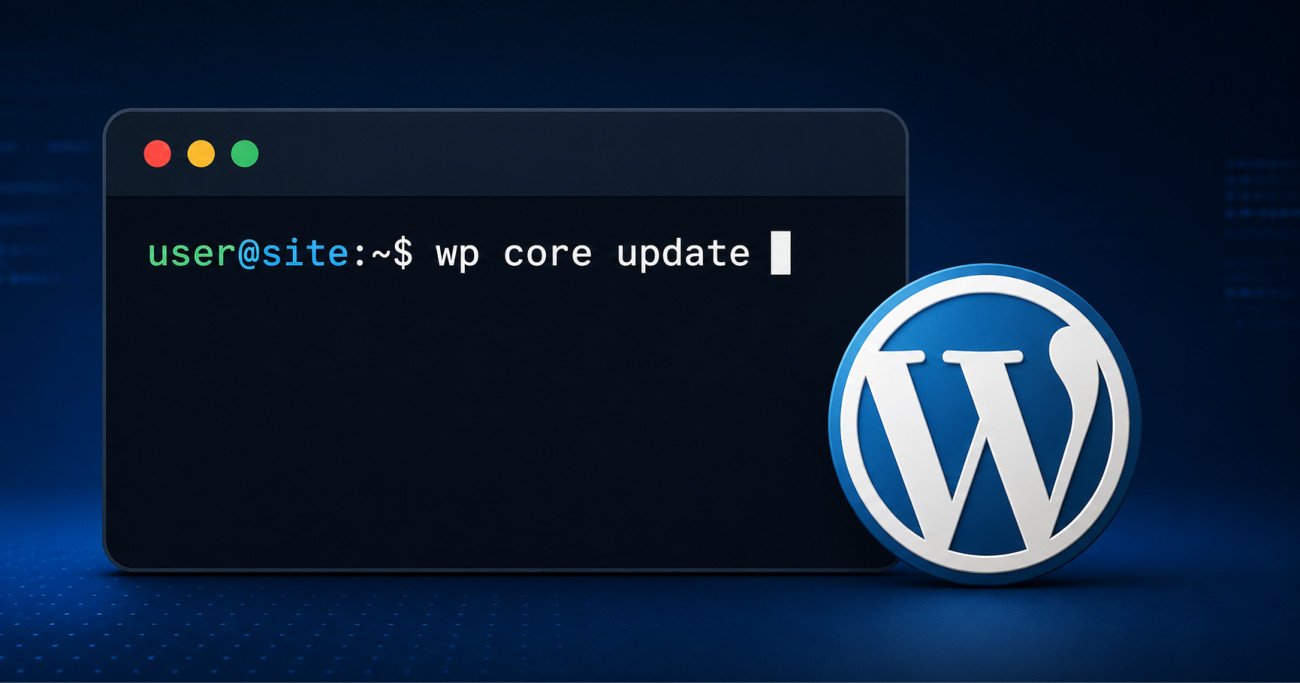
WP-CLI is the official command-line interface for WordPress, letting you manage plugins, themes, users, and content by typing commands in a terminal instead of clicking through the admin dashboard. Anything you can do in wp-admin, you can generally do faster with WP-CLI, updating 40 plugins takes one command instead of forty individual clicks. It requires some comfort using a terminal, a genuine, real barrier for true beginners, but the actual commands themselves are often simpler than navigating multiple admin screens once you’re past that initial hurdle. It genuinely shines for anyone managing several sites at once.
Before You Start
Make sure you have the following in place first:
- SSH access to your hosting account, check with your host if you’re not sure whether you have this
- A recent backup (see our backup guide), genuinely important before running anything database-related
- Basic comfort navigating a terminal or command line, this is the real prerequisite, not coding ability
There’s a specific, familiar kind of tedious in clicking “Update” on forty separate plugins one at a time, especially when you’re doing it across several client sites. WP-CLI exists specifically to eliminate that exact tedium, and it’s genuinely one of the biggest quality-of-life upgrades available once you’re comfortable using it.
What You’ll Learn
- What WP-CLI actually is, and the honest truth about who it’s really for
- How to check if your hosting supports it
- The single most common first-time mistake, and how to avoid it
- Where it genuinely pays off most, managing multiple sites specifically
Do You Need to Be a Developer to Use It?
Worth being honest about this upfront, since sources genuinely disagree. Some describe WP-CLI as strictly for advanced users, others, including WordPress.org’s own official handbook, note that non-technical users benefit too. The honest middle ground: you don’t need coding skills, but you do need genuine comfort typing commands into a terminal rather than clicking buttons, that’s a real, different skill than using the WordPress dashboard, and it’s worth being upfront that it’s not for absolute beginners still learning basic WordPress navigation.
Step 1: Check If Your Host Supports It
Not every shared hosting plan includes WP-CLI by default, some require a VPS, dedicated hosting, or a specifically managed WordPress host. Check your hosting control panel or contact support directly to confirm before proceeding.
Step 2: Access Your Site via SSH
Using your host’s provided SSH credentials, connect to your server through your terminal application.
Step 3: Navigate to Your WordPress Root Directory
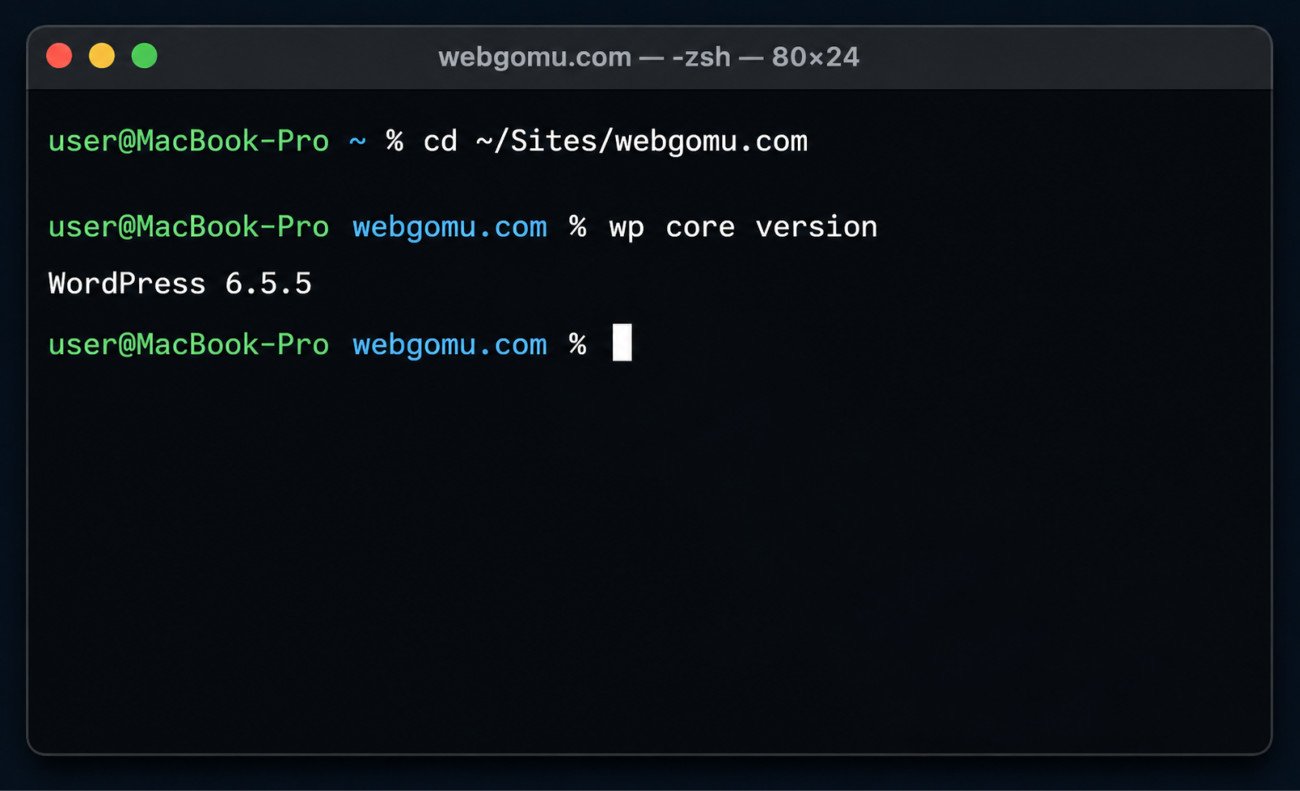
This is genuinely the most common first-time stumbling block. WP-CLI commands must be run from your WordPress installation’s actual root folder, the one containing wp-config.php, typically something like /home/username/public_html. Running a command from the wrong folder produces a clear but confusing error: “This does not seem to be a WordPress installation.” Use cd to navigate there first, or specify the location directly with wp --path=/your/path.
Essential Commands to Start With
| Command | What It Does |
|---|---|
| wp core version | Confirms WP-CLI is working and shows your WordPress version |
| wp plugin list | Shows every installed plugin, status, and available updates |
| wp plugin update –all | Updates every plugin in a single command |
| wp plugin install [name] –activate | Installs and activates a plugin in one step |
Where WP-CLI Genuinely Shines: Managing Multiple Sites
If you’re managing multiple client sites, this is where WP-CLI stops being a convenience and becomes a genuine time-multiplier. Updating plugins across 15 client sites individually through wp-admin takes real, repetitive time. The same task via a WP-CLI script, or an SSH alias for frequently accessed remote sites, can take a fraction of that.
Safety First
Before any destructive operation, a database search-replace, a bulk deletion, always run wp db export first as an additional safety net beyond your regular backup, and genuinely test unfamiliar commands on a staging site before running them on your live site. Some commands support a --dry-run flag specifically to preview what would happen without actually making the change, use it whenever it’s available.
WebGomu Tip: Start with read-only commands, wp core version, wp plugin list, before touching anything that changes your site. Getting comfortable with the pattern of typing commands and reading output first makes the actual management commands feel far less risky once you’re ready for them.
Common Mistakes
- Running a command from the wrong directory, the most common first-time error.
- Skipping a fresh database export before a destructive operation like search-replace, beyond your regular backup schedule.
- Running unfamiliar commands directly on a live site instead of testing on staging first.
- Assuming your hosting supports WP-CLI without checking, some shared plans don’t include it.
Recommended Tools
- WP-CLI (official, free) — maintained as an open-source project, install instructions available at wp-cli.org
- Your host’s SSH access — required to actually run WP-CLI commands remotely
Key Takeaways
- WP-CLI lets you manage WordPress through terminal commands, often faster than the equivalent admin dashboard clicks.
- It requires genuine comfort with a terminal, not coding skill specifically, worth knowing before committing time to learning it.
- Commands must run from your WordPress root directory, the most common first-time mistake is running them from the wrong folder.
- It genuinely pays off most for anyone managing several WordPress sites at once.
Frequently Asked Questions
Do I need coding experience to use WP-CLI?
Not coding experience specifically, but genuine comfort using a terminal is a real prerequisite, a different skill than navigating the WordPress dashboard.
Why am I getting “This does not seem to be a WordPress installation” error?
This means the command was run from the wrong folder. WP-CLI commands must be run from your WordPress installation’s root directory, the one containing wp-config.php.
Does every hosting plan support WP-CLI?
No, some shared hosting plans don’t include it by default, it may require a VPS, dedicated hosting, or a specifically managed WordPress host. Check with your provider directly.
Is WP-CLI safe to use on a live site?
With care, yes. Always back up first, run a fresh database export before destructive operations specifically, and test unfamiliar commands on a staging site before running them live.
When does WP-CLI provide the most genuine value?
When managing multiple WordPress sites, bulk operations that would take significant repetitive time through the admin dashboard can often be completed in a single command or script.
Resources Links
Author:

Christoper Enolpe
Founder of WebGomu • WordPress Freelancer with 10+ Years of Experience
Christoper is the founder of WebGomu and a WordPress freelancer with over 10 years of hands-on experience building, optimizing, and maintaining WordPress websites. He writes practical, beginner-friendly guides based on real-world experience, covering WordPress, SEO, website performance, and AI tools to help readers build better websites with confidence.
Learn more: https://webgomu.com/about/
Get one WordPress tip every week
Start Here

The Ultimate Beginner’s Guide to WordPress (2026): Build Your First Website Without Coding
Popular Guides
Our Partner

More from the blog
How to Debug and Fix WordPress Critical Errors Safely (Without Crashing Live Sites)
Essential PHP Snippets to Remove WordPress Bloat and Improve Speed