How to Create a Custom WordPress Shortcode (Safely)


A custom WordPress shortcode is a small bracketed tag, like [my_greeting], that WordPress replaces with dynamic content generated by a PHP function whenever it appears in a post, page, or widget. Creating one requires three parts: the shortcode tag, a callback function that generates the output, and the add_shortcode() call that registers the two together. Most guides tell you to paste this code directly into your theme’s functions.php file, genuinely risky for beginners, one syntax error there can take your entire site down. This guide uses WPCode instead, WebGomu’s established safe method for adding code, so a mistake stays contained rather than breaking your live site.
Before You Start
Make sure you have the following in place first:
- A recent backup (see our backup guide), genuinely worth having before testing any custom code
- The free WPCode plugin installed, this is what keeps your custom code safely separated from your theme files
- Basic comfort reading (not necessarily writing) simple PHP, you’ll be adapting a template, not writing from scratch
Nearly every WordPress shortcode tutorial you’ll find tells you to open your theme’s functions.php file and start pasting code directly into it, which is a bit like being told the safest way to change a tire is while the car’s still moving. It works, right up until it doesn’t. This guide does the exact same thing a different, genuinely safer way.
What You’ll Learn
- The three parts every shortcode is actually built from
- The single most common mistake beginners make, and how to avoid it
- How to build your first custom shortcode using WPCode instead of theme files
- How to add parameters so your shortcode can accept custom input
What a Shortcode Actually Is
Every WordPress shortcode is built from three connected parts:
- The tag, the bracketed text you actually type, like [my_greeting]
- The callback function, the PHP function that generates whatever output should replace the tag
- The registration, the add_shortcode() call that connects the tag to the function
WordPress scans your content for these bracketed tags as a page loads, and swaps each one for the actual output of its connected function, similar to a mail-merge field.
The Golden Rule: Return, Never Echo
This is genuinely the single most common mistake beginners make, and it’s worth understanding before you write your first shortcode. Your callback function must return its output, not echo it. Echoing content inside a shortcode function can cause it to display in the wrong place on the page, often above your actual content, since WordPress processes shortcodes before rendering the rest of the page.
Step 1: Install WPCode
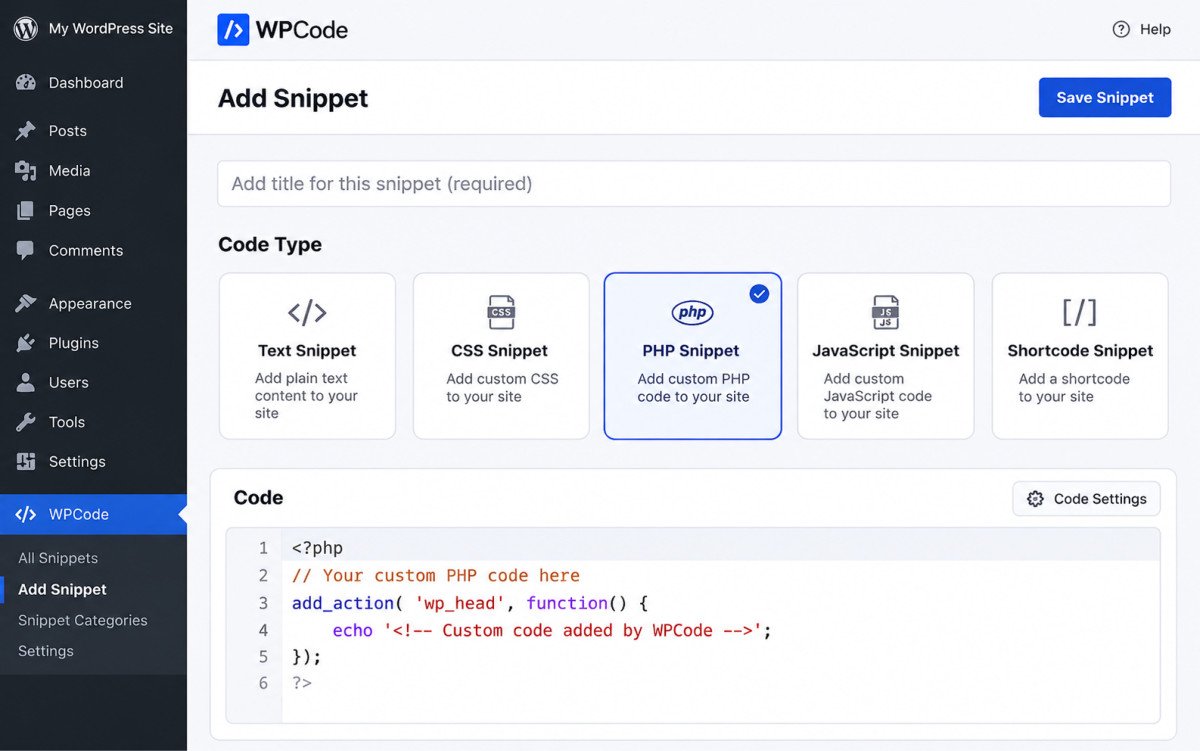
Go to Plugins → Add New Plugin, search for “WPCode,” install and activate it. This gives you a safe, dedicated place to add custom PHP code without touching your theme files directly.
Step 2: Create a New Custom Code Snippet
In your dashboard, go to Code Snippets → Add Snippet, choose “Add Your Custom Code,” and select PHP Snippet as the code type.
Step 3: Write Your Shortcode
Here’s a simple example, a shortcode that displays a personalized greeting:
function webgomu_greeting_shortcode() {
    return '<p>Welcome to our site!</p>';
}
add_shortcode('greeting', 'webgomu_greeting_shortcode');
Paste this into the WPCode snippet editor, save, and set the snippet to Active.
Step 4: Use Your Shortcode
In any post or page, add a Shortcode block from the block editor and type [greeting]. If you’re using a page builder like Elementor or Breakdance, both include a dedicated shortcode widget for placing it visually.
Adding Parameters for More Flexibility
A basic shortcode always outputs the same thing. Adding parameters (called attributes) lets it accept custom input, for example, [greeting name=”Sarah”] displaying a personalized name. This requires a slightly more advanced function using WordPress’s shortcode_atts() function to handle the incoming attribute safely, worth exploring once the basic version above feels comfortable.
Useful Shortcodes You Can Copy and Paste
These ready-to-use examples cover common tasks and can be added through Code Snippets → Add Snippet as PHP snippets in WPCode. Paste the PHP code into WPCode, activate the snippet, and then copy the bracketed shortcode into a Shortcode block, page builder widget, post, or page. Add each example as its own snippet unless you prefer to keep them together in one active snippet.
Display the Current Year
Use this in a copyright notice or anywhere your content needs to stay current.
function webgomu_current_year_shortcode() {
    return esc_html( wp_date( 'Y' ) );
}
add_shortcode( 'current_year', 'webgomu_current_year_shortcode' );
Shortcode to use: [current_year]
Show the Site Name
This pulls your website name from WordPress instead of requiring you to type it manually.
function webgomu_site_name_shortcode() {
    return esc_html( get_bloginfo( 'name' ) );
}
add_shortcode( 'site_name', 'webgomu_site_name_shortcode' );
Shortcode to use: [site_name]
Show the Last Updated Date
Place this in a post or page to display its latest modified date.
function webgomu_updated_date_shortcode() {
    if ( ! is_singular() ) {
        return '';
    }

    return esc_html( get_the_modified_date() );
}
add_shortcode( 'updated_date', 'webgomu_updated_date_shortcode' );
Shortcode to use: [updated_date]
Create a Reusable Button
This parameterized shortcode creates a linked button without rebuilding the same HTML each time. Change the url and text values whenever you use it.
function webgomu_button_shortcode( $atts ) {
    $atts = shortcode_atts(
        array(
            'url'  => '#',
            'text' => 'Learn more',
        ),
        $atts,
        'site_button'
    );

    return sprintf(
        '<a class="webgomu-button" href="%1$s">%2$s</a>',
        esc_url( $atts['url'] ),
        esc_html( $atts['text'] )
    );
}
add_shortcode( 'site_button', 'webgomu_button_shortcode' );
Shortcode to use: [site_button url="https://example.com" text="Visit our guide"]
Display a Post’s Featured Image
Use this when you need to place the current post’s featured image inside content.
function webgomu_featured_image_shortcode() {
    if ( ! has_post_thumbnail() ) {
        return '';
    }

    return get_the_post_thumbnail( get_the_ID(), 'large' );
}
add_shortcode( 'featured_image', 'webgomu_featured_image_shortcode' );
Shortcode to use: [featured_image]
Important: The shortcode tags above only work after their PHP snippets are active in WPCode. If a shortcode appears as plain text, check that the snippet is active, that the tag is spelled correctly, and that it uses square brackets. Preview the result before publishing.
WebGomu Tip: Test every new shortcode on a staging site first if your host offers one, even small PHP syntax errors can cause a visible error on your live site. WPCode genuinely reduces this risk compared to editing theme files directly, but it doesn’t eliminate it entirely.
Common Mistakes
- Using echo instead of return inside the callback function, the single most common beginner error.
- Pasting custom shortcode code directly into functions.php or the theme editor instead of using WPCode.
- Using hyphens in shortcode tag names, WordPress shortcode tags should use lowercase letters and underscores only.
- Testing a new shortcode directly on a live site instead of staging first.
Recommended Tools
- WPCode — the safe way to add custom PHP code without directly editing theme files
- A staging site — for testing new code before it touches your live site
Key Takeaways
- Every shortcode has three parts: the tag, the callback function, and the add_shortcode() registration.
- Always return your function’s output, never echo it, the most common beginner mistake.
- WPCode is the safer way to add custom shortcode code, avoiding direct theme file edits most tutorials recommend.
- Parameters let a shortcode accept custom input, worth exploring once the basics feel comfortable.
Frequently Asked Questions
Do I need coding experience to create a custom WordPress shortcode?
Basic comfort reading simple PHP helps, but you’re typically adapting a template rather than writing code from scratch, genuinely approachable for a motivated beginner.
Why is my shortcode’s output appearing in the wrong place on the page?
This is almost always caused by using echo instead of return inside the callback function. WordPress processes shortcodes before rendering the rest of the page, and echoing can cause output to appear above your actual content.
Is it safe to paste shortcode code directly into functions.php?
It’s genuinely risky for beginners, a single syntax error there can take down your entire site. Using a code snippet plugin like WPCode keeps custom code safely separated from your theme files.
Can shortcodes accept custom input?
Yes, through parameters (attributes), for example, [greeting name=”Sarah”]. This requires a slightly more advanced function using WordPress’s shortcode_atts() function.
Can I use a custom shortcode inside my page builder?
Yes, both Elementor and Breakdance include a dedicated shortcode widget for placing custom shortcodes visually within your design.
Resources Links
Author:

Christoper Enolpe
Founder of WebGomu • WordPress Freelancer with 10+ Years of Experience
Christoper is the founder of WebGomu and a WordPress freelancer with over 10 years of hands-on experience building, optimizing, and maintaining WordPress websites. He writes practical, beginner-friendly guides based on real-world experience, covering WordPress, SEO, website performance, and AI tools to help readers build better websites with confidence.
Learn more: https://webgomu.com/about/
Get one WordPress tip every week
Start Here

The Ultimate Beginner’s Guide to WordPress (2026): Build Your First Website Without Coding
Popular Guides
Our Partner

More from the blog

WordPress REST API Explained: A Beginner’s Guide (2026)
Advanced WordPress Guide: Beyond the Basics (2026)