WordPress Website Migration: The Complete Guide (2026)

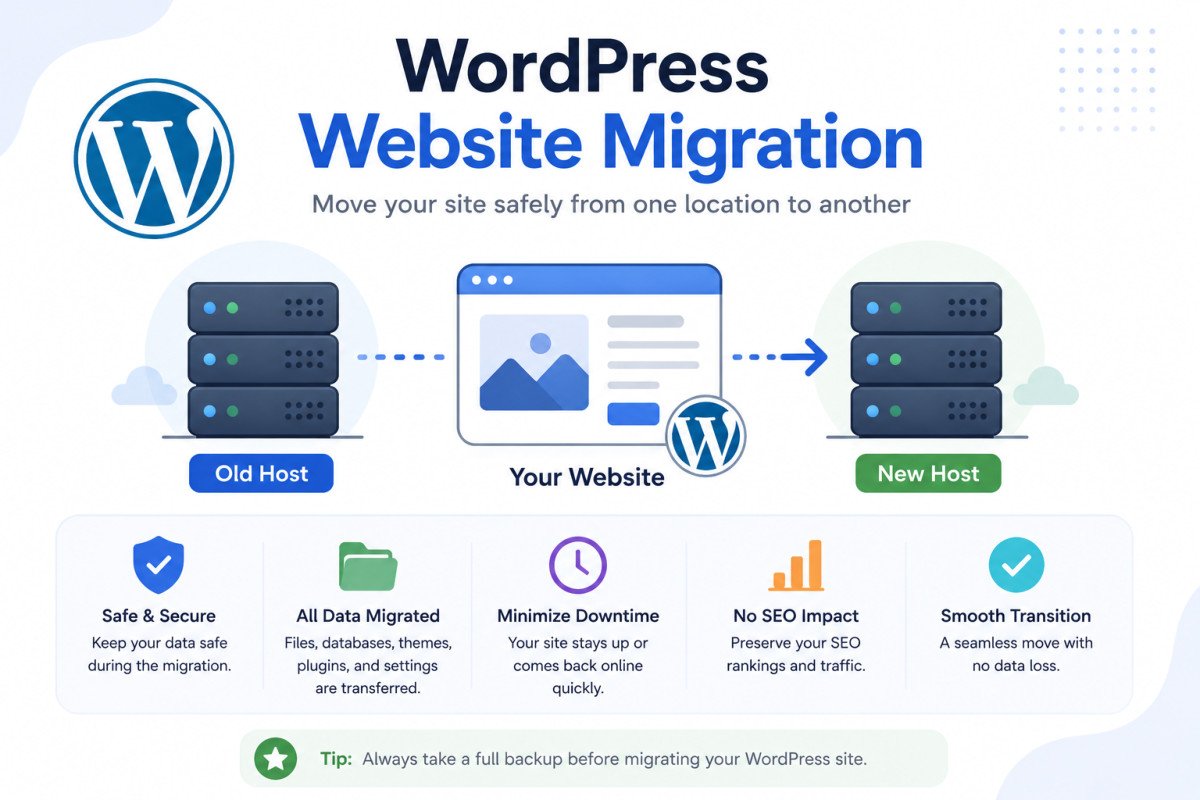
Migrating a WordPress site safely comes down to five stages: back up everything, move your files and database to the new host, rebuild the site there, point your domain to the new server, and test thoroughly before fully committing. Preparation determines whether a migration is routine or genuinely painful, skipping the pre-migration checklist is the single biggest cause of broken migrations. WordPress now powers over 43% of all websites, which means millions of site owners face this exact task every year, and most of the common failures are entirely avoidable with the right process.
Before You Start
Make sure you have the following in place first:
- A recent, verified backup (see our backup guide), this is genuinely your undo button if anything goes wrong
- Your new hosting account already set up and ready to receive your site
- A low-traffic window scheduled for the actual switch, to minimize any visitor impact
Moving your WordPress site to a new host sounds intimidating, and the honest truth is it can genuinely go wrong if you skip the boring preparation steps. The good news: nearly every migration horror story traces back to the same handful of avoidable mistakes, all fixable with a bit of upfront planning.
What You’ll Learn
- The 5-stage process for a safe, complete migration
- How to choose between manual, plugin-based, and managed migration
- How to preserve your SEO rankings through the move
- What to do if something breaks after you switch
The 5 Stages of a Safe Migration
- Back up everything, files and database, before touching anything
- Move your files and database to the new host
- Rebuild the site on the new server
- Point your domain to the new hosting environment
- Test thoroughly before fully decommissioning your old host
Stage 1: Prepare Before You Touch Anything
Preparation is what separates a smooth migration from a painful one.
- Create a complete backup of your files and database, not just one or the other.
- Document your site’s technical details, PHP version, MySQL version, and active plugins and themes, so you can confirm your new host supports everything.
- Update WordPress core, plugins, and themes before migrating, see our safe update guide. Outdated software is a leading cause of migration errors.
- Delete unused plugins and themes, inactive code adds unnecessary risk during the move.
- Choose a low-traffic window to minimize disruption to real visitors during the switch.
Stage 2: Choose Your Migration Method
| Method | Best For | Technical Skill Needed |
|---|---|---|
| Plugin-based (Duplicator, UpdraftPlus) | Most beginners and small sites | Low |
| Manual (FTP, phpMyAdmin) | Those wanting full control or troubleshooting flexibility | High |
| Managed migration service | Complex sites, or anyone preferring not to do it themselves | None required |
For most WebGomu readers, a plugin-based migration offers the best balance of safety and simplicity, no FTP client or phpMyAdmin required.
Stage 3: Move Your Files and Database
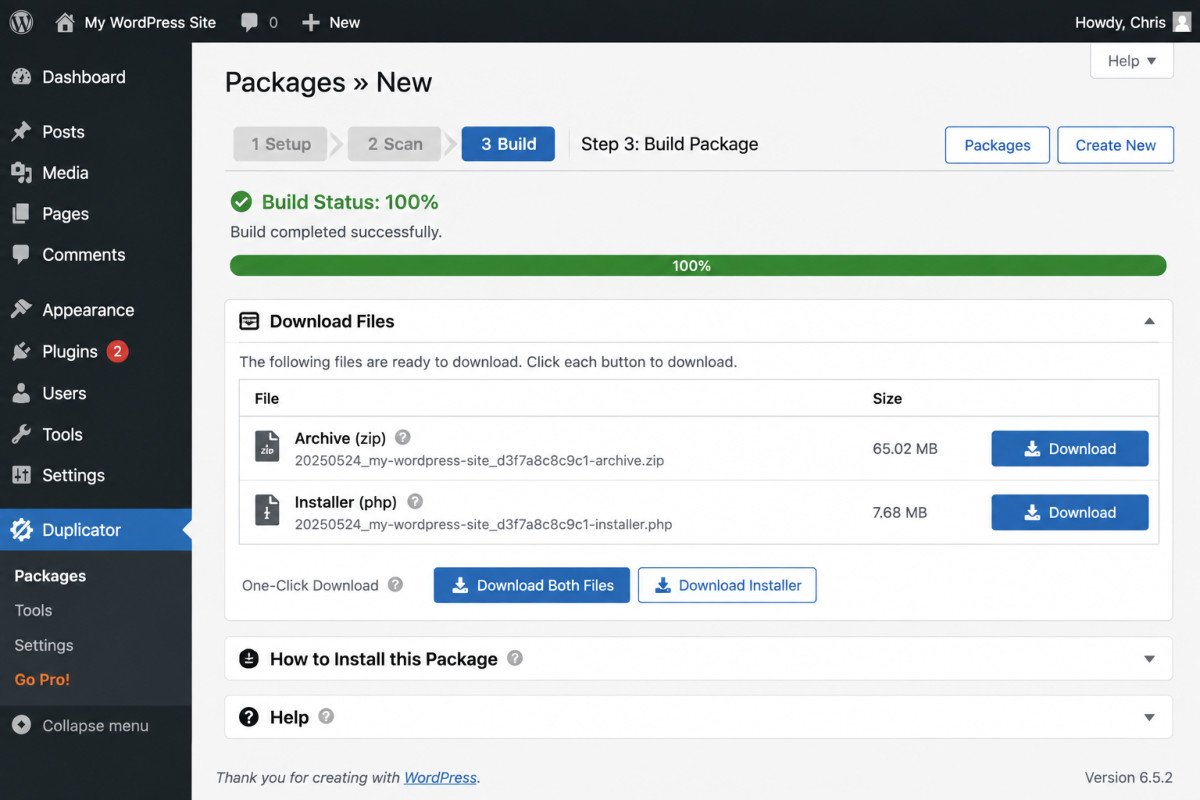
Using a free tool like Duplicator, the process typically looks like this:
- Install and activate the Duplicator plugin on your current site.
- Create a new backup, selecting all components (files and database) to include.
- Let Duplicator scan your site and flag any potential issues before building the package.
- Click Build, then download both the resulting archive and installer files.
- Upload both files to your new host, then run the installer to unpack and configure everything automatically.
Stage 4: Point Your Domain to the New Host
Once your site is rebuilt and verified on the new server, update your domain’s DNS settings to point to it. DNS changes aren’t instant, propagation can take anywhere from a few hours up to 48 hours, during which some visitors may briefly see the old server and others the new one.
Stage 5: Test Before You Fully Commit
Thoroughly test the new site before canceling anything on your old host: check that pages load correctly, forms submit properly, images display, and your permalink structure is intact and matches exactly what it was before, changed URLs are one of the fastest ways to lose existing SEO rankings during a migration.
WebGomu Tip: Keep your old hosting account active for about a week after going live on the new one. If something unexpected surfaces once real traffic hits the new site, this gives you a genuine fallback rather than a full emergency recovery.
Preserving Your SEO During Migration
Retaining your existing URL structure, metadata, and headings is critical, this is exactly why confirming your permalink structure didn’t change matters so much. Once your migration is complete, run a fresh SEO check for broken links or missing metadata that might have been introduced during the move, the same way you’d audit any major site change.
Troubleshooting
Error establishing a database connection
Double-check your database name, username, and password in wp-config.php, and confirm the database user has correct permissions on your new host.
White screen after migration
This usually indicates a plugin or theme conflict. Disable all plugins via FTP by renaming the /plugins/ folder, then reactivate them one at a time to isolate the cause, the same diagnostic method covered in our WooCommerce troubleshooting guide.
Site shows “Not Secure” after the move
Force HTTPS in your new host’s control panel and update any hardcoded image or script URLs still pointing to http://. See our SSL guide if you need the full setup walkthrough.
Common Mistakes
- Skipping the pre-migration checklist, the single biggest cause of broken migrations.
- Migrating outdated plugins and themes instead of updating them first.
- Changing permalink structure during the move, breaking existing URLs and rankings.
- Canceling the old hosting account immediately instead of keeping it as a brief fallback.
Recommended Tools
- Duplicator — free, beginner-friendly plugin for packaging and moving an entire site
- UpdraftPlus — for your pre-migration backup, see our review
Key Takeaways
- Migration success comes down to five stages: backup, move, rebuild, point domain, test.
- Preparation, backups, updates, documentation, prevents the vast majority of migration failures.
- Keeping your exact permalink structure intact is critical for preserving SEO rankings.
- Keep your old host active briefly after going live, as a genuine safety net.
Frequently Asked Questions
Will migrating my WordPress site hurt my SEO rankings?
It shouldn’t, if done correctly. Retaining your exact URL structure, metadata, and headings preserves your existing rankings, changes to any of these during migration are the most common cause of SEO damage.
What’s the easiest way to migrate WordPress for a beginner?
A plugin-based migration using a tool like Duplicator is generally the easiest, no FTP client or database tool required, the plugin handles the technical work.
How long does DNS propagation take after migration?
Typically a few hours, though it can take up to 48 hours in some cases. During this window, different visitors may briefly see either the old or new server.
Should I keep my old hosting account after migrating?
Yes, for about a week. This gives you a genuine fallback if an unexpected issue surfaces once real traffic hits the new site.
What causes most WordPress migration failures?
Skipping the pre-migration checklist, particularly outdated software and missing backups, is the single biggest cause of broken migrations.
Resources Links
Author:

Christoper Enolpe
Founder of WebGomu • WordPress Freelancer with 10+ Years of Experience
Christoper is the founder of WebGomu and a WordPress freelancer with over 10 years of hands-on experience building, optimizing, and maintaining WordPress websites. He writes practical, beginner-friendly guides based on real-world experience, covering WordPress, SEO, website performance, and AI tools to help readers build better websites with confidence.
Learn more: https://webgomu.com/about/
Get one WordPress tip every week
Start Here

The Ultimate Beginner’s Guide to WordPress (2026): Build Your First Website Without Coding
Popular Guides
Our Partner

More from the blog
The Ultimate WordPress Speed Optimization Guide (2026)
The Ultimate WordPress Security Guide (2026)