How to Update WordPress Safely (Core, Plugins & Themes)

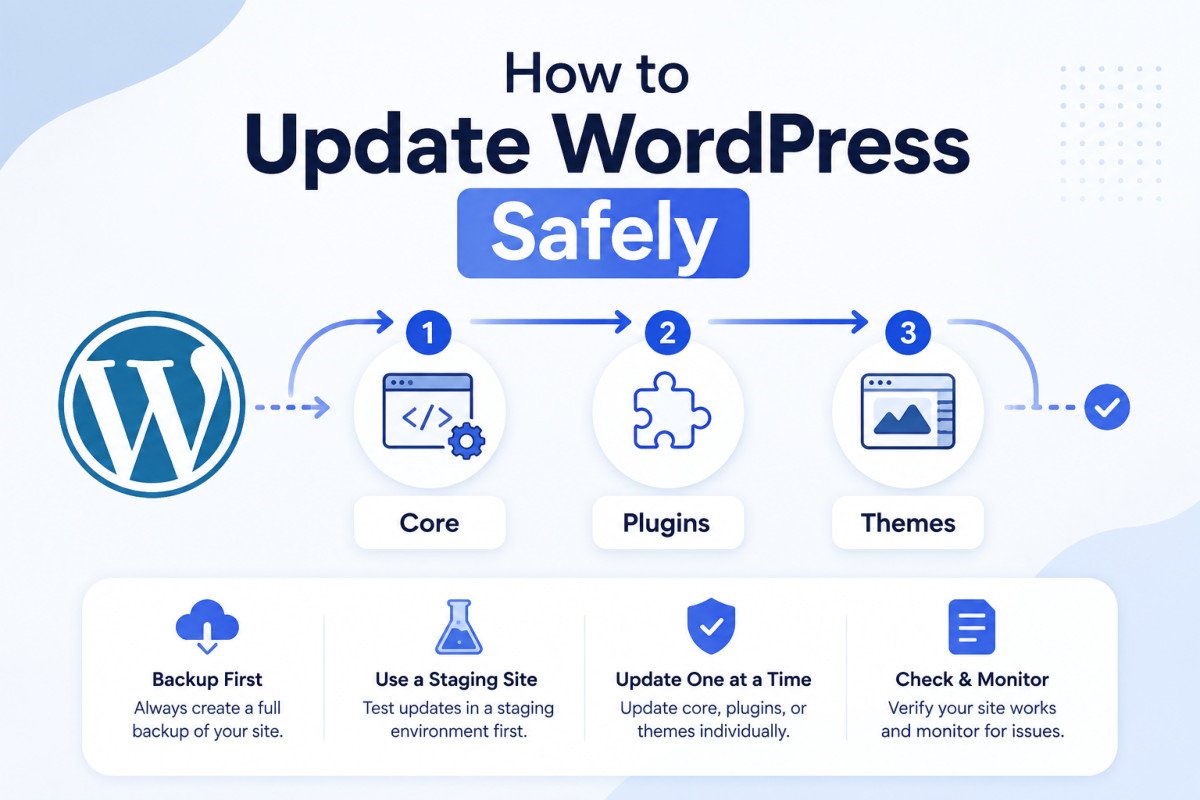
To update WordPress safely, back up your site first, then update in this order: WordPress core, then plugins one at a time, then themes, testing your site after each step. If your host offers staging, run the entire process there before touching your live site. Security research found 86% of hacked WordPress sites were running outdated core software, plugins, or themes, updates aren’t optional maintenance, they’re a genuine security requirement.
Before You Start
Make sure you have the following in place first:
- A recent backup (see our backup guide), this is genuinely non-negotiable before any update
- A staging site if your host offers one (see our staging guide), ideal for testing updates before they touch your live site
That little red notification bubble on your WordPress dashboard has a way of sitting there for weeks, easy to ignore until the day it isn’t. Skipping updates doesn’t just mean missing new features, it’s the single most common reason WordPress sites get hacked. The good news: doing it safely takes maybe 15 extra minutes, and it’s mostly about order and patience, not technical skill.
What You’ll Learn
- The correct order to update core, plugins, and themes
- Why updating plugins one at a time actually matters
- How to check whether a plugin is safe to update before you do it
- What to do if something breaks after an update
Why This Actually Matters
Beyond the 86% statistic above, the scale of the problem is genuinely large and constant: over 536 vulnerabilities were disclosed across 436 plugins and 59 themes in a single month in early 2026. Updates aren’t just adding features, recent WordPress core releases have shipped real security and performance improvements, including refined caching and an improved image-loading pipeline for block themes. Skipping them means running known, published vulnerabilities on a live site.
Step 1: Back Up First, Always
Before touching anything, confirm you have a current backup. If an update breaks something, this is what lets you undo it in minutes instead of hours.
Step 2: Test on Staging If You Can
If your host includes staging, clone your live site there and run every update in this guide on the staging copy first. This is the single most effective way to catch a conflict before your actual visitors do.
Step 3: Update WordPress Core First
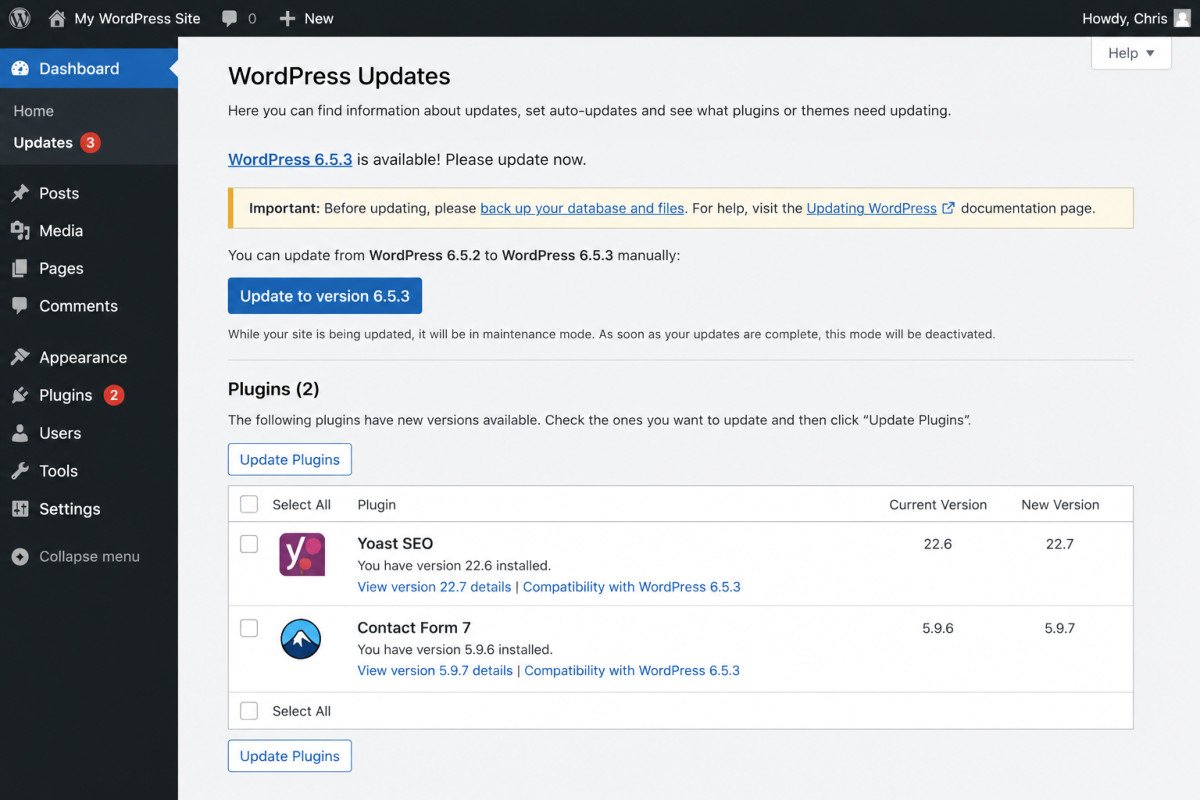
Go to Dashboard → Updates and click Update Now under the WordPress core section. Let it finish completely, then load your site’s homepage to confirm it’s still working before moving on.
Step 4: Update Plugins One at a Time
Resist the temptation to select all and update everything at once. Update plugins individually, checking your site’s front end after each one. If something breaks, you’ll know exactly which plugin caused it, rather than untangling several changes at once.
If you run WooCommerce, apply extra care with update order: update WooCommerce and its direct payment or shipping extensions as their own group, since major WooCommerce releases sometimes include database updates that need to complete cleanly before anything else touches the store.
Step 5: Update Themes Last
Go to Appearance → Themes and update your active theme. If you’ve ever edited theme files directly, be aware an update can overwrite those changes, a child theme avoids this problem entirely.
WebGomu Tip: Before updating any plugin, check its WordPress.org page for the “Tested up to” version number. If it hasn’t been updated in over six months, check the support forum for recent complaints before proceeding. If it hasn’t been updated in two years or more, it’s genuinely time to consider a replacement, an abandoned plugin is a standing security risk.
A Note on Automatic Updates
WordPress allows enabling automatic updates per plugin. This is convenient, but carries a real trade-off: if an automatic update introduces a compatibility issue while you’re not watching, it can break your site without warning. For anything business-critical, manually reviewing and testing updates, even if just briefly, is the safer default.
Troubleshooting
My site broke after an update
Restore your backup if the issue is severe, or if you updated plugins individually, deactivate the most recently updated one to confirm it’s the cause, then check that plugin’s support forum for known conflicts with the current WordPress version.
A plugin says it’s incompatible with my WordPress version
Check whether a newer version of the plugin has been released since you last checked. If not, and the plugin hasn’t been updated recently, this is a sign it may be abandoned, worth researching an actively maintained alternative.
Common Mistakes
- Updating without a current backup in place first.
- Selecting “update all” for plugins instead of updating them individually.
- Updating a heavily customized theme without a child theme in place, losing custom changes.
- Ignoring update notifications for months, then facing a large, riskier batch of changes all at once.
Recommended Tools
- UpdraftPlus — for the backup you should have before any update, see our review
- Your host’s staging feature — the safest way to test updates before they reach your live site
Key Takeaways
- Back up before updating anything, no exceptions.
- Update in order: core first, then plugins individually, then themes.
- Check a plugin’s “Tested up to” version and last update date before updating it.
- Outdated software is the single most common reason WordPress sites get hacked.
Frequently Asked Questions
What order should I update WordPress core, plugins, and themes?
Generally core first, then plugins one at a time, then themes last, testing your site after each step. WooCommerce stores should treat store-related plugins as their own careful group.
Why should I update plugins one at a time instead of all at once?
If something breaks, updating individually lets you immediately identify which specific plugin caused the problem, rather than troubleshooting several simultaneous changes.
Is it safe to enable automatic updates?
It’s convenient, but carries real risk, an automatic update can introduce a compatibility issue without anyone noticing right away. Manual review is the safer default for business-critical sites.
How do I know if a plugin is safe to update?
Check its “Tested up to” WordPress version on its WordPress.org page. If it hasn’t been updated in six months or more, check the support forum for recent issues before updating.
What should I do if an update breaks my site?
Restore your most recent backup, or if you updated plugins individually, deactivate the most recently updated one to isolate the cause before deciding how to proceed.
Resources Links
Author:

Christoper Enolpe
Founder of WebGomu • WordPress Freelancer with 10+ Years of Experience
Christoper is the founder of WebGomu and a WordPress freelancer with over 10 years of hands-on experience building, optimizing, and maintaining WordPress websites. He writes practical, beginner-friendly guides based on real-world experience, covering WordPress, SEO, website performance, and AI tools to help readers build better websites with confidence.
Learn more: https://webgomu.com/about/
Get one WordPress tip every week
Start Here

The Ultimate Beginner’s Guide to WordPress (2026): Build Your First Website Without Coding
Popular Guides
Our Partner

More from the blog
The Ultimate WordPress Speed Optimization Guide (2026)
The Ultimate WordPress Security Guide (2026)