Gutenberg Block Editor Tutorial for Beginners

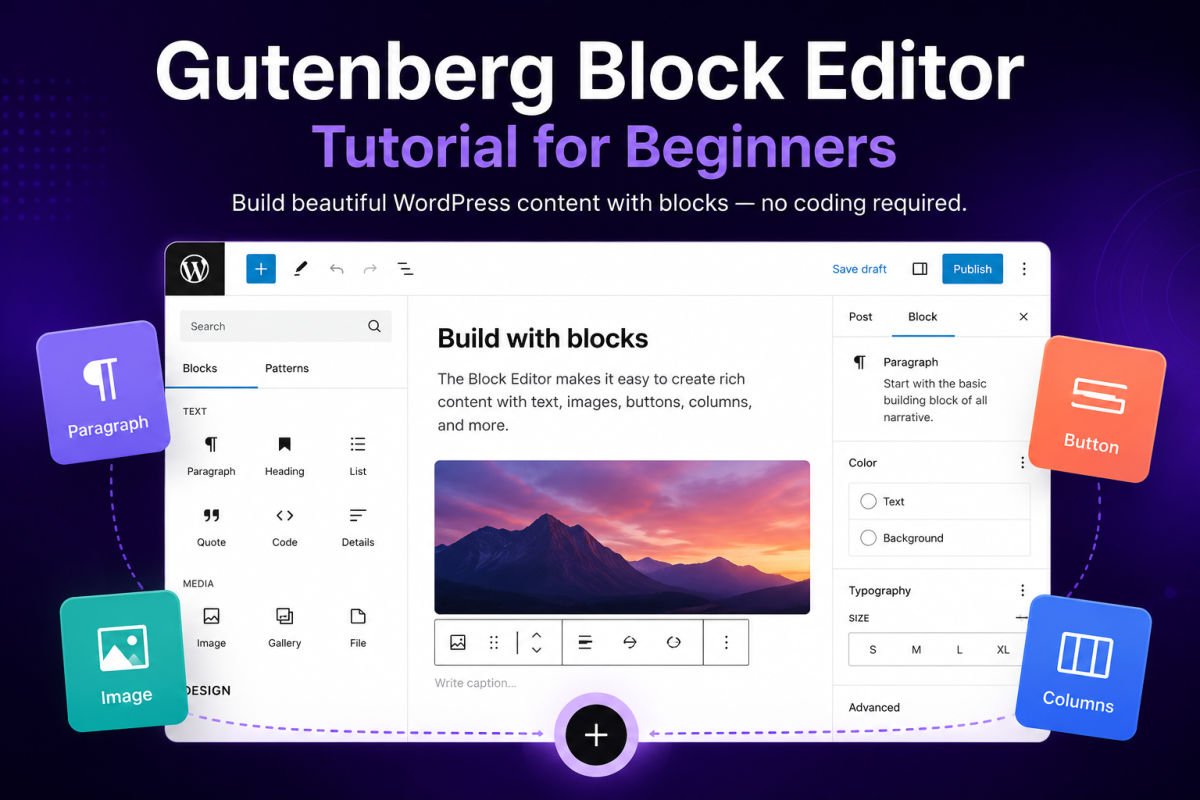
If your only experience with writing online is a plain text box, Gutenberg can feel unfamiliar at first. But once it clicks, it’s genuinely one of the easier parts of running a WordPress site — because you’re not writing one long document, you’re assembling a page out of small, independent pieces.
This tutorial covers everything you need to comfortably write and design your first post or page, with no prior experience assumed.
What You’ll Learn
- What a “block” actually is, with real examples
- How to add, move, and delete blocks
- How to use patterns and reusable blocks to save time
- The most useful blocks for a beginner’s first posts and pages
What Is a Block, Really?
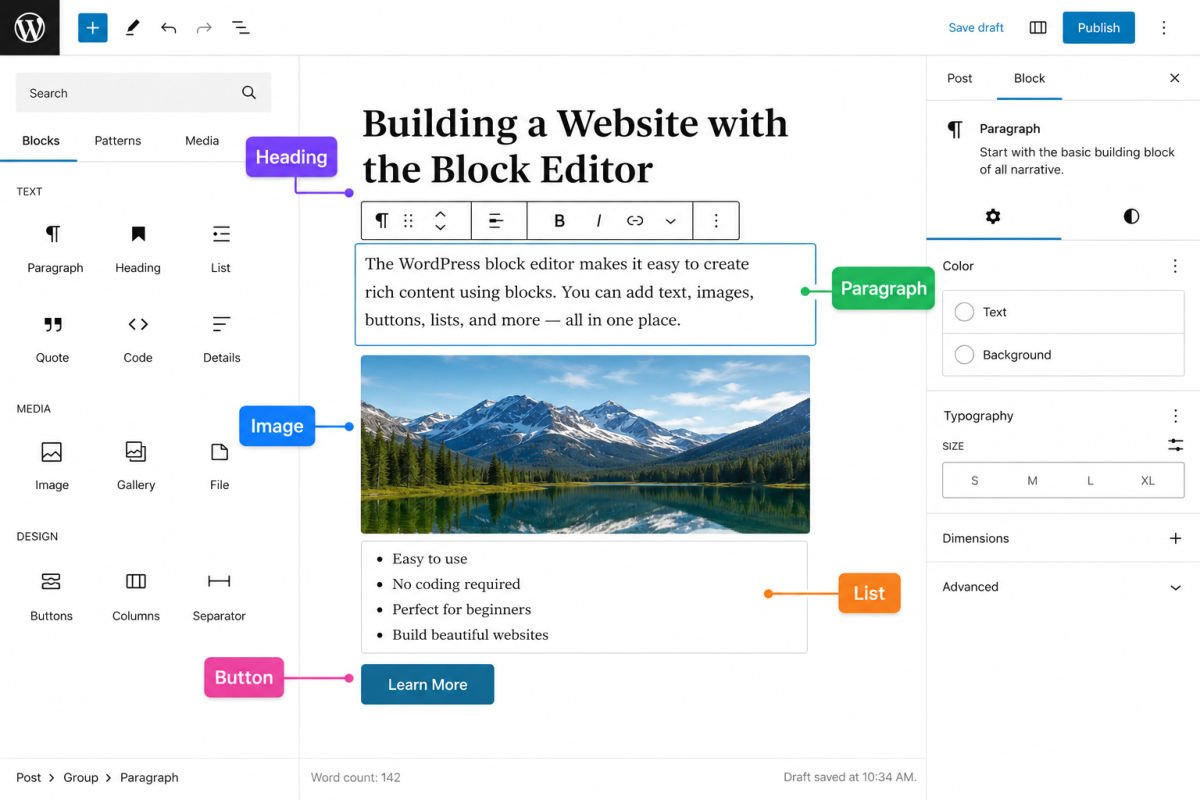
Every element on your page — a paragraph of text, a photo, a button, a video embed, even a spacer — is its own block. Instead of one long editing box, you’re stacking and arranging individual pieces, each with its own settings.
WordPress ships with dozens of built-in blocks, but as a beginner, you’ll realistically use a small handful regularly: Paragraph, Heading, Image, List, Button, Columns, and Quote cover the vast majority of everyday content.
Adding Your First Block
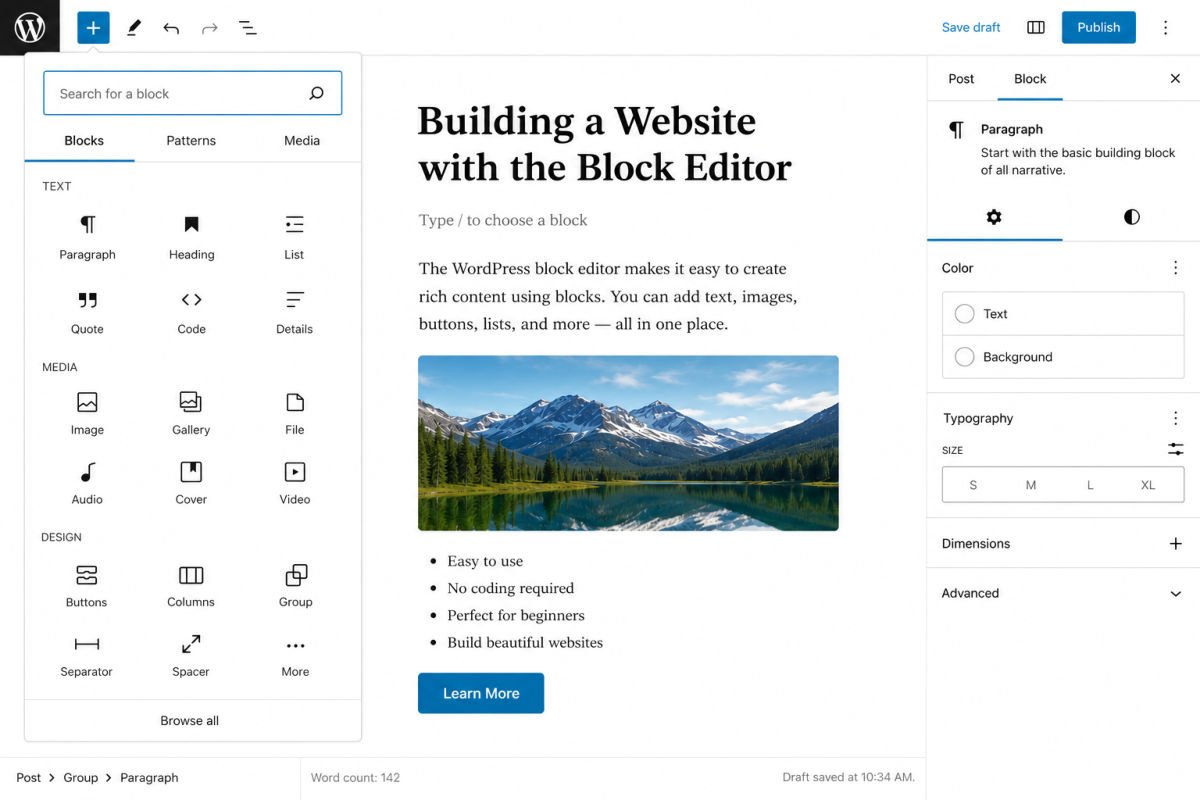
There are two easy ways to add a block:
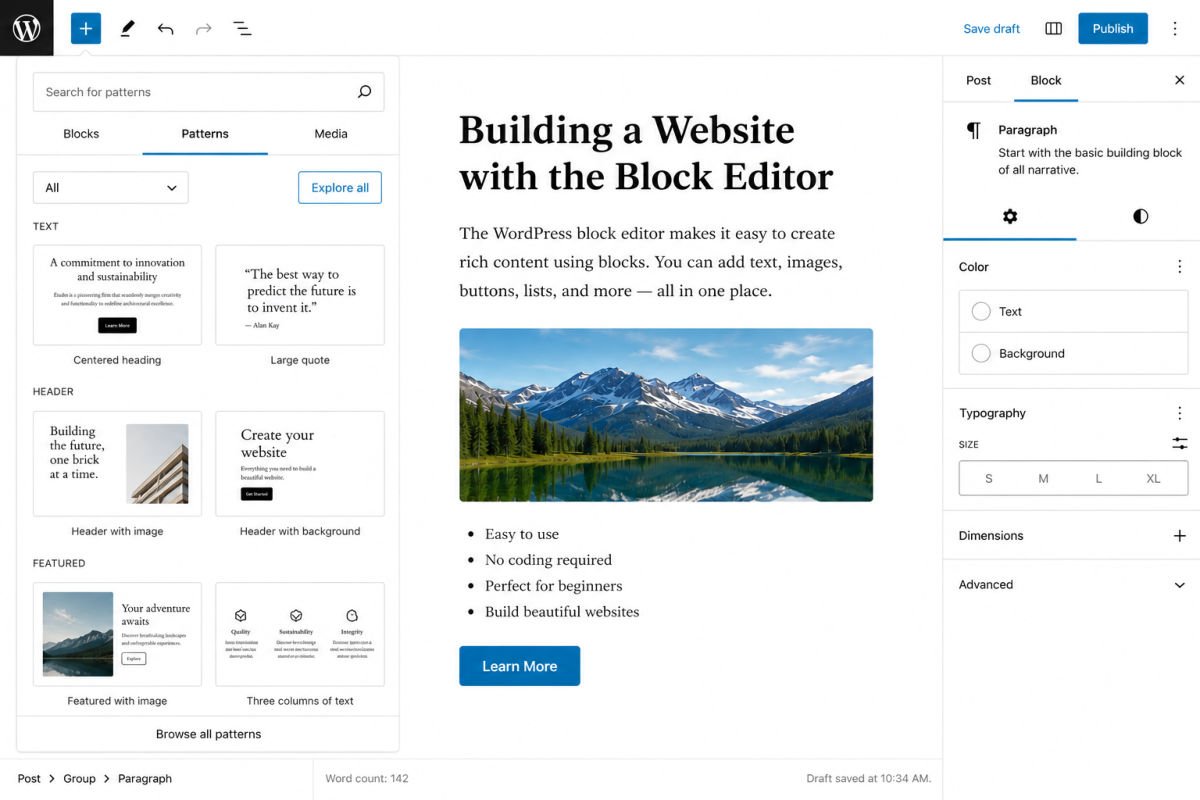
- Click the (+) icon in the top toolbar to open the full block inserter panel.
- Click the small (+) that appears between existing blocks when you hover near the top or bottom of one.
Once you click a block type from the inserter, it drops into place and you can start typing or uploading content immediately.
Moving, Editing, and Deleting Blocks
Click on any block to select it. A small toolbar appears above it with options specific to that block type (like text alignment for a paragraph, or image size for a photo).
- To move a block: use the up/down arrow icons in its toolbar, or drag it using the six-dot handle.
- To delete a block: click the three-dot menu in its toolbar and choose “Remove block,” or select it and press the keyboard shortcut.
- To style a block further: open the settings panel on the right side of the screen, which offers options like color, spacing, and typography depending on the block type.
WebGomu Tip: If you accidentally delete a block, press Ctrl+Z (or Cmd+Z on Mac) immediately. Gutenberg’s undo history is reliable and saves you from most editing mistakes.
Block Patterns: Pre-Built Sections
Patterns are ready-made groups of blocks — like a call-to-action section, a pricing table, or a testimonial layout — that you can insert as a starting point instead of building from scratch. Access them through the block inserter’s “Patterns” tab.
For a beginner, patterns are one of the fastest ways to get a professional-looking layout without designing it piece by piece.
Reusable Blocks: Save Time on Repeated Content
If you find yourself building the same block or group of blocks repeatedly — like a newsletter sign-up box at the bottom of every post — you can save it as a reusable block. Once saved, editing it in one place updates it everywhere it’s used.
To create one, select the block (or group of blocks), open the three-dot menu, and choose “Create pattern” or “Add to Reusable blocks,” depending on your WordPress version.
Full Site Editing: A Quick Note
If your theme is a block theme (see our guide to choosing a WordPress theme), you can go beyond just posts and pages — Full Site Editing lets you customize your header, footer, and templates using the same block system, accessible under Appearance → Editor. This is more advanced territory, so it’s worth getting comfortable with regular post and page editing first.
Common Mistakes
- Trying to use one giant Paragraph block for everything, instead of breaking content into Heading, List, and Paragraph blocks for better structure and readability.
- Not using Headings properly, which hurts both readability and SEO — each major section should have its own Heading block.
- Overusing custom colors and fonts block-by-block, which creates an inconsistent look across your site instead of relying on your theme’s built-in styles.
- Forgetting to preview before publishing, especially on mobile, since layouts can look different across screen sizes.
Recommended Tools
- Built-in Patterns library — no plugin needed, available directly in the block inserter
- Reusable blocks — built into WordPress core, ideal for repeated content like CTAs or author bios
We’re not recommending third-party block plugins here on purpose — WordPress core’s built-in blocks and patterns are genuinely enough for most beginners’ first several months of content creation.
Key Takeaways
- Every piece of content is an individual, independently editable block.
- Use the (+) icon or the block inserter to add new blocks anywhere.
- Patterns give you pre-built layouts; reusable blocks save you from repeating the same content manually.
- Proper use of Heading blocks matters for both readability and SEO.
Frequently Asked Questions
Do I need a plugin to use the block editor?
No. Gutenberg is built into WordPress core and has been the default editor since WordPress 5.0. No additional plugin is required to use it.
Can I still use the old Classic Editor if I prefer it?
Yes, by installing the official Classic Editor plugin, though it’s officially considered legacy and not actively developed with new features.
What’s the difference between a pattern and a reusable block?
A pattern is a starting template you can customize freely after inserting it. A reusable block stays linked — editing it in one place updates every instance across your site.
Is Gutenberg the same as a page builder like Elementor?
They’re similar in concept but not identical. Gutenberg is WordPress’s native block system, while Elementor is a separate plugin with its own interface and additional design features. See our Elementor vs Gutenberg comparison for the full breakdown.
Why does my page look different after publishing than it did while editing?
This is usually caused by theme styles applying differently on the live page, or a caching plugin serving an older version. Try previewing before publishing, and clear your cache if the issue persists.
Resources Links
Author:

Christoper Enolpe
Founder of WebGomu • WordPress Freelancer with 10+ Years of Experience
Christoper is the founder of WebGomu and a WordPress freelancer with over 10 years of hands-on experience building, optimizing, and maintaining WordPress websites. He writes practical, beginner-friendly guides based on real-world experience, covering WordPress, SEO, website performance, and AI tools to help readers build better websites with confidence.
Learn more: https://webgomu.com/about/
Get one WordPress tip every week
Start Here

The Ultimate Beginner’s Guide to WordPress (2026): Build Your First Website Without Coding
Popular Guides
Our Partner

More from the blog

7 Best Free WordPress Themes for Personal Blogs (2026)

How to Create a Service Business Website on WordPress