Common WordPress Speed Mistakes (And How to Fix Them)

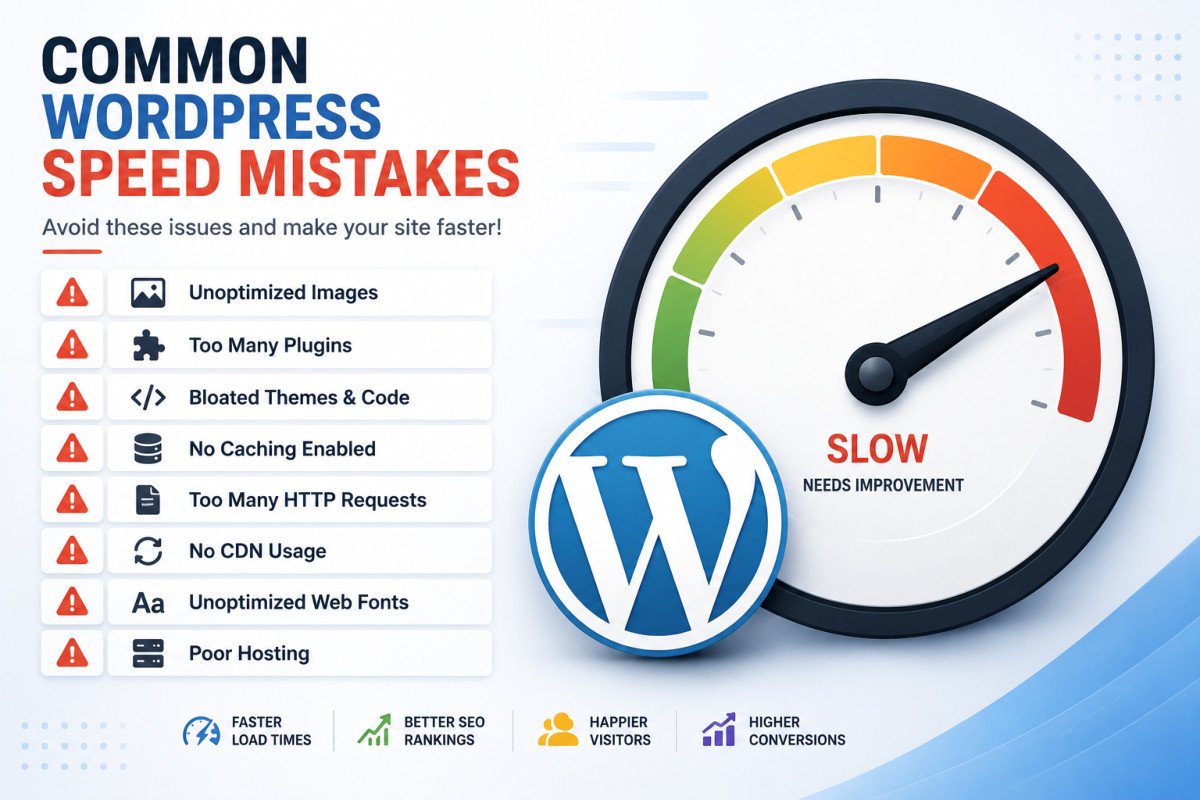
The most common WordPress speed mistakes are choosing hosting based on price alone, installing too many plugins, uploading unoptimized images, skipping caching entirely, using a heavy multipurpose theme with a heavy page builder, and lazy-loading the wrong images. Each of these sets a performance ceiling that’s difficult to fix later without undoing the original choice. A one-second delay in load time can reduce conversions by roughly 7%, making this genuinely a revenue issue, not just a technical one.
Before You Start
See our beginner speed guide for the foundational fixes, this article covers the specific mistakes that undermine those fixes if left unaddressed.
Most WordPress speed problems trace back to a small, predictable set of decisions made early, often before a site owner even realizes speed matters. The good news: recognizing these mistakes is most of the battle, each one has a clear, specific fix.
What You’ll Learn
- The most common speed mistakes beginners make, and why each one matters
- A specific, avoidable caching mistake that can actually crash a site
- How to test a theme’s real speed before committing to it
- Why database bloat quietly slows sites down over time
Mistake 1: Choosing Hosting Based on Price Alone
Cheap shared hosting sets a real performance ceiling that no plugin or optimization technique can fully overcome. See our hosting guide for how to evaluate hosting properly, speed and reliability, not just the lowest advertised price.
Mistake 2: Installing Too Many Plugins
Every plugin adds code that runs on every page load. Ten unnecessary plugins can reduce a mobile performance score by 20-30 points. Audit your active plugins periodically and remove anything you can’t clearly justify keeping.
Mistake 3: Uploading Unoptimized Images
Large, uncompressed images remain one of the most common, easily fixable causes of slow pages. See our speed guide for compression and format guidance.
Mistake 4: Skipping Caching Entirely, or Setting It Up Incorrectly
Caching remains one of the single highest-impact fixes available, our own caching plugin comparison found cached pages averaging 7x faster Time to First Byte than uncached ones. But caching set up incorrectly can actually cause real problems, at least one blogger specifically reported their site crashing from misconfigured caching settings. Follow your chosen plugin’s setup guide carefully rather than enabling every advanced option immediately.
Mistake 5: Choosing a Heavy Multipurpose Theme With a Heavy Page Builder
Multipurpose themes paired with builders like Elementor, Divi, or WPBakery generate large HTML structures, oversized CSS files, and bloated DOM structures. This combination directly hurts Interaction to Next Paint specifically, the Core Web Vitals metric most sites currently fail (see our advanced Core Web Vitals guide). Lightweight themes like Astra or GeneratePress, paired with the native block editor, avoid this problem entirely.
Mistake 6: Lazy-Loading Your Hero Image
As covered in our advanced Core Web Vitals guide, lazy loading should apply only to below-the-fold images. Applying it to your Largest Contentful Paint image, usually your hero image, specifically delays the exact metric you’re trying to improve.
WebGomu Tip: Before adopting any theme, install it with demo content and run a real speed test immediately, with no other plugins active. If the mobile score is below 60 at that baseline stage, before you’ve added a single plugin, choose a different theme. A theme that starts slow rarely gets meaningfully faster once real content and functionality are added.
Mistake 7: Never Testing a Theme’s Speed Before Committing
Beyond the initial baseline test above, check the theme’s last update date and active install count before choosing it. A theme untouched for two or more years may carry real compatibility and performance issues with current WordPress versions.
Mistake 8: Letting Database Bloat Accumulate
Old redirect rules, abandoned plugin settings, and unused theme options quietly accumulate in your WordPress database over time, gradually slowing queries. A plugin like WP-Optimize safely cleans this up, worth running periodically as part of the routine covered in our maintenance checklist.
Common Mistakes Recap
- Prioritizing hosting price over actual speed and reliability.
- Installing plugins without a clear, ongoing purpose for each one.
- Enabling every advanced caching setting immediately instead of testing incrementally.
- Choosing a theme based on visual demos alone, without a real speed test at baseline.
Recommended Tools
- Google PageSpeed Insights — free, essential for testing before and after any change
- A caching plugin matched to your server type — see our comparison
- WP-Optimize — safe, straightforward database cleanup
Key Takeaways
- A one-second load time delay can reduce conversions by roughly 7%, speed is a revenue issue.
- Hosting quality, plugin count, and theme choice set a performance ceiling that’s hard to undo later.
- Test a theme’s baseline speed with demo content before committing, not after building your full site.
- Database bloat accumulates quietly, periodic cleanup keeps queries fast over time.
Frequently Asked Questions
What’s the single biggest WordPress speed mistake?
Choosing hosting based on price alone is commonly cited as the biggest, since it sets a performance ceiling that no plugin or optimization technique can fully overcome afterward.
How many plugins is too many for site speed?
There’s no fixed number, but ten unnecessary plugins can reduce a mobile performance score by 20-30 points, worth auditing regularly rather than accumulating plugins indefinitely.
Can a caching plugin actually make my site slower or break it?
Yes, if misconfigured. Enabling every advanced setting at once without testing incrementally has been reported to cause real site crashes, follow your plugin’s setup guide carefully.
Should I lazy-load my homepage’s main image?
No, lazy loading should apply only to below-the-fold images. Applying it to your hero or Largest Contentful Paint image delays the exact metric it’s meant to improve.
How do I know if a theme will be fast before I build my whole site with it?
Install it with demo content and no other plugins active, then run a real speed test. If the mobile score is below 60 at that baseline, choose a different theme before investing further time.
Resources Links
Author:

Christoper Enolpe
Founder of WebGomu • WordPress Freelancer with 10+ Years of Experience
Christoper is the founder of WebGomu and a WordPress freelancer with over 10 years of hands-on experience building, optimizing, and maintaining WordPress websites. He writes practical, beginner-friendly guides based on real-world experience, covering WordPress, SEO, website performance, and AI tools to help readers build better websites with confidence.
Learn more: https://webgomu.com/about/
Get one WordPress tip every week
Start Here

The Ultimate Beginner’s Guide to WordPress (2026): Build Your First Website Without Coding
Popular Guides
Our Partner

More from the blog
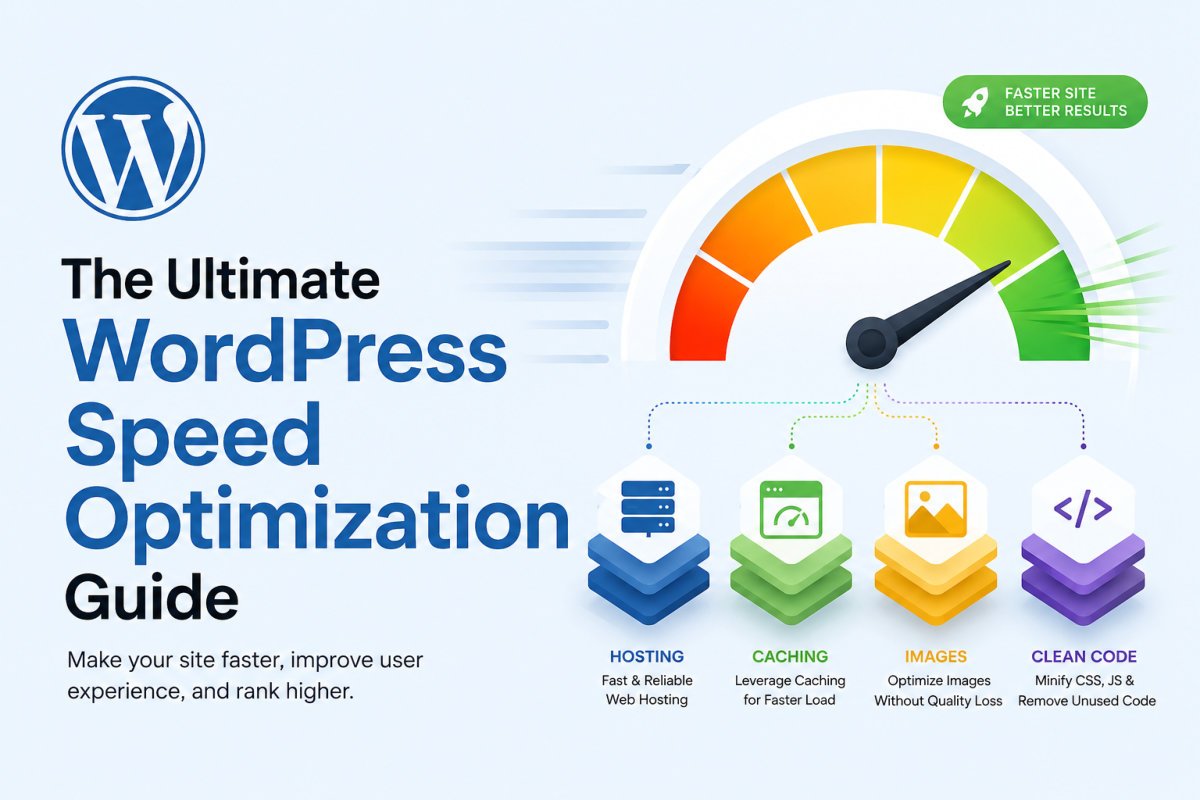
The Ultimate WordPress Speed Optimization Guide (2026)

The Ultimate WordPress Security Guide (2026)