WooCommerce Troubleshooting: Common Errors and Fixes

Most WooCommerce errors trace back to one of four causes: a plugin or theme conflict, a missing page or shortcode configuration, a server resource limit (like PHP memory), or an email delivery issue. The single most useful troubleshooting technique, deactivating all plugins except WooCommerce, then reactivating them one at a time, resolves the majority of checkout, display, and payment problems by isolating exactly which plugin is causing the conflict.
Before You Start
Make sure you have the following in place first:
- A recent backup (see our backup guide), before troubleshooting anything, especially deactivating plugins on a live store
- Access to your hosting control panel, some fixes require checking PHP settings or error logs there directly
Every WooCommerce store eventually hits an error, a broken checkout, a payment that won’t go through, an order confirmation that never arrives. The good news: the vast majority of these trace back to a small, predictable set of causes. This guide walks through the most common ones, and exactly how to diagnose and fix each.
What You’ll Learn
- The universal first troubleshooting step that resolves most WooCommerce issues
- How to fix a broken checkout page specifically
- What causes the dreaded 500 Internal Server Error, and how to fix it
- Why order confirmation emails silently fail, and how to fix delivery
The Universal First Step: Isolate the Cause
Before troubleshooting any specific error, run this test:
- Deactivate every plugin except WooCommerce itself.
- Test whether the problem still occurs.
- If it’s gone, reactivate plugins one at a time, testing after each, until the problem returns. That’s your culprit.
- If the problem persists even with everything deactivated, temporarily switch to a default WordPress theme to rule out a theme conflict.
This single technique resolves the majority of checkout, display, and functionality errors, since plugin and theme conflicts are the most common root cause across nearly every WooCommerce issue.
Error 1: Checkout Page Isn’t Working
Customers unable to complete checkout is the most critical WooCommerce error, since it directly blocks sales.
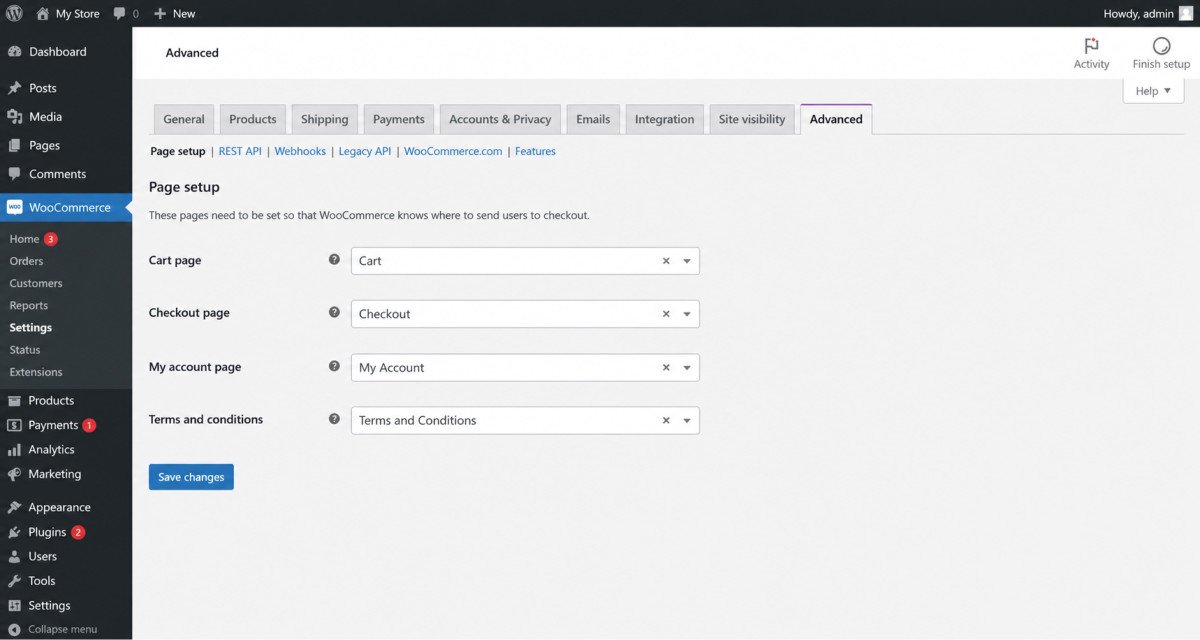
- Check your page setup. Go to WooCommerce → Settings → Advanced → Page setup, and confirm your Cart, Checkout, and My Account pages are all correctly assigned.
- Confirm the shortcode is present. Your checkout page must contain the
[woocommerce_checkout]shortcode, if it’s been accidentally removed or the page rebuilt, checkout breaks entirely. - Run the plugin/theme conflict test above. JavaScript errors from a conflicting plugin are a common, less obvious cause.
Error 2: 500 Internal Server Error
A generic but common error, meaning something failed on the server without a specific explanation shown to visitors.
- Enable debugging by adding
define('WP_DEBUG', true);to your wp-config.php file, then check the resulting log at wp-content/debug.log for the actual underlying cause. - Check your PHP memory limit. Insufficient memory is a frequent trigger, especially during checkout or heavy plugin activity, most hosts let you increase this in your hosting control panel.
- Regenerate your .htaccess file. Rename your current one, WordPress will automatically generate a fresh, default version, resolving corruption-related 500 errors.
Error 3: Order Confirmation Emails Never Arrive
WooCommerce sends emails using WordPress’s built-in wp_mail() function by default, the same function behind the contact form email delivery issues covered in our contact form guide. This delivery method is genuinely unreliable on many shared hosting environments.
WebGomu Tip: Install WP Mail SMTP and connect it to a proper email delivery service. This single fix resolves the majority of “customers say they never got their order confirmation” reports, and it’s worth doing proactively, not just after a customer complains.
Error 4: Payments Failing or Not Processing
- Confirm SSL is active site-wide (see our SSL guide), payment processors require a secure connection to function correctly.
- Check your payment gateway’s callback settings, the gateway needs to successfully notify your site when a payment completes.
- Verify products have a price set. A product with no price entered can’t be purchased at all.
Error 5: Products Won’t Add to Cart or Show the Wrong Price
- Confirm each product has a distinct SKU, duplicate SKUs across products can cause order processing errors.
- Check file permissions if product images fail to upload, incorrect permissions block image handling specifically.
Error 6: Shipping Rates Aren’t Calculating
For calculated shipping methods, products need weight and dimensions entered. Missing this data is a common, easy-to-overlook cause of shipping options not appearing at checkout.
When to Contact Your Host or a Professional
If an error persists after working through the steps above, your host’s support team can check server-level error logs and configuration details not visible from your dashboard. This is a genuinely reasonable next step, not a sign you’ve failed to troubleshoot correctly.
Common Mistakes
- Troubleshooting a live store without a recent backup in place first.
- Assuming a specific plugin is the cause without actually running the deactivate-and-test process to confirm it.
- Overlooking email deliverability as the reason for “missing” order confirmations that were actually sent.
- Not checking basic settings (page assignments, shortcodes, product prices) before assuming a deeper technical problem.
Recommended Tools
- WP Mail SMTP — resolves the majority of order email delivery issues
- Query Monitor — helps identify which specific plugin is causing performance or conflict issues
- UpdraftPlus — for a recent backup before making any troubleshooting changes, see our review
Key Takeaways
- Plugin and theme conflicts are the most common root cause across nearly every WooCommerce error.
- The deactivate-and-reactivate-one-at-a-time method resolves the majority of checkout and display issues.
- Order email delivery problems are usually a WP Mail SMTP fix, not a WooCommerce bug.
- Always back up before troubleshooting a live store.
Frequently Asked Questions
Why is my WooCommerce checkout page not working?
The most common causes are missing page assignments under WooCommerce settings, a removed [woocommerce_checkout] shortcode, or a plugin/theme conflict. Testing each in that order usually identifies the issue.
What causes a 500 Internal Server Error in WooCommerce?
Common causes include plugin conflicts, insufficient PHP memory, and a corrupted .htaccess file. Enabling WP_DEBUG and checking the resulting log identifies the specific cause.
Why aren’t my customers receiving order confirmation emails?
WooCommerce’s default email delivery method is unreliable on many shared hosting environments. Installing WP Mail SMTP and connecting it to a proper email service resolves this in most cases.
How do I find out which plugin is causing a WooCommerce error?
Deactivate every plugin except WooCommerce, confirm the issue is gone, then reactivate plugins one at a time, testing after each, until the problem returns.
Why won’t a product add to my cart?
Check that the product has a price set, products without one cannot be purchased. Also confirm there isn’t a plugin conflict using the deactivate-and-test method.
Resources Links
Author:

Christoper Enolpe
Founder of WebGomu • WordPress Freelancer with 10+ Years of Experience
Christoper is the founder of WebGomu and a WordPress freelancer with over 10 years of hands-on experience building, optimizing, and maintaining WordPress websites. He writes practical, beginner-friendly guides based on real-world experience, covering WordPress, SEO, website performance, and AI tools to help readers build better websites with confidence.
Learn more: https://webgomu.com/about/
Get one WordPress tip every week
Start Here

The Ultimate Beginner’s Guide to WordPress (2026): Build Your First Website Without Coding
Popular Guides
Our Partner

More from the blog
The Ultimate WordPress Speed Optimization Guide (2026)
The Ultimate WordPress Security Guide (2026)