How to Set Up a Staging Site in WordPress (2026)

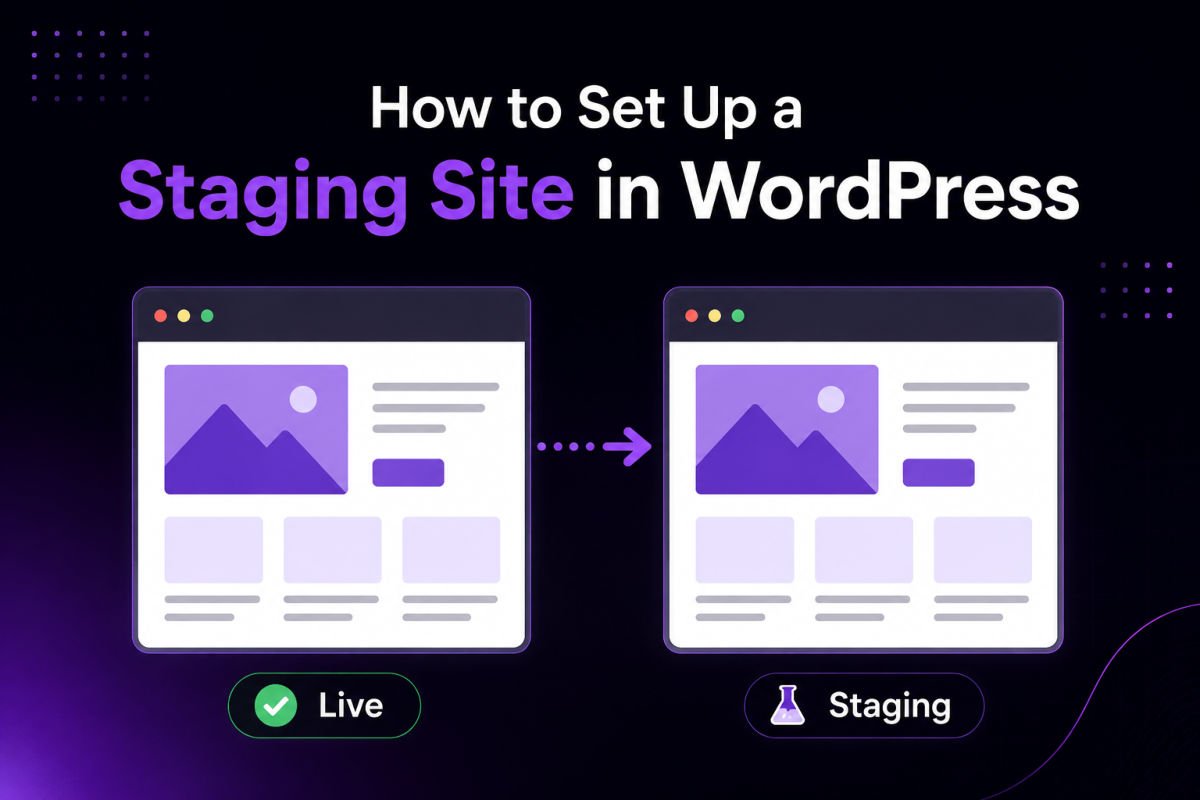
A staging site is a private, exact copy of your live WordPress site used for testing changes safely before they go public. Many hosts, including Bluehost and SiteGround, offer one-click staging built into their dashboard, often limited to certain plan tiers. If your host doesn’t, a plugin like WP Staging creates a full clone, files and database, in a matter of minutes. Either way, test changes on staging first, then deploy them to your live site once confirmed working.
Before You Start
Make sure you have the following in place first:
- A recent backup of your live site (see our backup guide), a good habit regardless, but especially before testing major changes
- Confirmation of whether your hosting plan includes built-in staging, check your host’s dashboard or documentation first
Hook
Installing a major update, switching themes, or testing a new plugin directly on your live site is a real risk, if something breaks, your actual visitors see it happen in real time. A staging site removes that risk entirely: it’s a private sandbox where you can test freely, and nothing changes on your live site until you’re ready.
What You’ll Learn
- What a staging site actually does, and why it matters
- How to create one through your host, if supported
- How to create one with a free plugin if your host doesn’t offer it
- The critical settings to configure once your staging site exists
What a Staging Site Actually Is
A staging site is a complete, isolated copy of your live site, files and database both, existing at a separate, typically hidden URL. Changes made there have zero effect on your live site until you deliberately push them over, a process usually called “deploying” or “pushing to live.”
Method 1: Host-Provided Staging
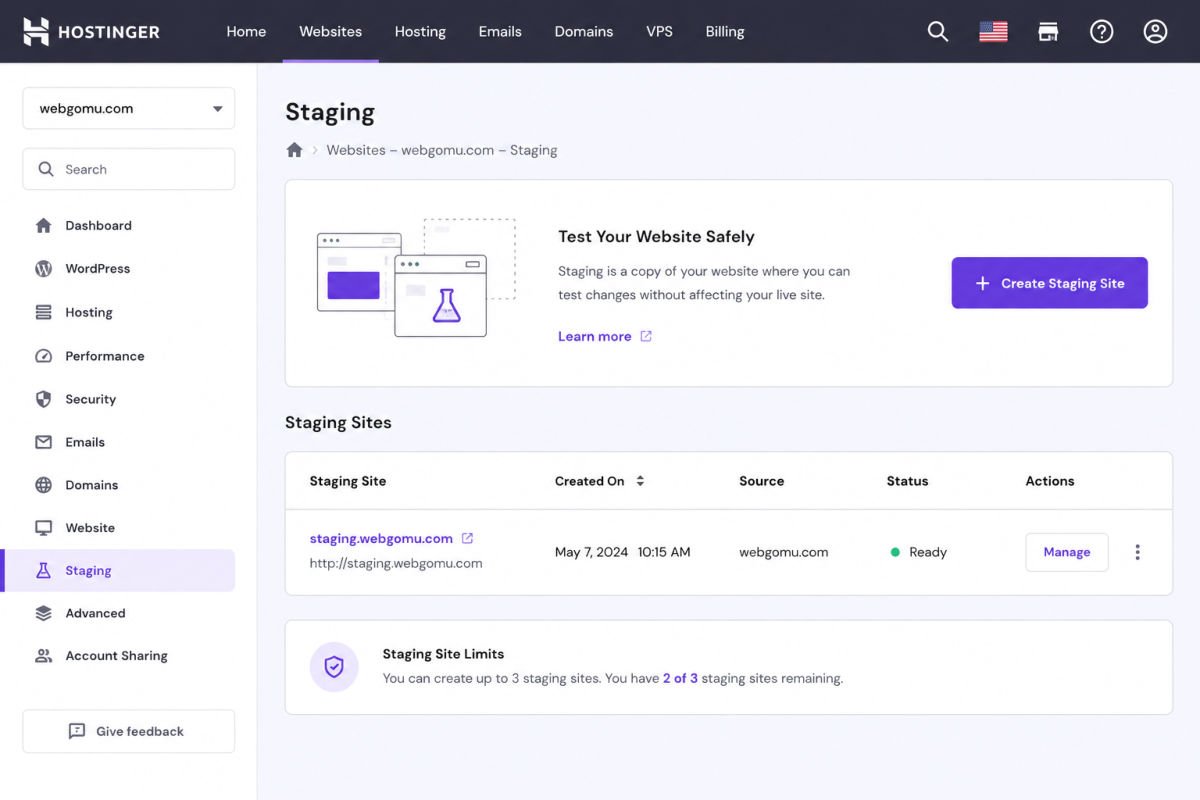
Several major hosts include built-in, one-click staging tools directly in their dashboard.
- Log in to your hosting account’s dashboard, not just your WordPress admin.
- Look for a “Staging” section, commonly found under a hosting-specific plugin or management panel.
- Click Create Staging Site, and allow a few minutes for it to generate.
- Access your staging site through the link provided once it’s ready.
This option is often limited to certain plan tiers, some hosts require a Business-level plan or higher to unlock staging. Check your specific host’s requirements before assuming it’s included.
Method 2: WP Staging Plugin
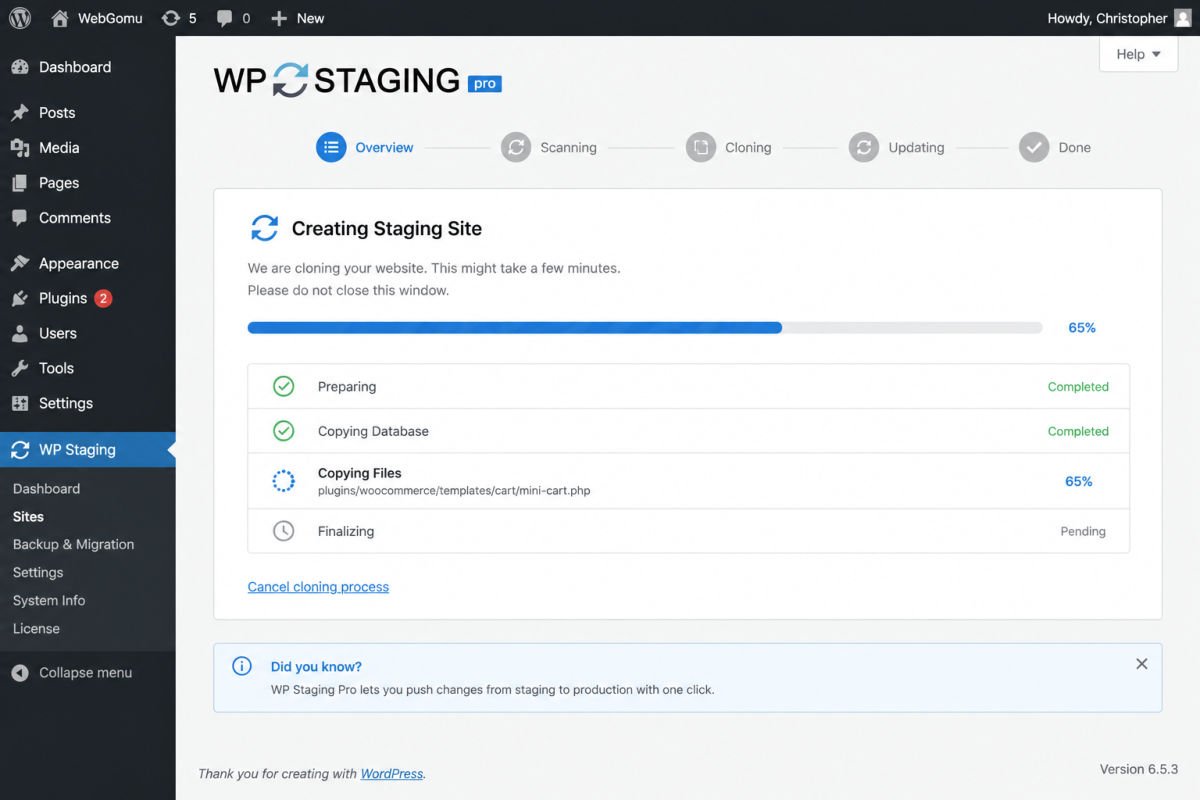
If your host doesn’t offer built-in staging, or you’d rather manage it independently, WP Staging’s free version creates a full clone in minutes.
- Go to Plugins → Add New Plugin, search for “WP Staging,” install and activate it.
- Open WP Staging from your dashboard and click Create New Staging Site.
- Give it a clear name, like “staging” or “dev.”
- Start the cloning process, a subfolder clone (the fastest option) typically completes in just a few minutes on standard shared hosting.
Comparing the Main Options
| Method | Best For | Consideration |
|---|---|---|
| Host-provided staging | Simplest, fully integrated experience | Often limited to higher-tier hosting plans |
| WP Staging (plugin) | Fast, free, works on most shared hosting | Free version is subfolder-based; check for plugin compatibility |
| BlogVault | Those already using it for backups | Stores staging on BlogVault’s own servers, a privacy consideration for some |
Critical Settings Once Your Staging Site Exists
- Prevent search engines from indexing it. Go to Settings → Reading on the staging site specifically, and enable “Discourage search engines from indexing this site.” Without this, you risk duplicate content issues affecting your live site’s SEO.
- Confirm your site URLs point to staging. Check Settings → General to make sure the WordPress Address and Site Address fields reflect your staging domain, not your live one.
- Visually distinguish staging from live. A banner or a different admin color scheme helps prevent the easy mistake of editing the wrong environment without realizing it.
WebGomu Tip: The single most important staging setting is the “discourage indexing” toggle. It’s easy to skip since it feels like a minor checkbox, but forgetting it risks real SEO consequences on your actual live site through duplicate content. Check it immediately after creating any staging environment.
Deploying Changes to Your Live Site
Once you’ve tested a change and confirmed it works correctly on staging, use your host’s or plugin’s deploy feature to push those specific changes to your live site. Review exactly what’s being deployed, most tools let you choose files, database, or both, rather than blindly pushing everything at once.
Troubleshooting
My staging site shows broken links or missing images
Check Settings → General to confirm your site URLs correctly point to the staging domain, not the live one, this is the most common cause of broken references after cloning.
I can’t log into my staging site
Staging sites typically use the same admin credentials as your live site unless your host specifies otherwise. If login still fails, try resetting your password directly on the staging site’s login page.
A plugin behaves differently on staging than on my live site
Check that plugin’s documentation for known staging or cloning incompatibilities, some plugins store settings in ways that don’t transfer cleanly during a clone.
Common Mistakes
- Forgetting to enable “discourage search engines” on the staging site, risking real SEO issues.
- Testing directly on the live site because staging felt like an extra, skippable step.
- Not visually distinguishing staging from live, leading to accidental edits on the wrong environment.
- Deploying an entire staging site to live without reviewing exactly what’s being pushed.
Recommended Tools
- Your host’s built-in staging feature — check first, since it’s often the simplest option if your plan supports it
- WP Staging — reliable free option if your host doesn’t offer built-in staging
Key Takeaways
- A staging site is a private, isolated copy for testing changes safely before they go live.
- Check your host’s dashboard first, many include built-in one-click staging on certain plans.
- WP Staging offers a fast, free alternative if your host doesn’t.
- Always enable “discourage search engines from indexing” on any staging environment.
Frequently Asked Questions
Do I need a staging site for a small blog?
It’s genuinely useful even for small sites, especially before major theme or plugin updates, but it’s not strictly mandatory if your site is simple and changes are minor.
Does my hosting plan include staging by default?
Not always, some hosts limit built-in staging to Business-tier plans or higher. Check your specific host’s documentation or dashboard to confirm.
Will my staging site show up in Google search results?
It shouldn’t, as long as “Discourage search engines from indexing this site” is enabled under Settings → Reading on the staging environment specifically.
How do I move tested changes from staging to my live site?
Use your host’s or plugin’s deploy feature, reviewing exactly what’s being pushed (files, database, or both) rather than deploying everything indiscriminately.
Is WP Staging really free?
Yes, the free version supports subfolder-based cloning, sufficient for most beginner and small business use cases. Paid tiers add features like subdomain or external-host staging.
Resources Links
Author:

Christoper Enolpe
Founder of WebGomu • WordPress Freelancer with 10+ Years of Experience
Christoper is the founder of WebGomu and a WordPress freelancer with over 10 years of hands-on experience building, optimizing, and maintaining WordPress websites. He writes practical, beginner-friendly guides based on real-world experience, covering WordPress, SEO, website performance, and AI tools to help readers build better websites with confidence.
Learn more: https://webgomu.com/about/
Get one WordPress tip every week
Start Here

The Ultimate Beginner’s Guide to WordPress (2026): Build Your First Website Without Coding
Popular Guides
Our Partner

More from the blog
WordPress Maintenance Checklist: Monthly and Quarterly Tasks
Managing Multiple WordPress Client Sites: A Freelancer’s Guide (2026)