WordPress Two-Factor Authentication: Complete Setup Guide (2026)

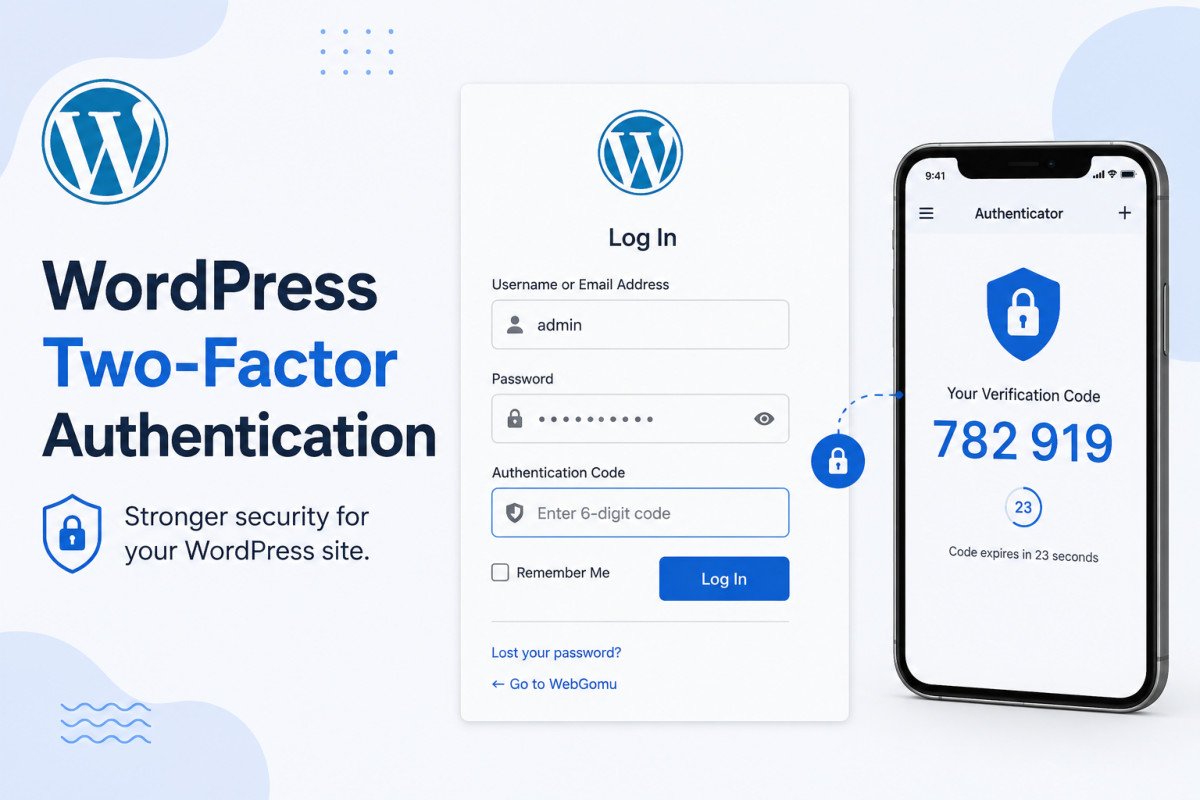
Two-factor authentication (2FA) adds a second verification step beyond your password, typically a rotating code from an authenticator app, so a stolen or guessed password alone isn’t enough for an attacker to log in. Setup takes under 15 minutes: install a 2FA plugin, choose TOTP (time-based codes) as your method, generate backup codes, and test by logging out and back in. For solo sites or small teams, a lightweight free plugin covers this fully, no advanced configuration required.
Before You Start
See our security basics guide for the broader picture, 2FA is one important layer among several. If you’re already using Wordfence, check its built-in 2FA before installing a separate plugin, see our Wordfence review.
Your WordPress password is only as strong as your worst password habit, reused across a dozen sites, written on a sticky note, or leaked in some data breach you never even heard about. Two-factor authentication is the safety net that catches exactly that scenario, and it’s one of the fastest security wins available, genuinely 15 minutes for meaningfully better protection.
What You’ll Learn
- Why 2FA matters, and the real attacks it actually stops
- TOTP vs. passkeys vs. SMS, and which is genuinely most secure
- Which plugin fits your specific situation
- What to do if you lose access to your authenticator device
Why 2FA Matters
Brute-force attacks and credential stuffing (trying stolen username/password combinations from other data breaches) happen constantly against WordPress sites, simply because the platform powers such a large share of the internet. A password alone, even a strong one, is a single point of failure. 2FA means that even if an attacker obtains your password, they still can’t log in without your second factor.
TOTP vs. Passkeys vs. SMS: Which Method Matters
- TOTP (Time-based One-Time Passwords) is the baseline, a rotating six-digit code from an app like Google Authenticator, Microsoft Authenticator, or 1Password. Works offline, broadly compatible, supported by essentially every 2FA plugin.
- Passkeys are the genuine upgrade. Instead of a shared code, your browser stores a cryptographic key unlocked by your fingerprint, face scan, or device PIN. Because the key never leaves your device and is tied to your specific domain, a phishing page can’t capture anything reusable, a real, meaningful security improvement over TOTP.
- Email or SMS codes are convenient fallbacks, but generally considered less secure and less reliable than TOTP or passkeys, worth having as a backup option, not your primary method.
Choosing the Right Plugin for Your Situation
| Plugin | Best For | Price |
|---|---|---|
| Two Factor | Solo admins or very small teams wanting minimal, lightweight setup | Free |
| WP 2FA by Melapress | Most beginners, user-friendly wizard, role-based enforcement | Free tier includes passkeys; Premium ~$79/year adds hardware keys and SMS |
| Wordfence’s built-in 2FA | Sites already running Wordfence, no separate plugin needed | Included free |
| miniOrange | Larger organizations needing LDAP/SAML or enterprise identity features | Free tier available, paid tiers for advanced features |
For most WebGomu readers, WP 2FA offers the best balance of beginner-friendly setup and genuine feature depth without unnecessary complexity.
A Recent, Relevant Update
If you’re already using Wordfence, note that its standalone Login Security plugin, a lighter way to add just 2FA without the full Wordfence suite, was retired around July 1, 2026. If you were specifically using that standalone plugin rather than the full Wordfence suite, you’ll need to migrate to a dedicated 2FA plugin like the ones covered here, or move to full Wordfence, see our Solid Security review and Wordfence review for the fuller picture.
Step-by-Step Setup
- Go to Plugins → Add New Plugin, search for your chosen plugin (WP 2FA is a solid default), install and activate it.
- Launch the setup wizard and select TOTP as your primary method, scan the provided QR code with your authenticator app.
- Generate and save your backup codes somewhere secure, ideally a password manager, not a plain text file on your desktop.
- Log out and log back in to confirm you’re prompted for your second factor and can successfully complete the process.
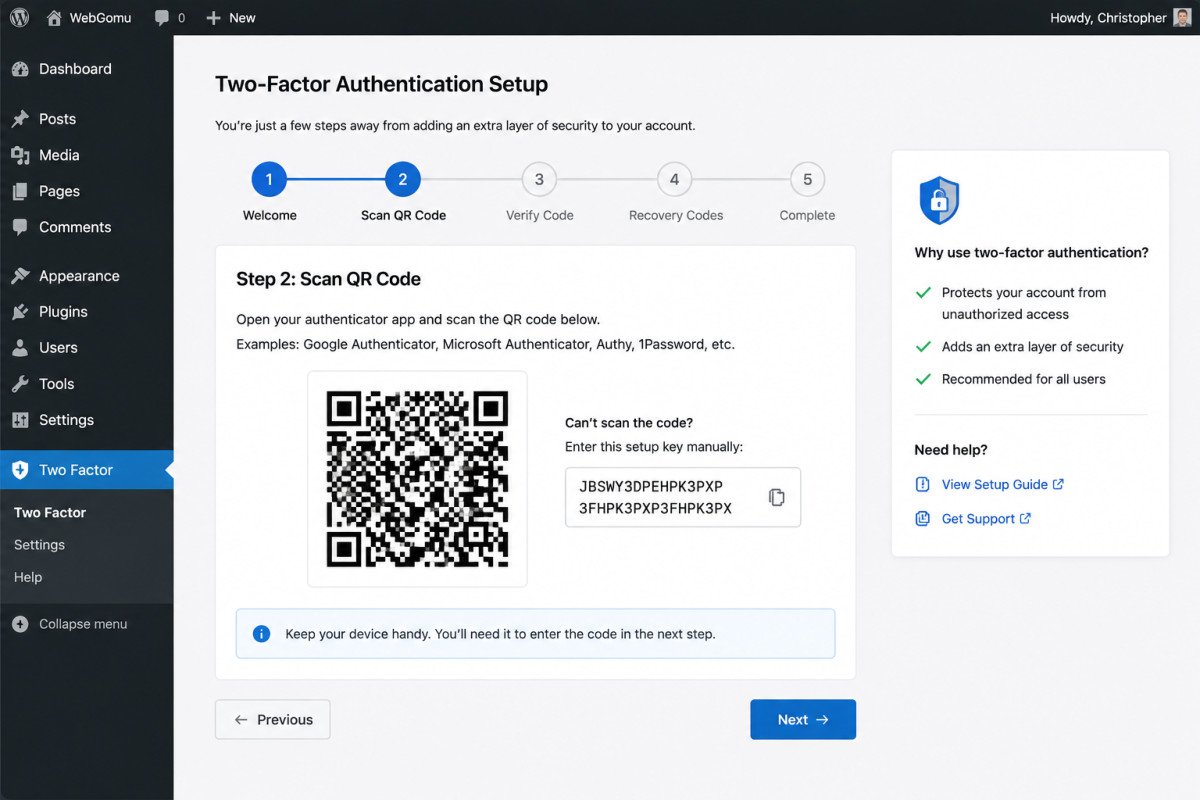
WebGomu Tip: Set up 2FA on a second device or browser session before fully logging out of your first one. If something goes wrong during setup, you’ll still have an active session to fix it, rather than being locked out entirely on your first attempt.
Enforcing 2FA Across Your Team
If multiple people manage your site, most plugins let you require 2FA for specific roles, Administrators and Editors, for example, while leaving it optional for lower-permission roles. A grace period of 3-7 days for setup is common practice, giving your team time to configure it without an abrupt lockout.
Troubleshooting
I lost my authenticator device and don’t have my backup codes
Log into your hosting account (SFTP, cPanel File Manager, or hosting dashboard) and rename the 2FA plugin’s folder under /wp-content/plugins/. This forces WordPress to automatically deactivate it, letting you log in with just your password. Reconfigure 2FA immediately afterward on your new device.
My team members are locked out after I enforced 2FA
Confirm you set a reasonable grace period before enforcement took effect, and that setup instructions were actually communicated. Most plugins let you adjust or extend the grace period if needed.
Common Mistakes
- Skipping backup codes entirely, leaving no recovery path if you lose your device.
- Enforcing 2FA for a team without any grace period or setup instructions.
- Running Wordfence’s full 2FA alongside a separate 2FA plugin, creating unnecessary redundancy.
- Relying on email or SMS as a primary method when TOTP or passkeys are available and more secure.
Recommended Tools
- WP 2FA by Melapress — beginner-friendly, strong free tier including passkey support
- Two Factor — the lightest option, maintained by WordPress core contributors, ideal for solo admins
Key Takeaways
- 2FA adds a second verification step, meaningfully protecting against stolen or guessed passwords.
- TOTP is the reliable baseline; passkeys are a genuine security upgrade worth adopting where supported.
- Choose your plugin based on team size, sites already on Wordfence can use its built-in 2FA directly.
- Always generate and securely store backup codes before you need them.
Frequently Asked Questions
Do I need a plugin to add two-factor authentication to WordPress?
Yes, WordPress core doesn’t include 2FA by default. A dedicated plugin, or a security suite like Wordfence with 2FA built in, is required.
Is TOTP or passkeys more secure for WordPress 2FA?
Passkeys are the more secure option, the cryptographic key never leaves your device and is tied to your specific domain, making it resistant to phishing in a way TOTP codes aren’t. TOTP remains a strong, broadly compatible baseline.
What happens if I lose access to my 2FA device and my backup codes?
You can rename the 2FA plugin’s folder via your hosting account’s file manager to force WordPress to deactivate it automatically, letting you log in with just your password, then reconfigure 2FA on a new device.
Can I require 2FA for some user roles but not others?
Yes, most dedicated 2FA plugins support role-based enforcement, commonly requiring it for Administrators and Editors while leaving it optional for lower-permission roles.
Should I use Wordfence’s built-in 2FA or a separate plugin?
If you’re already running full Wordfence, use its built-in 2FA rather than adding a second plugin, avoiding unnecessary redundancy. Note that Wordfence’s standalone Login Security plugin was retired in mid-2026.
Resources Links
Author:

Christoper Enolpe
Founder of WebGomu • WordPress Freelancer with 10+ Years of Experience
Christoper is the founder of WebGomu and a WordPress freelancer with over 10 years of hands-on experience building, optimizing, and maintaining WordPress websites. He writes practical, beginner-friendly guides based on real-world experience, covering WordPress, SEO, website performance, and AI tools to help readers build better websites with confidence.
Learn more: https://webgomu.com/about/
Get one WordPress tip every week
Start Here

The Ultimate Beginner’s Guide to WordPress (2026): Build Your First Website Without Coding
Popular Guides
Our Partner

More from the blog
The Ultimate WordPress Speed Optimization Guide (2026)

The Ultimate WordPress Security Guide (2026)