How to Use Breakdance Builder: A Step-by-Step Guide (2026)

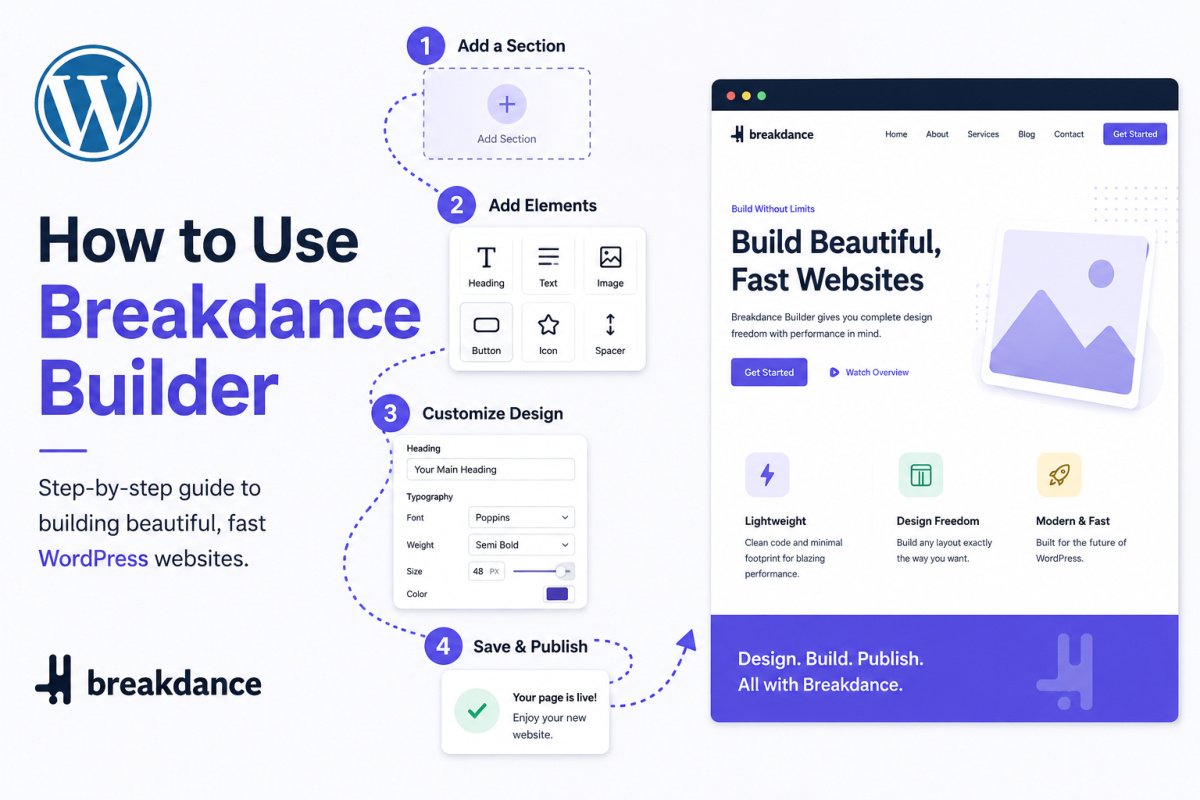
To start using Breakdance, install it from the WordPress plugin directory (free) or upload the plugin file from your Breakdance account (Pro), configure it to handle Pages, Posts, and any relevant Custom Post Types, decide whether to disable your active theme, then create your first page and open it in the Breakdance editor. The editor centers on a small set of core concepts, global styles, the layout hierarchy panel, and dynamic data, that unlock the rest of the builder once you understand them. Most beginners are comfortably building within their first session.
Before You Start
Make sure you have the following in place first:
- WordPress 5.8 or higher installed (see our installation guide if you haven’t yet)
- A recent backup of your site (see our backup guide), genuinely worth having before disabling your active theme
- If you’re new to Breakdance itself, see our full review for the broader picture before diving into setup
WebGomu itself is built on Breakdance, so this isn’t a generic walkthrough pieced together from documentation alone, it’s the actual path from a blank install to a working site, the same one this article you’re reading came from.
What You’ll Learn
- How to install and configure Breakdance correctly from the start
- Whether to disable your active theme, and why most users do
- The core editor concepts that unlock everything else
- Where to go next once your first page is built
Step 1: Get and Install Breakdance
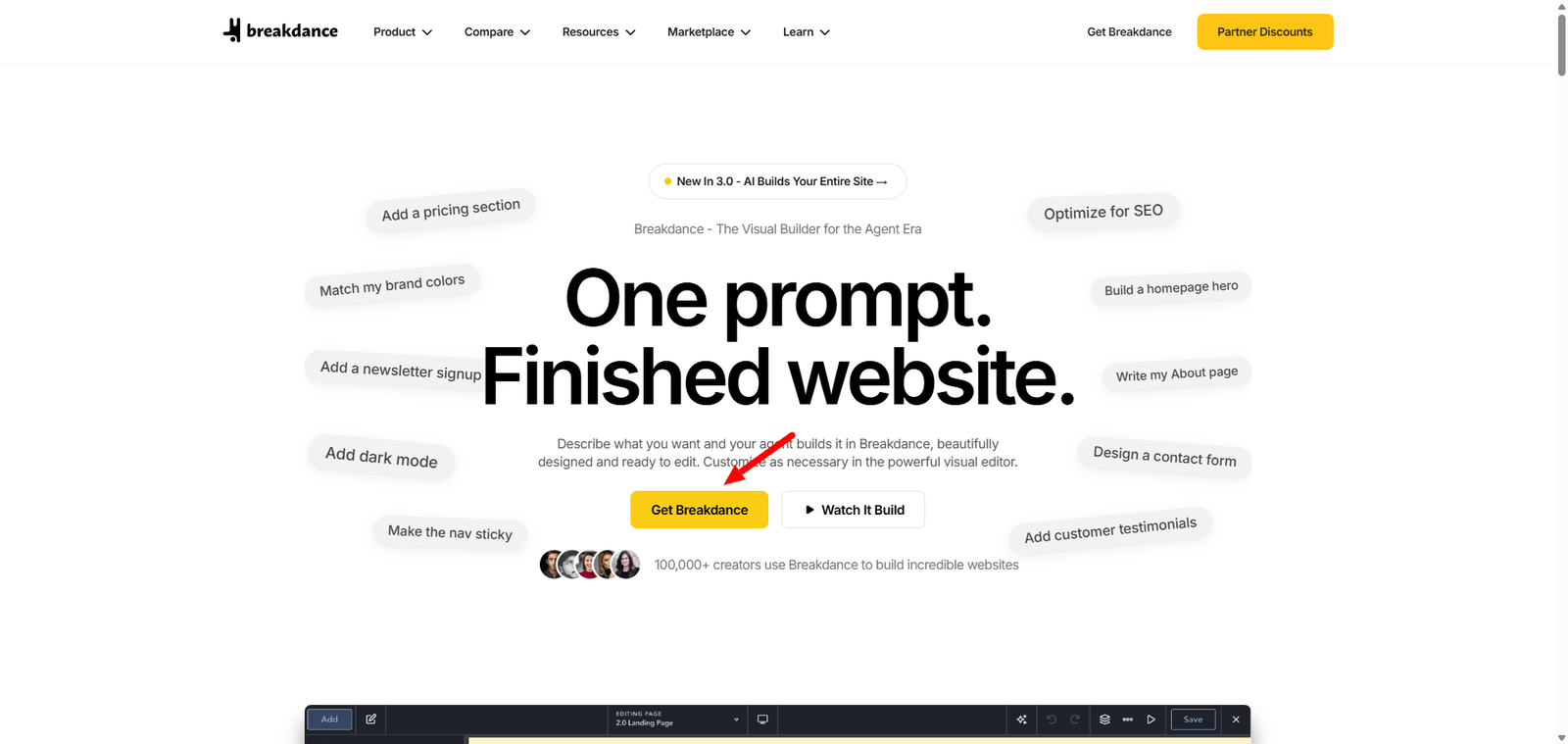
Unlike many WordPress plugins, Breakdance isn’t installed by searching the WordPress plugin directory, both the free and Pro versions come directly from Breakdance itself. Go to breakdance.com/get, choose the free or Pro option, and download the plugin file to your computer. Then, in your WordPress dashboard, go to Plugins → Add New → Upload Plugin, select the file you downloaded, click Install Now, and then Activate.
Step 2: Configure Initial Settings
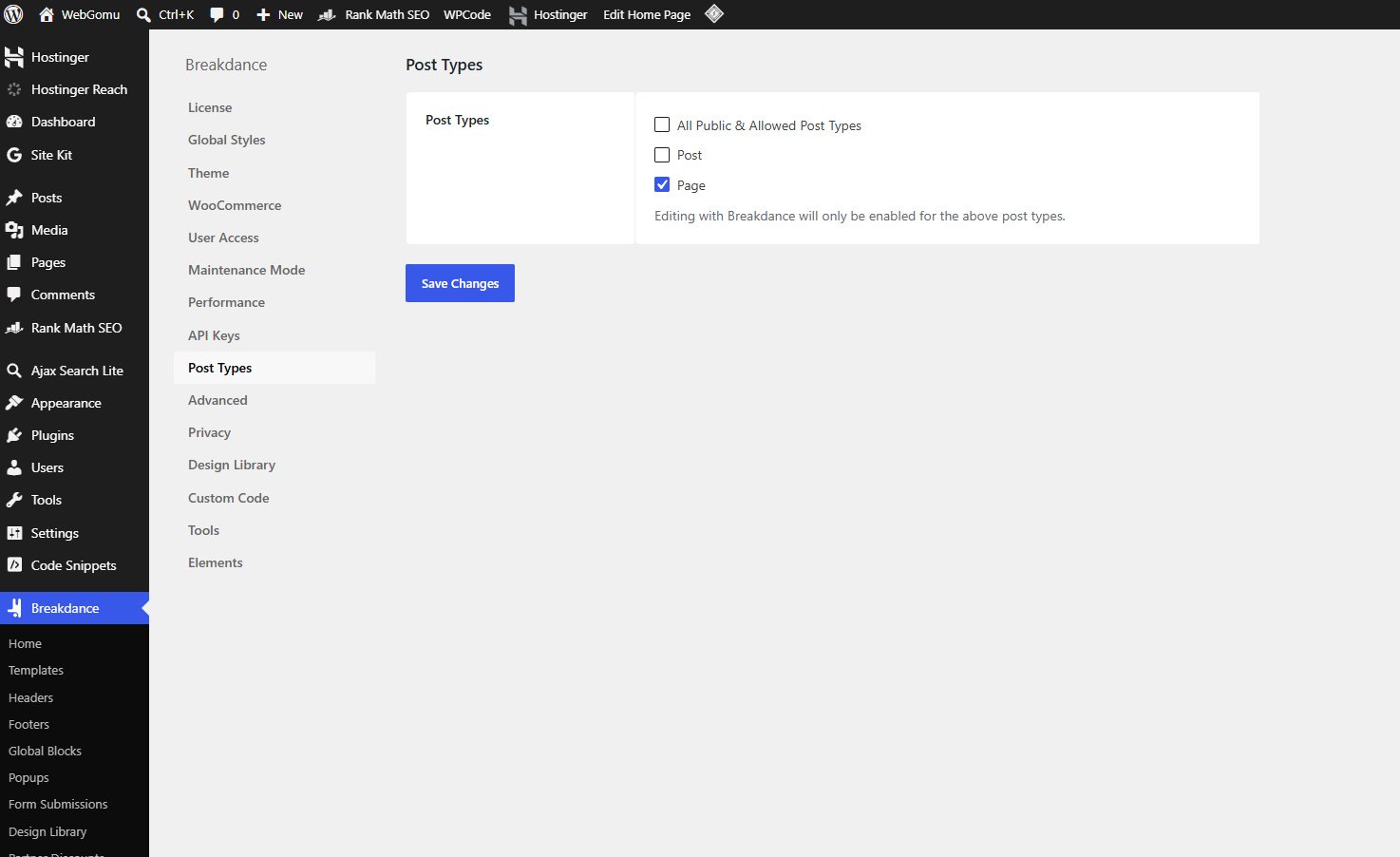
Go to Breakdance → Settings and confirm it’s enabled for Pages, Posts, and any Custom Post Types you plan to build with it. This is also where you’ll find the option to replace the default WordPress editor with Breakdance for supported content types.
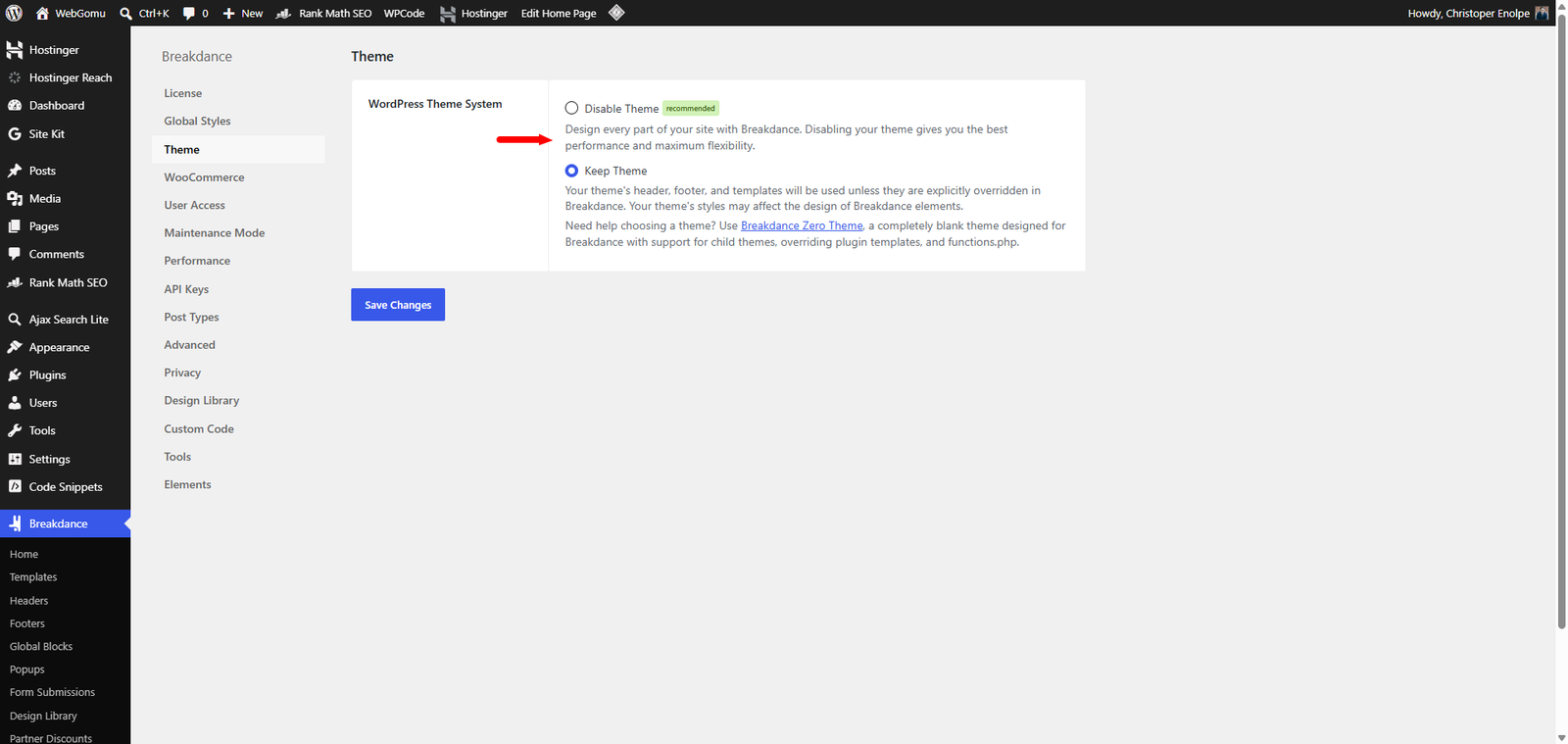
Step 3: Decide Whether to Disable Your Theme
This is a genuinely core Breakdance concept, not an afterthought, Breakdance’s own documentation is explicit that you don’t need a traditional theme once you’re using it. Since Breakdance controls headers, footers, and templates directly, most users disable their active theme entirely for a clean canvas and to avoid CSS conflicts between the theme and the builder.
Step 4: Create Your First Page
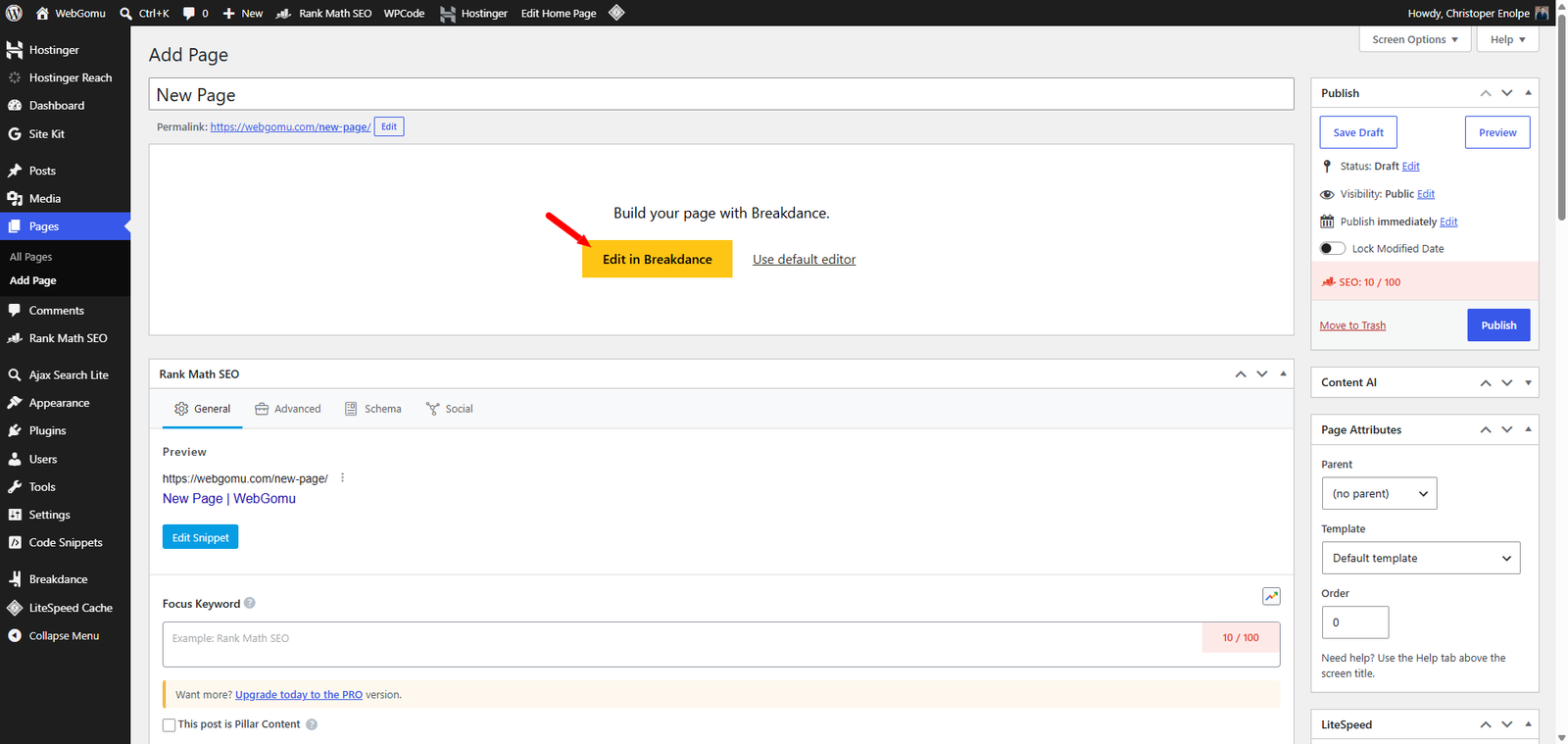
- Go to Pages → Add New.
- Enter a page title.
- Click Save, then choose to edit it in Breakdance.
Step 5: Get Familiar with the Editor
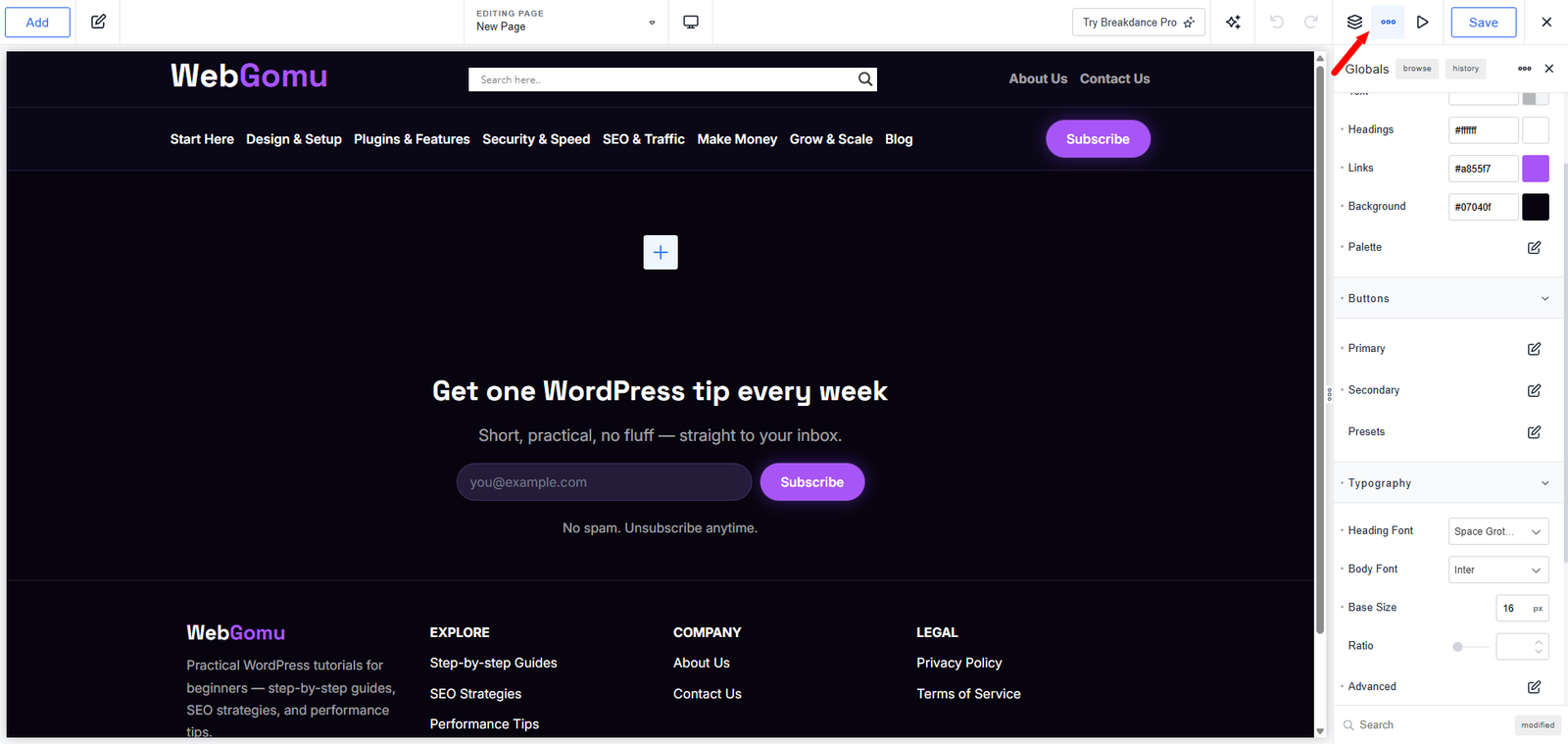
Two icons in the top toolbar matter most when you’re starting out:
- The three-dot icon opens global settings, typography, colors, and layout defaults applied uniformly across your site.
- The layout/hierarchy icon shows the nested structure of every element on your current page, genuinely useful for keeping complex layouts organized as they grow.
Step 6: Set Up Global Styles First
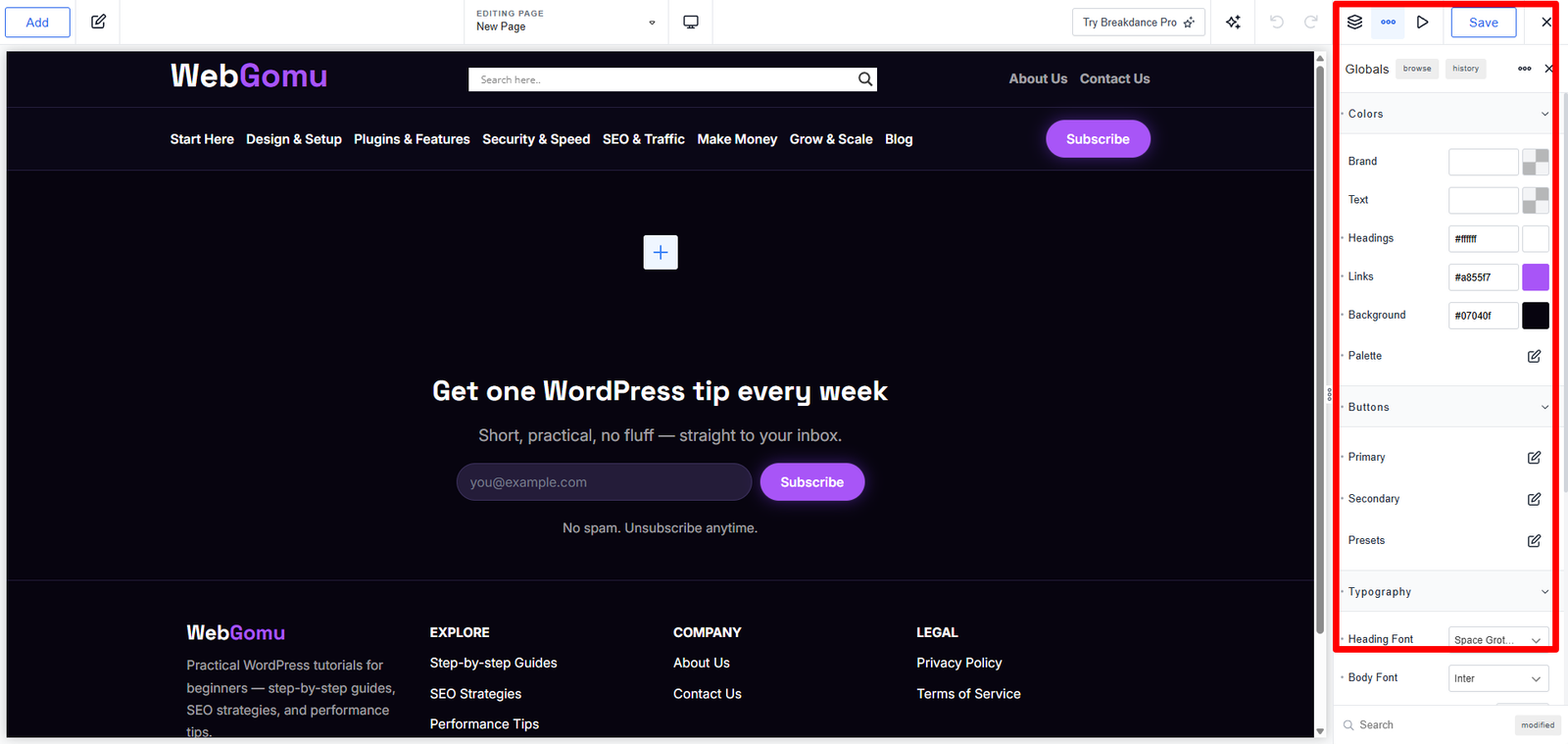
Before building individual pages, set your brand colors, typography, and button styles once in global settings. Every page you build afterward inherits these defaults automatically, genuinely saves repeating the same styling decisions page after page.
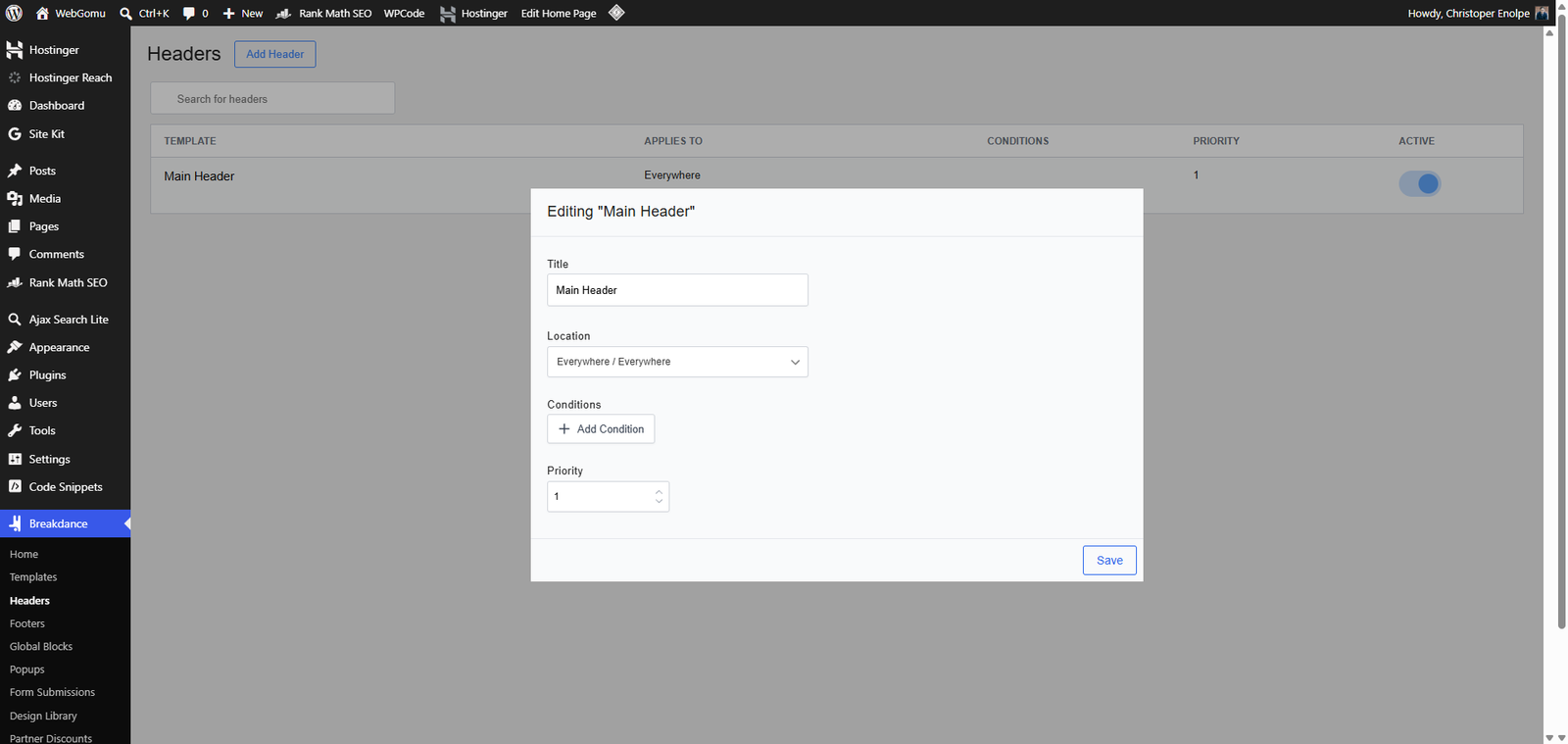
Step 7: Build Your Header and Navigation
Breakdance’s Header Builder and Mega Menu Builder let you design your site-wide navigation directly, rather than relying on a separate theme-based menu system. This is part of what makes Breakdance a full site builder rather than just a page-content tool.
Step 8: Explore Dynamic Data Once You’re Comfortable
Once the basics feel natural, Breakdance’s dynamic data features, post loops, conditional element display, and (for WooCommerce stores) product loops and cart/checkout templating, unlock genuinely advanced layouts without custom code. This is worth treating as a second-session skill, not something to tackle on day one.
WebGomu Tip: Build your first page on a staging site if your host supports it, especially if you’re disabling your active theme on an already-live site. This is exactly the kind of structural change worth testing before it touches real visitors.
Common Mistakes
- Leaving the active theme enabled alongside Breakdance, risking CSS conflicts the tool is specifically designed to avoid.
- Jumping straight into dynamic data before getting comfortable with the basic editor and global styles.
- Building extensively on a live site without a backup or staging environment in place first.
- Restyling individual pages one at a time instead of setting global styles first, creating unnecessary repeated work.
Recommended Tools
- Breakdance’s own documentation and video tutorials — genuinely thorough for the specific features covered in this guide
- WP Staging or your host’s staging feature — for testing before major structural changes go live
Key Takeaways
- Installation takes minutes, the free version installs directly from the WordPress plugin directory.
- Disabling your active theme is a core, intended part of using Breakdance, not an optional extra step.
- Set global styles before building individual pages to avoid repeated styling work.
- Treat dynamic data as a second-session skill once you’re comfortable with the editor basics.
Frequently Asked Questions
Do I need to keep my WordPress theme active when using Breakdance?
No, most users disable their active theme entirely, Breakdance is specifically designed to control headers, footers, and templates directly, and running both together risks CSS conflicts.
How long does it take to build a basic page with Breakdance?
Most beginners are comfortably building within their first session, Breakdance’s own documentation references creating a complete website in around 15 minutes once you’re familiar with the basics.
What should I set up first in Breakdance?
Global styles, colors, typography, and button defaults, before building individual pages. Every page inherits these automatically afterward, avoiding repeated styling work.
Is Breakdance’s dynamic data feature necessary for a basic site?
No, it’s genuinely useful for advanced layouts like post loops or WooCommerce product grids, but it’s worth treating as a feature to explore once you’re comfortable with the editor basics, not a day-one requirement.
Should I test Breakdance changes on staging before going live?
Yes, especially when disabling your active theme on an already-live site, this is exactly the kind of structural change worth testing safely first.
Resources Links
Author:

Christoper Enolpe
Founder of WebGomu • WordPress Freelancer with 10+ Years of Experience
Christoper is the founder of WebGomu and a WordPress freelancer with over 10 years of hands-on experience building, optimizing, and maintaining WordPress websites. He writes practical, beginner-friendly guides based on real-world experience, covering WordPress, SEO, website performance, and AI tools to help readers build better websites with confidence.
Learn more: https://webgomu.com/about/
Get one WordPress tip every week
Start Here

The Ultimate Beginner’s Guide to WordPress (2026): Build Your First Website Without Coding
Popular Guides
Our Partner

More from the blog
WPCode Review 2026: The Safe Way to Add Custom Code
AI Photo Editing Tools for WooCommerce Product Photos (2026)