How to Add a Blog to Your WordPress Website (2026 Guide)

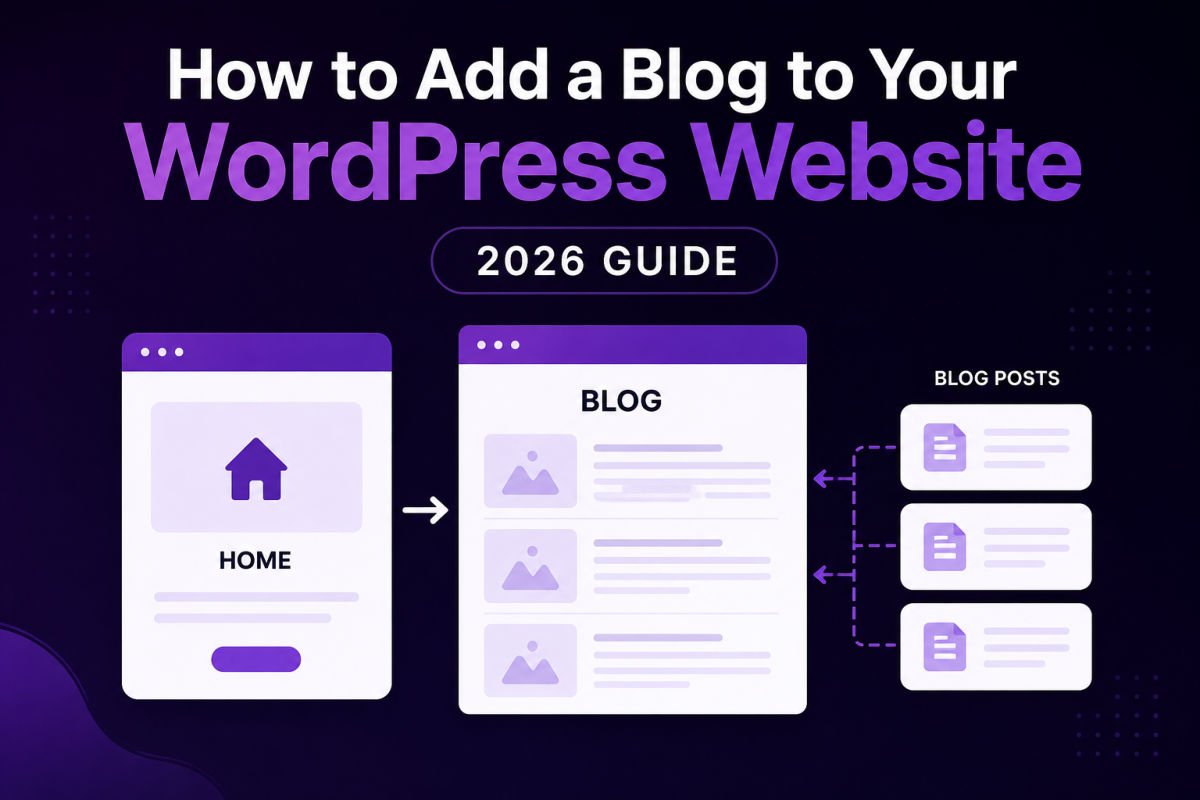
To add a blog to WordPress, create a new blank page (e.g., “Blog”), then go to Settings → Reading, select “A static page,” and choose your homepage and your new blank page as the Posts page. WordPress will automatically display your published posts there, newest first. If you want your blog to be your entire homepage instead, select “Your latest posts” under the same setting.
Before You Start
Make sure you have the following in place first:
- Administrator access to your WordPress dashboard
- A clear idea of whether you want your blog to be your homepage, or a separate section (both are covered below)
- At least one draft post ready, to confirm everything works once set up
Many WordPress sites start as a simple business or portfolio site, with blogging added later once the owner realizes fresh content helps both SEO and visitor trust. The good news: adding a blog to an existing site takes only a few minutes and doesn’t require rebuilding anything you’ve already created.
What You’ll Learn
- The difference between Posts and Pages, and why it matters here
- How to set up a dedicated blog page separate from your homepage
- How to make your blog your entire homepage instead, if you prefer
- How to show recent posts on any page using the Latest Posts block
Posts vs. Pages: A Quick Refresher
Posts are dynamic, timestamped entries — your blog articles — displayed in reverse chronological order (newest first), and organized using categories and tags. Pages are static content that doesn’t change often, like your Home, About, or Contact pages, existing outside that chronological flow.
Your blog is built from Posts, but it needs a Page to act as its display location — that’s the setup this guide walks through.
Choosing Your Blog Setup
There are two common approaches, and the right one depends on your site type:
| Setup | Best For | Homepage Shows |
|---|---|---|
| Blog as homepage | Pure bloggers, news sites, content-first sites | Your latest posts, automatically |
| Blog as separate page | Businesses, portfolios, sites needing a custom homepage message | Your custom static content, with a dedicated /blog page for posts |
Option 1: Blog as a Separate Page
- Go to Pages → Add New.
- Title the page “Blog” (or “News,” “Articles,” “Insights” — whatever fits your site).
- Leave the content area completely empty. WordPress ignores anything typed here once this page is set as your Posts page.
- Click Publish.
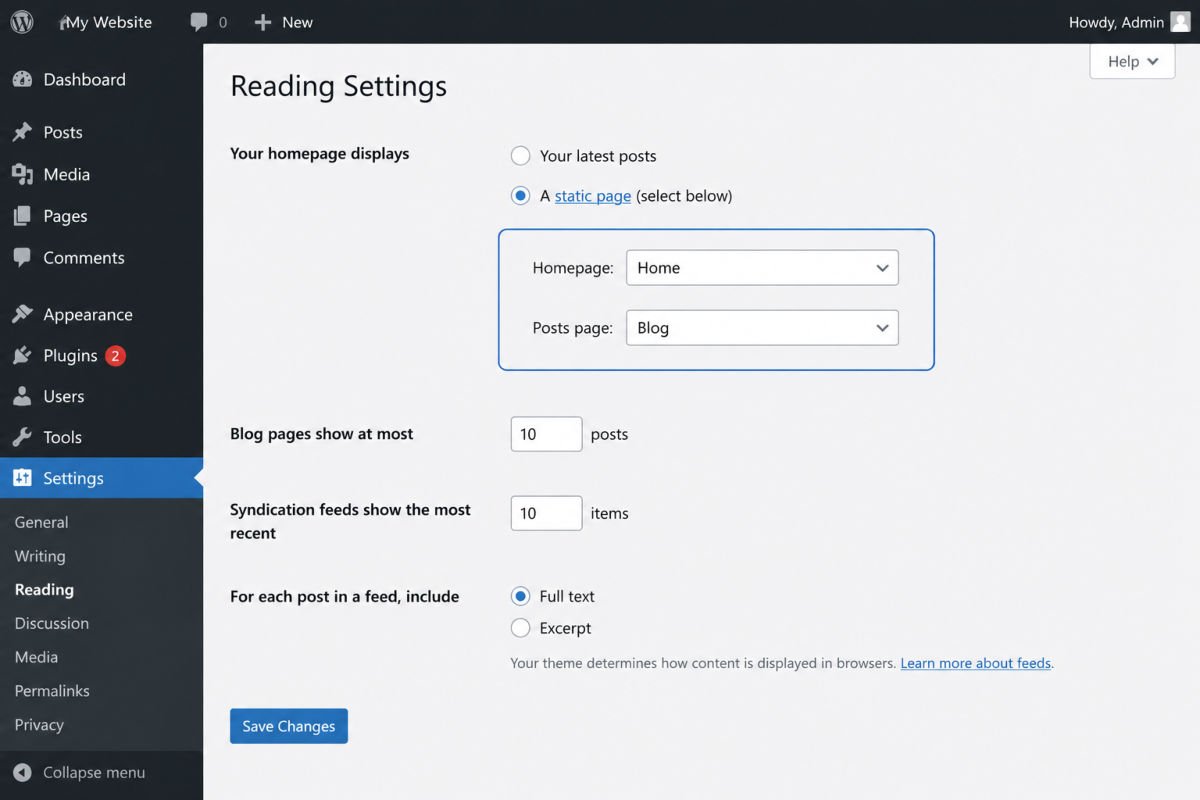
- Go to Settings → Reading.
- Under “Your homepage displays,” select A static page.
- Set Homepage to your existing homepage, and Posts page to the new “Blog” page you just created.
- Click Save Changes.
Option 2: Blog as Your Entire Homepage
- Go to Settings → Reading.
- Under “Your homepage displays,” select Your latest posts.
- Click Save Changes.
Your homepage will now automatically show your most recent posts, newest first — no separate blog page needed.
Adding Your Blog to the Menu
If you set up a separate blog page (Option 1), don’t forget to add it to your site’s navigation so visitors can actually find it. See our guide to setting up menus and navigation for the exact steps.
WebGomu Tip: Publish your first post before considering this task finished. An empty blog page can look broken or unfinished to a first-time visitor, so have at least one solid post ready to go live alongside the setup.
Alternative: Show Posts on Any Page With the Latest Posts Block
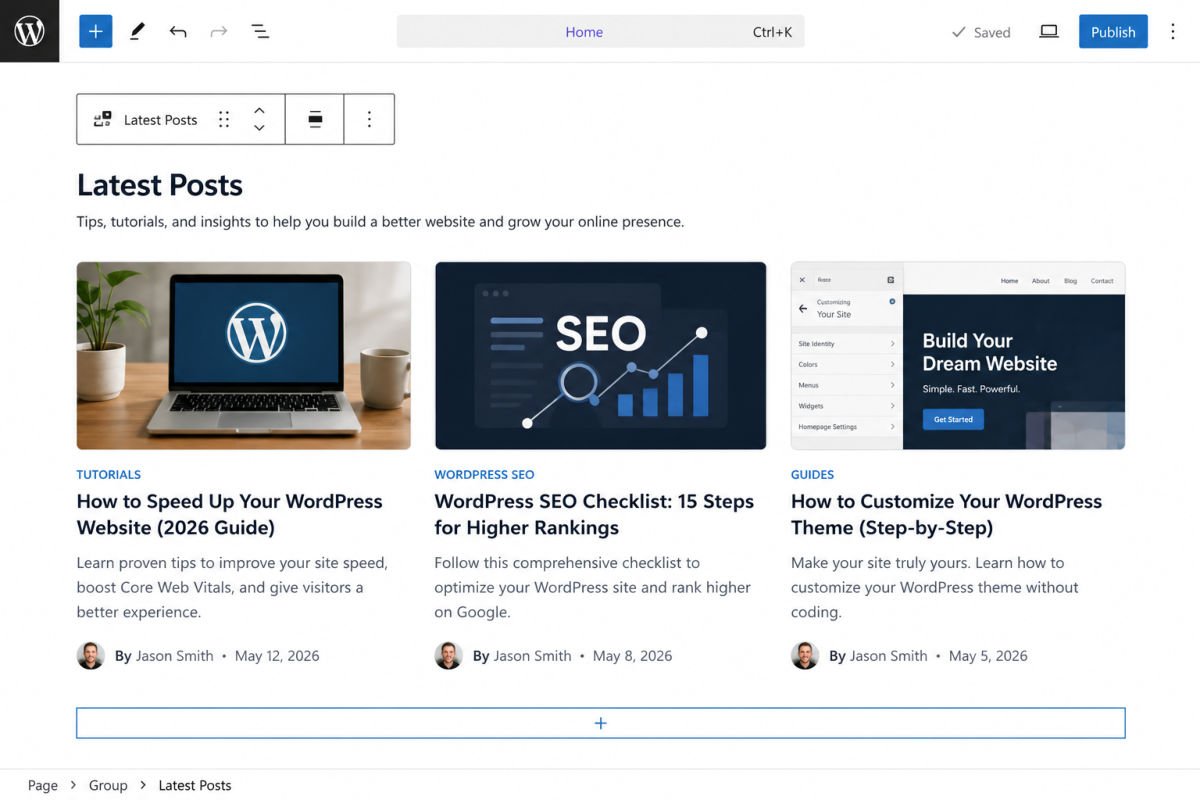
If you want to display a preview of recent blog posts somewhere other than a dedicated blog page — like a small “From the Blog” section on your homepage — use the built-in Latest Posts block instead. Open the block inserter (+) on any page, search for “Latest Posts,” and add it. You can control how many posts show and whether excerpts or featured images appear, directly in the block’s settings panel.
Organizing Posts With Categories and Tags
As you publish more posts, use categories to group related content (like “SEO Tips” or “Beginner Guides”) and tags for more specific, cross-cutting topics. This keeps your blog page organized and helps visitors — and search engines — understand your site’s structure as it grows.
Troubleshooting
My blog page is showing my page content, not my posts
This usually means the page still has content typed into it. Go back and clear the content area completely — WordPress uses this page purely as a container once it’s set as your Posts page.
My blog page isn’t showing up in my navigation
Creating the page doesn’t automatically add it to your menu. See our menus and navigation guide to add it manually.
My homepage still shows old content after switching to “Your latest posts”
Clear your site’s cache if you’re using a caching plugin, and do a hard refresh in your browser — this is almost always a caching issue, not a settings issue.
I don’t see a “Posts page” option under Settings → Reading
Confirm you’ve selected “A static page” first — the Posts page dropdown only appears once that option is chosen.
Common Mistakes
- Adding content directly to the blank blog page, which gets ignored once it’s set as the Posts page.
- Forgetting to add the new blog page to the site menu, leaving it undiscoverable.
- Launching the blog page with zero published posts, leaving visitors looking at an empty page.
- Not using categories or tags as post count grows, making older content hard to browse.
Recommended Tools
- Built-in Latest Posts block — no plugin needed for showing post previews on any page
- Categories and Tags (built into WordPress core) — sufficient organization for most beginner and small business blogs
Key Takeaways
- Posts are your blog content; a Page is needed as a container to display them.
- Choose “Blog as separate page” for business sites, or “Blog as homepage” for pure content sites.
- Always add your new blog page to your site menu.
- Use the Latest Posts block to show post previews anywhere else on your site.
Frequently Asked Questions
Can I add a blog to a site that already has a homepage?
Yes. Create a new blank page for your blog, then assign your existing homepage and the new blank page under Settings → Reading — your current homepage stays exactly as it is.
Do I need a plugin to add a blog to WordPress?
No. Blogging is a core WordPress feature — Posts, categories, tags, and the Reading settings needed to display them are all built in, no plugin required.
Can I change my mind later and switch setups?
Yes, you can switch between “A static page” and “Your latest posts” under Settings → Reading at any time without losing any of your existing posts or pages.
Why is my new blog page showing nothing?
If no posts have been published yet, the page will appear empty. Publish at least one post under Posts → Add New, then refresh the blog page.
Can I show blog posts on my homepage while keeping a custom design?
Yes, use the Latest Posts block within your custom homepage design to show a preview of recent posts without making the entire homepage a post feed.
Resources Links
Author:

Christoper Enolpe
Founder of WebGomu • WordPress Freelancer with 10+ Years of Experience
Christoper is the founder of WebGomu and a WordPress freelancer with over 10 years of hands-on experience building, optimizing, and maintaining WordPress websites. He writes practical, beginner-friendly guides based on real-world experience, covering WordPress, SEO, website performance, and AI tools to help readers build better websites with confidence.
Learn more: https://webgomu.com/about/
Get one WordPress tip every week
Start Here

The Ultimate Beginner’s Guide to WordPress (2026): Build Your First Website Without Coding
Popular Guides
Our Partner

More from the blog
WooCommerce Checkout Optimization: Reduce Cart Abandonment
WooCommerce Payment Gateways: Setup & Comparison (2026)