How to Debug and Fix WordPress Critical Errors Safely (Without Crashing Live Sites)

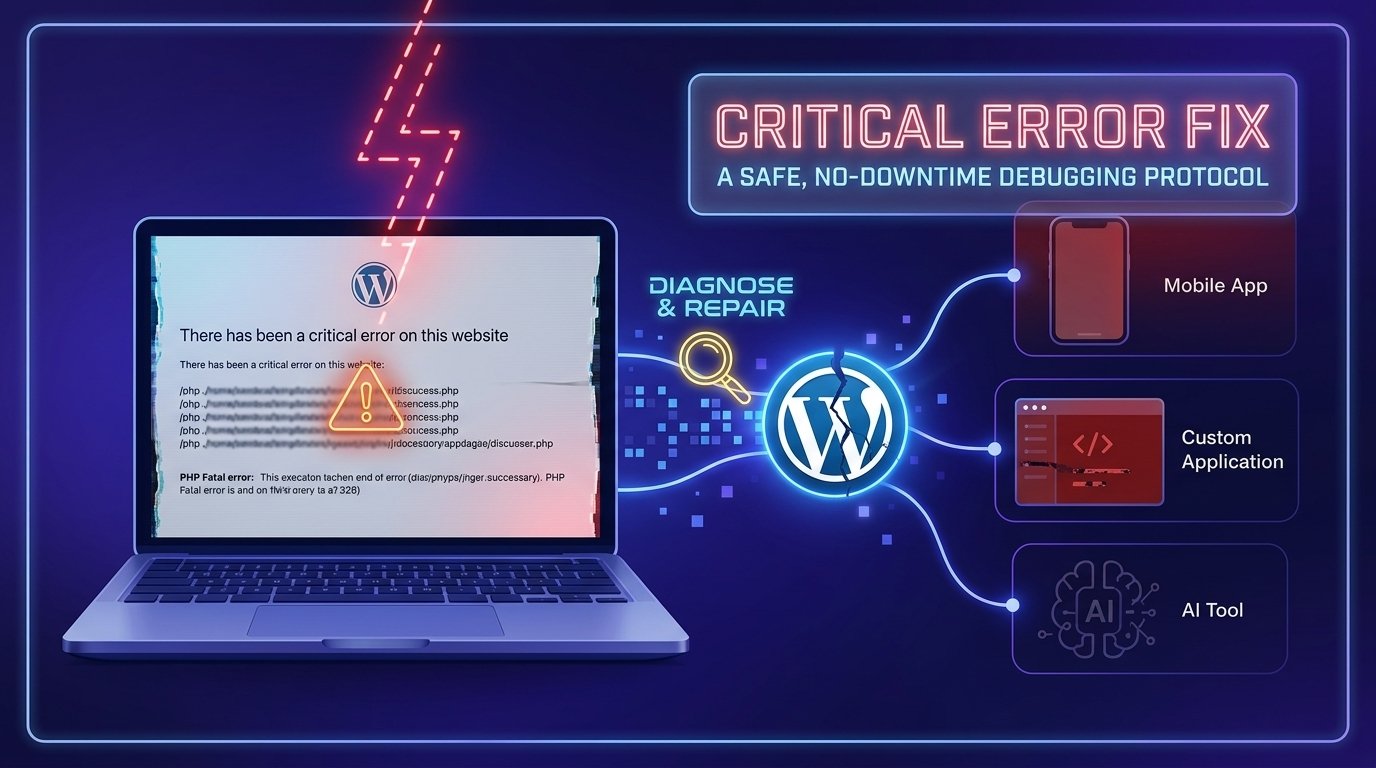
wp-config.php rather than displaying raw errors to site visitors. By setting WP_DEBUG_LOG to true while keeping WP_DEBUG_DISPLAY disabled, you can inspect /wp-content/debug.log via SFTP to identify the exact file, plugin, or line number causing the crash. Once identified, you can selectively bypass the broken code or temporarily rename its plugin folder without taking down the entire site or impacting live visitors.Before You Start
Make sure you have the following in place first:
- SFTP access or host File Manager access to your WordPress root directory (see our complete backup guide before attempting fixes on live production sites)
- Basic familiarity with your site’s directory layout, particularly
wp-config.phpand the/wp-content/folder - Understanding basic PHP execution to prevent syntax mistakes when modifying custom site logic (review our guide on WordPress hooks, actions, and filters)
Here’s a reassuring fact to open with: every experienced WordPress developer and freelancer has triggered a “Critical Error” screen on a live site at least once. The difference between a stressful outage and a quick 2-minute fix comes down to knowing how to read background logs instead of guessing.
What You’ll Learn
- How to turn on background error logging without revealing sensitive code paths to visitors
- Where to locate and read the exact PHP stack trace inside
debug.log - How to selectively disable a broken plugin or theme function without breaking the rest of your site
- How to handle common memory exhaustion errors safely
Step 1: Enable Background Debugging in wp-config.php
When WordPress displays the generic “There has been a critical error on this website” screen, it is deliberately suppressing PHP details for security reasons. To uncover what actually failed without showing PHP errors on your frontend, edit your wp-config.php file via SFTP.
Locate define('WP_DEBUG', false); and replace it with this production-safe snippet:
// Enable WP_DEBUG mode
define( 'WP_DEBUG', true );

// Write error reports to /wp-content/debug.log
define( 'WP_DEBUG_LOG', true );

// Hide error messages from public visitors
define( 'WP_DEBUG_DISPLAY', false );
@ini_set( 'display_errors', 0 );
Step 2: Inspect /wp-content/debug.log
Once those lines are saved, refresh the broken page on your website once to trigger the error again. Next, navigate to your /wp-content/ directory via SFTP or File Manager and open the newly created debug.log file.
Scroll to the very bottom to find the most recent PHP Fatal error or Parse error:
[14-Oct-2026 02:45:12 UTC] PHP Fatal error: Uncaught Error: Call to undefined function custom_function()
in /home/public_html/wp-content/plugins/seo-tool/seo-tool.php on line 42
This log entry gives you the exact blueprint: it tells you the exact plugin (seo-tool), file path, and line number responsible for the breakdown.
Step 3: Safely Bypass the Faulty Code
Instead of turning off every plugin on your site (which breaks shortcodes, client forms, and layout formatting), isolate only the single broken item revealed by your log.
- If caused by a Plugin: Navigate to
/wp-content/plugins/and rename that single folder (e.g., changeseo-tooltoseo-tool-DISABLED). WordPress will instantly ignore that plugin and load the rest of your site normally. - If caused by a Theme Snippet: Navigate to
/wp-content/themes/your-active-theme/, openfunctions.php, and comment out or remove the recent code block on the line indicated by the stack trace.
Step 4: Fixing Memory Exhaustion Errors
If your debug.log reports Fatal error: Allowed memory size of X bytes exhausted, your site ran out of allocated memory during a heavy operation.
Add this single line near the top of your wp-config.php file, right above /* That's all, stop editing! Happy publishing. */:
define( 'WP_MEMORY_LIMIT', '256M' );Step 5: Clean Up and Disable Logging
Once your site is running smoothly, return to wp-config.php and set debugging back to false:
define( 'WP_DEBUG', false );
define( 'WP_DEBUG_LOG', false );
WebGomu Tip: Never leave
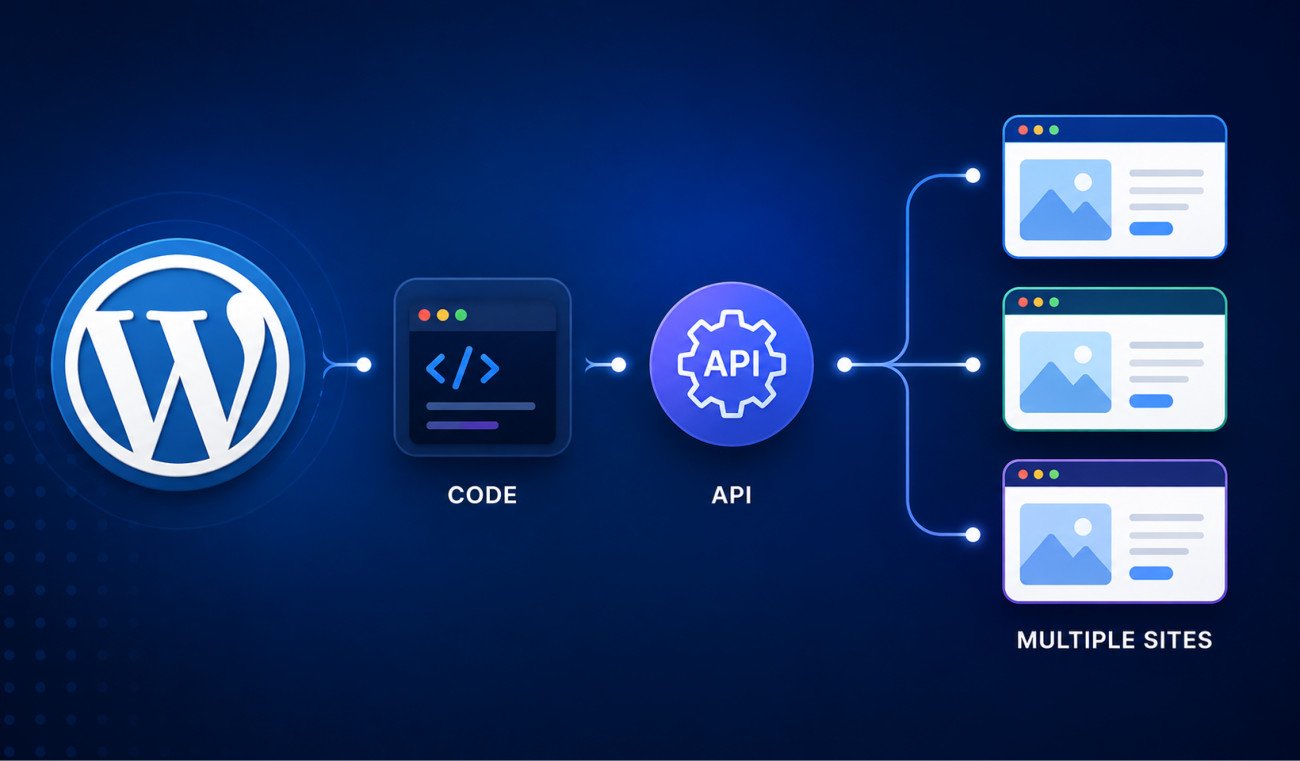
WP_DEBUG_LOGset totruepermanently on a production site. Over time, error logs can grow to several gigabytes in size, consuming disk space and potentially exposing internal server paths if left publicly accessible. If a critical error is affecting custom endpoints or background scripts, also check our detailed overview on how the WordPress REST API works.
Common Mistakes
- Enabling
WP_DEBUG_DISPLAYon live sites, which displays ugly, sensitive code traces directly to your site visitors and clients. - Deactivating all plugins at once via database or folder renaming instead of pinpointing the single culprit in
debug.log. - Editing live theme files directly through the WordPress admin file editor without an active SFTP backup.
- Forgetting to delete or turn off the
debug.logfile once troubleshooting is finished.
Recommended Tools
- FileZilla / Transmit — reliable SFTP clients for inspecting files and downloading logs quickly
- LocalWP — the recommended offline development environment for testing fixes before pushing to production
Key Takeaways
- Always log errors to
debug.login the background rather than printing raw errors onto live screens. - Reading a 3-line PHP stack trace saves hours compared to deactivating plugins at random.
- Renaming a single plugin’s folder via SFTP instantly bypasses critical crashes while keeping the rest of the site online.
Frequently Asked Questions
Why does WordPress show “A critical error has occurred” instead of the actual error?
WordPress suppresses detailed error messages on frontend pages to protect your website’s security. Displaying raw error logs publicly could expose sensitive database details or file directories to bad actors.
Where is the debug.log file located in WordPress?
When WP_DEBUG_LOG is enabled in your wp-config.php file, the debug.log file is automatically generated inside the /wp-content/ folder.
Will deactivating a broken plugin delete its data?
No, renaming or deactivating a plugin folder via SFTP simply stops WordPress from executing its code. Your plugin settings, database tables, and configured options remain completely intact in your database.
How do I fix a critical error if I cannot log into wp-admin?
You do not need access to the WordPress dashboard to fix critical errors. Access your site via SFTP or your web host’s File Manager to edit wp-config.php and manage plugin folders directly.
Resources Links
Author:

Christoper Enolpe
Founder of WebGomu • WordPress Freelancer with 10+ Years of Experience
Christoper is the founder of WebGomu and a WordPress freelancer with over 10 years of hands-on experience building, optimizing, and maintaining WordPress websites. He writes practical, beginner-friendly guides based on real-world experience, covering WordPress, SEO, website performance, and AI tools to help readers build better websites with confidence.
Learn more: https://webgomu.com/about/
Get one WordPress tip every week
Start Here

The Ultimate Beginner’s Guide to WordPress (2026): Build Your First Website Without Coding
Popular Guides
Our Partner

More from the blog
Essential PHP Snippets to Remove WordPress Bloat and Improve Speed

WordPress REST API Explained: A Beginner’s Guide (2026)