WordPress Lazy Loading Explained (You Probably Already Have It)

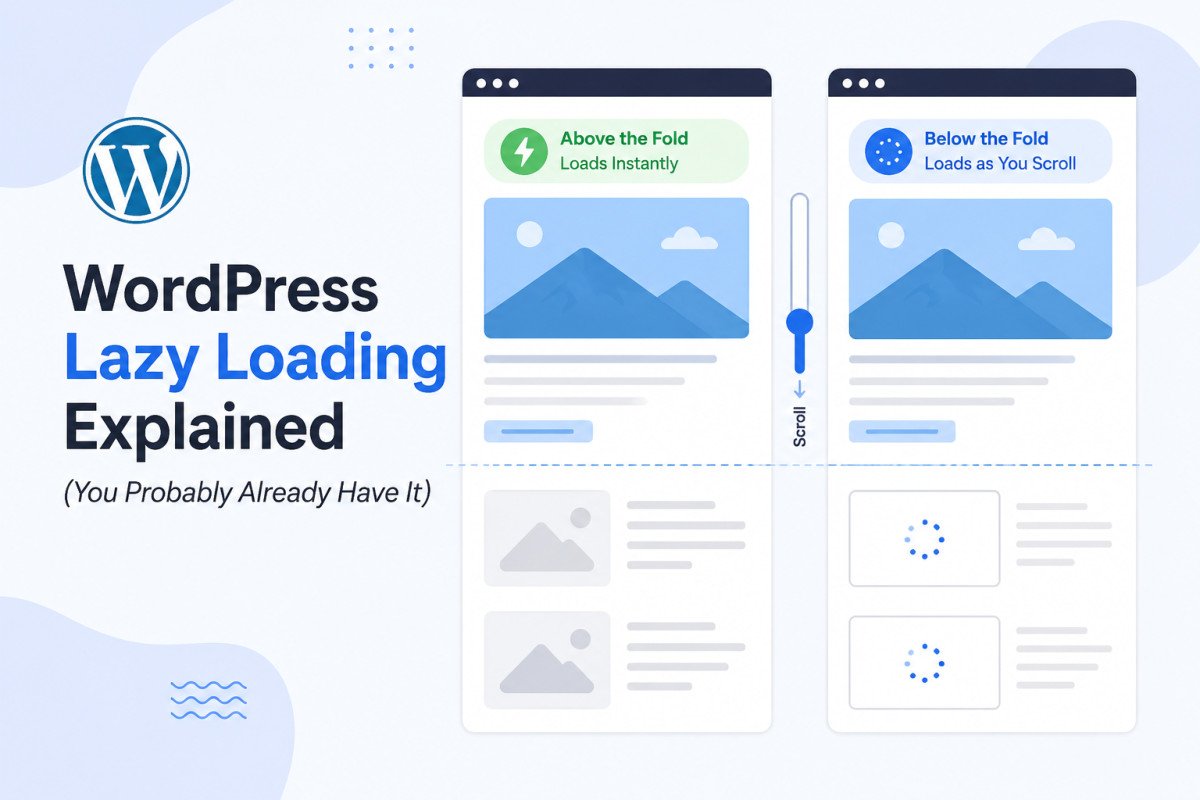
Lazy loading delays images and other heavy content until a visitor actually scrolls near them, instead of loading everything the instant a page opens. WordPress has had this built in natively since version 5.5 (2020), no plugin or code required, automatically applied to content images, featured images, and gallery images. Real-world 2026 benchmarks show native lazy loading reduces initial page weight by 20-35% and can lift mobile PageSpeed scores by 8-18 points. The one thing it doesn’t do automatically: exclude your above-the-fold images, which should never be lazy-loaded, that’s your Largest Contentful Paint element, and delaying it actively hurts the exact metric you’re trying to improve.
Before You Start
See our advanced Core Web Vitals guide for the broader LCP context this connects to, and our image optimization guide for the rest of the image-speed picture.
Here’s a genuinely pleasant surprise for once: you probably don’t need to do anything to get basic lazy loading working. WordPress quietly started handling this automatically back in 2020. The real question isn’t “how do I turn this on,” it’s “what is it not covering, and where might it actually be working against me.”
What You’ll Learn
-
- What WordPress’s native lazy loading actually covers, and what it misses
- The one critical exception that can undo the whole benefit if you get it wrong
- When you genuinely need a dedicated plugin instead of relying on native
- How to disable native lazy loading safely, if you ever need to
WordPress Already Does This, Natively, Since 2020
Starting with WordPress 5.5, the platform automatically adds the loading=”lazy” attribute to content images, featured images, and gallery images, no plugin, no code, no configuration required. This is a genuine browser-level feature with roughly 95-96% browser support, legacy browsers that don’t recognize it simply ignore it and load images normally, no broken experience either way.
What Native Lazy Loading Doesn’t Cover
This is where most beginners assume they’re fully covered when they’re not. WordPress’s built-in lazy loading has real, specific gaps:
- No iframe support, embedded YouTube videos and Google Maps aren’t covered
- No video element support
- No CSS background images, the loading attribute only works on actual HTML image and iframe tags
- No placeholder or blur-up effect, images simply appear once loaded, no smooth transition
- No threshold control, you can’t configure how far in advance images begin loading before they enter the viewport
- Theme-added images may be skipped entirely, depending on how your specific theme was built
The One Exception That Matters Most
As covered in our advanced Core Web Vitals guide, your Largest Contentful Paint element, almost always your hero image or top visible content, should never be lazy-loaded. Delaying it directly delays the exact metric you’re trying to improve. WordPress’s native implementation is generally good about excluding the very first image on a page, but always verify this directly using PageSpeed Insights’ “LCP request discovery” audit rather than assuming it’s handled correctly by default.
WebGomu Tip: If your homepage has a hero section, prominent logo, or above-the-fold imagery that changes between mobile and desktop layouts, don’t fully trust native lazy loading’s default behavior. Check the actual rendered HTML for your key pages and confirm the loading=”lazy” attribute isn’t present on anything visible without scrolling.
When You Actually Need a Plugin
Native lazy loading is genuinely sufficient for simple sites. Consider a dedicated plugin if you need:
- Lazy loading for embedded videos, iframes, or CSS background images
- A blur-up or placeholder effect during loading
- Custom threshold control, loading images further in advance for slower connections
- The ability to exclude specific images by CSS class, useful for JavaScript-powered galleries or sliders that can conflict with lazy loading behavior
How to Disable Native Lazy Loading (If You Need To)
If you’d rather rely entirely on a dedicated plugin and avoid any overlap or conflict with WordPress’s built-in behavior, add this line using a code snippet plugin like WPCode, never paste it directly into your theme’s files, where it would be wiped out on the next update:
add_filter( 'wp_lazy_loading_enabled', '__return_false' );
Troubleshooting
My image gallery or slider looks broken or glitchy
JavaScript-powered galleries and sliders can genuinely conflict with lazy loading. Most dedicated lazy loading plugins let you exclude specific images by CSS class or parent container, worth checking your plugin’s settings for this option.
My PageSpeed report flags my LCP image as lazy-loaded
Check your theme or page builder’s specific handling of that image, this sometimes happens with images inserted outside the standard block editor content area. Removing the lazy loading attribute manually or via a plugin exclusion setting resolves it.
Common Mistakes
- Installing a lazy loading plugin without realizing WordPress already handles the basics natively, creating redundant, conflicting behavior.
- Assuming native lazy loading covers videos, iframes, and background images, it doesn’t.
- Not verifying the LCP image is actually excluded, rather than just assuming WordPress handled it correctly.
- Pasting the disable code snippet directly into theme files instead of using a code snippet plugin.
Recommended Tools
- WordPress core — genuinely sufficient for most simple sites, no plugin needed
- Your image optimization plugin — several (see our guide) include more advanced lazy loading controls alongside compression
Key Takeaways
- WordPress has included native lazy loading since version 5.5, no setup required for basic use.
- Native lazy loading doesn’t cover videos, iframes, CSS backgrounds, or offer threshold control.
- Your above-the-fold LCP image should never be lazy-loaded, always verify this directly rather than assuming it.
- A dedicated plugin is only necessary for specific advanced needs beyond what native handles.
Frequently Asked Questions
Do I need a plugin for lazy loading in WordPress?
Not necessarily. WordPress has included native lazy loading since version 5.5, sufficient for most simple sites. A plugin becomes worthwhile for videos, iframes, background images, or more advanced control.
Does WordPress’s native lazy loading cover YouTube videos?
No, native lazy loading only applies to standard HTML image and iframe tags in specific contexts, video elements and many embedded iframes aren’t covered automatically.
Can lazy loading hurt my Core Web Vitals if done wrong?
Yes, specifically if your above-the-fold LCP image gets lazy-loaded, this directly delays the exact metric you’re trying to improve. Always verify this isn’t happening on your key pages.
How do I disable WordPress’s native lazy loading?
Add the filter add_filter( 'wp_lazy_loading_enabled', '__return_false' ); using a code snippet plugin like WPCode, rather than editing theme files directly.
Why does my image slider break when lazy loading is enabled?
JavaScript-powered galleries and sliders can genuinely conflict with lazy loading behavior. Most dedicated plugins allow excluding specific images by CSS class to resolve this.
Resources Links
Author:

Christoper Enolpe
Founder of WebGomu • WordPress Freelancer with 10+ Years of Experience
Christoper is the founder of WebGomu and a WordPress freelancer with over 10 years of hands-on experience building, optimizing, and maintaining WordPress websites. He writes practical, beginner-friendly guides based on real-world experience, covering WordPress, SEO, website performance, and AI tools to help readers build better websites with confidence.
Learn more: https://webgomu.com/about/
Get one WordPress tip every week
Start Here

The Ultimate Beginner’s Guide to WordPress (2026): Build Your First Website Without Coding
Popular Guides
Our Partner

More from the blog
The Ultimate WordPress Speed Optimization Guide (2026)

The Ultimate WordPress Security Guide (2026)