How to Set Up Google Search Console for WordPress (2026)

To set up Google Search Console, go to search.google.com/search-console, sign in with a Google account, add your site as a property, and verify ownership, easiest through your SEO plugin’s Webmaster Tools tab if you’re using Rank Math or Yoast. Once verified, submit your XML sitemap under the Sitemaps section. The whole process takes under 15 minutes, and data typically starts appearing within 24-72 hours.
Before You Start
Make sure you have the following in place first:
- A Google account you want to permanently own this property with
- Administrator access to your WordPress dashboard
- An SEO plugin installed, like Rank Math (see our Rank Math setup guide), which makes verification much simpler
Search Console is free, and it’s genuinely one of the highest-value tools available to you, since it shows real data straight from Google: which queries bring visitors to your site, which pages have indexing problems, and how your rankings actually move over time. None of the guesswork other tools rely on. This guide gets it connected correctly the first time.
What You’ll Learn
- Which property type to choose, Domain or URL prefix, and why it matters
- How to verify ownership using your SEO plugin, without editing theme files
- How to submit your sitemap correctly
- What to check first once your data starts appearing
Step 1: Choose Your Property Type
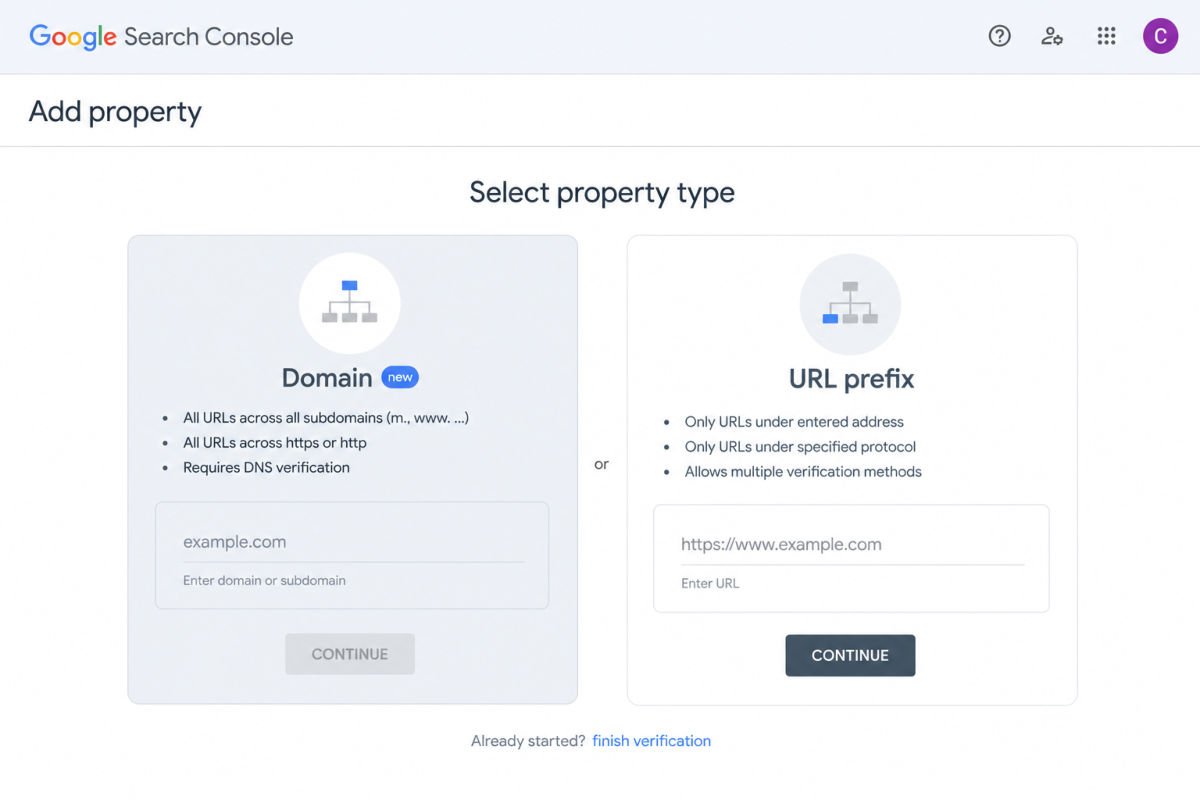
When you add a property, Search Console offers two options:
- Domain property — covers every subdomain and protocol (http/https, www/non-www) under one property. Verification requires adding a DNS record through your domain registrar.
- URL prefix property — covers exactly the URL you enter, like https://yourdomain.com. Verification can be done multiple ways, including through your SEO plugin.
For most beginners, a URL prefix property is simpler to verify and sufficient for a standard WordPress site. Choose Domain property only if you’re managing multiple subdomains and want everything under one view.
Step 2: Add Your Property
- Go to search.google.com/search-console and sign in with your Google account.
- Click Add Property.
- Choose URL prefix and enter your full site URL, including https://, exactly as it appears in your browser’s address bar.
Step 3: Verify Ownership Through Your SEO Plugin
This is the easiest method if you’re running Rank Math or Yoast, since it avoids editing any theme files directly.
- Search Console will show an HTML tag verification option. Copy the meta tag or verification code it provides.
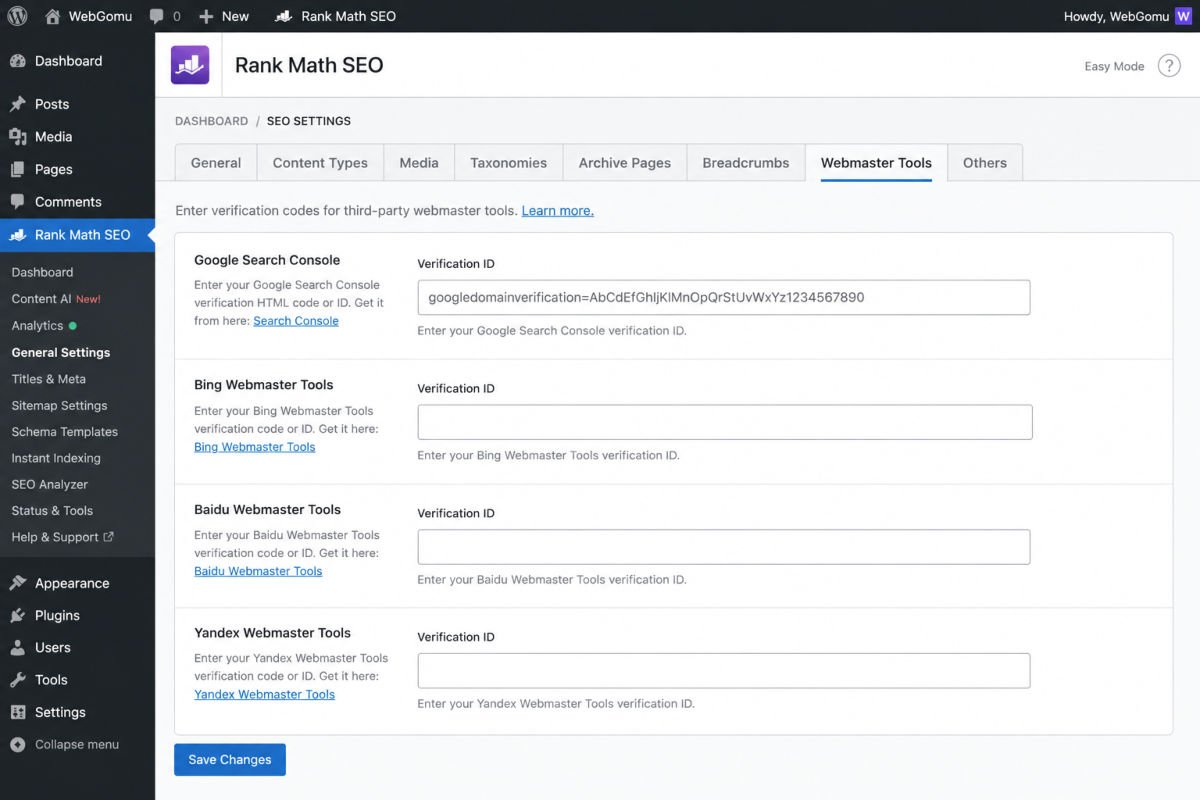
- In your WordPress dashboard, go to Rank Math SEO → General Settings → Webmaster Tools (or the equivalent tab in Yoast).
- Paste the verification code into the Google field, then save.
- Return to Search Console and click Verify.
WebGomu Tip: If you don’t use an SEO plugin, avoid pasting the verification tag directly into your theme’s header.php file. A plugin like WPCode (Header & Footer) stores it separately, so it survives future theme switches or updates instead of getting wiped out.
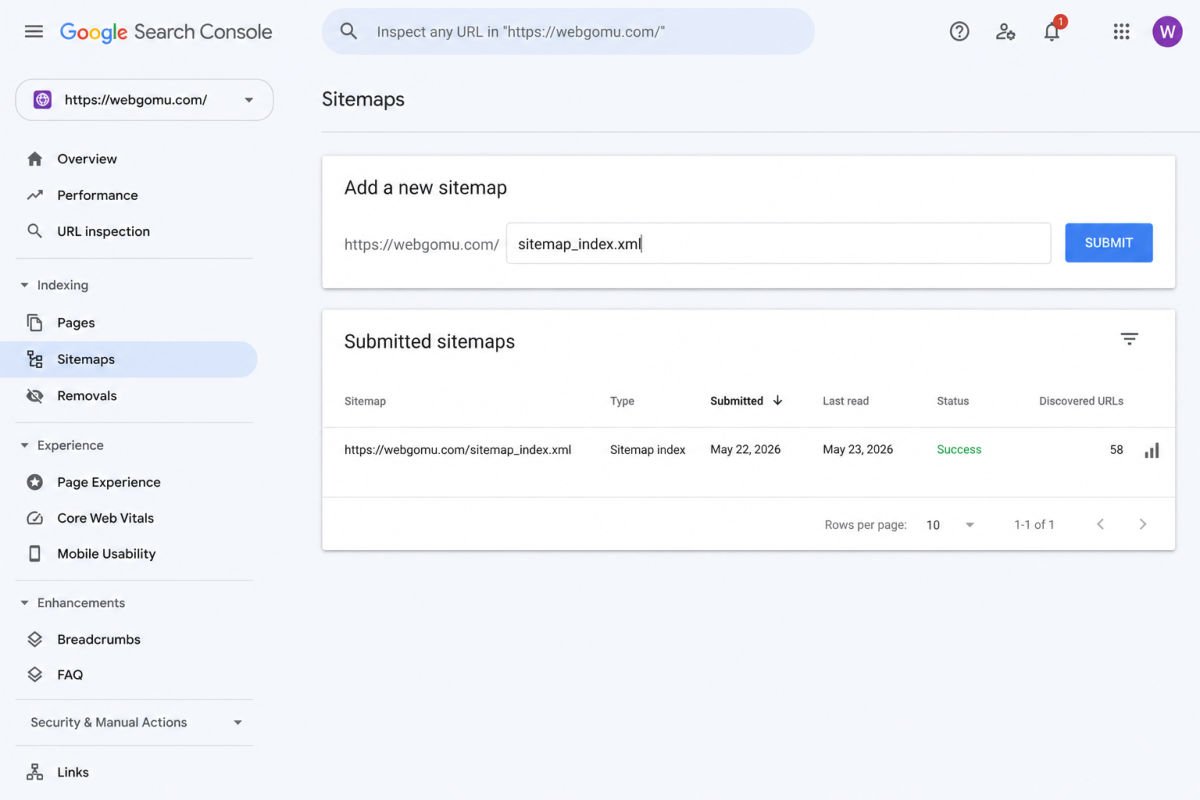
Step 4: Submit Your Sitemap
Once verified, your SEO plugin has already generated a sitemap automatically, usually at yourdomain.com/sitemap_index.xml.
- In Search Console’s left sidebar, click Sitemaps (under Indexing).
- In the “Add a new sitemap” field, enter just the last part of the URL, like sitemap_index.xml.
- Click Submit.
Submitting your sitemap can meaningfully cut down how long it takes for new pages to appear in Google’s index, sometimes from weeks down to days.
What to Check First, Once Verified
Data typically takes 24-72 hours to start appearing. Once it does, prioritize these:
- Coverage / Indexing report — shows which pages are indexed and flags any indexing errors
- Performance report — shows real queries, clicks, impressions, and average position
- Sitemaps status — confirms your sitemap was successfully processed, not just submitted
Don’t check daily in the first week or two. There isn’t enough new data yet to act on meaningfully, and it’s easy to read too much into normal early fluctuation.
Troubleshooting
Verification keeps failing
Confirm the verification code was saved correctly in your SEO plugin’s Webmaster Tools field, and that you’re checking the live site, not a cached version. Clearing your site’s cache before retrying often resolves this; see our WordPress speed optimization guide for broader caching guidance.
My sitemap submission shows an error
Double-check the sitemap URL is entered correctly (just the filename portion, not the full URL again), and confirm your site is public, not set to discourage search engine indexing under Settings → Reading.
I verified successfully, but no data is showing yet
This is expected for the first 24-72 hours. If it’s been longer than that with zero data on a site with published, indexed content, double-check the correct property (URL prefix vs Domain, and http vs https) was verified.
Do I need to keep the verification tag in place?
Yes, permanently. Google periodically re-checks it. If the tag or DNS record is removed, your property becomes unverified and data collection stops until you re-verify.
Common Mistakes
- Verifying the wrong property type (e.g., verifying https://www.yoursite.com when your site actually loads without the www).
- Pasting the verification tag directly into a theme file that gets overwritten on the next theme update.
- Removing the verification tag or DNS record after initial verification, causing the property to lose verified status later.
- Checking for data daily in the first week and reacting to normal, meaningless fluctuation.
Recommended Tools
- Rank Math or Yoast SEO — both include a Webmaster Tools verification field, avoiding manual theme file edits
- WPCode — useful fallback for pasting verification tags safely if you’re not using an SEO plugin with built-in verification
Key Takeaways
- A URL prefix property is simpler for most beginners; Domain property suits multi-subdomain setups.
- Verifying through your SEO plugin avoids editing theme files directly.
- Submitting your sitemap after verification speeds up indexing meaningfully.
- Leave the verification method in place permanently, removing it unverifies your property.
Frequently Asked Questions
Is Google Search Console free?
Yes, completely free, with no paid tier or usage limits for standard use.
How long does it take for data to appear after verifying?
Typically 24 to 72 hours, though it can occasionally take a bit longer for brand-new sites with limited crawl history.
Should I choose a Domain property or a URL prefix property?
URL prefix is simpler for most beginners running a single standard WordPress site. Domain property is useful if managing multiple subdomains and wanting unified data.
Do I need to submit my sitemap manually every time I publish a new post?
No. Once submitted, your SEO plugin keeps the sitemap updated automatically as you publish new content, and Google re-crawls it periodically on its own.
What should I do first once my data starts showing up?
Check the Coverage/Indexing report for errors, and the Performance report for real search queries and click data, these give the clearest, most actionable picture of how your site is actually performing.
Resources Links
Author:

Christoper Enolpe
Founder of WebGomu • WordPress Freelancer with 10+ Years of Experience
Christoper is the founder of WebGomu and a WordPress freelancer with over 10 years of hands-on experience building, optimizing, and maintaining WordPress websites. He writes practical, beginner-friendly guides based on real-world experience, covering WordPress, SEO, website performance, and AI tools to help readers build better websites with confidence.
Learn more: https://webgomu.com/about/
Get one WordPress tip every week
Start Here

The Ultimate Beginner’s Guide to WordPress (2026): Build Your First Website Without Coding
Popular Guides
Our Partner

More from the blog

Best WordPress SEO Plugins 2026: Compared & Ranked
Internal Linking Strategy for WordPress (2026 Guide)