How to Set Up Rank Math SEO the Right Way (2026)

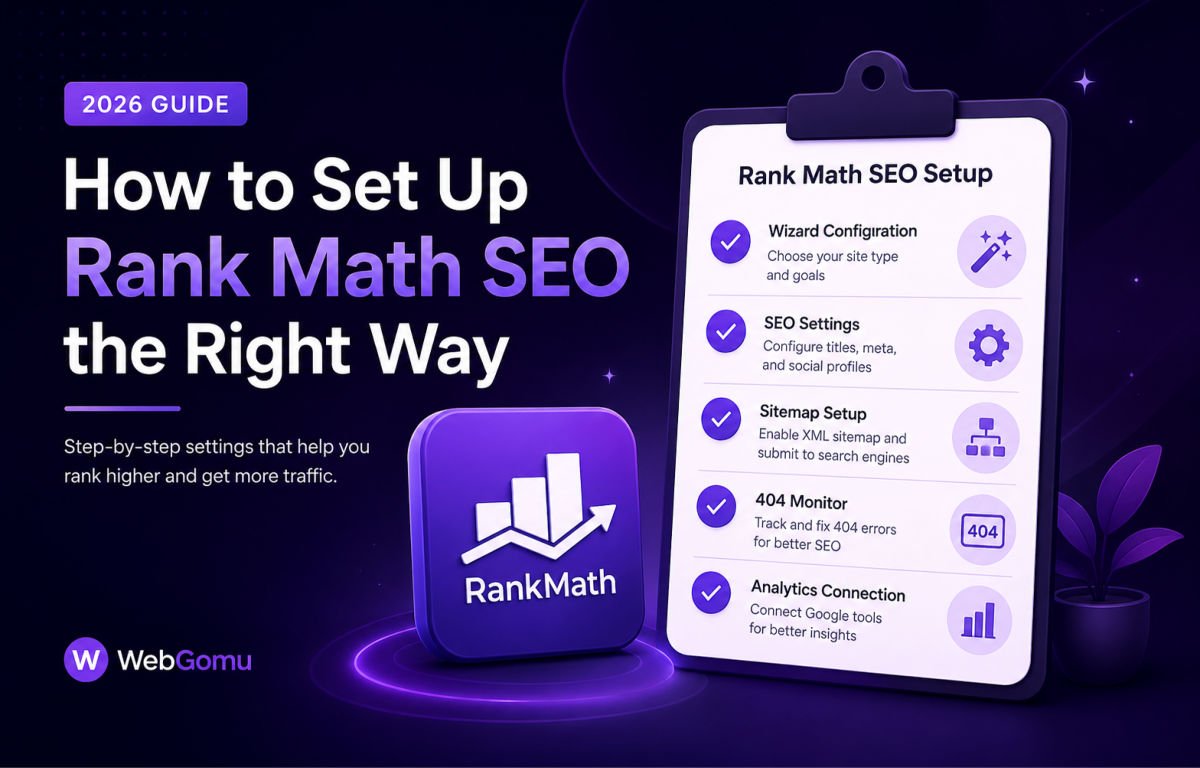
To set up Rank Math correctly, install the plugin, run the Setup Wizard in Easy Mode, connect Google Search Console when prompted, keep sitemaps enabled with images included, turn on “Noindex Empty Category and Tag Archives,” and only enable the modules you’ll actually use. Done properly, this takes about 20 minutes and covers the technical SEO foundation your site needs from day one.
Before You Start
Make sure you have the following in place first:
- Administrator access to your WordPress dashboard
- An active SSL certificate and clean permalink structure (see our SEO checklist if you haven’t confirmed these yet)
- A Google account, needed to connect Search Console during setup
Before running the wizard, work through our complete WordPress SEO checklist so your technical foundations and essential SEO settings are covered.
Most Rank Math tutorials stop at “click through the wizard and you’re done.” That covers installation, but not the handful of settings that actually matter for real SEO performance. This guide walks through the wizard properly, then covers the settings worth double-checking afterward.
What You’ll Learn
- How to install Rank Math and run the Setup Wizard correctly
- Which modules to enable, and which to skip
- The general settings worth reviewing after the wizard finishes
- How to use the on-page SEO panel when writing new content
Step 1: Install Rank Math
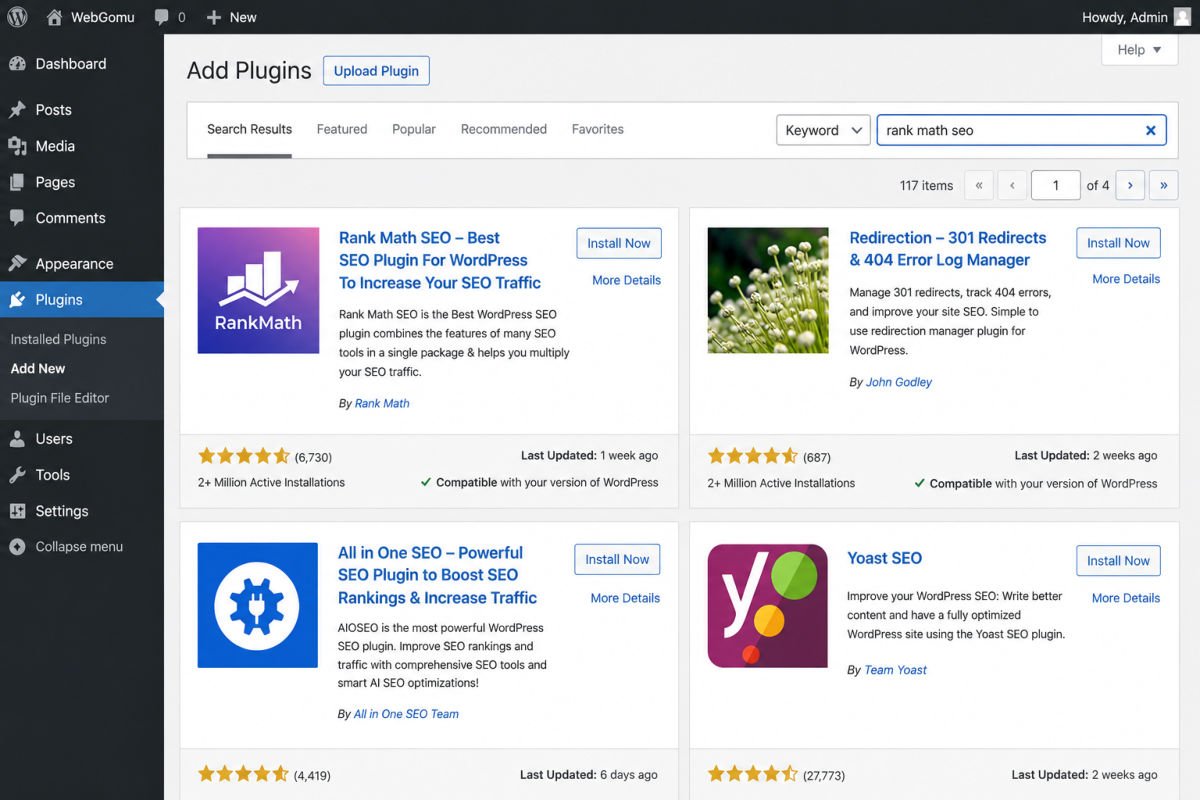
- Go to Plugins → Add New Plugin.
- Search for “Rank Math SEO.”
- Click Install Now, then Activate.
Activating the plugin automatically launches the Setup Wizard. If it doesn’t appear, open it manually from Rank Math SEO → Dashboard → Setup Wizard. If you are still building the site, follow our guide on how to install WordPress before installing Rank Math.
Step 2: Choose Easy Mode
The wizard asks whether you want Easy Mode or Advanced Mode. Choose Easy Mode as a beginner, it applies sensible defaults and hides complex options you likely don’t need yet. You can switch to Advanced Mode later from the dashboard once you’re more comfortable.
Step 3: Connect Your Rank Math Account
Rank Math will prompt you to create a free account. This unlocks several core features, including the SEO analysis tool, so it’s worth doing even though it feels like an extra step.
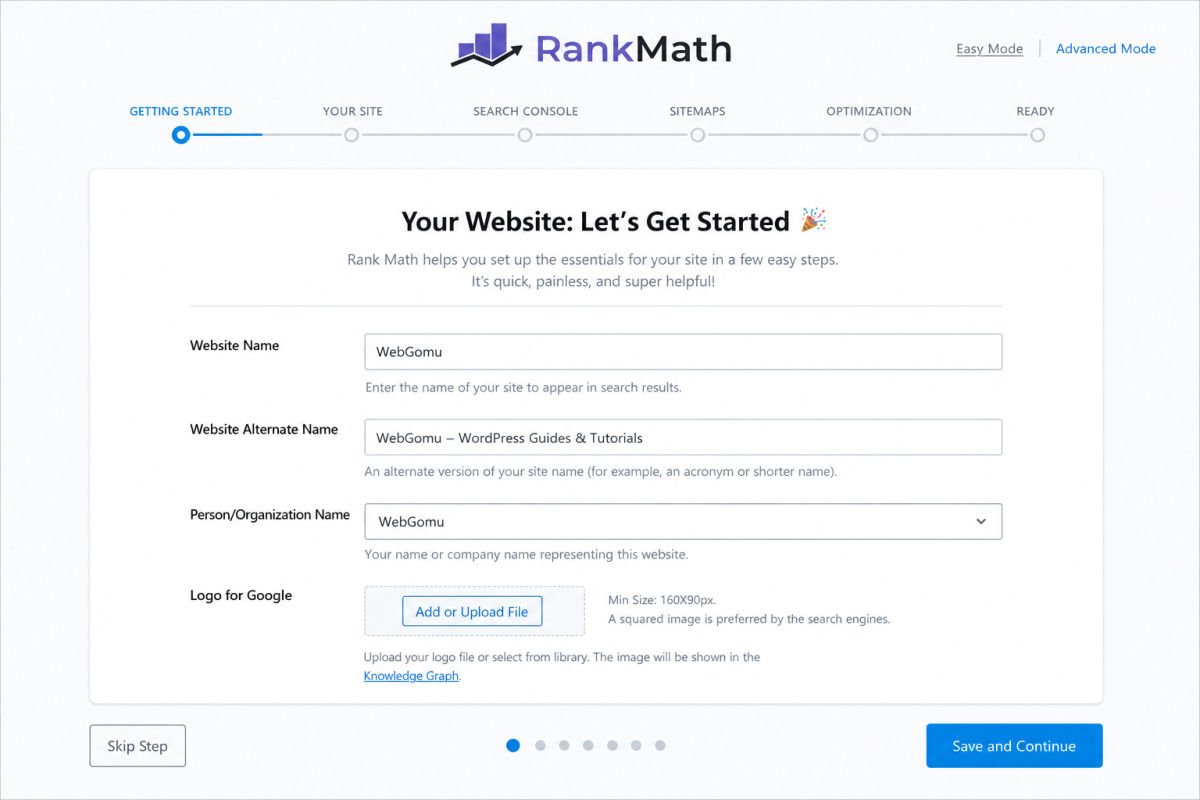
Step 4: Enter Your Website Details
The wizard asks basic questions about your site: what type of website it is (Personal Blog, Small Business, Portfolio, etc.) and your site name as you want it to appear in search results. This information feeds into how search engines and AI systems understand your site’s identity, worth taking a moment to get right rather than rushing through.
Step 5: Connect Google Search Console
If you already have Search Console set up, connect it here so Rank Math can pull performance data directly into your dashboard. If you haven’t set up Search Console yet, see our Search Console setup guide and come back to connect it afterward, this step isn’t required to finish the wizard.
Step 6: Configure Your Sitemap
Keep the Sitemaps option on, it’s on by default, and keep Include Images enabled too, since this helps your images get discovered and ranked in Google Images. For the next step, see our image SEO guide for Google Images to optimize filenames, alt text, and image context. Leave the other sitemap settings (Public Post Types, Taxonomies) at their defaults unless you have a specific reason to change them.
Step 7: Enable “Noindex Empty Category and Tag Archives”
This is the single most important setting beginners skip. Make sure it’s turned on. Without it, empty category and tag pages (ones with no posts assigned yet) can get indexed by Google as thin, low-value pages, which does nothing for your SEO and can even dilute it.
WebGomu Tip: Click Save and Continue through the rest of the wizard once you’ve confirmed this setting, the remaining screens are mostly summary and confirmation.
Step 8: Choose Which Modules to Enable
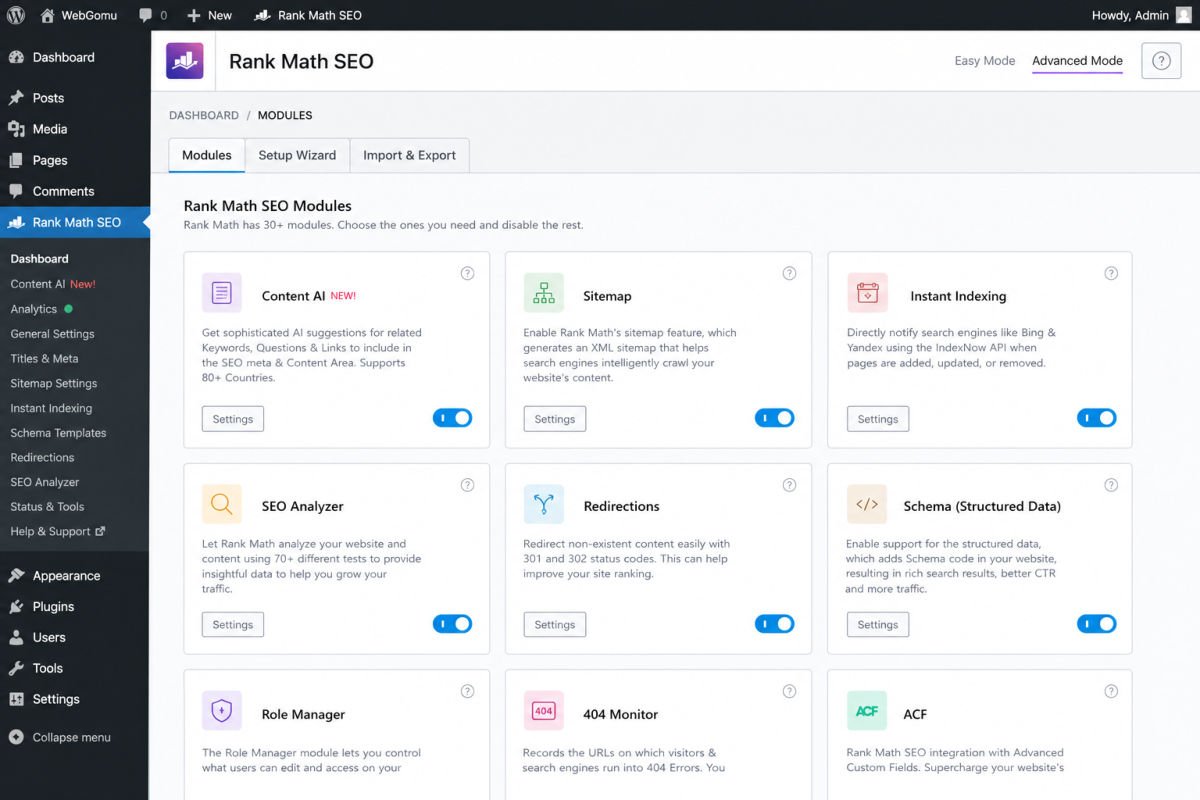
After the wizard finishes, go to Rank Math SEO → Dashboard to review modules. Rank Math bundles a lot into its free tier, but you don’t need everything active immediately. If you are deciding which SEO plugin to use before committing to Rank Math, compare it with the best WordPress SEO plugins.
| Module | Recommendation | Why |
|---|---|---|
| Sitemap | Enable | Core requirement for search engine discovery |
| SEO Analysis | Run once, then disable | Useful one-time technical check, not needed running continuously |
| 404 Monitor | Enable | Surfaces broken links visitors are actually hitting |
| Redirections | Enable | Useful once you start changing URLs or retiring old posts |
| WooCommerce | Enable only if using WooCommerce | Irrelevant overhead if you don’t run a store |
| Local SEO | Enable only for a local business | Not relevant for a general blog or non-local site |
A general rule worth keeping: only enable modules you’ll actually use. Some, like Analytics integration, can contribute to unnecessary database bloat if left running without a real purpose. If you enable Analytics, follow our Google Analytics 4 WordPress setup guide for the separate implementation steps.
Step 9: Review General Settings and Titles & Meta
Under Rank Math SEO → General Settings and Titles & Meta, confirm your default title and meta description patterns for posts, pages, and archives look correct. These are the templates Rank Math uses when you haven’t manually customized a specific page’s snippet. For a broader page-by-page review, use the WordPress SEO checklist after you finish these Rank Math defaults.
Step 10: Use the On-Page Panel When Writing
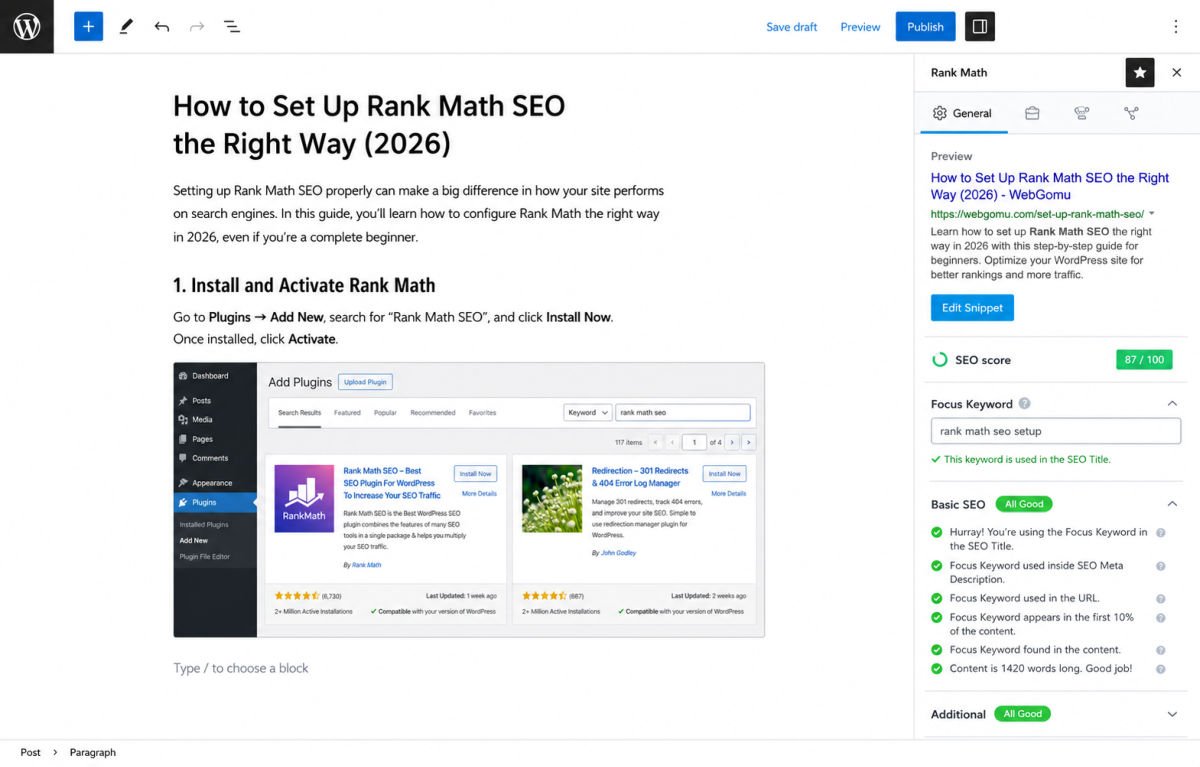
Once setup is complete, every post editor includes a Rank Math panel showing your SEO score and a checklist of specific items: focus keyword placement, meta description length, content length, and more. Green checkmarks indicate items that pass. Treat the score as a helpful guideline, not a strict requirement, a lower score with genuinely useful content still outperforms a perfect score with thin content. For the wider content workflow around optimization and publishing, see our guide to the best WordPress plugins for beginners.
Troubleshooting
The Setup Wizard didn’t open automatically
Open it manually from Rank Math SEO → Dashboard → Setup Wizard.
I’m switching from Yoast or another SEO plugin
The Setup Wizard includes an import option that transfers your existing SEO data (meta titles, descriptions) from your previous plugin, so you don’t need to redo this manually across every post.
My SEO score seems low even though my content is solid
Check whether your focus keyword is set correctly for that post, and whether it appears in your meta description, this is one of the most commonly missed checklist items. That said, a lower score doesn’t mean the content itself is weak. If the page is technically sound but still slow, review the WordPress speed optimization guide.
Common Mistakes
- Skipping the “Noindex Empty Category and Tag Archives” setting during the wizard.
- Enabling every available module regardless of whether it’s actually needed.
- Treating the on-page SEO score as a strict pass/fail grade instead of a guideline.
- Never revisiting General Settings after the initial wizard, even as the site’s needs change.
Recommended Tools
- Rank Math SEO (free) — covers sitemaps, schema, redirections, and a 404 monitor without needing a paid upgrade for most beginner and small business sites
- Rank Math Pro — worth considering only for content-heavy sites publishing weekly or more, where features like multi-keyword targeting see real, frequent use
Key Takeaways
- Choose Easy Mode during setup unless you already understand advanced SEO settings.
- “Noindex Empty Category and Tag Archives” is the setting most beginners miss, and it matters.
- Only enable modules you’ll genuinely use, more isn’t automatically better.
- The on-page SEO score is a helpful guideline, not a strict requirement.
Frequently Asked Questions
Is Rank Math really free?
Yes, the free version includes sitemaps, over 20 schema types, a 404 monitor, redirections, and Local SEO, covering what most solo bloggers and small sites need without upgrading.
Should I choose Easy Mode or Advanced Mode?
Easy Mode is the right choice for beginners, since it applies safe, sensible defaults automatically. Advanced Mode can be switched to later from the dashboard once you’re comfortable with more detailed settings.
Do I need to connect Google Search Console during setup?
It’s recommended but not required to finish the wizard. If you haven’t set up Search Console yet, you can complete Rank Math’s setup first and connect it later.
Why should empty category and tag archives be set to noindex?
Without this setting, empty archive pages with no posts assigned can get indexed as thin, low-value pages, which doesn’t help your SEO and can occasionally work against it.
Can I switch from Yoast to Rank Math without losing my SEO data?
Yes, the Setup Wizard includes an import tool that transfers existing meta titles and descriptions from Yoast or other supported plugins automatically.
Resources Links
Author:

Christoper Enolpe
Founder of WebGomu • WordPress Freelancer with 10+ Years of Experience
Christoper is the founder of WebGomu and a WordPress freelancer with over 10 years of hands-on experience building, optimizing, and maintaining WordPress websites. He writes practical, beginner-friendly guides based on real-world experience, covering WordPress, SEO, website performance, and AI tools to help readers build better websites with confidence.
Learn more: https://webgomu.com/about/
Get one WordPress tip every week
Start Here

The Ultimate Beginner’s Guide to WordPress (2026): Build Your First Website Without Coding
Popular Guides
Our Partner

More from the blog

Best WordPress SEO Plugins 2026: Compared & Ranked
Internal Linking Strategy for WordPress (2026 Guide)