WooCommerce Shipping Setup: Zones, Methods & Rates (2026)

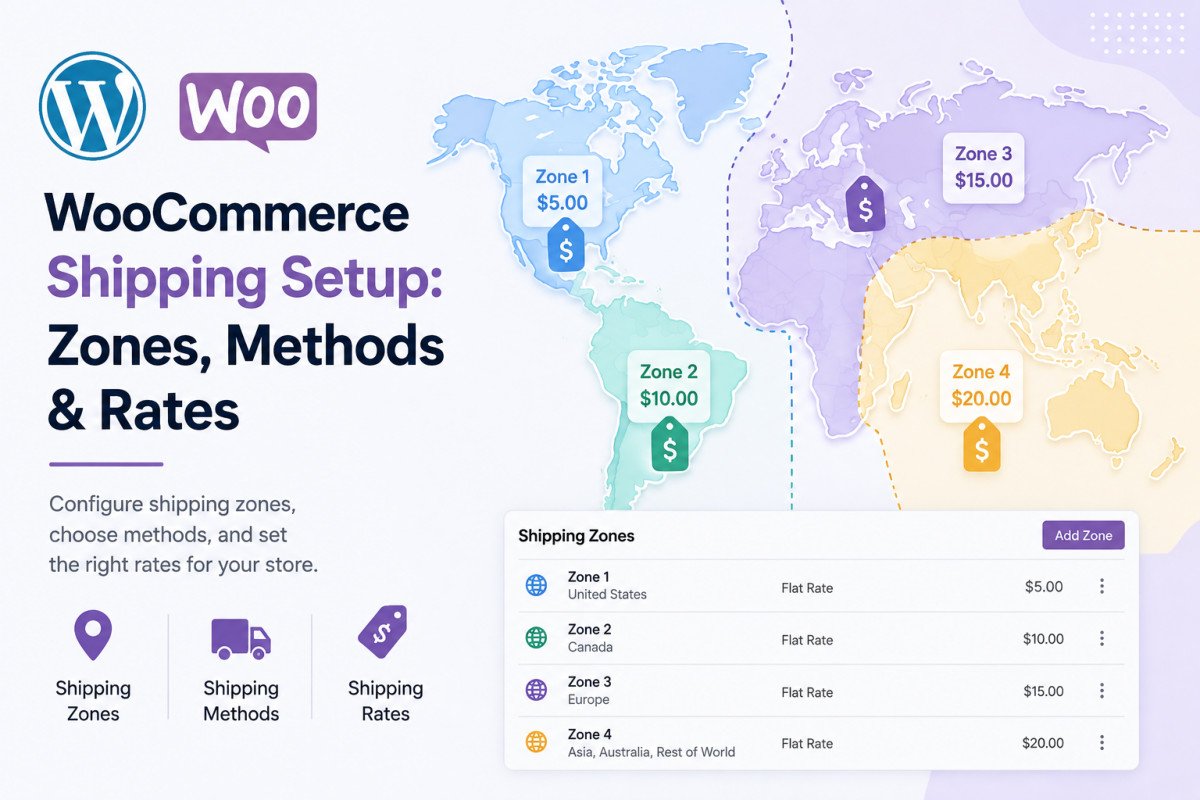
WooCommerce shipping is built around three concepts: zones (geographic regions), methods (Flat Rate, Free Shipping, or Local Pickup, all included by default), and classes (optional product groupings for different rates within a method). Create your zones under WooCommerce → Settings → Shipping, add methods to each, and critically, order your zones from most specific to least specific, WooCommerce matches customers to the first zone that fits, evaluated top to bottom, so a broad zone placed above a specific one will silently catch customers who should have seen different rates.
Before You Start
If you haven’t set up your store yet, see our WooCommerce setup guide first, this article assumes WooCommerce is already installed and you’re ready to configure shipping specifically.
Confusing or unexpectedly expensive shipping is one of the fastest ways to lose a sale at the very last step, right after a customer has already decided to buy. The good news: WooCommerce’s shipping system, once set up correctly, runs entirely on autopilot, customers automatically see the right options for their location, no manual work on your end.
What You’ll Learn
- The three core shipping concepts: zones, methods, and classes
- The zone ordering rule that trips up nearly every beginner
- How to use Flat Rate formulas for dynamic, per-item pricing
- A genuine strategy for setting free shipping thresholds
The 3 Core Concepts
- Shipping Zones — geographic regions you define, as broad as an entire country or as specific as a single state or zip code
- Shipping Methods — the actual delivery options within a zone: Flat Rate, Free Shipping, and Local Pickup are built into WooCommerce by default
- Shipping Classes — optional product groupings (like “heavy” or “fragile”) that let you charge different rates within the same method for products with genuinely different shipping needs
Step 1: Create Your Shipping Zones
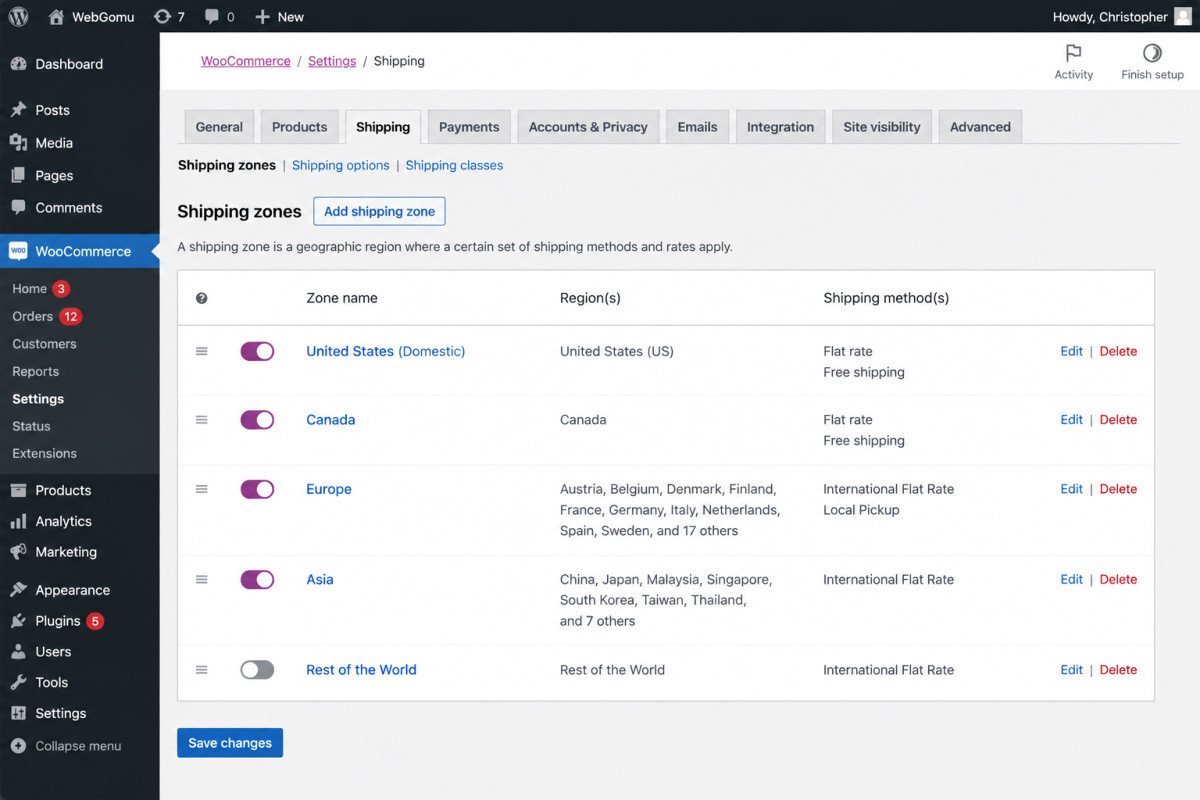
- Go to WooCommerce → Settings → Shipping and click Add shipping zone.
- Give it a clear, descriptive name, “Local,” “Domestic,” or “International” work well.
- Select the specific regions, countries, states, or zip codes, this zone covers.
Most stores work well with 3-6 zones total covering local, domestic, and international shipping. WooCommerce doesn’t impose a hard limit, but keeping your structure simple genuinely helps maintainability.
Step 2: Order Your Zones Correctly
This is the single most common mistake beginners make. WooCommerce evaluates zones from top to bottom and matches a customer to the first zone that fits their address. If a broad zone (like “United States”) sits above a more specific one (like “California”), every California customer gets caught by the broader zone first, the more specific rates never actually apply. Always place your most specific zones above your broader ones.
If a customer’s address doesn’t match any zone you’ve created, they automatically fall into WooCommerce’s default “Locations not covered by your other zones” zone, worth configuring deliberately rather than leaving it blank.
Step 3: Add Shipping Methods to Each Zone
- Open a zone and click Add shipping method.
- Choose Flat Rate, Free Shipping, or Local Pickup.
- Configure the specific price or conditions for that method.
Using Flat Rate Formulas
Flat Rate supports dynamic pricing shortcodes, not just a single fixed price. For example, entering 10 + ( 2 * [qty] ) charges a $10 base rate plus $2 per additional item, genuinely useful if your shipping cost scales meaningfully with order size.
Setting Up Free Shipping Strategically
Rather than offering free shipping unconditionally, set a minimum order amount as the condition. A common, reasonable approach is setting that threshold roughly 15-25% above your current average order value, some data suggests this can meaningfully increase average order size as customers add items to qualify. Worth testing against your own store’s actual numbers rather than assuming a universal figure.
WebGomu Tip: Enable the shipping calculator on your cart page (WooCommerce → Settings → Shipping → Shipping options), and consider hiding shipping costs until an address is entered if you have multiple zones with meaningfully different rates. This avoids the confusion of showing a rate that won’t actually apply to most visitors.
Beyond the Basics: Real-Time Carrier Rates
WooCommerce’s three built-in methods cover most stores’ needs. If you specifically need live rates from carriers like USPS, FedEx, or UPS calculated automatically at checkout, that requires an additional plugin, worth considering once your shipping needs genuinely outgrow flat-rate or free-shipping logic.
Common Mistakes
- Placing broad shipping zones above more specific ones, silently overriding the rates you actually intended.
- Leaving the default “not covered by other zones” fallback unconfigured, potentially leaving some customers with no shipping options at all.
- Offering unconditional free shipping instead of using it strategically with a minimum order threshold.
- Not testing the actual checkout experience from a customer’s perspective after configuring zones and methods.
Recommended Tools
- WooCommerce’s built-in shipping methods — genuinely sufficient for most stores without needing an additional plugin
- A real-time carrier rate plugin — worth considering only once live-calculated rates become a genuine business need
Key Takeaways
- WooCommerce shipping is built around zones, methods, and optional classes.
- Zone order matters critically, place specific zones above broader ones to avoid silently wrong rates.
- Flat Rate formulas support dynamic, per-item pricing beyond a single fixed cost.
- A strategic free shipping threshold, rather than unconditional free shipping, can meaningfully increase order value.
Frequently Asked Questions
What’s the difference between a shipping zone and a shipping method?
A zone is a geographic region, like a country or state. A method is the actual delivery option within that zone, Flat Rate, Free Shipping, or Local Pickup.
Why is shipping zone order important in WooCommerce?
WooCommerce matches customers to the first zone that fits their address, evaluated top to bottom. Placing a broad zone above a more specific one causes the specific zone’s rates to never actually apply.
How many shipping zones should my store have?
Most stores work well with 3-6 zones covering local, domestic, and international regions. There’s no hard limit, but a simpler structure is easier to maintain accurately.
Can I charge different shipping rates per item quantity?
Yes, Flat Rate supports pricing formulas like 10 + ( 2 * [qty] ), charging a base rate plus an additional amount per item.
Should I offer unconditional free shipping?
Not necessarily. Setting a minimum order amount as a condition, commonly 15-25% above your average order value, can encourage larger purchases while still offering the incentive.
Resources Links
Author:

Christoper Enolpe
Founder of WebGomu • WordPress Freelancer with 10+ Years of Experience
Christoper is the founder of WebGomu and a WordPress freelancer with over 10 years of hands-on experience building, optimizing, and maintaining WordPress websites. He writes practical, beginner-friendly guides based on real-world experience, covering WordPress, SEO, website performance, and AI tools to help readers build better websites with confidence.
Learn more: https://webgomu.com/about/
Get one WordPress tip every week
Start Here

The Ultimate Beginner’s Guide to WordPress (2026): Build Your First Website Without Coding
Popular Guides
Our Partner

More from the blog
WooCommerce Checkout Optimization: Reduce Cart Abandonment
WooCommerce Payment Gateways: Setup & Comparison (2026)