How to Fix “Discovered – Currently Not Indexed” in WordPress

“Discovered – currently not indexed” means Google knows your page’s URL exists, usually from your sitemap or an internal link, but hasn’t crawled it yet. This is especially common on newer sites, since Google assigns lower crawl priority until a site builds up history. Fix it by requesting indexing through Search Console’s URL Inspection tool, adding internal links pointing to the page, and confirming the content itself is genuinely useful, not thin or duplicate.
Before You Start
Make sure you have the following in place first:
- Google Search Console verified and connected (see our setup guide if you haven’t yet)
- Your sitemap submitted and showing as successfully processed
If you’ve been checking Search Console and seeing “Discovered – currently not indexed” next to some or all of your pages, it can feel alarming, especially on a newer site where every page matters. The good news: this status is common, usually not a sign anything is broken, and there’s a clear, specific process for addressing it.
What You’ll Learn
- What “Discovered – currently not indexed” actually means, and how it differs from other indexing statuses
- Why it happens, especially on newer sites
- The exact steps to request indexing correctly
- What to check if requesting indexing doesn’t resolve it
What This Status Actually Means
Google found your URL, typically through your sitemap or a link from another page, but hasn’t crawled it yet. This is different from “Crawled – currently not indexed,” which means Google did visit the page but chose not to index it, usually a content quality signal. “Discovered” is earlier in the process: Google knows the page exists but simply hasn’t gotten to it yet.
Why This Happens
A few common causes:
- Crawl budget and queue limits — Google allocates a limited amount of crawling capacity per site, especially newer ones, and pages simply wait their turn.
- New site, lower crawl priority — Google crawls new, unproven sites more cautiously, partly to avoid overloading unfamiliar servers, and gradually increases crawl frequency as the site builds history.
- Orphan pages — pages with few or no internal links pointing to them signal lower importance to Google’s crawlers.
- Thin or low-value content — pages that don’t appear to offer much unique value may simply sit lower in the crawl priority queue.
Step 1: Request Indexing Through Search Console
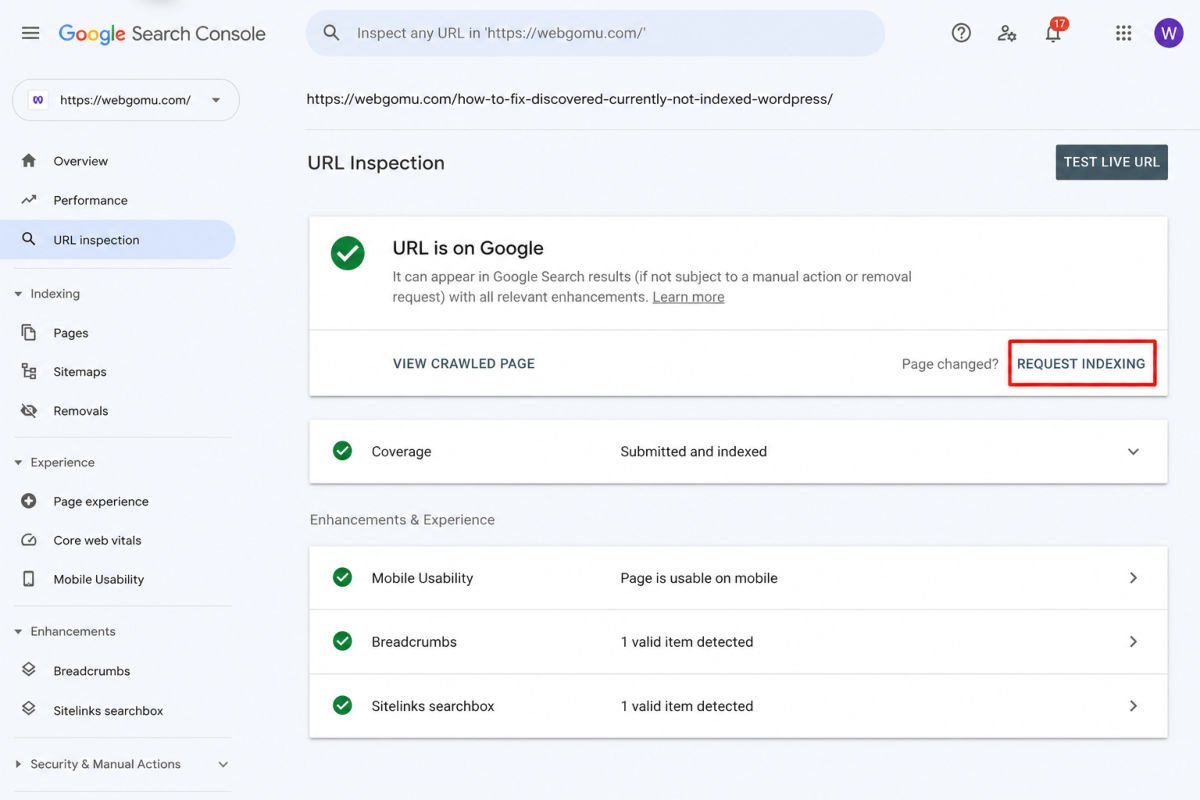
- In Search Console, click URL Inspection in the left sidebar (or paste the URL into the top search bar).
- Enter the specific page URL and press Enter.
- If it shows as not indexed, click Request Indexing.
- You’ll see a confirmation that the URL was added to a priority crawl queue.
WebGomu Tip: There’s an unofficial daily limit on how many URLs you can request indexing for, generally somewhere around 10-15 per day. Submitting the same URL multiple times doesn’t move it up the queue faster, one request is enough, then patience is genuinely the next step.
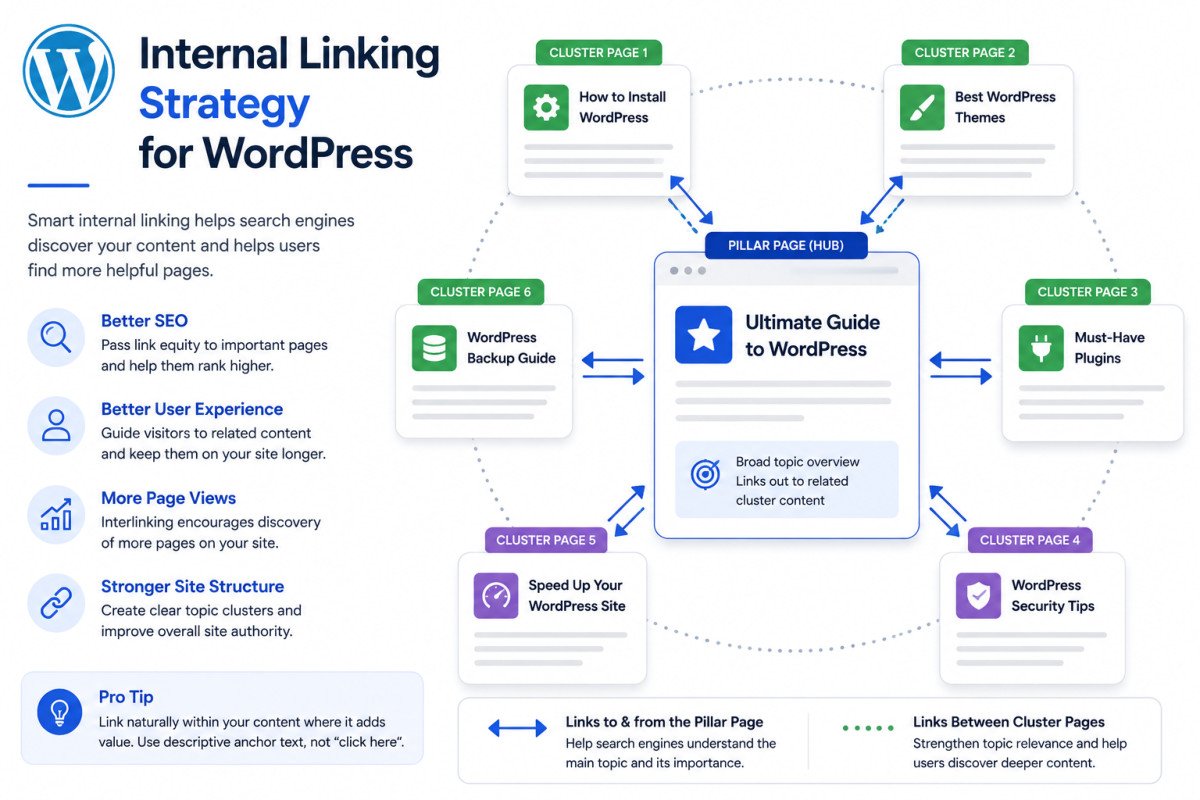
Step 2: Strengthen Internal Linking to the Page
If a page has few or no internal links pointing to it, add some. A practical way to find natural opportunities: search Google using site:yourdomain.com "relevant keyword" to surface existing pages on your site that already mention a related topic, then add a genuine, contextual link from one of them to the non-indexed page.
Step 3: Confirm the Content Is Genuinely Worth Indexing
Honestly assess whether the page offers real, distinct value, not thin, duplicate, or very similar to another page already on your site. If two pages are extremely similar, Google may simply be choosing to index one version and ignore the other.
Step 4: Check Crawlability
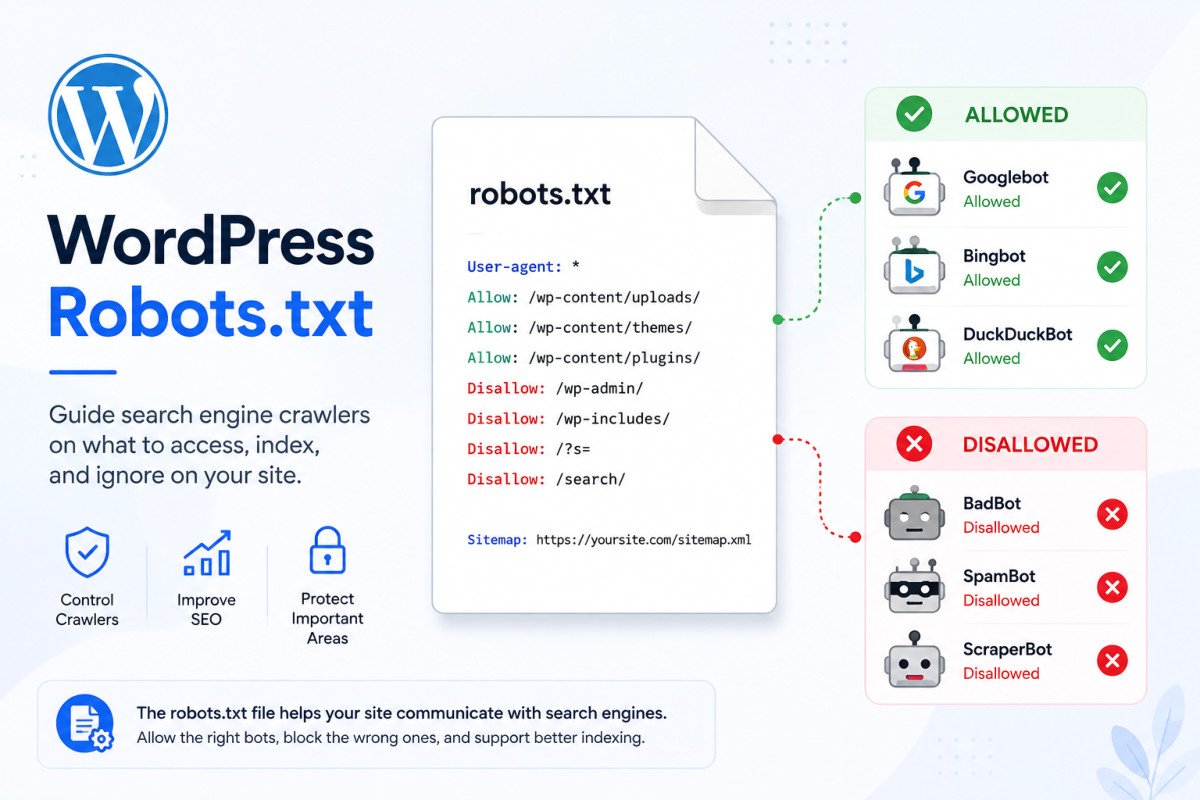
Confirm your robots.txt file isn’t accidentally blocking the page, and that there’s no stray “noindex” tag applied to it in your SEO plugin’s settings for that specific post.
Step 5: Be Patient, Especially on a Newer Site
If you’ve completed the steps above and the status hasn’t changed yet, this is often just a matter of time. New sites are crawled more cautiously as Google builds trust and history, this is normal behavior, not a sign of a real problem, and it generally resolves as your site continues publishing consistently.
Troubleshooting
I requested indexing and it still shows “Discovered – currently not indexed” days later
This is common and not necessarily concerning. Confirm internal linking and content quality are solid, then allow more time. Repeated indexing requests for the same URL don’t help.
The Live Test says “URL can be indexed,” but the page still isn’t
The Live Test checks whether a page is technically eligible for indexing right now, it doesn’t mean indexing has actually happened yet. This is a normal, temporary gap, not a contradiction.
Almost all my pages show this status
This is typical for a genuinely new site still building crawl history and trust with Google. Continue publishing consistently, strengthen internal linking across your site, and expect this to improve gradually over the following months.
Common Mistakes
- Repeatedly requesting indexing for the same URL, expecting it to speed things up.
- Panicking over this status on a brand-new site, when it’s actually normal, expected behavior.
- Publishing a page with no internal links pointing to it anywhere else on the site.
- Ignoring genuinely thin or near-duplicate content as a possible underlying cause.
Recommended Tools
- Google Search Console’s URL Inspection tool — the direct, free way to check status and request indexing
- Rank Math or Yoast SEO — useful for confirming no accidental noindex tag is applied to a specific page
Key Takeaways
- “Discovered – currently not indexed” means Google knows the page exists but hasn’t crawled it yet, different from a quality-based rejection.
- Requesting indexing once, then strengthening internal links, is the right first move.
- This status is especially common and expected on newer sites still building crawl history.
- Patience, paired with consistent publishing, resolves most cases naturally over time.
Frequently Asked Questions
Is “Discovered – currently not indexed” a serious problem?
Not usually, especially on a newer site. It typically just means Google hasn’t gotten to crawling the page yet, not that something is broken.
How is this different from “Crawled – currently not indexed”?
“Discovered” means Google hasn’t crawled the page yet. “Crawled” means Google did visit it, but chose not to index it, usually pointing to a content quality issue rather than a queue delay.
Does requesting indexing multiple times help?
No. Submitting the same URL repeatedly doesn’t change its position in the crawl queue. One request is enough, additional patience is usually the more effective next step.
Why does this happen more often on new websites?
Google crawls new, unproven sites more cautiously, partly to avoid overloading unfamiliar servers, and gradually increases crawl frequency as the site builds a track record.
What’s the most effective thing I can do besides requesting indexing?
Add genuine, contextual internal links pointing to the affected page from other relevant pages on your site. Orphan pages with no internal links are less likely to be prioritized.
Resources Links
Author:

Christoper Enolpe
Founder of WebGomu • WordPress Freelancer with 10+ Years of Experience
Christoper is the founder of WebGomu and a WordPress freelancer with over 10 years of hands-on experience building, optimizing, and maintaining WordPress websites. He writes practical, beginner-friendly guides based on real-world experience, covering WordPress, SEO, website performance, and AI tools to help readers build better websites with confidence.
Learn more: https://webgomu.com/about/
Get one WordPress tip every week
Start Here

The Ultimate Beginner’s Guide to WordPress (2026): Build Your First Website Without Coding
Popular Guides
Our Partner

More from the blog
Best WordPress SEO Plugins 2026: Compared & Ranked
Internal Linking Strategy for WordPress (2026 Guide)